
Connecting a battery-powered speaker to your TV enhances your audio experience. This guide explains how to link speakers wirelessly via Bluetooth or with cables, covering common TV setups and ensuring your speaker’s battery life supports enjoyable, uninterrupted viewing. Learn the simple steps for hassle-free audio upgrades.
How to Connect a Speaker to a TV: Maximizing Your Audio Experience and Battery Life

Tired of tinny TV sound? Want to bring the cinematic experience home with booming audio? Connecting an external speaker can make a world of difference, turning movie nights and gaming sessions into truly immersive events. But what if your favorite speaker runs on a battery? Does that limit your options? Not at all! In this guide, we’ll walk you through exactly how to connect a battery-operated speaker to your TV, ensuring you get the best sound possible without worrying about constant recharging. We’ll cover both wireless and wired methods, so no matter your TV or speaker type, you’ll be set up in no time.
Why Connect an External Speaker to Your TV?

Modern TVs are sleek and often have thin profiles, which unfortunately means smaller, less powerful built-in speakers. This can lead to dialogue that’s hard to hear, flat music, and an overall underwhelming audio experience. Adding an external speaker, especially one with its own power source like a battery, can dramatically improve sound quality. You’ll enjoy richer bass, clearer highs, and a more dynamic soundstage that truly fills your room. Battery-powered speakers offer flexibility, allowing you to place them anywhere without being tethered to a power outlet, which is perfect for patios, kitchens, or even just rearranging your living room for optimal acoustics.
Understanding Speaker Connectivity Options
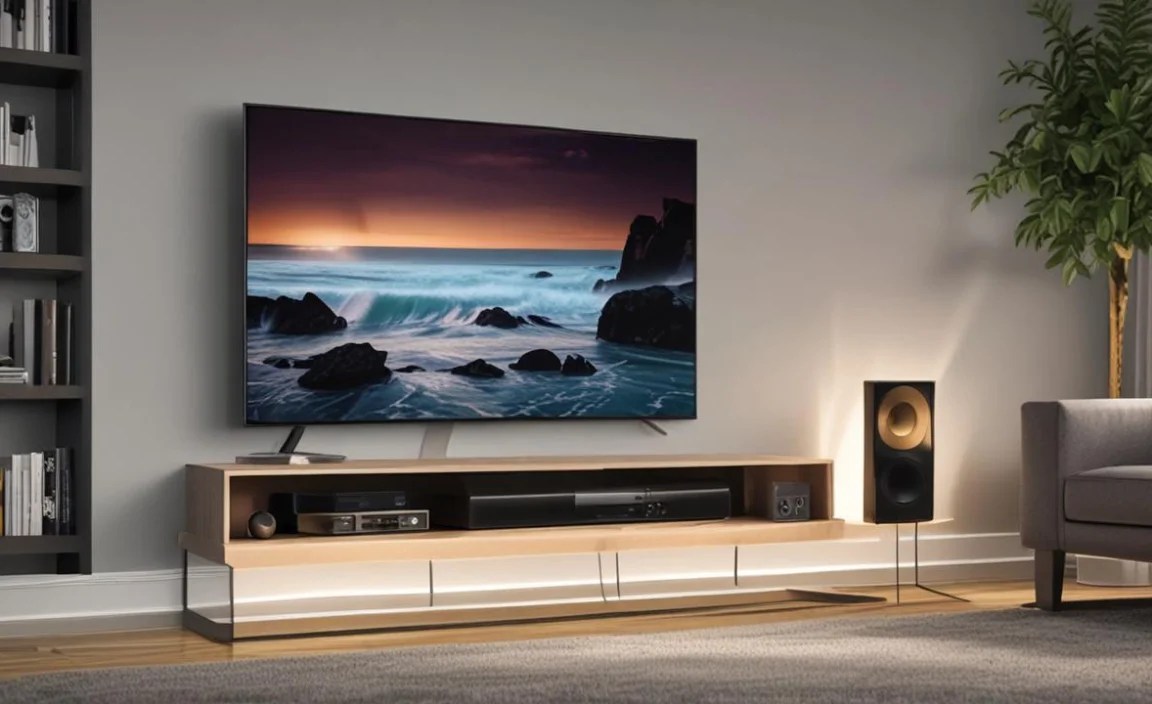
When connecting a speaker to your TV, you generally have two main pathways: wireless or wired. The method you choose will depend on the capabilities of your TV and your speaker.
1. Wireless Connectivity: The Bluetooth Route
Bluetooth is the most common and convenient way to connect a battery-powered speaker to your TV wirelessly. It’s like pairing your phone to a speaker, but for your television.
How Bluetooth Works
Bluetooth uses short-range radio waves to create a personal area network (PAN). It allows devices within approximately 30 feet (10 meters) to communicate with each other. For audio, this means your TV transmits sound signals to your Bluetooth speaker.
For a deeper dive into the technology behind Bluetooth, you can explore resources from the Bluetooth Special Interest Group (SIG).
Steps to Connect via Bluetooth
Connecting via Bluetooth is usually straightforward. Here’s a general step-by-step process:
- Ensure Both Devices Support Bluetooth: Check your TV’s specifications or settings menu to confirm it has Bluetooth output capabilities. Most modern smart TVs do, but older models might not. Similarly, ensure your speaker is Bluetooth-enabled.
- Put Your Speaker in Pairing Mode: Turn on your Bluetooth speaker. There will typically be a button or a specific sequence of presses to activate its pairing mode. This often involves holding down the Bluetooth button until a light blinks or an audio cue signals it’s ready to connect. Consult your speaker’s manual if you’re unsure.
- Open Bluetooth Settings on Your TV: Navigate to your TV’s settings menu. Look for options like “Sound,” “Audio Output,” “Connections,” or “Bluetooth.” Select the Bluetooth settings.
- Scan for Devices: On your TV, select the option to “Scan for Devices,” “Add Device,” or “Pair Device.” Your TV will search for nearby discoverable Bluetooth devices.
- Select Your Speaker: Your Bluetooth speaker should appear in the list of available devices. Click on its name to select it.
- Confirm Pairing: You might be prompted to confirm a pairing code on both devices, or it might connect automatically. Follow any on-screen instructions. Once successfully paired, your TV’s sound should now play through your Bluetooth speaker.
- Set Audio Output: In your TV’s sound settings, ensure that Bluetooth audio is selected as the primary output.
Tips for Optimal Bluetooth Performance
- Proximity: Keep the speaker relatively close to the TV for a stable connection. Obstacles like walls can interfere with the signal.
- Minimize Interference: Other wireless devices (microwaves, Wi-Fi routers, other Bluetooth devices) can sometimes cause interference. Try to keep them at a distance.
- Update Firmware: Ensure both your TV and speaker have the latest firmware updates installed, as these can improve Bluetooth performance and stability.
Potential Challenges with Bluetooth
- Lag (Latency): Some Bluetooth connections can experience a slight delay between the video and audio. This is called latency and can be noticeable during fast-paced scenes or gaming. Look for TVs and speakers that support low-latency Bluetooth codecs like aptX Low Latency if this is a concern.
- Compatibility: Not all Bluetooth devices are compatible with each other. Ensure they support similar Bluetooth profiles and codecs.
- Limited Range: As mentioned, Bluetooth has a limited range. If you move the speaker too far away, the connection will drop.
2. Wired Connectivity: The Reliable Alternative
If your TV doesn’t have Bluetooth, or if you want to avoid potential latency issues, a wired connection is a fantastic, straightforward option. Battery-powered speakers can often be connected via audio cables.
Common Wired Connections
There are a few types of audio jacks you might encounter:
- 3.5mm Aux Port: This is the most common. It looks like a headphone jack and is found on many speakers and TVs. You’ll need a 3.5mm male-to-male audio cable.
- RCA Ports: These are usually red and white (or black) circular jacks. Many TVs have these for audio output. You’ll need an RCA-to-3.5mm cable if your speaker has a 3.5mm input, or an RCA-to-RCA cable if your speaker has RCA inputs.
- Optical (Toslink) Port: This is a digital audio connection that offers high-quality sound. However, most basic battery-powered speakers don’t have optical inputs. If yours does, you’d need a digital-to-analog converter (DAC) to connect it to a standard speaker with a 3.5mm or RCA input.
Steps to Connect via Aux Cable
This is the simplest wired method.
- Identify Ports: Locate the audio output (e.g., headphone jack, line-out) on your TV. Ensure it’s an output, not an input (a headphone jack is usually an output). Then, find the audio input (usually a 3.5mm aux-in port) on your speaker.
- Get the Right Cable: You’ll need a 3.5mm male-to-male audio cable. These are readily available online or at electronics stores.
- Connect the Cable: Plug one end of the 3.5mm cable into the audio output on your TV and the other end into the aux-in port on your speaker.
- Set TV Audio Output: Go to your TV’s sound settings and select “Headphone,” “Audio Out,” or “External Speaker” as the audio output. Some TVs might automatically switch when a cable is plugged in.
- Adjust Speaker Volume: Turn on your speaker and adjust its volume. You may also need to adjust the TV volume.
Using RCA Cables
If your TV has RCA audio outputs (red and white jacks) and your speaker has a comparable input (or a 3.5mm aux-in), you’ll need an adapter cable.
- Identify Ports: Locate the RCA audio outputs (usually labeled “Audio Out” or “L/R”) on your TV. Find the corresponding input on your speaker (RCA or 3.5mm aux-in).
- Get the Right Cable: You’ll likely need either an RCA-to-RCA cable or, more commonly, an RCA-to-3.5mm cable. The latter has two RCA plugs on one end and a single 3.5mm plug on the other.
- Connect the Cable: Plug the RCA ends into the corresponding red and white audio outputs on your TV. Plug the 3.5mm end into the speaker’s aux-in port.
- Set TV Audio Output: Navigate to your TV’s sound settings and select the appropriate audio output (e.g., “Audio Out,” “Line Out”). Again, some TVs might switch automatically.
Pros and Cons of Wired Connections
Here’s a quick look at the advantages and disadvantages:
| Pros | Cons |
|---|---|
| No Latency: Sound is transmitted instantly, perfect for movies and gaming. | Cable Length Limitations: You’re restricted by the length of your cable. |
| Stable Connection: Less prone to interference than wireless. | Requires Specific Ports: Your TV and speaker need compatible audio jacks. |
| Simple Setup: Usually just plug and play. | Clutter: Cables can add to the mess of your entertainment setup. |
| No Battery Drain on TV: Doesn’t use up the TV’s resources for wireless transmission. | May Not Work with All Battery Speakers: Some portable speakers only have Bluetooth or are designed for direct playback. |
Choosing the Right Speaker for Your TV

When selecting a battery-powered speaker to pair with your TV, consider these factors:
- Connectivity Options: Does it have Bluetooth, an Aux-in port, or both? This is the most crucial factor.
- Sound Quality: Read reviews! Look for speakers that offer clear dialogue, decent bass, and a balanced sound profile for the type of content you watch.
- Battery Life: How long does it last on a single charge? For extended movie marathons, you’ll want a speaker with 10+ hours of playback.
- Driver Size and Power: Larger drivers generally mean better bass response and volume. Check the wattage for an idea of loudness.
- Portability vs. Home Use: Are you looking for something small to move around, or a more substantial speaker designed to primarily stay in your living room?
- Water Resistance: Not essential for indoor TV use, but a nice bonus if you might use it for poolside viewing or in other environments.
For TVs that don’t have built-in Bluetooth, a Bluetooth transmitter (or adapter) can be a lifesaver. These small devices plug into your TV’s audio output (often optical or 3.5mm) and broadcast a Bluetooth signal, allowing you to connect any Bluetooth speaker.
Optimizing Your Speaker’s Battery Life for TV Use
Battery-powered speakers are designed for convenience, but you still want them to last through your shows. Here’s how to make the most of their battery life:
- Use Recommended Charging Practices: Always use the charger that came with your speaker or a reputable equivalent. Avoid overcharging, especially with older battery technologies. Modern lithium-ion batteries have built-in protection, but it’s good practice to unplug them once fully charged.
- Store Properly: If you’re not using the speaker for an extended period, store it with about a 50% charge. Extreme temperatures (hot or cold) can degrade battery health faster.
- Adjust Volume Levels: Playing music at extremely high volumes drains the battery much faster than moderate listening levels. For TV, you often don’t need maximum volume. Find a comfortable listening level that balances immersion with battery conservation.
- Disable Unused Features: Some speakers have extra features like LED lights, voice assistants, or multi-speaker pairing. If you’re not using these while connected to your TV, turn them off to save power.
- Check for Firmware Updates: Manufacturers sometimes release firmware updates that can improve power management and overall efficiency.
- Consider Placement: While not directly related to battery drain, proper speaker placement can help you achieve satisfactory volume without pushing the speaker to its limits. The Dolby Atmos standard, for instance, relies heavily on room acoustics and speaker positioning for its immersive effect, though this is more advanced.
Troubleshooting Common Connection Issues
Even with the best guides, sometimes things don’t connect right away. Here are a few common problems and how to fix them:
Problem: My TV won’t find my Bluetooth speaker.
Solution:
- Ensure your speaker is in pairing mode.
- Make sure Bluetooth is enabled on your TV.
- Move the speaker closer to the TV.
- Turn off and back on both devices.
- Forget the device on your TV and try pairing again.
- Check if your TV’s Bluetooth version is compatible with your speaker.
Problem: There’s a noticeable delay (lag) between the video and audio.
Solution:
- If possible, switch to a wired connection (3.5mm aux cable). This is the most reliable fix for latency.
- If using Bluetooth, check if your TV or speaker supports low-latency codecs like aptX Low Latency and ensure both devices have it enabled.
- Some TVs have an “AV Sync” or “Audio Delay” setting that you can adjust manually to align video and audio. You can find guides on how to adjust these settings for specific TV brands, like those provided by support forums or manufacturer websites.
Problem: The sound is cutting out or choppy.
Solution:
- Reduce the distance between the TV and speaker.
- Minimize interference from other wireless devices.
- Ensure the speaker is fully charged; low battery can sometimes cause performance issues.
- Restart both devices.
- Update firmware on both devices if available.
Problem: My wired connection doesn’t produce sound.
Solution:
- Double-check that the cable is securely plugged into both the TV and the speaker.
- Confirm that your TV’s audio output is set correctly (e.g., “Headphone,” “Audio Out”).
- Ensure the volume on both the TV and the speaker is turned up.
- Try a different audio cable to rule out a faulty cable.
- Verify that you are using an audio output on your TV, not an input.
For more detailed troubleshooting specific to your TV model, consult your TV’s user manual or the manufacturer’s support website. Many resources, including detailed FAQs and video tutorials, can be found on sites like the Rtings.com, which provides in-depth reviews and guides on TV and audio setups.
Frequently Asked Questions (FAQ)
Can I connect any battery-powered speaker to my TV?
Generally, yes, provided your TV has the right connectivity options (like Bluetooth or an audio output jack) and your speaker has a compatible input (like Bluetooth or an aux-in port). Most portable Bluetooth speakers can be paired with a Bluetooth-enabled TV.
Do I need a special cable to connect a speaker to a TV?
It depends on the ports available. For Bluetooth, no cable is needed. For wired connections, you’ll typically need a 3.5mm male-to-male audio cable for aux ports, or an RCA-to-3.5mm cable for RCA outputs to a 3.5mm input. Always check your TV and speaker ports.