
Installing a voice-controlled smart speaker is straightforward and quick, typically taking under 30 minutes. Follow these steps: unpack, plug in, download the app, connect to Wi-Fi, and personalize settings. You’ll be enjoying hands-free control of your music, smart home devices, and information in no time.
Hey there, tech enthusiasts and smart home hopefuls! Bob E Riley here, ready to help you navigate the exciting world of voice-controlled smart speakers. Have you ever dreamed of dimming the lights, playing your favorite tunes, or getting a weather update just by asking? It sounds like pure magic, but setting up these amazing devices is actually simpler than you might think! Many people find the initial setup a bit daunting, wondering if they need special tools or a degree in computer science. But don’t worry! I’m here to guide you through every step, turning any confusion into confidence. Get ready to discover how easy it is to bring the convenience of voice control into your home. Let’s get your smart speaker humming!
Your Smart Speaker Setup: What You’ll Need
Before you even unbox your new voice-controlled smart speaker, it’s good to know what you’re working with. Most smart speakers are designed for ease of use, and you won’t need many special tools. The goal is to get you up and running quickly so you can start enjoying the benefits of hands-free control.
Essential Items for Installation:
- Your Smart Speaker: Of course! Make sure it’s the correct model for your needs.
- Power Adapter: This usually comes with the speaker.
- Smartphone or Tablet: You’ll need this to download and use the companion app for setup. Make sure it’s connected to your home’s Wi-Fi network.
- Home Wi-Fi Network Name and Password: Crucial for connecting your speaker to the internet.
- Bluetooth Enabled Device: Most smart speakers use Bluetooth for initial pairing.
Optional (But Helpful) Items:
- A Stable Surface: A clear spot on a shelf, table, or counter where your speaker can sit without being too close to walls (which can affect sound quality).
- A Quiet Environment: Can make voice commands easier for the speaker to recognize during setup.
Choosing the Right Smart Speaker for You
With so many options out there, picking the perfect smart speaker can feel overwhelming. Different brands offer unique features and voice assistants. Here’s a quick look at some popular choices to help you decide:
| Smart Speaker Type | Voice Assistant | Key Features | Best For |
|---|---|---|---|
| Amazon Echo (e.g., Echo Dot, Echo Show) | Alexa | Vast skill library, excellent smart home integration, displays (on Echo Show models). | Smart home enthusiasts, those in the Amazon ecosystem. |
| Google Nest (e.g., Nest Mini, Nest Hub) | Google Assistant | Superior search capabilities, natural language processing, integrates well with Google services. | Google users, those who value information accuracy. |
| Apple HomePod (e.g., HomePod Mini) | Siri | Exceptional audio quality, strong privacy focus, seamless Apple device integration. | Apple users, audiophiles. |
| Sonos One | Alexa & Google Assistant (selectable) | Premium sound quality, multi-room audio capabilities, versatile voice assistant support. | Music lovers, users wanting high-fidelity audio. |
Think about what you’ll mostly use your speaker for. Are you a music lover who prioritizes sound quality, or is seamless integration with your existing smart home devices the main goal? Answering these questions will point you towards the best fit.
Step-by-Step Installation Guide
You’ve got your speaker, your phone is ready, and your Wi-Fi password is in hand. Great! Let’s get this smart speaker installed. We’ll break it down into simple, manageable steps. No complicated wiring or confusing menus here!
Step 1: Unwrap and Power Up
Carefully unpack your new smart speaker. You’ll find the speaker itself and its power adapter. Find a good spot for your speaker – somewhere it has decent airflow and isn’t tucked away in a corner. Plug the power adapter into your speaker and then into a power outlet.
Your speaker should light up or make a sound to indicate it’s powering on. Some speakers have a light ring that changes color, while others emit a welcome chime. This tells you it’s ready for the next step.
Step 2: Download the Companion App
Every major smart speaker brand has a dedicated app. This app is your command center for setup and management. You’ll need to download it onto your smartphone or tablet.
- For Amazon Echo: Download the “Amazon Alexa” app.
- For Google Nest: Download the “Google Home” app.
- For Apple HomePod: You’ll use the “Home” app already built into your Apple devices.
- For Sonos: Download the “Sonos” app.
You can usually find these apps on the Apple App Store or Google Play Store. Just search for the brand name and the app should appear.
Step 3: Connect to Your Wi-Fi Network
Open the app you just downloaded. You’ll likely be prompted to create an account or sign in if you already have one. Once logged in, the app will guide you through the process of finding and setting up your new speaker.
Follow the on-screen instructions. This usually involves:
- Putting your speaker into setup mode (sometimes this happens automatically, other times you might need to press a button for a few seconds).
- Allowing the app to search for nearby devices, often using Bluetooth.
- Selecting your home Wi-Fi network from a list.
- Entering your Wi-Fi password.
This is the most critical step for internet-connected functionality. A stable Wi-Fi connection is key to a good smart speaker experience. If you’re unsure about your Wi-Fi password, it’s often found on a sticker on your router.
Step 4: Voice Assistant Setup and Personalization
Once your speaker is connected to Wi-Fi, the app will guide you through setting up the voice assistant. This typically involves:
- Voice Training: For assistants like Alexa and Google Assistant, you might be asked to say a few phrases. This helps the assistant learn to recognize your voice better, which is great for personalized results and voice recognition. Companies like Amazon and Google have detailed privacy policies regarding voice data, which you can review on their respective websites. For instance, Amazon’s policies on Alexa usage can be found on their help pages.
- Linking Accounts: You may be asked to link other accounts, such as music streaming services (Spotify, Apple Music, etc.), calendar apps, or smart home device accounts. This allows your speaker to perform actions across these services.
- Name your device: Give your speaker a name (e.g., “Living Room Speaker,” “Kitchen Echo”).
Take your time here. Linking your preferred music service will unlock a world of on-demand audio enjoyment. Choosing your dominant language is also important for the best interaction.
Step 5: Test Your Speaker
Congratulations, the main setup is complete! It’s time to test it out. Try a few simple voice commands:
- “Alexa/Hey Google/Siri, what’s the weather like today?”
- “Alexa/Hey Google/Siri, play some music.”
- “Alexa/Hey Google/Siri, set a timer for 5 minutes.”
Listen for the response. If it answers correctly, your smart speaker is up and running! If there are any issues, double-check your Wi-Fi connection and ensure your speaker is within decent range of your router. Sometimes, simply restarting the speaker and your Wi-Fi router can solve connectivity problems.
Troubleshooting Common Installation Issues
Even with the best guides, sometimes things don’t go perfectly smoothly. Don’t let a hiccup discourage you! Most smart speaker installation problems are minor and easily fixed. Here are a few common issues and how to tackle them.
Issue 1: Speaker Not Turning On
Solution:
- Ensure the power adapter is securely plugged into both the speaker and a working power outlet.
- Try a different power outlet to rule out an electrical issue.
- Check if the power adapter itself is damaged. If so, you may need a replacement from the manufacturer.
Issue 2: App Can’t Find the Speaker
Solution:
- Make sure Bluetooth is enabled on your smartphone or tablet.
- Ensure your speaker is in setup mode. Refer to your speaker’s manual for specific instructions on how to do this (often involves pressing and holding a button).
- Move your phone closer to the speaker.
- Restart both your speaker and your smartphone.
Issue 3: Wi-Fi Connection Fails
Solution:
- Double-check that you’ve entered your Wi-Fi password correctly. Passwords are case-sensitive!
- Make sure you are connecting to a 2.4 GHz network if your speaker only supports that band. Many routers broadcast both 2.4 GHz and 5 GHz networks.
- Move your smart speaker closer to your Wi-Fi router during the setup process. Signal strength is important.
- Restart your Wi-Fi router and modem. Wait a couple of minutes for them to fully reboot before trying to connect the speaker again.
- Check your router’s settings. Some advanced security settings might interfere with new device connections. You can find helpful guides on network security and router management from resources like the Federal Communications Commission (FCC) consumer guides.
Issue 4: Voice Commands Not Working
Solution:
- Ensure the speaker’s microphone is not muted. Most speakers have a button or a light indicator for the microphone status.
- Speak clearly and at a normal volume.
- Verify that the speaker is still connected to your Wi-Fi network.
- If you trained your voice, try re-training it within the app.
- Check the app for any software updates for your speaker, as these can fix bugs.
Maximizing Your Smart Speaker Experience
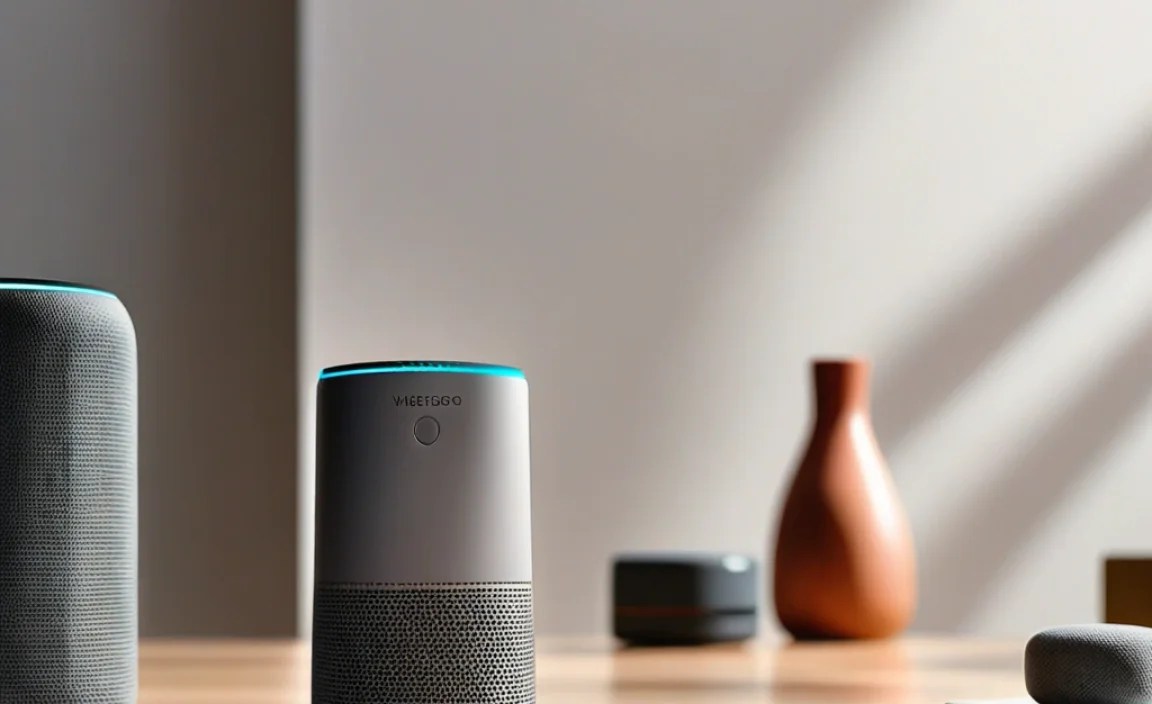
Once your voice-controlled smart speaker is installed and working, the real fun begins! Beyond basic commands, these devices can do so much more. Here are some tips to get the most out of your new tech friend.
Discovering Skills and Actions
Smart speakers are like programmable assistants. They have “skills” (Alexa) or “actions” (Google Assistant) developed by third parties. These can range from ordering pizza and playing trivia games to controlling specific smart home devices or even telling jokes.
- Explore the App: The companion app (Alexa, Google Home, etc.) has a section dedicated to discovering new skills and actions. Browse categories or search for specific interests.
- Enable Routines/Automations: Set up “routines.” This means you can string together multiple commands with a single trigger phrase. For example, a “Good Morning” routine could turn on your lights, tell you the news, and start your coffee maker (if compatible).
Smart Home Integration
One of the most powerful uses of smart speakers is controlling your smart home devices. Most lights, thermostats, locks, and cameras from major brands are compatible.
- Linking Devices: Use the smart speaker app to link your smart home device accounts.
- Voice Control: Once linked, you can control devices with your voice. Say things like, “Alexa, turn off the living room lights,” or “Hey Google, set the thermostat to 72 degrees.”
- Creating Groups: You can group devices (e.g., “all downstairs lights”) to control them all at once.
Audio Quality and Placement
While setup is key, placement significantly impacts sound. Experiment to find the best spot.
- Avoid Corners: Placing a speaker directly in a corner can boost bass but may also make the sound muddy.
- Mid-Shelf Placement: A shelf or table often provides a good balance, allowing sound to project evenly.
- Distance from Walls: Keep speakers at least a few inches away from walls for optimal clarity.
- Consider Room Size: Smaller speakers like the Echo Dot or Nest Mini are great for offices or bedrooms, while larger models or multi-speaker setups are better for living rooms.
Privacy Settings
It’s important to be aware of and manage your privacy settings. Voice assistants are always listening for their wake word, but they don’t record or process conversations until they hear it.
- Microphone Mute: Use the physical button on your speaker to turn off the microphone when you want complete privacy.
- Review Voice History: Most apps allow you to review and delete voice recordings associated with your account.
- Understand Company Policies: Familiarize yourself with the privacy policies of your smart speaker’s manufacturer. For example, Apple emphasizes on-device processing for many Siri requests to enhance privacy.
By exploring these features, your smart speaker will become an indispensable part of your daily life, offering convenience, entertainment, and smart home control at your command.
Frequently Asked Questions (FAQ)
Q1: Do I need a special Wi-Fi network for a smart speaker?
A1: No, most smart speakers connect to a standard home Wi-Fi network (like the one you use for your computer or phone). Ensure your network is password-protected for security.
Q2: Can I set up a smart speaker without a smartphone?
A2: Generally, no. A smartphone or tablet is almost always required for the initial setup process using the manufacturer’s app. Once set up, voice commands can be used, but the app is for initial configuration.
Q3: How far away can I be from the speaker to talk to it?
A3: The range varies by model and environment. In a quiet room, you can often speak from 20-30 feet away. For best results, especially with background noise, try to be within 10-15 feet.
Q4: What happens if my internet goes down?
A4: Without an internet connection, your smart speaker will lose most of its functionality, including controlling smart home devices, playing music from streaming services, and answering questions. However, some basic functions like playing locally stored music (if supported) or acting as a Bluetooth speaker might still work.
Q5: Is it hard to switch smart speaker brands later?
A5: It can be a minor hassle. You’ll need to download a new app and repeat the setup process for the new speaker. If you have many smart home devices linked, you might need to re-link them to the new ecosystem, but this is usually straightforward. The learning curve mainly involves getting used to a new voice assistant’s quirks.
Q6: Can multiple people in my house use the same smart speaker?
A6: Absolutely! Most smart speakers can be used by anyone in the household. Some, like those with voice training, can even recognize different users and provide personalized results (e.g., playing your music playlist or reading your calendar).
Q7: What’s the difference between a smart speaker and a Bluetooth speaker?
A7: A Bluetooth speaker plays audio from your device via a direct wireless connection. A smart speaker can do this, but it also connects directly to the internet via Wi-Fi. This allows it to have a built-in voice assistant, stream music from the cloud, control smart home devices, and access online information without needing to be paired with another device.
Conclusion
And there you have it! Setting up your voice-controlled smart speaker is a journey that transforms your home into a more connected and convenient space. From the initial unboxing to enjoying your first voice command, we’ve covered all the essential steps and troubleshooting tips to make the process as smooth as possible. Remember, the goal is to enhance your daily life, whether it’s through effortless music streaming, simplifying smart home management, or just getting quick answers.