
For the best speaker for gaming PC setup, consider 2.0 or 2.1 systems for immersive audio without breaking the bank. Look for clear highs, present mids, and decent bass for an engaging gaming experience that enhances gameplay and atmosphere.
Hey there, fellow gamers and tech fans! Bob E Riley here from Aimguider, ready to dive into something that can totally transform your gaming sessions: your PC speakers.
Are you tired of tinny explosions or missing those crucial footsteps in your favorite games? It’s a common frustration! When your PC speakers aren’t up to par, the whole gaming experience suffers. You miss out on the rich soundtracks, the suspenseful atmospheric sounds, and the vital cues that can give you the edge in competitive play.
But don’t worry! Getting great sound for your gaming PC setup doesn’t have to be complicated or cost a fortune. I’m going to walk you through everything you need to know, step-by-step. We’ll cover what really matters when choosing speakers, how to set them up, and even touch on a few tips to make them sound even better. Get ready to hear your games like never before!
Why Better Speakers Matter for Gaming
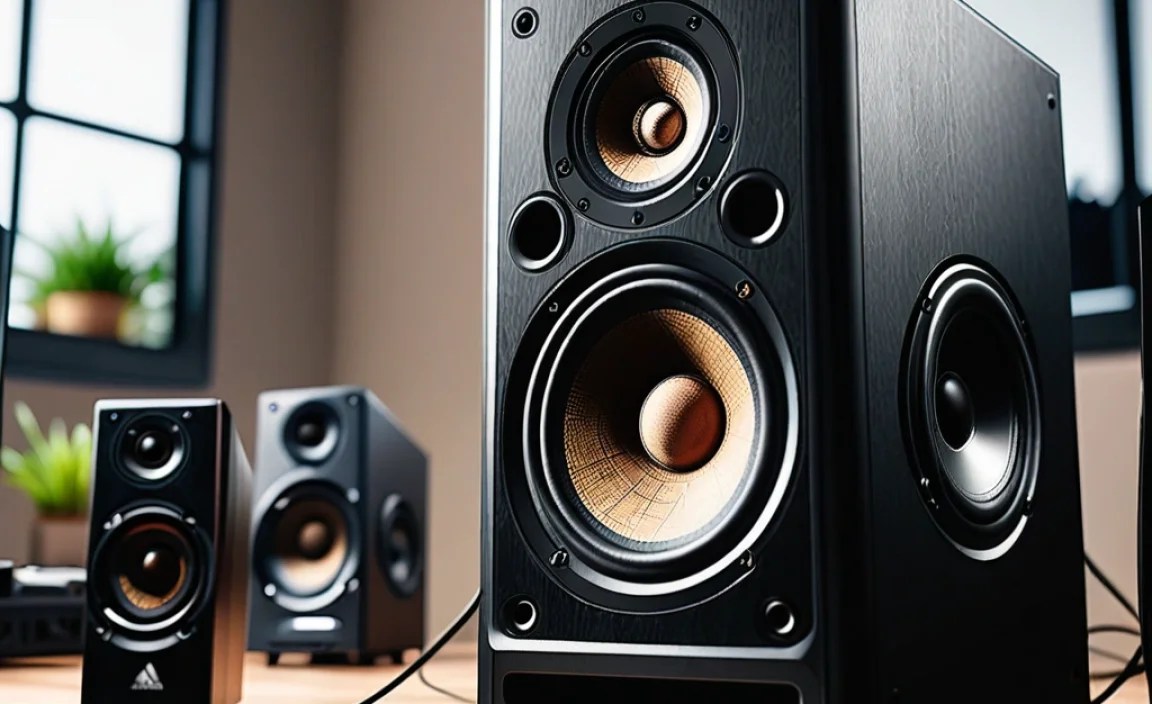
Gaming isn’t just about stunning visuals; it’s a full sensory experience. Sound plays a massive role in immersing you into a virtual world. Think about the subtle rustle of leaves as you sneak through a forest, the thunderous roar of a dragon, or the direction of an enemy’s gunfire.
Good speakers can:
- Increase Immersion: Hear every detail, from distant echoes to the clink of armor, pulling you deeper into the game’s narrative and environment.
- Improve Awareness: Pinpoint the direction of enemy movements, gunfire, or special abilities, giving you a competitive advantage.
- Enhance Enjoyment: Fully appreciate the carefully crafted soundtracks and sound design that developers put so much effort into.
- Reduce Strain: Clearer audio means you don’t have to strain to hear important sounds, making longer gaming sessions more comfortable.
Understanding Speaker Types for Your Gaming PC

When you’re looking for a speaker for your gaming PC setup, you’ll quickly encounter a few common configurations. Each has its own strengths, and understanding them is the first step to making the right choice.
What are Speaker Configurations (Satellite and Subwoofer)?
PC speakers usually come in a few main setups, often referred to by numbers like 2.0, 2.1, 5.1, or 7.1. These numbers tell you how many individual speaker units (satellites) and how many subwoofers are included.
- 2.0 Systems: These are your basic stereo setups. You get two speakers, one for the left channel and one for the right. They’re great for general use and budget gamers, offering a good stereo soundstage.
- 2.1 Systems: This adds a subwoofer (the ‘.1’) to the stereo pair. The two main speakers handle mid and high frequencies, while the subwoofer takes care of the low-end sounds – the rumbling explosions and deep bass. This is a very popular choice for gaming PCs.
- 5.1 Systems: These have five satellite speakers and one subwoofer. The speakers are positioned for surround sound: front left, front right, center (for dialogue), surround left, and surround right. This creates a more immersive, enveloping soundscape.
- 7.1 Systems: This is an extension of 5.1, adding two more “rear surround” speakers for an even more detailed and 3D audio experience.
Which Setup is Best for a Gaming PC?
For most gamers, especially those new to upgrading their audio, a 2.1 system strikes the perfect balance. Why? Because it provides a significant upgrade in bass and overall fullness compared to a basic stereo setup, making games feel more impactful, without the complexity and space requirements of a full surround sound system.
A 2.0 (stereo) system is a good starting point if budget is extremely tight, but you’ll miss out on that deep, resonant bass that makes explosions pop and engines roar. While 5.1 and 7.1 can offer incredible immersion, they require careful placement of multiple speakers, which can be challenging on a desk, and often come with a higher price tag.
Key Features to Look For in Gaming PC Speakers
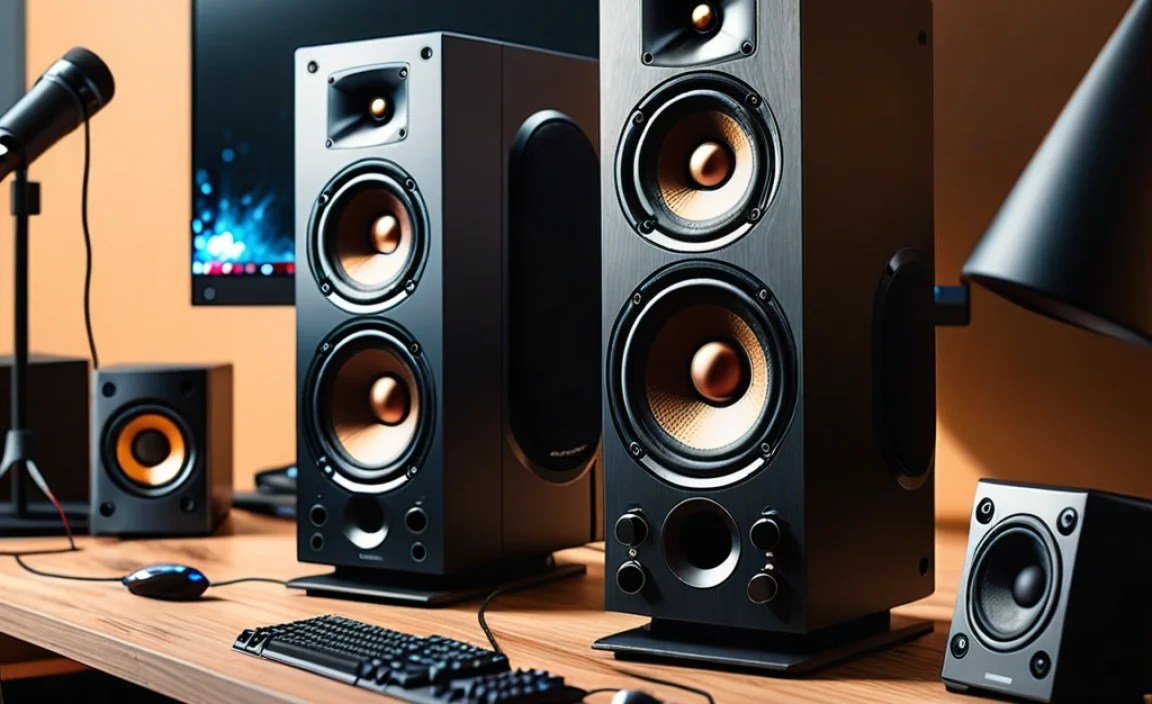
Once you know the type of system you’re interested in, let’s break down the important features to consider for your speaker for gaming PC setup.
1. Sound Quality: Frequency Response and Clarity
This is probably the most important factor. You want speakers that can reproduce a wide range of sounds accurately.
- Frequency Response: This tells you the range of sound frequencies a speaker can produce, measured in Hertz (Hz). A wider range generally means more detailed sound. For gaming, you want a good balance across low (bass), mid (vocals, instruments), and high (treble, cymbals) frequencies.
- Clarity and Detail: Can you hear subtle sounds like footsteps or reloads clearly? Do voices come through crisp and understandable? This often comes down to the quality of the individual drivers (the actual speaker components) and the crossover (the electronics that direct frequencies to the right drivers).
2. Power Output (Watts)
Power, measured in watts (W), determines how loud your speakers can get and how much “oomph” they have. For a typical desktop setup, 50-100 total watts is usually plenty to fill a room without distortion.
- RMS (Root Mean Square): This is a more reliable measure of continuous power output compared to peak power. Look for RMS ratings for a clearer idea of consistent performance.
- Consider Your Space: If you have a small desk area, you might not need massive wattage. For larger rooms or louder gaming sessions, more power is beneficial.
3. Connectivity Options
How will your speakers connect to your PC? Most common options include:
- 3.5mm Audio Jack: The standard analog connection. Simple and widely compatible.
- USB: Some speakers connect via USB, which can sometimes offer higher quality audio or bypass your PC’s internal sound card.
- Bluetooth: Wireless convenience! Great for connecting phones or tablets, and increasingly common for PC speakers, though wired connections typically offer lower latency (delay), which is crucial for gaming.
- RCA/Optical: Less common for basic PC speakers but found on higher-end models or soundbars, offering alternatives to analog.
For gaming, a wired connection (3.5mm or USB) is generally preferred to minimize any potential audio lag.
4. Design and Size
Your desk has limited real estate! Consider the physical dimensions of the speakers and subwoofer. Do they fit comfortably? Does the aesthetic complement your PC setup?
5. Subwoofer Quality (for 2.1 systems and up)
A good subwoofer adds depth and impact. Listen for one that provides tight, punchy bass without being boomy or muddy. Side-firing or down-firing subwoofers are common, and their placement can influence how the bass sounds in your room.
Top Speaker Configurations for Gaming PCs (Beginner-Friendly)
Let’s look at some common and highly-rated speaker configurations that are excellent choices for a gaming PC setup.
Configuration 1: The Versatile 2.1 System
This is our top recommendation for most gamers. A 2.1 system gives you stereo separation for clear sound direction, plus a subwoofer to bring the booms and crashes to life. It’s usually easy to set up and doesn’t take up excessive desk space.
Pros:
- Excellent balance of immersive sound and practicality.
- Subwoofer adds significant impact to explosions and bass-heavy music.
- Generally affordable and widely available.
- Easy to set up with minimal cables.
Cons:
- Requires space for three components (two satellites, one subwoofer).
- Subwoofer placement can sometimes affect bass performance.
Example: Logitech Z207 or Creative Pebble Plus (though the Pebble Plus is often debated as more 2.0 with passive radiators, it offers a fuller sound than many basic 2.0s).
Configuration 2: The Compact 2.0 Stereo System
If you’re working with extremely limited desk space or on a very tight budget, a good quality 2.0 stereo system can still provide a solid audio experience. The key here is to prioritize brands known for good audio fidelity.
Pros:
- Very compact, ideal for small desk setups.
- Simplest setup with only two speakers.
- Can offer excellent clarity and detail if you choose higher-quality models.
Cons:
- Lacks the deep bass impact of a subwoofer.
- May not feel as “epic” for action-heavy games.
Example: Audioengine A2+ Wireless or Edifier R1280T.
Configuration 3: Stepping Up to 5.1 Surround Sound
For players who crave ultimate immersion and have the space for it, a 5.1 system can be a game-changer. This setup uses multiple speakers placed strategically around your desk to create a 360-degree sound field.
Pros:
- Highly immersive surround sound experience.
- Excellent for games designed with surround audio in mind.
- Can make competitive games feel more realistic by pinpointing sound sources.
Cons:
- Requires significant desk space for multiple speakers.
- More complex setup and cable management.
- Can be more expensive.
- Requires games and audio sources that support 5.1 surround sound.
Example: Logitech Z906 or Corsair CA-9011139-WW.
Setting Up Your New Gaming PC Speakers
Getting your speakers connected and sounding their best is straightforward. Here’s a simple guide:
Step-by-Step Setup Guide
For a 2.0 Stereo System:
- Placement: Position the two satellite speakers on either side of your monitor, roughly at ear level. They should form an equilateral triangle with your head for optimal stereo imaging.
- Connection: Plug the 3.5mm audio cable from the primary speaker (usually the left one) into the “line out” or green audio port on your computer’s sound card (or the front panel headphone jack).
- Power: Connect the power adapter to the speaker and plug it into a wall outlet.
- Turn On & Test: Power on the speakers and play some audio from your PC. Check your computer’s sound settings to ensure the correct output device is selected.
For a 2.1 System:
- Placement: Place the two satellite speakers as described for a 2.0 system. Position the subwoofer on the floor. Ideally, place it in a corner for enhanced bass, but experiment to find the best spot – a common technique is the “subwoofer crawl” where you place the sub where you sit, play bass-heavy audio, then crawl around your room to find where it sounds best from your listening position when the sub is there.
- Connection:
- Connect the two satellite speakers to the subwoofer using the provided cables.
- Connect the main audio cable from the subwoofer (often a single 3.5mm cable) to your computer’s audio output.
- Power: Connect the power adapters for both the subwoofer and satellites (if they have separate ones) to a power outlet.
- Turn On & Test: Power on all components. Play audio and test in your games. You might have a separate volume control for the subwoofer on some models.
For a 5.1 System:
- Placement: This is more involved. You’ll have front left, front right, center, surround left, and surround right speakers.
- Front L/R: Beside your monitor.
- Center: Directly in front of you, often above or below the monitor for dialogue.
- Surround L/R: To the sides and slightly behind your listening position.
- Connection: Connect each satellite speaker to the designated ports on the subwoofer or receiver unit. Then connect the main audio cable from the subwoofer/receiver to your PC. If your PC has a dedicated 5.1 sound card, you’ll need to plug individual cables into the corresponding color-coded ports.
- Power: Connect all power adapters.
- Configuration: This is crucial. On your PC’s sound settings, select the 5.1 speaker configuration. You’ll likely need to run a test tone utility to ensure each speaker is playing correctly and assigned to the right channel. Some systems have a control unit for this.
Important Note on Audio Drivers
Sometimes, your computer might not automatically detect the correct audio setup, especially for surround sound. You might need to download the latest audio drivers from your motherboard manufacturer’s website or the website of your sound card manufacturer. Realtek audio drivers are very common for motherboards.
For example, you can often find the latest motherboard drivers on the support pages of manufacturers like ASUS, MSI, or Gigabyte.
Tips for Enhancing Your Gaming Audio
Once your speakers are set up, here are a few extra tips to get the most out of them:
- Positioning is Key: Experiment with speaker placement. Small adjustments can make a noticeable difference in clarity and bass presence. Aim for symmetry.
- EQ Adjustments: Most motherboards and dedicated sound cards offer Equalizer (EQ) settings. You can tweak these to emphasize certain frequencies. For example, you might boost the mids slightly to make dialogue clearer, or add a touch more bass for explosions. Be careful not to overdo it, which can lead to distortion.
- Dedicated Sound Card: While most onboard audio is decent, a dedicated sound card or an external DAC (Digital-to-Analog Converter) can provide a cleaner, more powerful audio signal.
- Room Acoustics: The room itself affects sound. Hard surfaces like bare walls and desks can cause echoes and make bass sound muddy. Soft furnishings like carpets, curtains, and even strategically placed acoustic foam can help. Visit Acoustics Treatment Info for more on how your room impacts sound.
- Check In-Game Audio Settings: Many games offer specific audio presets (e.g., “Headphones,” “Stereo Speakers,” “Surround Sound”). Make sure you select the one that best matches your speaker setup.
Comparing Speaker Options: A General Overview
To help you visualize the differences, here’s a simplified comparison of common speaker types for gaming PCs. Prices can vary widely based on brand, features, and sales, but this gives a general idea.
| Speaker Type | Typical Price Range (USD) | Pros for Gaming | Cons for Gaming | Ideal For |
|---|---|---|---|---|
| Basic 2.0 Stereo | $20 – $70 | Compact, simple, budget-friendly, clear highs/mids. | Lacks bass impact, less immersive for action. | Casual gamers, small desks, basic needs. |
| Versatile 2.1 System | $50 – $150 | Good balance of bass, clarity, and immersion. Easy setup. | Requires subwoofer space, potential bass boominess. | Most gamers looking for an upgrade. |
| Mid-Range 2.0 (Studio Monitors) | $100 – $300+ | Excellent audio fidelity, clarity, accurate sound. | No dedicated subwoofer, can be larger. | Gamers valuing audio accuracy, music lovers. |
| Entry-Level 5.1 Surround | $100 – $200 | Immersive surround sound for compatible games. | Complex setup, desk space needed, can be overwhelming. | Gam |