
A TV refresh rate shows how many times per second your TV updates the image. Higher rates mean smoother motion, which is great for fast-paced action and gaming. Understanding refresh rates helps you pick the right TV for your needs and ensures you mount it to appreciate its full visual potential.
Hey everyone, Bob E Riley here! Ever stare at a new TV and see numbers like 60Hz or 120Hz and wonder what they actually mean for you? It can feel like a whole other language when you’re trying to upgrade your home entertainment setup. Most of us just want a clear, crisp picture without that annoying blur when things move fast on screen. That’s where refresh rate comes in!
Don’t worry, we’ll break down what a TV refresh rate is in plain English. We’ll also talk about how choosing the right mount can help you get the best view of that smooth motion. By the end, you’ll know exactly what to look for and feel super confident about your next TV purchase and setup.
What Exactly is TV Refresh Rate?
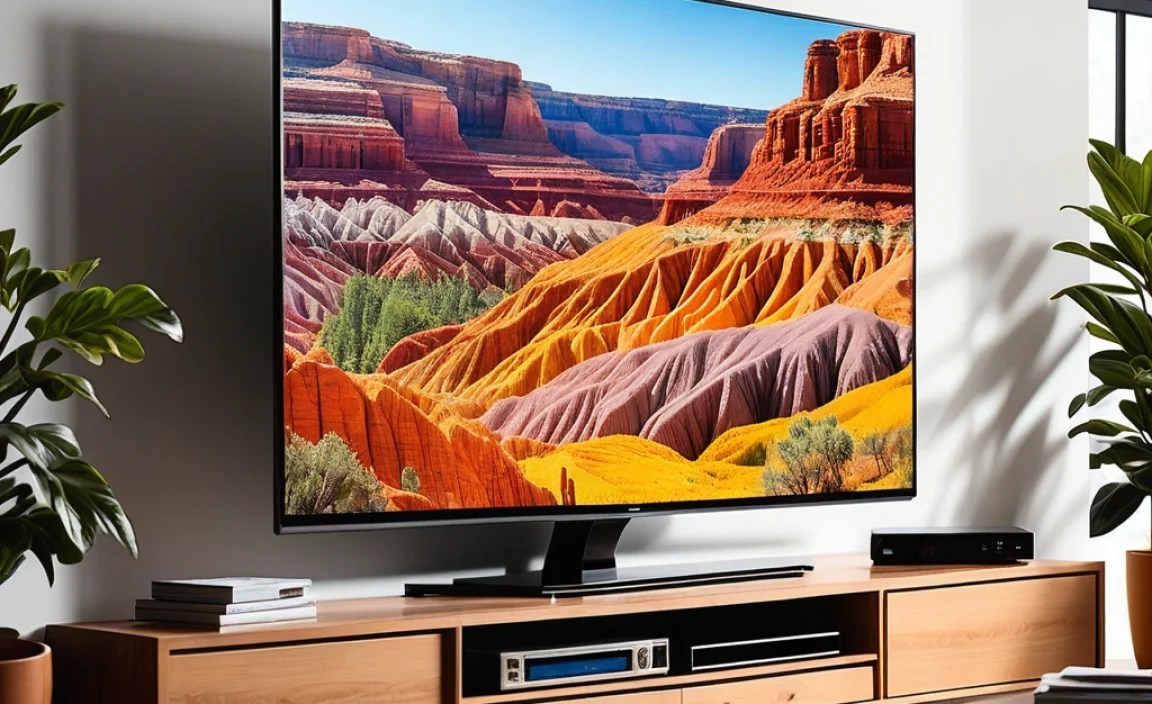
Think of your TV screen like a flipbook. A refresh rate tells you how many pages (images) the TV flips through in one second. The unit for this is Hertz (Hz). So, a 60Hz TV flips 60 images per second, and a 120Hz TV flips 120 images per second.
Why does this matter? Well, the more images your TV can show each second, the smoother and more fluid motion will look on screen. This is especially noticeable when watching sports, action movies, or playing video games where there’s a lot of quick movement.
For example, imagine watching a football game. If the TV has a low refresh rate, the ball might look a bit blurry as it flies across the screen. But with a higher refresh rate, the ball will look much sharper and clearer, making it easier to follow every play.
The Difference is in the Smoothness
When you see fast action, like a car chase or a character running, a higher refresh rate allows the TV to display more frames of that action. This reduces the ‘motion blur’ that can make moving objects look fuzzy or trail behind them.
Here’s a simple way to think about it:
- Lower Refresh Rate (e.g., 60Hz): Good for general viewing like regular TV shows and most movies. It’s like reading a book at a normal pace.
- Higher Refresh Rate (e.g., 120Hz or even 240Hz): Excellent for fast-paced content. The extra frames make the motion incredibly smooth, like reading a book where you can flip pages so fast it looks like a continuous story.
This difference becomes even more critical for gamers. A higher refresh rate can mean the difference between reacting a split-second faster in a game, giving you a competitive edge.
Understanding Common Refresh Rate Numbers

When you’re shopping for a TV, you’ll most likely see a few standard refresh rates mentioned. Knowing what these mean will save you a lot of confusion.
- 60Hz: This is the standard for many TVs. It’s perfectly fine for casual viewers who watch a lot of movies and regular TV dramas. You won’t notice much issue with most content.
- 120Hz: This is a significant step up. If you watch a lot of sports, fast-action movies, or play video games, a 120Hz TV will provide a noticeably smoother viewing experience. It’s often considered the sweet spot for performance and value.
- 240Hz (Native or Motion Rate): This is less common and sometimes uses processing to achieve the effect, so be sure to look at the TV’s native refresh rate. If it’s truly 240Hz, it offers an extremely smooth picture, but the benefit might be more subtle for everyday use compared to 120Hz for many people.
It’s important to distinguish between a TV’s “native” refresh rate and what manufacturers sometimes call “motion rate” or “effective refresh rate.” A 120Hz native refresh rate is generally better than a “motion rate 240” that is actually a 60Hz panel with advanced motion processing. Always look for the native refresh rate for the clearest picture of performance.
“Motion Rate” vs. Native Refresh Rate
Manufacturers often use marketing terms like “Motion Rate,” “TruMotion,” “Motionflow,” or “Effective Refresh Rate” to describe how smooth they make the motion on their TVs. These terms often refer to techniques like backlight scanning or frame insertion rather than the panel’s true ability to display frames.
For example, a TV advertised as “Motion Rate 240” might actually have a standard 60Hz or 120Hz panel. The “240” indicates processing that enhances motion, but it doesn’t mean the panel is displaying 240 unique frames per second.
When comparing TVs, always try to find the “native refresh rate.” This is the actual rate at which the panel can refresh the image. A native 120Hz panel will generally provide a superior motion experience compared to a 60Hz panel, regardless of the processing enhancements on the 60Hz model.
This table breaks down what to expect:
| Refresh Rate (Native) | Typical Use Cases | Pros | Cons |
|---|---|---|---|
| 60Hz | General TV viewing, movies, standard sports. | More affordable, sufficient for most casual viewers. | Can show motion blur in very fast scenes, less ideal for intense gaming. |
| 120Hz | Sports, action movies, high-end gaming, fast-paced content. | Significantly smoother motion, less blur, better for gaming responsiveness. | Usually more expensive than 60Hz TVs. |
| 240Hz (Native) | Professional gaming, extremely fast-paced action enthusiasts. | The smoothest motion possible, minimal blur, extremely responsive for gaming. | Rarest and most expensive, benefits might be marginal for many users. |
Why Refresh Rate Matters for Mounting Your TV

Now, you might be thinking, “Bob, how on earth does the refresh rate relate to mounting my TV?” It’s a great question! While refresh rate dictates the quality of the image, how and where you mount your TV directly impacts your ability to enjoy that quality.
A TV’s refresh rate helps create a smooth, immersive experience. To get the most out of this, you need to ensure your TV is positioned optimally to reduce glare, achieve comfortable viewing angles, and simply make it easy to see the screen clearly from your favorite spot.
For example, if you have a high refresh rate TV that’s amazing for gaming but it’s mounted in a spot with constant reflections from windows, you’re not going to enjoy that smooth, crisp picture. The frustration of glare can overshadow the technical benefits of the refresh rate.
The Role of Mounting in Your Viewing Experience
Mounting your TV correctly is about more than just getting it on the wall. It’s about enhancing your overall viewing comfort and immersion. Here’s how:
- Optimal Viewing Angles: A swivel or tilting mount allows you to perfectly position the screen to face you, no matter where you’re sitting. This is crucial for appreciating the clarity that a high refresh rate provides. If you’re constantly craning your neck or viewing the screen from a sharp angle, the picture quality can degrade.
- Reducing Glare: Strategic placement can minimize light reflections from windows or lamps. Some mounts offer finer adjustments that help you tilt the screen slightly to avoid these annoying reflections, ensuring you can see every detail of the smooth motion.
- Ergonomics and Comfort: Mounting your TV at the correct height and distance can prevent neck strain and eye fatigue. When you’re comfortable, you’re more likely to get lost in the movie or game, fully appreciating the visual fidelity that a good refresh rate offers.
- Aesthetics: A well-mounted TV can look sleek and modern, creating a focal point in your room. This contributes to the overall enjoyable experience of your home theater.
Think of it this way: a high refresh rate TV is like a high-performance sports car. It’s built for speed and a smooth ride. But if you mount that car on a bumpy, uneven track (a poorly positioned TV), you’re not going to experience its full potential. A good mount helps create the smooth, well-defined track for your visual experience.
Choosing the Right TV Mount for Your Needs

There are several types of TV mounts, and the best one for you will depend on your room layout, how you use your TV, and your personal preferences. Let’s explore the most common types:
Types of TV Mounts
- Fixed Mounts: These are the simplest and most affordable. They hold the TV flat against the wall, like a picture frame. They don’t offer any adjustability, so precise placement is key during installation. They are great for rooms where you have a single, ideal viewing position and want a very clean, minimalist look.
- Tilting Mounts: These mounts allow you to tilt the TV up or down by a certain degree. This is very useful if you need to mount your TV a bit higher on the wall than ideal viewing height (e.g., above a fireplace) to reduce glare or improve visibility. They offer a good balance between a slim profile and some adjustability.
- Swivel or Full-Motion Mounts: These are the most versatile. They allow you to tilt, swivel, and extend the TV away from the wall. This is perfect for large rooms where you might watch from different angles or for corner installations. They give you the most flexibility to get the perfect viewing angle, which is fantastic for making sure everyone in the room can appreciate the smooth motion of a high refresh rate set.
When selecting a mount, always check its weight capacity and compatibility with your TV’s VESA mounting pattern. Most modern TVs have this information listed in their specifications or on the back of the TV. You can find resources from organizations like the Federal Communications Commission (FCC) that discuss safe electronics installation, although they won’t be specific to TV mounts. For detailed installation guides, look for reputable home improvement sites or the manufacturer’s own documentation.
Mounting Considerations for Optimal Viewing
Once you’ve chosen a mount, proper installation is crucial. Here are some key things to keep in mind:
1. Height:
- The “Eye Level” Rule: Ideally, the center of your TV screen should be at eye level when you are in your primary seated position. This is typically around 40-60 inches from the floor, but it varies greatly depending on your couch and seating height.
- Too High = Neck Strain: Mounting a TV too high (like above a fireplace) can lead to neck pain and make it harder to focus on the screen. If you must mount it high, a tilting mount is a must.
2. Distance:
- Viewing Distance: To fully appreciate the detail and clarity offered by a high refresh rate, sitting at the correct distance is important. A common recommendation is to sit at a distance that is 1.5 to 2.5 times the diagonal screen size away from the TV. For example, a 55-inch TV might be best viewed from about 6.5 to 9 feet away.
- THX Recommendations: For a truly cinematic experience, THX recommends a viewing distance where the screen fills a certain amount of your field of vision. While most people don’t sit this close for everyday viewing, it highlights how distance impacts immersion. You can find more on their standards through various tech reviews and home theater enthusiast sites.
3. Wall Type and Studs:
- Find Wall Studs: For safety and stability, TV mounts must be secured to wall studs whenever possible. Use a stud finder to locate them.
- Drywall Anchors: If studs aren’t perfectly aligned with your mount’s desired position, use heavy-duty drywall anchors specifically rated for TV mounts and the weight of your TV. Never rely on drywall alone for heavy installations. Consult the mount’s manual for specific anchor recommendations.
4. Cable Management:
- Tidy Up: Wires dangling down a wall can ruin the aesthetic. Consider using cable raceways, in-wall cable management kits, or even drilling holes (with caution and knowledge of what’s behind the wall!) to run cables discreetly.
- Power Outlet: Plan for power. You might need an extension cord or need to relocate an outlet if you want to hide all cables cleanly.
DIY vs. Professional Installation
Installing a TV mount can be a straightforward DIY project, especially if you’re comfortable with basic tools and following instructions. However, if you’re unsure about finding studs, drilling into your walls, or simply want the peace of mind that it’s done correctly and safely, hiring a professional is a great option.
Many electronics stores and specialized installation services offer TV mounting as an add-on service. The cost can range from $100 to $300 or more, depending on the complexity and location. For a truly secure and professional finish, especially with larger TVs or into challenging wall types, professional installation is often worth the investment.
A properly installed mount ensures that your TV, with its high refresh rate capabilities, is safely displayed and positioned for the best possible viewing experience, free from strain or glare.
How Refresh Rate and Motion Handling Work Together
It’s not just the raw refresh rate; other technologies work with it to create that smooth picture we love. Think of refresh rate as the base speed, and motion handling as the advanced tuning.
Motion Interpolation
This is a key part of what manufacturers call “motion rate.” Motion interpolation, also known as frame insertion, is a digital video processing technique used in TVs. It works by analyzing the motion between existing frames and creating new frames to insert in between them. This makes the overall motion on screen appear smoother.
- Example: If a TV has a 60Hz refresh rate, it shows 60 frames every second. With frame interpolation, the TV might generate an additional frame between each of the original 60 frames, effectively creating 120 frames per second. This makes the movement on screen look much more fluid.
While this can result in very smooth motion, some viewers dislike the “soap opera effect,” where movies can look unnaturally fluid, almost like a video game. This is why many TVs have options to adjust or turn off motion interpolation.
Black Frame Insertion (BFI)
Another technique is Black Frame Insertion (BFI). This method involves briefly flashing a black frame between each actual video frame. This helps to reset the viewer’s eye and reduce the perception of motion blur. BFI can significantly improve motion clarity, but it does reduce the overall brightness of the image and can sometimes cause flicker for sensitive viewers.
Response Time
While refresh rate is about how often an image is updated, response time is about how quickly each pixel can change color. A fast response time is crucial for preventing ‘ghosting’ or trailing effects, especially in fast-paced scenes. Even with a high refresh rate, if pixels are slow to change, you’ll still see motion blur.
A good balance of high refresh rate and fast pixel response time is what leads to the best motion clarity. Many modern TVs aim for response times of 10ms or less to combat this.
Frequently Asked Questions (FAQ)
Q1: What is the best TV refresh rate for gaming?
A1: For gaming, a 120Hz refresh rate is highly recommended. It offers significantly smoother motion and lower input lag, which is crucial for fast-paced games. PC monitors often go even higher, but for console gaming and most PC gaming, 120Hz is excellent.
Q2: Do I really need a 120Hz TV if I mostly watch movies?
A2: For most movies (which are typically shot at 24 frames per second), a 60Hz TV is perfectly adequate. However, if you watch a lot of sports or action-packed films, you’ll notice and appreciate the smoother motion that a 120Hz TV provides.
Q3: How do I know if my TV has a native 120Hz panel?
A3: Look for the specifications on the TV’s box, in the product manual, or on the manufacturer’s website. Be wary of marketing terms like “Motion Rate” or “Effective Refresh Rate.” You want to see “Native Refresh Rate: 120Hz.”