
Having trouble with your gaming PC speakers? This guide breaks down common audio issues and offers easy, step-by-step solutions to get your game sound back on track. From checking connections to updating drivers, we’ll help you fix your audio problems and dive back into your favorite games with immersive sound.
Hey there, fellow gamers and tech enthusiasts! Bob E Riley here, your go-to guy for making sense of all things audio and tech. We’ve all been there: you’re ready to jump into an epic gaming session, the adrenaline is pumping, and then… silence. Or worse, a crackling, distorted mess that ruins the immersion. No sound from your gaming PC speakers is a huge buzzkill, and it can be genuinely frustrating when you don’t know where to start.
But don’t worry! Most speaker problems are surprisingly simple to fix. This guide is designed to be your friendly, stress-free companion to troubleshooting those pesky audio glitches. We’ll walk through common issues methodically, from the most basic checks to slightly more advanced steps. By the end, you’ll be equipped to diagnose and resolve most speaker problems, ensuring your gaming sessions are filled with the rich, detailed sound they deserve.
Let’s get those speakers singing again so you can get back to the action!
Common Reasons for Gaming PC Speaker Issues

Before we dive into fixing things, understanding why your speakers might be acting up can be a big help. Think of it like knowing why your car is making a funny noise – sometimes a little insight goes a long way. Most audio problems fall into a few main categories:
- Connection Problems: This is the most frequent culprit. Loose cables, incorrect ports, or even a faulty cable can cut off sound completely.
- Volume Settings: It sounds obvious, but mutes, low volume levels, or incorrect output devices can easily be overlooked.
- Driver Issues: Your computer needs special software (drivers) to communicate with your speakers. Outdated or corrupted drivers can cause all sorts of audio chaos.
- Hardware Malfunctions: Sometimes, the speakers themselves or your PC’s sound card might be the issue, though this is less common than software or connection problems.
- Software Conflicts: Occasionally, other programs or game settings can interfere with your audio output.
Troubleshooting Steps: From Simple Fixes to Deeper Dives

We’ll tackle this step-by-step. Start with the easiest checks first, as they often resolve the problem quickly!
Step 1: The Basic Checks – Don’t Skip the Obvious!
These are the quick wins, the things everyone should check first. They might seem too simple, but trust me, they solve a surprising number of problems.
- Check Physical Connections:
- Speaker Power: Ensure your speakers are plugged into a working power outlet and that their power switch is turned ON. Some speakers have a small LED light to indicate they are powered.
- Audio Cable: Make sure the audio cable (usually a 3.5mm jack or USB cable) is securely plugged into BOTH your speakers and your PC.
- Correct Port: On the back of your PC, you’ll see a collection of colored ports. The audio output is almost always a green port. Ensure your speaker cable is plugged into this green port. If you have a setup with a subwoofer and satellite speakers, make sure all sub-cables are firmly connected. Refer to your motherboard manual or look for the speaker/line-out icon.
- Check Volume Controls:
- Speaker Volume Knob: Most speakers have a physical volume dial. Turn it up! Make sure it’s not set to its lowest setting or muted (some have a mute button).
- Windows Volume Mixer:
- Right-click on the speaker icon in your Windows taskbar (usually in the bottom-right corner).
- Select “Open Volume Mixer.”
- Ensure that the volume slider for “System Sounds” and any application you’re using (like your game) are not muted and are turned up.
- Test with Another Device: If possible, plug your speakers into a different device (like a smartphone or tablet with an audio jack) to see if they work there. This helps determine if the issue is with your PC or the speakers themselves.
Step 2: Windows Sound Settings – Getting the Output Right
Sometimes, Windows might not be sending audio to the correct device. Let’s ensure it’s pointed at your speakers.
- Select the Correct Playback Device:
- Right-click the speaker icon in your taskbar again.
- Select “Sounds” or “Open Sound settings.”
- In the “Sound” control panel (if you get the old-style window), go to the “Playback” tab. If you get the new “Sound settings” window, look for “Choose your output device.”
- Identify Your Speakers: You should see a list of playback devices. Look for your speakers (e.g., “Speakers,” “Realtek High Definition Audio,” or the brand name of your speakers).
- Set as Default: If your speakers are listed but not selected, right-click on them and choose “Set as Default Device” and “Set as Default Communication Device.”
- Test: You can often test the sound directly from this window. Right-click your default speakers and select “Test.”
- Ensure Speakers Aren’t Disabled: In the “Playback” tab of the Sound control panel, if you see your speakers listed but they are greyed out or have a down arrow icon, they might be disabled. Right-click them and select “Enable.” If they disappear entirely, right-click in the empty space of the list and select “Show Disabled Devices” and “Show Disconnected Devices” to make them reappear (then enable them).
Step 3: Audio Drivers – The Software Backbone
Think of audio drivers as the translators that let your operating system tell your sound hardware what to do. If they’re out of date or corrupted, communication breaks down.
- Update Audio Drivers:
- Press the Windows key and type “Device Manager,” then open it.
- Expand the “Sound, video and game controllers” section.
- Right-click on your audio device (e.g., “Realtek High Definition Audio,” “NVIDIA High Definition Audio,” or your specific sound card).
- Select “Update driver.”
- Choose “Search automatically for drivers.” Windows will try to find and install the latest drivers.
- Reinstall Audio Drivers: If updating doesn’t work, you might need to reinstall them.
- In Device Manager, right-click your audio device again.
- Select “Uninstall device.”
- Check the box that says “Delete the driver software for this device” (if available).
- Click “Uninstall.”
- Restart your PC. Windows will usually attempt to reinstall a generic audio driver automatically.
- Download Drivers from Manufacturer: For the best results, it’s often recommended to download the latest drivers directly from your motherboard manufacturer’s website (if using onboard audio) or your sound card/GPU manufacturer’s website. You’ll usually need to know your motherboard model or graphics card model. Visit their support or downloads section. For example, NVIDIA provides detailed driver downloads for their audio devices found on GeForce GPUs.
Step 4: Check Game-Specific Audio Settings
Sometimes, the issue isn’t with your entire PC audio, but just with a particular game.
- Open Game Settings: Launch the game you’re having trouble with.
- Navigate to Audio Options: Look for an “Audio,” “Sound,” or “Settings” menu within the game.
- Verify Output Device: Some games allow you to select which audio device they should use. Make sure your PC’s primary speakers are selected, not a headset or another device.
- Check Volume Levels: Ensure the in-game master volume and any specific audio channel volumes (like master, music, effects) are turned up and not muted.
Step 5: Advanced Troubleshooting
If the above steps haven’t solved it, we can look at a couple more things.
- Run the Windows Audio Troubleshooter: Windows has a built-in troubleshooter that can automatically detect and fix many common audio problems.
- Go to Settings (Windows key + I).
- Click “Update & Security” (or “System” in Windows 11).
- Click “Troubleshoot” in the left sidebar.
- Click “Additional troubleshooters” (or “Other troubleshooters” in Windows 11).
- Select “Playing Audio” and click “Run the troubleshooter.” Follow the on-screen prompts.
- Check for Windows Updates: Sometimes, a Windows update can resolve compatibility issues with audio hardware.
- Go to Settings (Windows key + I).
- Click “Update & Security” (or “Windows Update” in Windows 11).
- Click “Check for updates” and install any available updates.
- Test Different Cables/Ports: If you have spare audio cables (especially if using analog 3.5mm jacks), try swapping them out. Also, try a different USB port if you’re using USB speakers. This helps rule out a faulty cable or port.
Speaker Setup Types and Common Issues
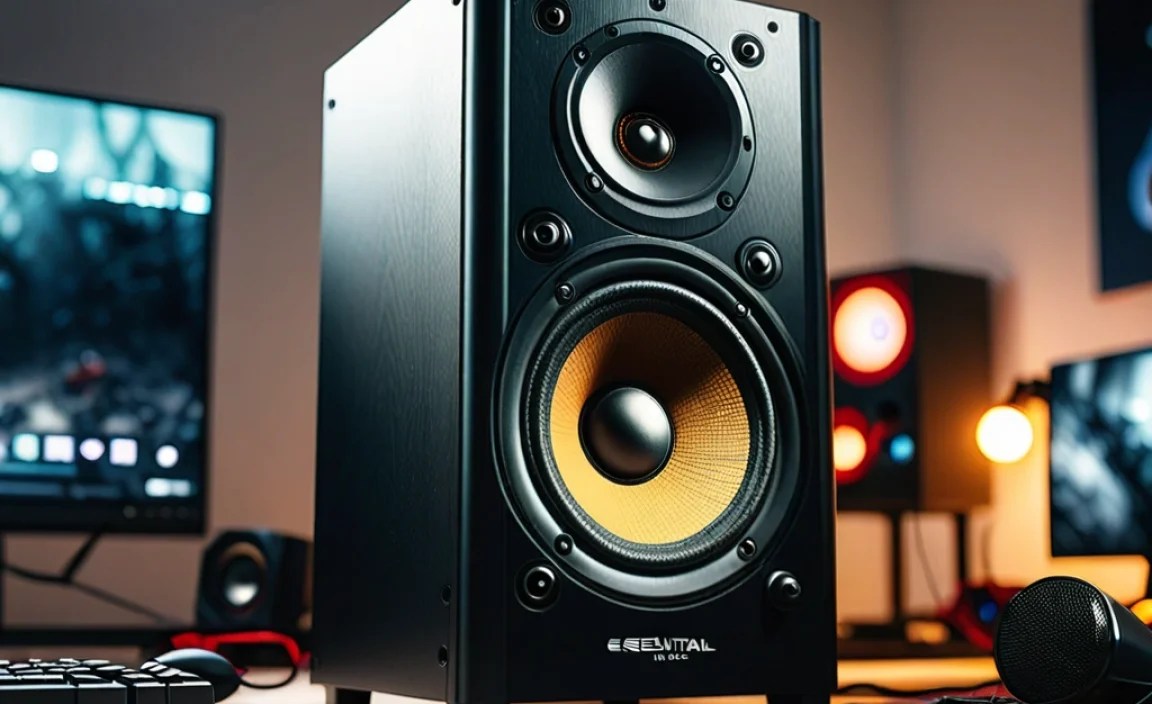
Different speaker setups can have their own unique quirks. Here’s a quick look at common types and what to watch out for.
| Speaker Type | Description | Common Issues & Tips |
|---|---|---|
| 2.0 Stereo Speakers (Two Satellites) |
The most basic setup, providing left and right channel sound. | Issues: No sound from one or both speakers, crackling. Tips: Ensure correct left/right channel connection if applicable. Confirm correct audio port is used. |
| 2.1 Speaker System (Two Satellites + Subwoofer) |
Adds a subwoofer for enhanced bass, separating low frequencies from the main speakers. | Issues: No bass, no sound from satellites, buzzing. Tips: Ensure subwoofer is correctly connected to the PC (often a single cable from PC to subwoofer, or via satellites). Check subwoofer power and volume. Ensure the audio output setting in Windows is recognized as a 2.1 system if an option exists. |
| 5.1 / 7.1 Surround Sound (Multiple Satellites) |
Designed for immersive, directional audio with dedicated center, front, rear, and side channels. Often uses a sound card with multiple audio jacks or a digital connection. | Issues: Sound only from front speakers, incorrect channel placement, humming. Tips: Crucial to plug into the correct ports on the PC, which are often color-coded and labeled (e.g., Front, Rear, Center/Sub). Ensure your audio drivers are configured for surround sound in their control panel (e.g., Realtek HD Audio Manager) and in Windows sound settings. Test channels individually. For advanced setups, consider dedicated sound cards or USB DACs. Dolby Laboratories provides extensive information on immersive audio standards. |
| USB Speakers | Connect via USB and often draw power through the same cable. | Issues: No power, not recognized by PC, no sound. Tips: Try a different USB port. Ensure the USB cable is fully seated at both ends. Reinstall USB drivers indirectly by uninstalling and re-detecting the device in Device Manager. |
| Bluetooth Speakers | Wireless connection via Bluetooth. | Issues: Pairing problems, intermittent connection, no sound. Tips: Ensure speakers are in pairing mode. Remove and re-pair the device in Windows Bluetooth settings. Check for interference from other wireless devices. Update Bluetooth drivers. Ensure they are selected as the default playback device in Windows. |
When to Consider Hardware Issues
If you’ve gone through all the software and connection checks and your speakers still aren’t working, it might be time to consider a hardware problem. This is usually the last resort.
- Speaker Malfunction: If your speakers worked fine on another device (Step 3), and you’ve tried them on your PC with no luck after all troubleshooting, the speakers themselves might be faulty. Contact the manufacturer for support or consider replacing them.
- PC Sound Card Issue: If no audio devices are working on your PC, and you’ve tried multiple speakers and headphones, the sound card on your motherboard or a dedicated sound card could be damaged. This is rare but can happen due to power surges or component failure. Symptoms might include no audio output whatsoever, severe distortion across all devices, or the audio device not appearing in Device Manager at all. For onboard audio, you might need to consider a PCIe sound card or a USB audio interface.
Frequently Asked Questions (FAQ)
- Q1: My speakers worked yesterday, but now there’s no sound. What’s the first thing I should check?
- A1: Always start with the simplest things! Check that your speakers are powered on, the volume knob isn’t turned all the way down or muted, and that the audio cable is securely plugged into both the speakers and the green audio port on your PC. It sounds basic, but these are the most common culprits!
- Q2: I have a 5.1 surround sound system, but sound is only coming from the front speakers. What’s wrong?
- A2: This usually means your PC isn’t configured for surround sound. Ensure your speakers are plugged into the correct, separate audio jacks on your PC (often labeled Front, Rear, Center/Sub). Then, go into Windows Sound settings and your audio driver’s control panel to ensure it’s set to 5.1 output and that the correct channels are enabled and configured properly.
- Q3: My USB speakers aren’t being detected by my PC. How can I fix this?
- A3: Try plugging the USB speakers into a different USB port on your computer. If that doesn’t work, go to Device Manager, uninstall the speaker device (if it appears), and then restart your PC. Windows should try to re-detect and reinstall it. Also, make sure your PC’s motherboard drivers are up to date, as USB functionality relies on them.
- Q4: What’s the difference between clicking “Set as Default Device” and “Set as Default Communication Device”?
- A4: “Set as Default Device” means this will be the primary audio output for all your applications and system sounds. “Set as Default Communication Device” is specifically for voice calls and chat applications (like Discord, Zoom, etc.). It’s good practice to set your speakers as both if you use them for gaming and voice chat.
- Q5: Can a game’s update break my speaker settings?
- A5: While rare, it’s possible. A game update might reset its internal audio settings, or in very unusual cases, introduce a conflict with your audio drivers. If sound stops working only in one game, the first place to check is that game’s audio settings as described in Step 4.
- Q6: My speakers keep making a buzzing or humming noise. What could be causing this?
- A6: This is often due to electrical interference. Try moving your speaker cables away from power cords or other electronic devices. Ensure your speakers are plugged into a different power outlet than your PC or monitor. If using analog connections, grounding issues or a faulty cable can sometimes cause this. A USB or digital connection (like optical) can sometimes bypass these interference issues.
- Q7: Do I need to update my audio drivers often?
- A7: Not necessarily “often,” but it’s a good idea to check for updates from your manufacturer’s website periodically (perhaps every 6-12 months) or if you encounter new audio issues. Major Windows updates might also prompt driver checks. For most users, the drivers that come with Windows or your motherboard are stable.