
Connecting a Bluetooth speaker to your gaming PC offers an essential, wire-free audio upgrade, immersing you deeper into your games. This guide simplifies the process, ensuring you get the best sound without the cable clutter. We’ll cover everything from pairing to optimizing for a fantastic gaming experience.
Speaker for Gaming PC Bluetooth: Essential Audio for Your Setup
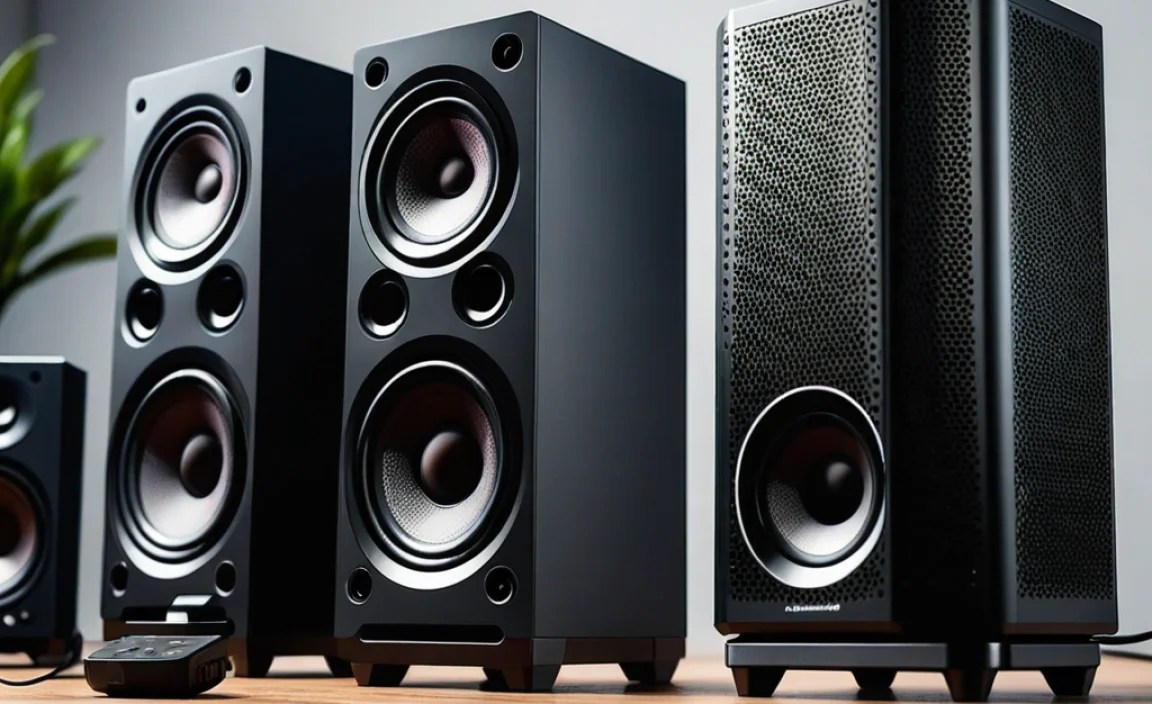
Are you tired of tangled wires cluttering your gaming space? Or perhaps you’re looking to get that booming game audio without being tethered to your desk? A Bluetooth speaker for your gaming PC might be the perfect solution! It’s an easy way to get immersive sound that pulls you right into the action, all without the hassle of cables. Many gamers think Bluetooth means lag or lower quality, but with today’s technology, it’s a fantastic option for PC audio. This guide will walk you through everything you need to know, making it simple and stress-free.
We’ll cover how to connect your speaker, what to look for when buying one, and how to get the best sound quality out of it. Get ready to elevate your gaming audio experience!
Why Choose a Bluetooth Speaker for Your Gaming PC?
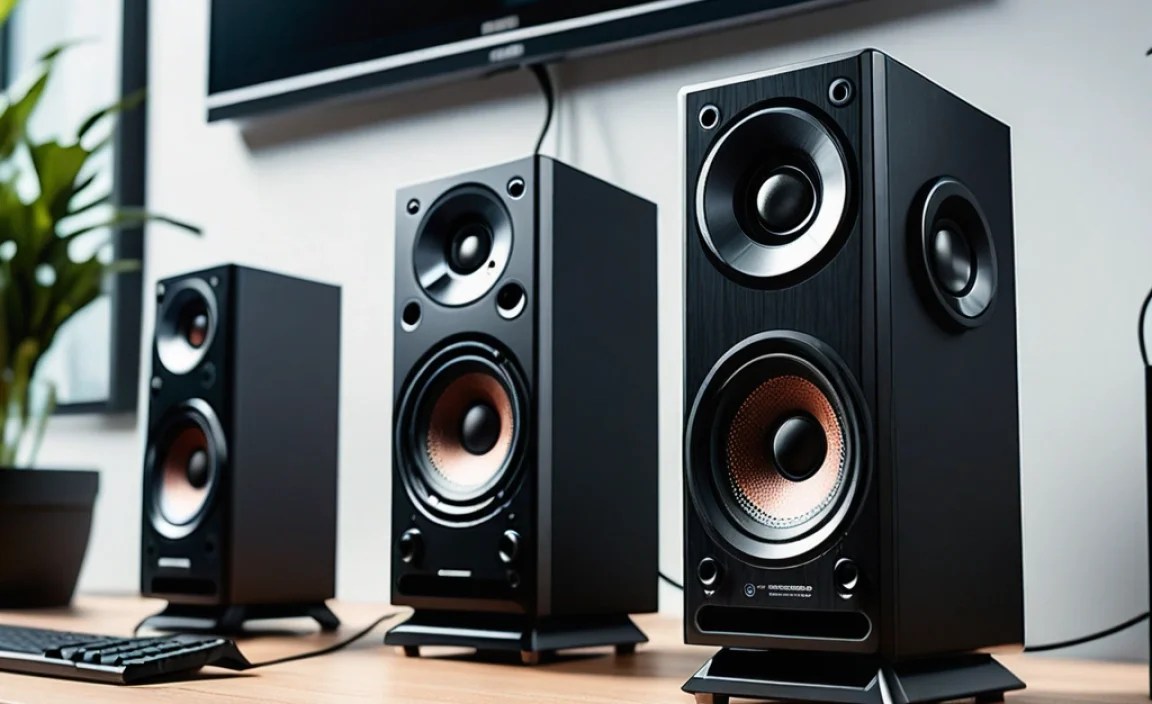
For many, the appeal of a Bluetooth speaker for a gaming PC is all about convenience and a cleaner desk setup. But the benefits go beyond just fewer wires!
- Wireless Freedom: Place your speaker anywhere – on a shelf, behind you, or even connect it to a project for outdoor gaming or watching movies.
- Easy Setup: No complex driver installations or fumbling with audio ports. Pairing is usually as simple as a few clicks.
- Versatility: Most Bluetooth speakers can connect to multiple devices. Use it for your PC, then easily switch to your phone for music or podcasts.
- Modern Aesthetics: A clean setup with minimal wires looks much better and can make your gaming space feel more organized and spacious.
- Portability: If you have a portable Bluetooth speaker, you can take your gaming audio with you to a friend’s house or another room in your home.
Understanding Bluetooth Audio for Gaming: What Beginners Need to Know

When you’re new to PC audio, the techy terms can sound a bit overwhelming. Let’s break down what matters for Bluetooth speakers and gaming.
Latency (or Lag): This is the delay between when a sound happens in your game and when you actually hear it. For fast-paced games, high latency can be a real issue, making you react too late. Older Bluetooth technology had noticeable lag, but newer versions and specific gaming codecs have significantly reduced this. Most modern Bluetooth speakers and PCs support low-latency audio if you know what to look for.
Bluetooth Versions: Bluetooth technology updates over time. Newer versions (like Bluetooth 5.0, 5.1, 5.2, and 5.3) offer better range, faster connection speeds, and improved power efficiency. Your PC and speaker should ideally use a similar or compatible Bluetooth version for the best performance.
Audio Codecs: These are like the languages that audio data speaks when it travels wirelessly. Common codecs include SBC (the basic standard), AAC (better quality, often found on Apple devices), aptX (known for good balance of quality and low latency), and LDAC (high-resolution audio). For gaming, codecs like aptX Low Latency are ideal if both your PC and speaker support them. Always check the product specifications!
Sound Quality: Unlike wired headphones that can deliver uncompressed audio directly, Bluetooth audio is compressed to send data wirelessly. However, advanced codecs and good speaker design mean that for most users, the sound quality is more than sufficient and can be very enjoyable for gaming and other media.
How to Connect a Bluetooth Speaker to Your Gaming PC: A Step-by-Step Guide

Connecting your speaker is simpler than you might think. Here’s how to do it on Windows, which is the most common operating system for PC gaming.
Step 1: Enable Bluetooth on Your Gaming PC
First, make sure your PC has Bluetooth capabilities. Most modern laptops and many desktop motherboards have it built-in. If your PC doesn’t, you can easily add it with a USB Bluetooth adapter.
- Click the Start button (the Windows icon).
- Go to Settings (the gear icon).
- Click on Devices.
- In the left-hand menu, select Bluetooth & other devices.
- Make sure the Bluetooth toggle switch is turned to On.
You should see a notification or an icon in your system tray (near the clock) indicating Bluetooth is active.
Step 2: Put Your Bluetooth Speaker into Pairing Mode
This step varies depending on your speaker. Most Bluetooth speakers have a dedicated button labeled “Bluetooth,” “Pairing,” or with a Bluetooth symbol. You usually need to press and hold this button for a few seconds until a light starts blinking or you hear an audible cue that it’s in pairing mode.
Consult your speaker’s manual if you’re unsure how to activate pairing mode. This is crucial – if it’s not in pairing mode, your PC won’t be able to find it.
Step 3: Pair Your Speaker with Your PC
Now, tell your PC to look for new devices.
- In the same Bluetooth & other devices settings window from Step 1, click on Add Bluetooth or other device.
- A new window will pop up. Click on Bluetooth.
- Your PC will start searching for discoverable devices nearby. Wait for your Bluetooth speaker’s name to appear in the list.
- Click on your speaker’s name. Your PC will then attempt to connect.
- If prompted, confirm any pairing codes. Often, no code is needed.
Once connected, you should see a message saying your device is “Connected” or “Paired.”
Step 4: Set Your Bluetooth Speaker as the Default Audio Device
Even after pairing, your PC might still be sending sound through your old speakers or headphones. You need to tell it to use the new Bluetooth speaker.
- Right-click on the speaker icon in your system tray (bottom right corner of your screen).
- Select Sounds or Open Sound settings.
- In the Sound settings window, under the “Output” section, you’ll see a dropdown menu for “Choose your output device.”
- Click this dropdown and select your Bluetooth speaker from the list.
You can test this by playing a sound or music. If you hear it from your Bluetooth speaker, you’re all set!
Choosing the Right Bluetooth Speaker for Gaming: Key Features to Consider

Not all Bluetooth speakers are created equal, especially when it comes to gaming. Here’s what to prioritize:
1. Low Latency
As mentioned, this is critical for gaming. Look for speakers that explicitly advertise support for low latency or specific codecs designed for gaming, like aptX Low Latency. While not all budget speakers will have this advanced feature, newer Bluetooth 5.x standards generally offer better performance than older versions.
2. Sound Quality and Bass Response
Gaming audio is rich and dynamic. You want speakers that can reproduce explosions, gunfire, and subtle environmental cues clearly. Good bass is essential for immersion. Read reviews that specifically mention bass performance and overall sound clarity.
3. Connectivity and Range
Ensure the speaker uses at least Bluetooth 5.0 for a stable connection and decent range. This means you can move around a bit without the audio cutting out.
4. Power and Volume
A gaming session can benefit from powerful audio. Check the wattage (or RMS power) of the speaker. For a desktop setup, a speaker with 10-20W RMS is usually sufficient, but more can provide a more impactful experience.
5. Durability and Design
If you’re placing it near your gaming rig, consider how it looks. Many speakers have sleek, modern designs that complement a gaming setup. Durability can also be a plus, especially if you plan to move it around.
6. Speaker Type: Single Unit vs. Stereo Pair
You can get a single, compact Bluetooth speaker, or some systems allow you to pair two identical speakers for a true stereo sound experience. Stereo sound significantly enhances immersion by creating left and right audio channels, making directional sound cues in games much more effective.
Top Features to Look For in a Gaming Bluetooth Speaker
Here’s a quick rundown of features that will make a difference in your gaming experience:
- Low Latency Support: Crucial for synchronized audio.
- Balanced Sound Profile: Clear highs, present mids, and punchy bass.
- Good Range: Bluetooth 5.0 or higher is recommended.
- Sufficient Power (Wattage): For impactful audio.
- Stereo Pairing Option: For a wider soundstage and better immersion.
- Auxiliary Input: A backup wired connection option is always handy.
- Companion App: Some speakers offer EQ adjustments or firmware updates via an app.
Popular Bluetooth Speaker Technologies for Gaming
When diving into the specifics, you’ll encounter different technologies that impact your audio experience.
aptX (and aptX Low Latency): Developed by Qualcomm, aptX is a popular technology that offers better sound quality and lower latency than standard SBC. aptX Low Latency is specifically engineered to reduce delay to around 30-40 milliseconds, making it excellent for gaming and video. For this to work, both your PC’s Bluetooth adapter and the speaker need to support it. You can check your PC’s Bluetooth adapter specifications or look for a sticker/mention on the speaker itself.
AAC (Advanced Audio Coding): This codec is widely used by Apple devices but is also supported by many Android devices and Windows PCs. While it’s better than SBC, it’s generally not as good as aptX for low latency gaming.
LDAC: This is a Sony-developed codec that can transmit very high-resolution audio over Bluetooth, especially up to 990 kbps. It’s fantastic for music but typically focuses on sound fidelity rather than the lowest possible latency, so it might not be the top choice for competitive online gaming where every millisecond counts.
While you don’t need to be an expert in these, knowing they exist can help you make a more informed purchase. Look for speakers that highlight “low latency” or “gaming mode.”
Table: Comparing Bluetooth vs. Wired Speakers for Gaming PCs
To help you decide, here’s a comparison of Bluetooth and traditional wired speakers for your gaming PC.
| Feature | Bluetooth Speakers | Wired Speakers |
|---|---|---|
| Convenience | High (Wireless freedom, easy setup) | Lower (Requires cable management) |
| Latency (Delay) | Can be an issue without low-latency codecs; generally higher than wired. | Very low to non-existent; ideal for competitive gaming. |
| Sound Quality | Good to excellent, depending on codecs and speaker quality; compressed audio. | Excellent; uncompressed audio offers the highest fidelity. |
| Setup Complexity | Simple pairing process. | Requires connecting cables to PC audio ports. |
| Power Source | Often battery-powered (rechargeable) or mains adapter. | Mains power or USB powered. |
| Placement Flexibility | High (can be placed anywhere within range). | Limited by cable length. |
| Device Compatibility | Connects to any Bluetooth-enabled device. | Connects to PC audio output; some may have multiple inputs. |
| Cost | Can vary widely; low-latency features may increase cost. | Varies; often a wider range of budget-friendly options. |
Optimizing Your Bluetooth Speaker for the Best Gaming Audio
Once your speaker is connected, a few tweaks can make your gaming audio even better.
1. Check Your PC’s Sound Settings
As shown in the setup guide, ensure your Bluetooth speaker is selected as the default output. Also, check the advanced sound settings:
- Right-click the speaker icon, select Sounds.
- Go to the Playback tab.
- Right-click your Bluetooth speaker and select Properties.
- In the Advanced tab, you can check the default format. Higher bit depth and sample rates can offer better quality if supported by your speaker and codec. For most Bluetooth, 16 bit, 48000 Hz (DVD Quality) is standard and good.
- The Enhancements tab (if available) might have options like Bass Boost or Virtual Surround. Experiment cautiously; sometimes these can muddy the sound.
2. Update Bluetooth Drivers
Outdated drivers can cause performance issues, including latency and connection drops. Ensure your PC’s Bluetooth drivers are up to date. You can usually do this through Windows Update or by visiting your PC or motherboard manufacturer’s support website.
For instance, Intel provides driver updates for its integrated Bluetooth chipsets on their Intel Download Center. Similarly, AMD offers driver support for their systems.
3. Speaker Placement
The position of your speakers matters! For two speakers creating a stereo image, position them at ear level, forming an equilateral triangle with your listening position (your head). For a single speaker, place it directly in front of you, ideally pointed towards your ears. Avoid placing speakers directly against walls or in tight corners, as this can sometimes lead to boomy, distorted bass.
4. Environmental Factors
Bluetooth signals can be affected by interference from other wireless devices (like microwaves or Wi-Fi routers) and physical obstructions (like thick walls or aquariums). Try to maintain a clear line of sight between your PC and the speaker for the most stable connection. If you experience constant dropouts, consider moving your gaming setup or the speaker.
Troubleshooting Common Bluetooth Speaker Issues
Even with the best setup, you might run into snags. Here’s how to fix them.
- Speaker won’t connect: Ensure it’s in pairing mode, your PC’s Bluetooth is on, and your speaker isn’t already connected to another device. Try “forgetting” the device on your PC and re-pairing.
- Audio cutting out or stuttering: This is usually due to signal interference or distance. Move the speaker closer to the PC, turn off other nearby wireless devices, or update your Bluetooth drivers.
- No sound from the speaker: Double-check that the speaker is selected as the default audio device in your PC’s sound settings. Also, make sure the volume on both the speaker and your PC is turned up.
- High latency (audio delay): If you notice a significant delay, check if your speaker and PC support low-latency codecs like aptX Low Latency. If not, you might consider a wired solution for games where precise timing is critical. Bluetooth 5.x generally performs better than older versions.
- Poor sound quality: Ensure you’re using a good Bluetooth codec (e.g., aptX if available). Check the sound quality settings in Windows and avoid excessive audio enhancements that can degrade the signal.
Alternatives and Add-ons for PC Audio
While a Bluetooth speaker is great, there are other options to consider for your gaming PC setup.
- Dedicated Gaming Speakers: These are typically wired and designed with gaming in mind, offering features like customizable RGB lighting, powerful bass, and specific gaming sound modes. Brands like Logitech, Razer, and Creative offer excellent options.
- Soundbars: A compact PC soundbar can provide a significant audio upgrade without taking up much space. Many modern soundbars also include Bluetooth connectivity.
- USB DACs and Amplifiers: For audiophiles, a Digital-to-Analog Converter (DAC) and headphone amplifier can dramatically improve sound quality for both headphones and powered speakers. They bypass your PC’s internal sound card, offering a cleaner audio signal.
- Bluetooth Transmitters/Receivers: If your PC lacks good Bluetooth, a dedicated USB Bluetooth transmitter can offer more reliable connections and support for better codecs than integrated solutions.