
Experiencing issues with your smart speaker and Alexa? This essential guide provides straightforward fixes for common problems, from connectivity glitches to unresponsiveness. We’ll walk you through simple troubleshooting steps to get your Alexa smart speaker working smoothly again, ensuring you can enjoy all its amazing features.
Hey there, tech enthusiasts and smart home fans! Bob E Riley here, your go-to guide for all things audio and gadgetry. Is your trusty smart speaker with Alexa acting a little… well, less than smart? Maybe it’s not responding to your voice, the music is cutting out, or it just won’t connect to Wi-Fi. It can be frustrating when your helpful assistant suddenly goes quiet! But don’t worry, these hiccups are usually easy to fix. We’re here to break down the most common Alexa smart speaker problems and give you clear, step-by-step solutions. Get ready to bring your smart speaker back to life!
Troubleshooting Your Smart Speaker With Alexa: Common Issues and Solutions

Smart speakers, especially those powered by Alexa, are fantastic for hands-free control, entertainment, and information. However, like any technology, they can sometimes run into problems. This guide is designed to help you diagnose and resolve the most frequent issues, so you can get back to asking Alexa questions and enjoying your music without a fuss.
1. Alexa Isn’t Responding to Your Voice
This is perhaps the most common frustration. You say “Alexa,” but nothing happens. Let’s figure out why.
Possible Causes and Fixes:
- Microphone Muted: Most Echo devices have a microphone mute button (often an icon resembling a microphone with a slash through it) on top. Accidentally pressing this will disable Alexa’s hearing abilities.
- Fix: Look for the mute button and press it. A red light around the device usually indicates the microphone is muted. Press it again to unmute.
- Incorrect Wake Word: Sometimes, especially with background noise, Alexa might not clearly hear “Alexa.”
- Fix: Speak clearly and a little closer to the device. Try saying common alternatives if you’ve changed your wake word (e.g., “Echo,” “Computer,” “Amazon,” “Echo Dot”).
- Network Connectivity Issues: Alexa needs a stable internet connection to process your requests.
- Fix: Check your Wi-Fi. Is it working for other devices? Try restarting your router and modem. Then, ask Alexa a simple question like “What’s the weather?” to see if it connects.
- Software Glitch: Like any device, a simple reboot can often resolve temporary software issues.
- Fix: Unplug your Alexa device from the power source, wait for 30 seconds, and plug it back in. It will restart its system.
- Distance or Obstructions: If you’re too far away or there are significant obstructions (like walls or loud appliances), Alexa might struggle to hear you.
- Fix: Move closer to the device or try to reduce background noise. Ensure the device isn’t placed in a cabinet or behind other objects that could block sound.
2. Alexa Keeps Disconnecting from Wi-Fi
A stable Wi-Fi connection is crucial. If your Alexa device is constantly dropping off the network, here’s how to troubleshoot.
Common Solutions:
- Router Placement: Your router’s location significantly impacts Wi-Fi signal strength.
- Fix: Place your Alexa device closer to your Wi-Fi router, or reposition your router to a more central location in your home. Avoid placing it near large metal objects or other electronics that can cause interference. For more tips on optimizing Wi-Fi, check out the Federal Communications Commission’s (FCC) guide to Wi-Fi.
- Wi-Fi Password Change: If you’ve recently changed your Wi-Fi password, your Alexa device won’t be able to connect until you update it.
- Fix: Open the Amazon Alexa app on your smartphone or tablet. Navigate to Devices > Echo & Alexa > Select your device > Settings (gear icon) > Wi-Fi Network. You’ll likely need to re-enter your Wi-Fi password. If you can’t find it there, you might need to go through the initial setup again.
- Router Overload: Too many devices connected to your router can sometimes cause issues.
- Fix: Try disconnecting some other devices from your Wi-Fi, or consider upgrading to a router capable of handling more connections if this is a recurring problem.
- Router Firmware Update: Like your Alexa device, your router also has firmware that might need updating.
- Fix: Consult your router manufacturer’s website for instructions on how to check for and install firmware updates.
- Interference: Other electronic devices, like microwaves or cordless phones, can interfere with Wi-Fi signals.
- Fix: Try to keep your Alexa device and router away from such devices.
3. Poor Audio Quality or Cutting Out
Whether you’re listening to music, podcasts, or audiobooks, poor sound quality can ruin the experience. Here’s what to do.
Improving Audio Performance:
- Check Music Source Quality: If you’re streaming from a specific service, ensure the audio quality settings are set to high within that service’s app (if applicable) or on the Alexa app.
- Fix: In the Alexa app, go to Devices > Echo & Alexa > Select your device > Settings (gear icon) > Music & Podcasts. Adjust streaming quality options.
- Volume Levels: Ensure the volume isn’t too high, as this can cause distortion.
- Fix: Say “Alexa, volume down” or adjust it via the app.
- Bluetooth Pairing Issues (if applicable): If you’re using Bluetooth to connect your device, try unpairing and repairing.
- Fix: In the Alexa app, go to Devices > Echo & Alexa > Select your device > Bluetooth Devices. Unpair your phone/tablet and then re-pair it. Make sure your phone/tablet’s Bluetooth is on.
- Device Placement: The acoustics of your room and where the speaker is placed matter greatly.
- Fix: Place your speaker on a stable surface, away from corners that can cause booming bass or walls that can reflect sound poorly. Experiment with different locations to find the best spot.
- Restart the Device: A simple reboot can often clear up temporary audio glitches.
- Fix: Unplug the Alexa device, wait 30 seconds, and plug it back in.
4. Alexa Is Not Recognizing Commands Accurately
Sometimes Alexa understands some commands but just can’t grasp what you’re asking it to do. This can be really annoying!
Tips for Better Recognition:
- Speak Clearly and Naturally: Avoid shouting or speaking too softly. Alexa is designed to understand conversational speech.
- Fix: Practice speaking at a normal pace and volume. Try rephrasing your request if it’s misunderstood.
- Reduce Background Noise: Loud TVs, music, or conversations can interfere with Alexa’s ability to process your voice.
- Fix: Temporarily turn down other sound sources or move to a quieter area when issuing commands.
- Wake Word Sensitivity: You can adjust how easily your Alexa device wakes up.
- Fix: In the Alexa app, navigate to Devices > Echo & Alexa > Select your device > Settings (gear icon) > Wake Word Sensitivity. You can set it to more responsive if needed.
- Alexa App Voice History: Reviewing your voice history can help you see what Alexa thinks you’re saying, which might reveal the confusion.
- Fix: In the Alexa app, go to More > Activity > Voice History. You can listen to recordings and see the transcribed requests. If there are consistent misinterpretations, try rephrasing those specific commands to Alexa.
- Check for Updates: Ensure your Alexa device and the Alexa app are up-to-date. Amazon regularly releases updates that improve voice recognition.
- Fix: Alexa devices usually update automatically when asleep and connected to Wi-Fi. For the app, go to your device’s app store (Google Play Store or Apple App Store) and check for updates.
5. Alexa App Can’t Find Your Device
If the Alexa app on your phone or tablet can’t connect to, or find, your smart speaker, it limits your control options.
Steps to Reconnect:
- Ensure Device is Powered On: It sounds obvious, but check that your Alexa device is plugged in and has power.
- Check Wi-Fi Connection: As mentioned, Alexa needs a working Wi-Fi network. Ensure your phone/tablet is on the same Wi-Fi network as your Alexa device.
- Fix: Verify the Wi-Fi settings on both devices. If they’re on different networks, your app won’t be able to find the speaker.
- Restart Both Devices: Restart both your Alexa smart speaker and your smartphone/tablet.
- Fix: For the Alexa device, unplug it for 30 seconds and plug it back in. For your phone/tablet, power it off and on again.
- Reinstall the Alexa App: Sometimes, the app itself can have a glitch.
- Fix: Uninstall the Alexa app from your phone/tablet, then download and install it again from your device’s app store.
- Check for Updates: Make sure both your Alexa device’s firmware and the Alexa app are the latest versions.
- Fix: Devices update automatically. For the app, check your app store.
- Factory Reset (Last Resort): If none of the above work, a factory reset can often resolve stubborn issues. Note: This will erase all your settings, and you’ll have to set up the device again from scratch.
- Fix: The process varies by model. For most Echo devices, you’ll need to press and hold the Action button (the one with a dot) for about 20-25 seconds until the light ring turns orange, then blue. Consult Amazon’s support pages for your specific device model if needed. Amazon’s official device reset instructions are a great resource.
6. Alexa Skills Not Working Correctly
Skills are like apps for Alexa. If a specific skill isn’t functioning as expected, there are a few things to check.
Troubleshooting Skills:
- Re-enable the Skill: Sometimes a skill just needs a refresh.
- Fix: In the Alexa app, go to More > Skills & Games > Search for the skill > Tap on it > Disable Skill, then tap Enable to Use.
- Check Skill Permissions: Some skills require specific permissions (like location or access to your contacts) to work properly.
- Fix: Within the skill’s page in the app, check the “About” section or look for a “Permissions” or “Settings” link to ensure everything is enabled.
- Ensure Your Account is Linked: For skills that connect to other services (Spotify, Netflix, etc.), your accounts need to be properly linked.
- Fix: In the Alexa app, go to More > Skills & Games > Search for the skill > Tap on it > Settings (gear icon). Ensure your account is linked and try unlinking and relinking if necessary.
- Check for Skill Updates: Developers occasionally update their skills to fix bugs or add features.
- Fix: Skills usually update automatically, but you can try disabling and re-enabling as mentioned above to ensure you have the latest version.
- Try a Different Command: Sometimes the phrasing for a specific skill command might be misunderstood.
- Fix: Look up the specific commands for that skill, often available on the skill’s page in the Alexa app or the developer’s website.
When to Consider a Reset or Replacement
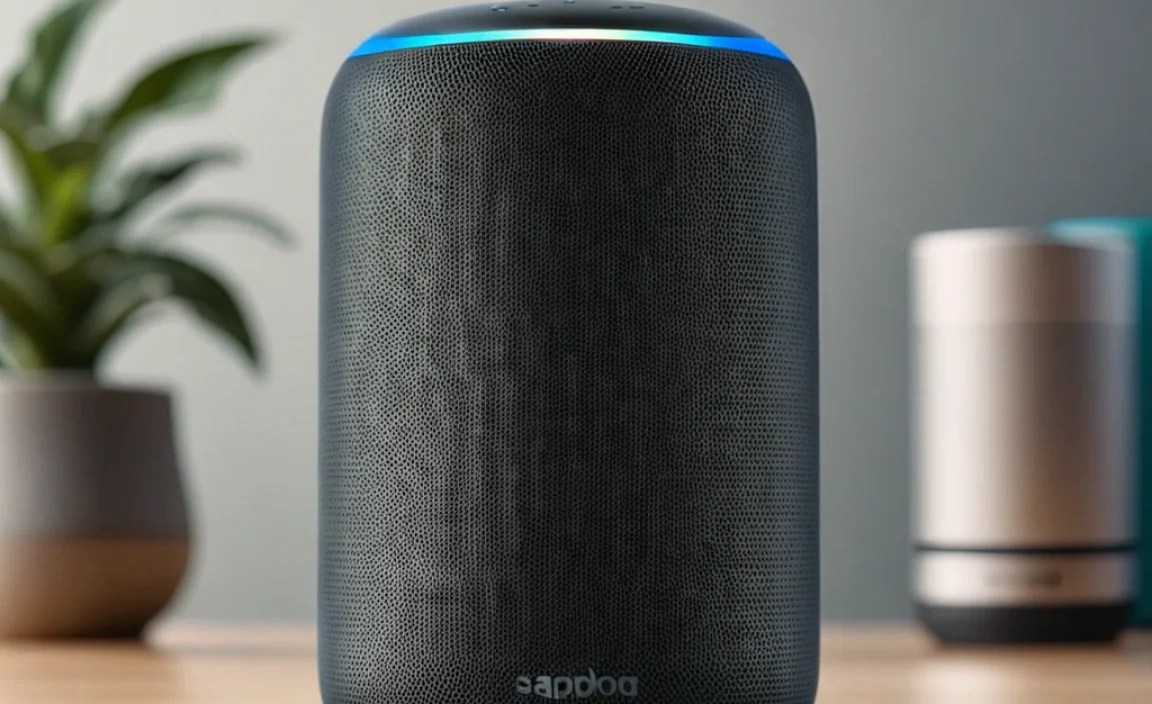
If you’ve tried all the troubleshooting steps and your smart speaker with Alexa is still causing problems, it might be time to consider a more drastic solution or even a replacement.
Factory Resetting Your Alexa Device
As mentioned, a factory reset is like starting over. It can fix persistent software issues that aren’t resolved by simpler reboots. The process typically involves pressing and holding a specific button (often the Action button or a dedicated reset button) on the device for an extended period until the light ring indicates a reset is in progress.
Find Your Model’s Reset Instructions:
Since different Alexa devices have different buttons and methods for resetting, it’s best to consult the official instructions for your specific model. You can usually find this on Amazon’s support website by searching for your device name (e.g., “Echo Dot 4th gen reset”).
When to Contact Support or Replace
If a factory reset doesn’t solve the problem, or if your device has physical damage, it might be time to reach out to Amazon customer support. If the device is out of warranty and deemed unfixable, you might need to consider purchasing a new one. While frustrating, it’s a part of owning any electronic device.
For current Amazon Echo device prices and models, you can visit the official Amazon Alexa devices page.
Understanding Your Alexa Device’s Light Ring
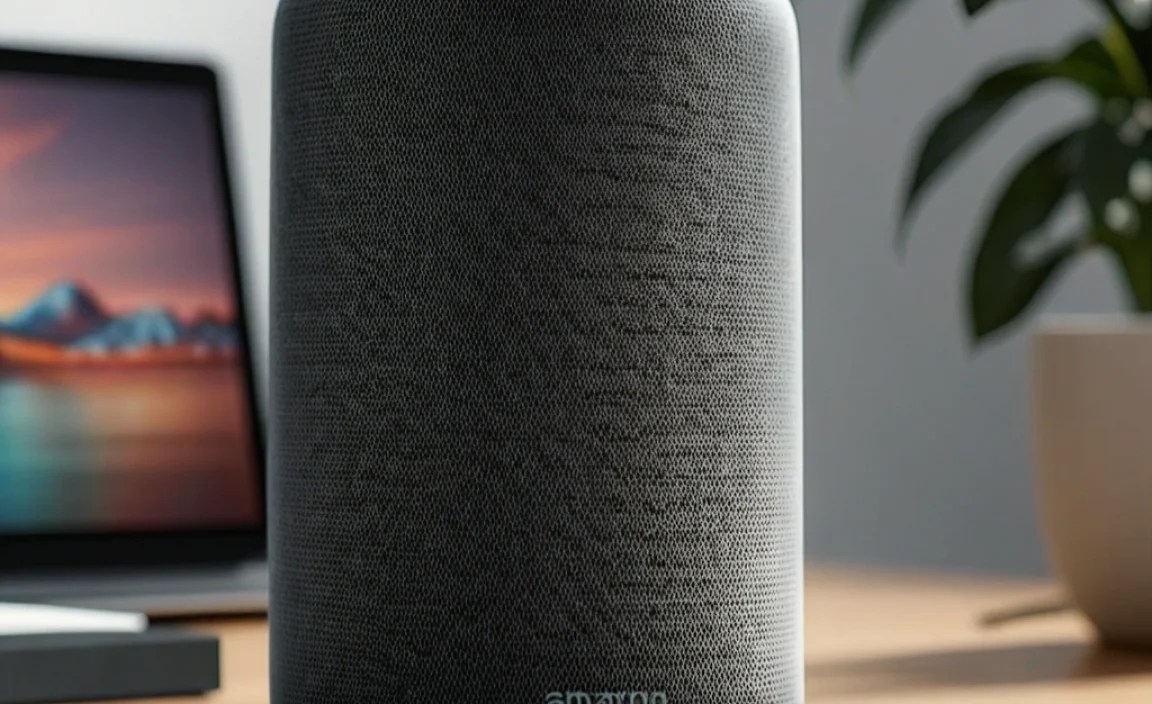
The colored light ring on your Echo device is Alexa’s way of communicating its status to you. Knowing what these colors mean can help you quickly diagnose problems.
| Light Ring Color | Meaning | What To Do |
|---|---|---|
| Blue (spinning) | Alexa is processing your request or waking up. | This is normal. Wait for Alexa to respond. |
| Blue (solid with a cyan segment moving towards you) | Alexa is listening for your command. | Speak your command clearly. |
| Green (pulsing) | Incoming call or an active communication session (like Alexa calling). | Check the Alexa app or say “Alexa, answer call” if applicable. |
| Yellow (pulsing) | You have a new message or notification. | Say “Alexa, what are my messages?” or “Alexa, check notifications.” |
| Red (solid) | The microphone is muted. Alexa cannot hear you. | Press the microphone mute button to unmute. |
| Orange (spinning) | The device is booting up or connecting to Wi-Fi. | Wait for it to connect. If it stays orange, there’s a Wi-Fi setup issue. |
| Purple (flashing) | The device is having trouble connecting to Wi-Fi or is in setup mode. | Try restarting your router and the Echo device. If persistent, re-run Wi-Fi setup in the Alexa app. |
| White (spinning) | The device is adjusting brightness or volume. | This is normal, especially if you’re using voice commands for volume. |