
Choosing between OLED and QLED TVs is a common dilemma for home theater enthusiasts. While both offer stunning picture quality, their technological differences might subtly influence your wall-mounting choices. This guide breaks down OLED vs. QLED, focusing specifically on what you need to know for a secure and stylish TV wall mount installation.
Hey there, fellow tech enthusiasts! Bob E Riley here from Aimguider. Upgrading your TV is exciting, but figuring out how to hang it can feel a bit daunting. You’ve probably heard that OLED and QLED TVs are the top dogs for picture quality. But do you need different wall mounts for them? Or is one easier to hang than the other? This article will clear up all those questions and give you the confidence to pick the perfect wall mount for your new, gorgeous TV. Let’s dive in!
Understanding OLED vs. QLED: What’s the Difference for Your Wall Mount?

When you’re looking at those vibrant screens, it’s easy to get lost in the pixels. But knowing the basic tech behind OLED (Organic Light-Emitting Diode) and QLED (Quantum-dot Light Emitting Diode) can actually help you with your wall mounting project.
OLED TVs are often praised for their incredible contrast and perfect blacks. Each pixel in an OLED display is its own light source. This means they can turn off individual pixels completely, creating true blacks and infinite contrast. Because of this, OLED screens can be incredibly thin, sometimes as thin as a credit card. This slim profile is a major win for wall mounting, allowing for very flush installations.
QLED TVs, on the other hand, use a backlight (usually LED) to illuminate quantum dots. These dots are tiny crystals that enhance the color and brightness of the light. QLEDs generally get brighter than OLEDs and can produce incredibly vibrant colors. While very slim designs are becoming more common with QLED, they are typically a bit thicker than OLEDs due to the backlighting layer.
Key Takeaways for Wall Mounting:
Thickness Matters: OLEDs are generally thinner, meaning they can sit closer to the wall for a sleeker look with flush mounts.
Weight Distribution: While both are becoming lighter, weight can still be a factor, especially with larger screen sizes. Always check the specifications!
Heat Management: Both technologies generate minimal heat, posing no significant concern for wall mount placement right behind the TV.
Demystifying Wall Mount Types: Finding Your Perfect Fit
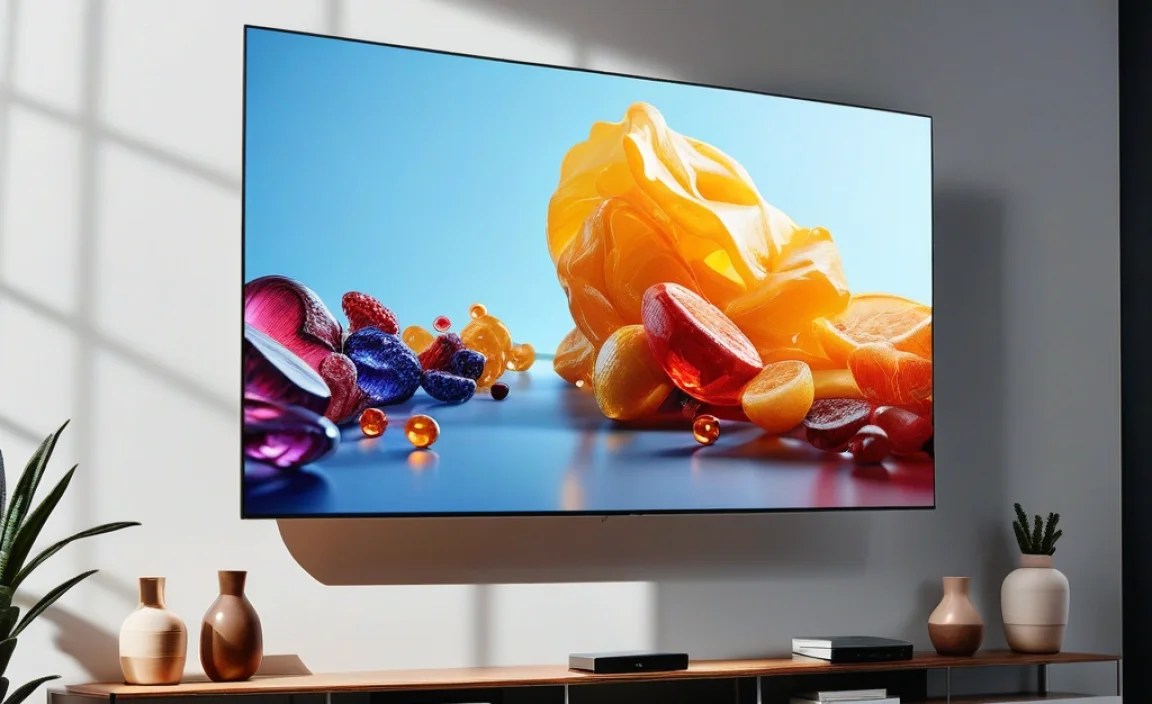
Choosing the right wall mount is crucial for both safety and aesthetics. It’s not just about holding your TV up; it’s about positioning it perfectly for your viewing pleasure. There are a few main types, each with its own advantages.
Fixed Mounts
These are the simplest and most affordable mounts. A fixed mount holds your TV flat against the wall, like a picture frame.
Pros:
Very secure and stable.
Keeps the TV closest to the wall for a minimalist look.
Most budget-friendly option.
Cons:
No tilt or swivel functionality.
Requires precise placement as you can’t easily adjust the TV angle later.
Can cause glare if not positioned perfectly relative to windows or lights.
Tilting Mounts
A tilting mount allows you to adjust the TV’s vertical angle up or down. This is great for reducing glare, especially if your TV is mounted higher on the wall than ideal for eye-level viewing.
Pros:
Helps reduce glare by allowing you to angle the screen.
Offers more flexibility in TV placement.
Still maintains a relatively slim profile.
Cons:
Slightly more expensive than fixed mounts.
Limited adjustability – only vertical tilt.
Full-Motion (Articulating) Mounts
These are the most versatile mounts. They feature one or more arms that allow you to extend the TV away from the wall, tilt it vertically, and swivel it horizontally. This is perfect for rooms where you might watch TV from different angles or need to pull the TV out to access cables.
Pros:
Maximum flexibility for viewing angles.
Can extend the TV out from the wall, making it easier to reach ports.
Ideal for corner installations or rooms with irregular layouts.
Cons:
Typically the most expensive type.
Can project further from the wall when extended, creating a less minimalist look.
Requires a very strong wall installation due to leverage.
Choosing the Right Mount for Your OLED or QLED TV

So, how does OLED vs. QLED actually play into your mount choice? The core difference for mounting lies in their physical characteristics and, to a lesser extent, their typical screen sizes.
OLED TV Wall Mounting Considerations
OLED TVs are renowned for their slimness. Many top-tier OLED models are designed with wall mounting as a primary consideration, sometimes featuring a “gallery mode” or nearly bezel-less designs.
Ultra-Slim Design: This allows for very flush mounting. If you want your TV to look like a piece of art on the wall, an OLED with a fixed or slim-profile tilting mount is hard to beat.
Weight: While generally lighter than comparable QLEDs, always double-check the weight of your specific OLED model. Larger OLEDs (77-inch and above) can still be quite heavy.
VESA Mounting Standard: All modern TVs, whether OLED or QLED, adhere to the VESA mounting interface standards. This means your TV has a set of threaded screw holes on the back in a specific pattern. Your wall mount must match this pattern. You can usually find this information in your TV’s manual or on the manufacturer’s website by searching for your TV model. VESA standard measurements ensure your mount and TV are compatible.
QLED TV Wall Mounting Considerations
QLED TVs often come in a wider range of sizes and price points than OLEDs. Their slightly thicker designs might mean you can’t achieve the same paper-thin flush mount as some OLEDs, but they still offer fantastic wall-mounting options.
Brightness and Heat: QLEDs can get brighter and, therefore, produce a bit more heat than OLEDs, though this is rarely an issue with modern TVs. Simply ensure a little bit of space behind the TV if you’re concerned, especially with super-tight flush mounts.
Weight: Historically, QLEDs could be heavier due to their backlighting components. However, advancements mean many QLEDs are also very light now. Again, always check the specs for your specific model.
VESA Mounting Standard: Just like OLEDs, QLEDs use the VESA standard. The mount’s VESA pattern must match your QLED TV’s.
Comparing Mount Options for Each Technology
| Feature | OLED TV (Typical Use Case) | QLED TV (Typical Use Case) | Mount Recommendation |
| Profile | Extremely slim, often designed for flush mounting | Slim to moderately slim, can vary more | Fixed or Slim Tilting for ultimate flush look (OLED) |
| Flexibility | Less critical if viewing from a single, ideal spot | More useful if placement isn’t perfect or room is multi-use | Full-Motion offers best viewing flexibility for both |
| Weight | Generally lighter, but large sizes can be substantial | Can be heavier, especially larger models, but often surprisingly light | Always check specific model weight for adequate support |
| Glare | Can be an issue if mounted too high or in direct light | Can be an issue, but often handles bright rooms well | Tilting or Full-Motion can help mitigate glare |
Essential Tools and Materials for Wall Mounting

Before you even think about drilling holes, gather your tools. Having everything ready will make the process smoother and safer.
For a successful TV wall mount installation, you’ll typically need:
- The Wall Mount Kit: Ensure it comes with all necessary screws, bolts, and washers.
- Stud Finder: Absolutely crucial for locating wall studs, which are the strongest points in your wall to attach the mount. Electronic stud finders are generally more reliable than magnetic ones.
- Drill & Drill Bits: You’ll need appropriately sized drill bits for pilot holes and larger bits for lag bolts if your mount requires them.
- Level: A spirit level (or a digital level on your phone) is essential to ensure your TV is mounted straight.
- Tape Measure: For precise placement of the mount and checking heights.
- Pencil: To mark drilling points.
- Screwdriver Set: Phillips and flathead screwdrivers will be needed for attaching the mount to the TV.
- Socket Wrench/Ratchet: Often needed for tightening lag bolts into studs.
- User Manuals: Both for your TV and your wall mount. Read them thoroughly!
- Safety Glasses: Protect your eyes from dust and debris.
- Optional: Wall Anchors: If you are absolutely certain you cannot hit a stud (though this is strongly discouraged for TVs over 50 lbs), consult your mount manufacturer and consider heavy-duty, load-rated wall anchors designed for your specific wall type (e.g., drywall, plaster). However, mounting directly into studs is always the safest and recommended method. For guidance on identifying wall types and best practices, resources from organizations like Building Science Corporation can be informative.
Step-by-Step: Mounting Your OLED or QLED TV

Let’s get your TV securely on the wall! Take your time, double-check measurements, and safety is paramount.
Step 1: Determine the Ideal TV Height and Location
Eye Level is Key: The center of your TV screen should ideally be at or just below eye level when you are in your primary sitting position. A general rule of thumb is about 42 inches from the floor to the center of the screen, but this varies based on your sofa height and seating distance.
Avoid Glare: Consider windows and light sources. If glare is an issue, a tilting or full-motion mount can help.
Consider Viewing Angles: If you have a wide seating area, a full-motion mount might be better for achieving optimal viewing angles for everyone.
Check for Obstructions: Make sure there are no electrical outlets, pipes, non-load-bearing elements, or other obstructions behind your chosen mounting spot.
Step 2: Locate Wall Studs
Use a Stud Finder: Run the stud finder horizontally across the wall in the area where you plan to mount the TV. Mark the edges of each stud you find. Most wall studs are 16 inches or 24 inches apart on center.
Confirm with a Small Nail (Optional): If unsure, you can carefully drill a very small pilot hole to feel for resistance, confirming you’ve hit a stud.
Important: Two lag bolts (the large screws that go into the studs) are the minimum required for safety. Your mount’s instructions will specify how many it uses and where they should be placed.
Step 3: Attach the Wall Plate to the Wall
Hold the Mount: Position the wall plate of your mount against the wall at your desired height. Use your level to ensure it’s perfectly straight.
Mark Holes: Mark the stud locations through the mounting holes on the wall plate.
Drill Pilot Holes: Drill pilot holes for your lag bolts. The size of these holes will be specified by your mount manufacturer, but they should be slightly smaller than the lag bolt itself so the threads can grip securely.
Secure the Mount: Attach the wall plate to the wall studs using the provided lag bolts and washers. Use a socket wrench to tighten them securely. Do not overtighten, as this can strip the wood.
Step 4: Attach the TV Brackets to the TV
Identify VESA Pattern: Locate the VESA mounting holes on the back of your OLED or QLED TV.
Attach Brackets: Use the screws provided with your wall mount kit to attach the vertical brackets to the TV. Ensure you use the correct screw length and any necessary washers. If screws are too long, they can damage the TV’s internal components; if too short, they won’t hold securely. Refer to your TV and mount manuals!
Don’t Overtighten: Secure the brackets firmly but avoid excessive force.
Step 5: Hang the TV and Secure It
Get Help: For larger TVs, this step absolutely requires a second person to help lift and maneuver the TV safely.
Hook the TV: Carefully lift the TV and hook the brackets on the back of the TV onto the wall plate. Most mounts have a mechanism where the TV brackets slot into the wall plate.
Secure the TV: Follow your mount’s specific instructions to lock the TV into place. This might involve tightening security screws or engaging a locking mechanism.
Test Gently: Once secure, gently push and pull on the TV to ensure it feels solid and stable.
Step 6: Connect Cables and Final Adjustments
Organize Cables: Route your HDMI cables, power cords, and any other connections. Many mounts come with cable management solutions, or you can use ties or sleeves.
Adjust and Position: If you have a tilting or full-motion mount, now is the time to adjust the TV to your preferred viewing angle. Read your mount’s instructions for fine-tuning tilt and swivel tension.
Troubleshooting Common Wall Mounting Issues
Even with the best preparation, sometimes things don’t go exactly as planned. Here are a few common hiccups and how to solve them:
Can’t Find Studs: If your stud finder isn’t cooperating, try looking for electrical outlets or light switches. These are usually attached to a stud. Mark the stud location next to the outlet if possible. If you’re truly stuck and cannot locate any studs, consult a professional installer and discuss your options for heavy-duty anchors, but never rely on anchors alone for heavy TVs if studs are available.
Mount Seem Loose: If the wall plate wiggles after tightening the lag bolts, the pilot holes might be slightly too large, or you might not be in a solid stud. Try tightening the bolts further if possible, or in some cases, you may need to reposition the mount to a stronger stud location.
TV Won’t Tilt/Swivel Smoothly: Most full-motion or tilting mounts have tension adjustment screws. Consult your mount’s manual to find these and slightly loosen them if stiffness is an issue, or tighten them if the TV feels too loose.
Screws Don’t Fit TV or Mount: This is where correct VESA measurements and careful reading of manuals are critical. Mount kits often come with multiple screw sizes and types. Double-check your TV’s manual to confirm which screws are correct for the VESA holes. If none of the included screws are suitable, you may need to purchase specific M4, M6, or M8 screws of the appropriate length from a hardware store.
* TV is Crooked After Mounting: Most mounts have an adjustment for slight leveling after the TV is hung. Look for leveling screws or a mechanism that allows for minor rotation. If your mount doesn’t have this feature, you might need to