
Quick Summary:
Experiencing issues with your home theater speaker system? Don’t worry! This guide offers effortless, beginner-friendly solutions to fix common problems like no sound, distorted audio, or connectivity glitches, getting your immersive audio experience back quickly.
Is your home theater speaker system acting up? A sudden loss of sound, crackling audio, or a speaker that just won’t connect can really take the fun out of movie night or your gaming session. It’s frustrating, especially when you’re not a tech wizard. But before you call for expensive help or think about replacing everything, there are many simple fixes you can try yourself. We’ll walk you through the most common problems and their easy solutions, so you can get back to enjoying amazing sound in no time.
Understanding Common Home Theater Speaker System Problems
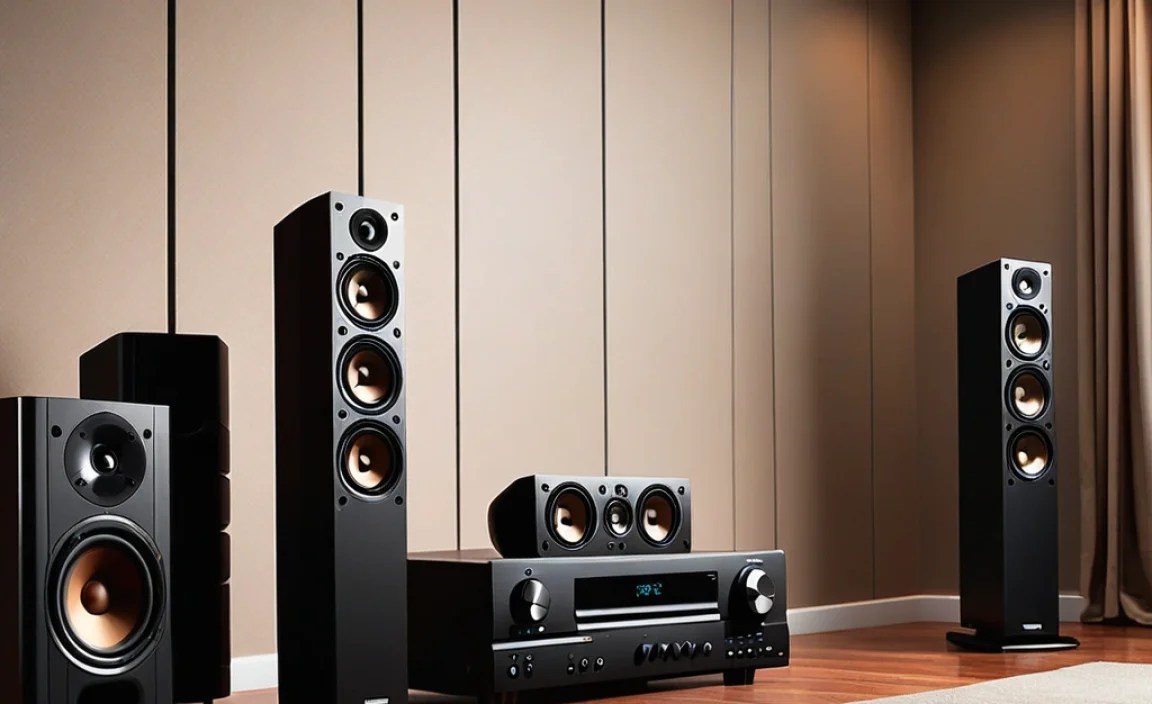
Home theater systems are a fantastic way to bring the cinema experience home, but like any tech, they can encounter hiccups. Most issues aren’t signs of a major breakdown; they’re often simple glitches that are easy to resolve. Let’s break down the most frequent offenders:
- No Sound at All: This is the most dramatic and often the most puzzling. You’ve hit play, but silence.
- Distorted or Crackling Audio: Unpleasant pops, crackles, or muffled sound ruins immersion.
- One or More Speakers Not Working: You might have sound, but it’s not coming from everywhere it should be.
- Connectivity Issues: Bluetooth, Wi-Fi, or wired connections dropping or failing to establish.
- Humming or Buzzing Sounds: An annoying background noise that shouldn’t be there.
- Low Volume Output: Not loud enough, even when the volume is turned up.
The good news? These problems often have straightforward fixes that don’t require a deep dive into circuitry or purchasing new equipment. Let’s start troubleshooting.
The “No Sound” Conundrum: Simple Checks First

The complete silence from your home theater speakers can be alarming, but this is often the easiest problem to solve. It usually boils down to a few basic checks:
- Check Power: It sounds obvious, but is everything plugged in and turned on? This includes the receiver/amplifier, the speakers themselves (if they have power cords), and the source device (Blu-ray player, streaming box, TV). Look for indicator lights on your equipment.
- Verify Volume Levels: Is your volume turned up on the receiver/amplifier? Also, check the volume on your source device and even individual speakers if they have separate volume controls. Sometimes, the master volume on one component might be set to zero or very low.
- Mute Function: Ensure that the mute function isn’t accidentally activated on your receiver or remote control.
- Input Selection: Your receiver needs to be set to the correct input source. If you’re watching a Blu-ray, make sure the input is set to your Blu-ray player, not “TV” or “Bluetooth.”
- Source Device Output: Does your TV or streaming device have its audio output set correctly? For example, if you’re using HDMI ARC, ensure it’s enabled in your TV settings. Sometimes, the default might be set to TV speakers.
- Speaker Connections: Are all speaker wires secure? Ensure they are firmly connected to both the back of the receiver and the speakers. Loose wires are a common culprit.
If you’ve gone through these steps and still get silence, we’ll move on to more specific issues.
Fixing Distorted or Crackling Audio
Distorted or crackling audio is incredibly distracting. It can make your favorite movie sound like a bad radio broadcast. Here’s how to tackle it:
1. Speaker Wire Issues
Frayed or damaged speaker wires can cause intermittent crackling. Also, check if the wires are properly stripped and inserted into the terminals. For banana plugs, ensure they are secure. If wires are old or look damaged, replacing them is a good idea. You can find quality speaker wire at most electronics stores or online retailers.
2. Loose Connections
Go back and double-check all the connections. A wire that’s slightly pulled out of a terminal or a loose HDMI cable can create noise. Ensure all cables are snugly plugged in at both ends.
3. Overdriving Speakers
If you frequently crank the volume to maximum, you might be pushing your speakers beyond their capabilities, causing distortion. Try lowering the volume slightly. You can consult your speaker’s manual for their recommended power handling limits. Overdriving can permanently damage your speakers.
4. Receiver Settings and Calibration
Sometimes, advanced audio settings can interfere. Try resetting your receiver to its factory default settings. Many manufacturers provide instructions on how to do this on their support websites. Running your receiver’s auto-calibration (often called Audyssey, MCACC, YPAO, etc.) can also help optimize sound levels and distances for each speaker, reducing distortion.
5. Interference
Electrical interference from other devices can sometimes cause buzzing or crackling. Try moving your audio components away from potential sources of interference like large power supplies, fluorescent lights, or Wi-Fi routers. Ensure your power cords are not running directly alongside audio cables.
When Only Some Speakers Are Working
It’s common to find that your front left speaker is providing great sound, but the rear right speaker is silent. Here’s a systematic approach:
1. Check Individual Speaker Connections
This is the most frequent cause. Make sure the wire for the silent speaker is correctly connected to the correct terminal on the receiver (e.g., “Surround Right” or “Rear Right”) and the corresponding terminal on the speaker. Reverse polarity (red to black, black to red) on a single speaker can cause it to sound weak or out-of-phase, but usually not completely silent unless the connection is faulty.
2. Test the Speaker Itself
To rule out a dead speaker, try swapping it with a working speaker. Connect the problematic speaker to the terminal of a speaker that is working and see if it produces sound. Also, try connecting a working speaker to the terminal that the silent speaker was using. This helps determine if the issue is with the speaker or the connection/receiver.
Tools You Might Need:
- Wire strippers (if you need to re-strip speaker wire ends)
- Small Phillips head screwdriver (for some speaker terminals)
- Multimeter (optional, for advanced troubleshooting to check continuity of wires)
3. Receiver Speaker Output Settings
Your AV receiver has settings that tell it which speakers are connected. Go into your receiver’s setup menu and verify that the speaker configuration is set correctly. For example, if you have a 5.1 system, ensure that “7.1” or “Bi-Amp Front” isn’t selected, disabling the center or surround channels. Check that the silent speaker channel is set to “Normal” or “Large” (depending on your setup) and not “None” or “Off.”
4. Amplifier Channels
Some AV receivers have specific amplifier channels assigned to speaker outputs. It’s possible a specific channel has failed. If swapping speakers and checking settings doesn’t help, and the problem persists with a different speaker in that same terminal, it might indicate a hardware issue with that particular amplifier channel in the receiver. This is less common but possible.
Troubleshooting Connectivity Issues (Bluetooth, Wi-Fi, HDMI)
Wireless and modern wired connections offer convenience but can sometimes be finicky.
A. Bluetooth Connectivity
- Pairing Mode: Ensure your speakers are in Bluetooth pairing mode. This usually involves holding down a specific button until an indicator light flashes. Consult your speaker’s manual for precise instructions.
- Distance and Obstructions: Bluetooth has a limited range. Make sure your source device (phone, tablet, TV) is close to the speaker. Walls, furniture, and other electronic devices can interfere.
- Restart Devices: Turn off Bluetooth on your source device, wait a few seconds, then turn it back on. Also, power cycle your Bluetooth speakers by turning them off and on again.
- Forget and Re-pair: On your source device, go to Bluetooth settings, find your speaker, and select “Forget Device” or “Unpair.” Then, re-scan for devices and pair them again.
- Interference: Other wireless signals can interfere. Try to position your devices away from microwaves, Wi-Fi routers, and cordless phones.
B. Wi-Fi Connectivity
- Network Check: Ensure your Wi-Fi network is working correctly. Can other devices connect to the internet?
- Router Proximity: Place your Wi-Fi-enabled speakers closer to your router, or consider a Wi-Fi extender if the signal is weak in your home theater area.
- Restart Router and Speakers: Power cycle your modem, router, and then your speakers. The order matters: modem first, then router, then speakers.
- Network Credentials: Double-check that you’ve entered your Wi-Fi password correctly during the speaker’s setup process.
- Firmware Updates: Many Wi-Fi speakers receive updates that can fix connectivity bugs. Check the manufacturer’s app or website for firmware updates for your speakers.
C. HDMI Connectivity (Including ARC/eARC)
- Cable Quality: Use high-speed HDMI cables that are rated for the version of HDMI your devices support (e.g., HDMI 2.0 or 2.1). Older or damaged cables can cause dropouts or no picture/sound.
- Correct Ports: Ensure you’re using the designated HDMI ARC (Audio Return Channel) or eARC port on both your TV and your receiver/soundbar. These are usually labeled.
- Enable ARC/eARC: Go into your TV’s settings and ensure HDMI ARC/eARC is enabled. Similarly, check your receiver/soundbar settings to make sure it’s activated. This feature is required for your TV to send audio back to the sound system via HDMI.
- Device Compatibility: Not all devices support ARC or eARC. Check your TV and receiver manuals to confirm compatibility. Some older TVs might not support ARC.
- Power Cycle: Turn off all connected devices, unplug them from power for a minute, then plug them back in and turn them on in sequence (TV first, then receiver/soundbar).
For detailed information on HDMI ARC and eARC, the Dolby website provides excellent resources on how these immersive audio technologies work.
Eliminating Hum or Buzzing Sounds
That persistent hum or buzz can be distracting. Here are common causes and fixes:
This type of noise is often due to a “ground loop” or electrical interference. Here’s how to address it:
1. Ground Loops
A ground loop occurs when there are multiple paths for electrical ground to travel between devices, creating an unwanted current. The easiest fix is to ensure all your audio/video components are plugged into the same power strip or surge protector. This forces them to share a common ground point. If the hum persists, try unplugging one component at a time from the power strip to identify which device is causing the loop.
2. Power Cable Positioning
Keep audio signal cables (RCA, XLR, speaker wire) well away from power cables. Running them parallel can cause interference. Cross them at right angles if they must intersect.
3. Power Source Quality
Some electrical outlets have “dirty” power due to interference from other appliances on the same circuit. Plugging your system into a different outlet, ideally on a different circuit breaker, can sometimes resolve the issue. Using a high-quality surge protector with noise filtering can also help.
4. Faulty Cables or Adapters
A damaged power cord or an adapter that isn’t properly shielded can introduce noise. Try swapping out cables or adapters to see if the hum disappears.
5. Component Issue
In rare cases, the hum might be emanating from a faulty component. If you’ve tried everything else and the hum remains, and it seems to originate from one particular device (like a subwoofer or an older amplifier), that component might need service or replacement.
Boosting Low Volume Output
If your system isn’t as loud as it used to be, or just not loud enough, here are a few things to check:
| Potential Cause | Solution |
|---|---|
| Incorrect Speaker Settings | Ensure your receiver is set to the correct speaker configuration (e.g., 5.1, 7.1) and that individual speaker sizes (Large/Small) are appropriately set. Setting all speakers to “Large” when they are actually “Small” can lead to imbalance and reduced perceived volume. |
| Low Output from Source | If you’re using a specific app or device, check its internal volume settings. Also, ensure the audio output format is compatible with your receiver (e.g., PCM vs. Bitstream). |
| Receiver’s Maximum Gain Setting | Some receivers have a maximum volume or gain setting that might be unintentionally limited. Check your receiver’s advanced setup menus for any such limits. |
| Speaker Efficiency (Sensitivity) | Speakers have different efficiency ratings (measured in dB). Higher sensitivity speakers require less power to produce the same volume. If your current speakers are low sensitivity, they might struggle to get very loud without a more powerful amplifier. You can find your speaker’s sensitivity rating in its specifications. A rating of 90dB or higher is generally considered efficient. |
| Amplifier Power | If your amplifier (often built into the receiver) is underpowered for your speakers and room size, it might struggle to reach desired volumes cleanly before distortion sets in. Check your receiver’s power output (watts per channel) against your speakers’ power handling capabilities. For instance, if your speakers are rated for 150 watts and your receiver only outputs 50 watts per channel, you might experience low volume issues. |
Troubleshooting low volume can also involve ensuring your receiver isn’t set to a lower gain mode if it has one. Many receivers allow you to choose between different amplifier gain settings, which can affect the overall output level. Refer to your AV receiver’s manual for specifics on these settings.
When To Call a Professional or Consider Upgrades
While this guide covers most common DIY fixes, there are times when professional help or new gear is the best path forward:
- Persistent Hardware Issues: If you suspect a component has failed internally (e.g., a blown amplifier, damaged subwoofer driver), a professional AV technician might be needed.
- Complex Setups: For very complex multi-room audio systems or home cinemas with advanced calibration needs, professional installation and setup can ensure optimal performance.
- Outdated Equipment: If your system is very old, it might not support the latest audio formats (like Dolby Atmos or DTS:X) or high-resolution audio. In this case, an upgrade might be the only way to achieve the desired sound quality.
- Room Acoustics: Sometimes, the best speaker system can sound poor if the room’s acoustics are problematic. Professional acoustic treatment or advice might be necessary. Resources on home theater acoustics can be found from organizations like the Acoustical Society of America.
Before investing in new equipment, consider if your current system components are balanced. For example, pairing very high-end speakers with a low-end receiver will likely result in disappointing sound, regardless of how well they are connected. Aim for a harmonious balance across your entire setup.
Basic Home Theater Speaker System Maintenance Tips
A little regular care goes a long way in preventing future issues:
- Keep it Clean: Dust your equipment regularly. Dust can clog vents and cause overheating, which can lead to performance issues.
- Ventilation: Ensure your receiver and other components have adequate space around them for airflow. Overheating is a common cause of component failure.
- Regular Reboots: Occasionally, power cycling all your components (turning them off at the wall for a minute) can clear minor glitches in their internal processors.
- Check Connections Periodically: Especially if you have pets or move furniture, it’s wise to check that all your speaker wires and HDMI cables are still securely connected.
- Firmware Updates: For smart or networked devices, keep firmware updated. Manufacturers often release updates to improve performance and fix bugs.
Frequently Asked Questions (FAQs)
Q1: My new speakers just crackle. What could be wrong?
A1: It’s likely a connection issue. Ensure the speaker wire is stripped cleanly and inserted securely into the correct terminals on both the speaker and receiver. Also, check if the audio source is sending a clean signal – try a different source to test.