
Connecting speakers to your TV for a bass test is straightforward. This guide will quickly show you how to use common connections like HDMI ARC, optical, or Bluetooth for your bass test, ensuring you get the best sound experience possible.
Hey there, audio adventurers! Bob E Riley here from Aimguider. Ever feel like your TV’s built-in speakers are just… missing something? Especially when that epic movie scene or your favorite bass-heavy track comes on? You’re not alone! Many of us dream of richer, deeper bass that truly makes our entertainment come alive. Connecting external speakers is the key, but figuring out the “how-to” and then doing a bass test can feel a bit daunting. Don’t worry! This guide is designed to make it super simple, even if you’re new to the techy side of things. We’ll walk through the easiest ways to connect almost any speaker to your TV and how to make sure that bass is hitting just right.
Why a Good Bass Test Matters

Why bother with a bass test after connecting your speakers? Simple: to ensure you’re getting the full audio experience you paid for. Great bass adds immersion, depth, and excitement to everything you watch and listen to. It’s what makes explosions rumble, music thump, and those dramatic movie moments truly impactful. Without a proper setup and test, you might be missing out on those powerful low frequencies, leaving your audio sounding flat and uninspired. This guide will help you confirm your speakers are delivering that satisfying low-end punch.
Understanding Your TV and Speaker Connections

Before we dive into connecting, it’s crucial to know what kind of ports your TV and speakers have. This is like packing the right tool for the job! Most modern TVs offer a few standard connection options, and knowing them will save you a lot of guesswork.
Common TV Audio Output Ports
- HDMI ARC (Audio Return Channel): This is the superhero of TV audio connections. One HDMI cable can send audio from your TV to your soundbar or receiver and also receive video from those devices. It’s convenient and often offers the best quality.
- Optical Audio (TOSLINK): A fiber optic cable that transmits digital audio. It’s a very common and reliable way to get good sound from your TV to external speakers.
- 3.5mm Headphone Jack: Some TVs have a standard headphone jack. While convenient for headphones, it can also be used for some smaller powered speakers, though audio quality might be limited.
- RCA Audio (Red and White): Older TVs might have these analog outputs. You’ll need an adapter if your speakers don’t have matching RCA inputs.
Common Speaker Input Types
- HDMI ARC IN: For soundbars and AV receivers that use HDMI ARC.
- Optical IN: For soundbars, receivers, and some active speakers.
- Bluetooth: Many modern speakers and soundbars connect wirelessly.
- Auxiliary (AUX) or 3.5mm IN: A common input for many speakers, often found on powered speakers.
- RCA IN: Found on some stereo systems and older powered speakers.
Step-by-Step: Connecting Your Speakers to Your TV
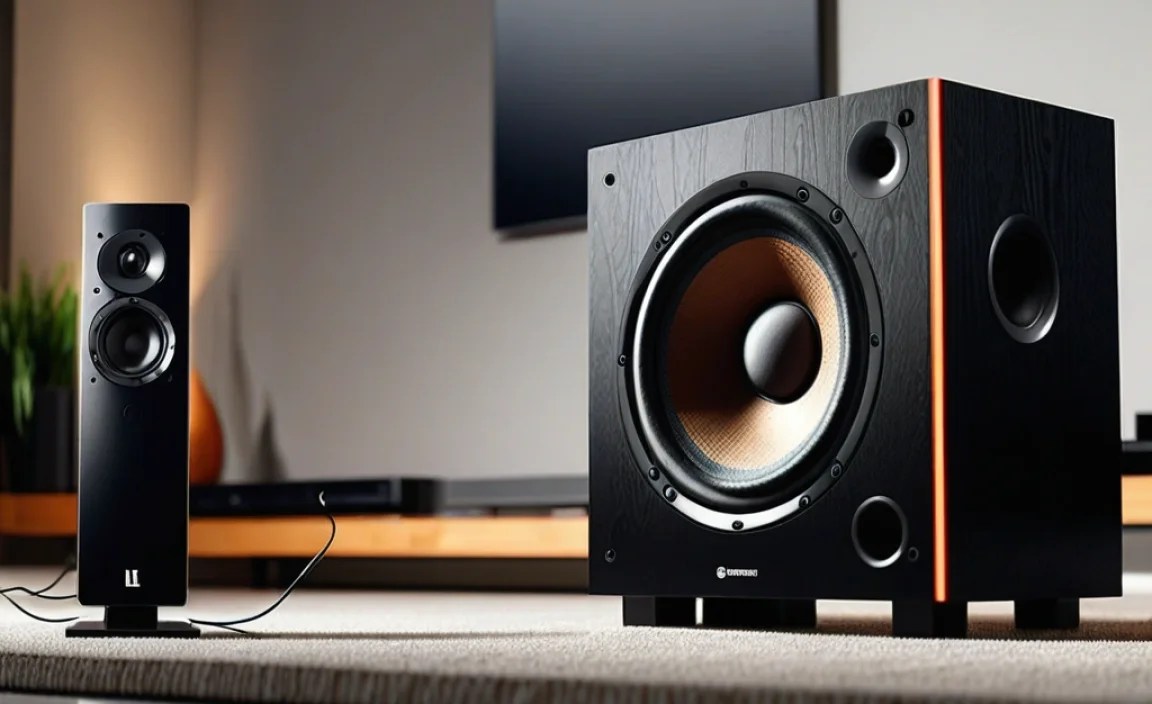
Let’s get those speakers hooked up! We’ll cover the most popular methods. Remember to unplug your TV and speakers before making any physical connections to avoid potential damage.
Method 1: The Easiest – HDMI ARC
If both your TV and your soundbar or AV receiver have an HDMI port labeled “ARC,” this is usually your best bet for quality and simplicity.
- Locate the ARC Ports: Find the HDMI port labeled “ARC” (or sometimes “TV-ARC”) on your TV and your soundbar/receiver.
- Connect with an HDMI Cable: Use a high-speed HDMI cable to connect these two ports.
- Enable ARC on Your TV: Go into your TV’s settings menu. Look for something like “HDMI Settings,” “External Device Manager,” or “Audio Output.” Find the option for HDMI ARC and make sure it’s turned ON. Your TV might also have a setting for “CEC” (Consumer Electronics Control) or a brand-specific name for it (like Anynet+ for Samsung, Simplink for LG). Ensure this is also enabled.
- Select HDMI ARC on Your Speaker: On your soundbar or receiver, select the HDMI ARC input source.
- Test the Audio: Play some content on your TV. You should hear sound from your external speakers.
Method 2: The Reliable – Optical Audio
This is a fantastic option if your TV or speakers don’t support HDMI ARC, or if you want a dedicated digital audio connection.
- Locate Optical Ports: Find the port labeled “Optical Out” or “Digital Audio Out” on your TV and “Optical In” on your speakers/soundbar. The optical port on your TV might also have a small flap covering it.
- Connect with an Optical Cable: Gently plug one end of the optical (TOSLINK) cable into the TV’s output and the other end into the speaker’s input. Don’t force the connection; it only goes in one way. Remove any protective plastic caps from the cable ends before plugging them in.
- Select Optical on Your Speakers: On your soundbar or receiver, choose the Optical input source.
- Set TV Audio Output: In your TV’s audio settings, select “Optical” or “Digital Audio Out.” You might also find options for the digital audio format (like PCM or Dolby Digital). For simplicity, start with PCM.
- Test the Audio: Play content on your TV.
Method 3: The Wireless Way – Bluetooth
Bluetooth offers convenience with no messy cables, but can sometimes have a slight delay (latency) and might not offer the highest audio fidelity compared to wired options.
- Enable Bluetooth on Your TV: Navigate to your TV’s settings and find the “Bluetooth,” “Wireless Devices,” or “Sound” menu. Turn Bluetooth ON.
- Put Your Speakers in Pairing Mode: Check your speaker’s manual. Usually, there’s a dedicated Bluetooth button you press and hold until a light flashes or you hear a confirmation sound.
- Pair TV and Speakers: On your TV, scan for Bluetooth devices. Your speakers should appear in the list. Select them to initiate pairing.
- Confirm Connection: Once paired, your TV should indicate that the speakers are connected. Select the Bluetooth audio output on your TV.
- Test the Audio: Play content on your TV.
Tip: Some TVs might have advanced audio settings to adjust Bluetooth latency if you notice lipsync issues.
Method 4: The Analog Approach – RCA or 3.5mm
This is common for older TVs or simpler powered speaker setups.
- Identify Ports: On your TV, look for red and white RCA jacks labeled “Audio Out” or a 3.5mm headphone jack. On your speakers, find matching RCA inputs or a 3.5mm AUX input.
- Use the Right Cable:
- For RCA: You’ll need an RCA to RCA cable (red and white plugs on both ends) or an RCA to 3.5mm adapter cable if your speakers have an AUX input.
- For 3.5mm: You’ll need a 3.5mm to 3.5mm audio cable.
- Connect the Cable: Plug one end into the TV’s audio output and the other into the speaker’s audio input.
- Set TV Audio Output: In your TV’s audio settings, select “Audio Out,” “Headphone,” or “Analog Audio.”
- Set Speaker Volume: Turn on your speakers and set their volume to a moderate level. You will likely need to adjust both the TV and speaker volume to get the desired sound.
- Test the Audio: Play content.
Performing the Bass Test
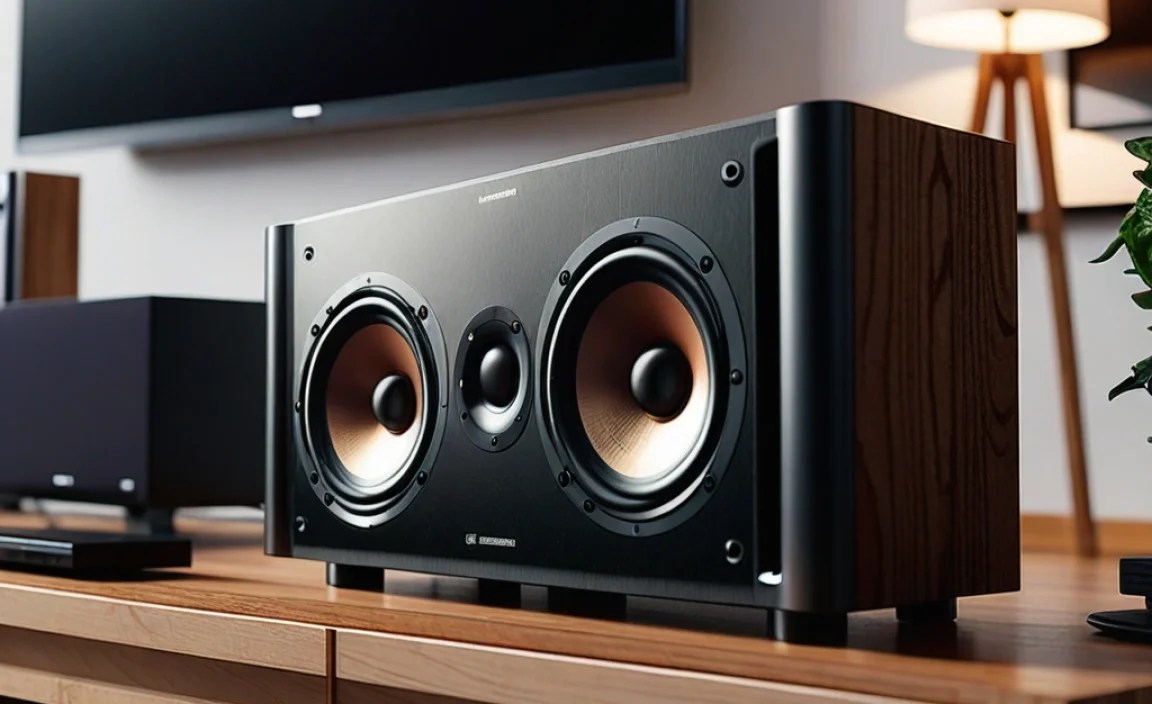
You’re connected! Now, let’s make sure that bass is doing its job. A good bass test involves a bit of listening and possibly some minor adjustments. We’re looking for deep, resonant low frequencies that you can feel as well as hear, without being overpowering or distorted.
What to Listen For
- Depth and Rumble: Can you feel the deep vibrations during explosions, powerful music drops, or low organ notes?
- Clarity: Is the bass clear and distinct, or is it muddy and indistinct?
- Punch: Does the bass have a good “thump” or impact, especially in music or quick sound effects?
- Balance: Does the bass sound overwhelming, or is it well-balanced with the mid-range and treble sounds?
Recommended Bass Test Content
The best way to test is with content you know well and that is known for its dynamic sound design or bass-heavy music. Here are some ideas:
- Movie Scenes:
- Opening scene of Saving Private Ryan (beach landing)
- Any major action sequences in Mad Max: Fury Road, Transformers movies, or The Dark Knight.
- Soundtrack moments in Interstellar (especially organ scenes).
- Music Genres:
- Dubstep, Drum and Bass, Hip-Hop, Electronic Dance Music (EDM). Look for artists with prominent basslines like Bassnectar, Skrillex, or Daft Punk.
- Live concert recordings often have rich, powerful bass.
- Gaming: Many video games have incredible sound design. Driving games (engine sounds), action games (explosions), or even atmospheric horror games can provide great bass cues.
- YouTube Bass Test Videos: Search for “TV Bass Test” or “Subwoofer Test” on YouTube. These are specifically designed to produce deep, low frequencies. Be cautious with these; some can be extremely loud and push your speakers to their limits.
How to Use Test Content
- Play the Content: Start your chosen test material.
- Listen Critically: Pay attention to the low-frequency effects. Do they sound as you expect?
- Adjust Volumes:
- TV Volume: Ensure your TV’s overall volume is at a comfortable listening level (e.g., 30-50%).
- Speaker Volume: Adjust the volume on your soundbar or speakers. Find a balance where the bass is present and satisfying but doesn’t distort or overwhelm other sounds.
- Check TV Audio Settings: Some TVs have EQ (Equalizer) settings or bass/treble controls. Experiment with these if your bass feels lacking or too strong. For example, if your TV allows, boost the bass setting slightly. For a bass test, you might temporarily crank this up to see if your speakers can handle it without rattling or distortion (then dial it back to a pleasing level).
- Speaker-Specific Settings: If you have a soundbar or receiver, it might have its own bass or subwoofer level controls. Use these in conjunction with your TV settings. Many soundbars have a “Bass Boost” feature or a “Night Mode” that can affect low frequencies.
Troubleshooting Common Bass Test Issues
Even with the best intentions, you might run into snags. Here’s how to tackle the most common bass-related problems:
Issue: No Bass at All
- Check Connections: Ensure cables are securely plugged in at both ends.
- Correct Input Selected: Verify you’ve chosen the right input source on your speakers (HDMI ARC, Optical, Bluetooth, AUX).
- TV Audio Output Set Correctly: Double-check your TV’s audio settings to ensure it’s sending sound through the selected output.
- Volume Levels: Make sure both TV and speaker volumes are turned up.
- Speaker Test: Try playing audio directly from the speaker via Bluetooth or an auxiliary cord from your phone to confirm the speaker itself works.
- TV Sound Settings: Ensure the TV isn’t set to “TV Speaker” output.
Issue: Bass is Muddy or Distorted
- Lower Bass Level: Turn down the bass on your TV or speaker settings.
- Lower Overall Volume: Sometimes, distorting bass is a sign of pushing the system too hard. Try lowering the main volume.
- Check Speaker Placement: Speakers placed near corners or walls can sometimes exaggerate bass, making it sound boomy. Try repositioning them slightly.
- Audio Format: If using Optical or HDMI ARC, try changing the digital audio format in your TV settings from Dolby Digital to PCM (or vice versa) to see if it improves clarity.
- Speaker Capability: Your speakers simply might not be designed to produce very deep bass. If this is the case, consider a speaker upgrade or adding a subwoofer.
Issue: Bass is Too Quiet
- Increase Bass Settings: Boost the bass level in your TV or speaker’s audio settings.
- Check Speaker Volume: Ensure your speaker’s volume is adequately high.
- Reposition Speakers: Sometimes, moving speakers can change how bass frequencies resonate in the room. Experiment with placement.
- Room Acoustics: The shape and furnishings of your room can affect bass response. Hard, bare surfaces can make bass sound weak, while soft furnishings can absorb it.
- Content Source: The original audio mix of the content you’re watching might simply not have prominent bass. Try different content.
Issue: Lip Sync Issues (Audio Lag)
This is a common problem with Bluetooth and sometimes HDMI ARC.
- Use Wired Connections: Optical or RCA connections generally have zero latency.
- TV Latency Settings: Look for “A/V Sync,” “Lip Sync,” or “Audio Delay” settings in your TV’s audio menu and adjust it to match the audio to the video.
- Speaker Latency Settings: Some soundbars or receivers have their own sync adjustments separate from the TV.
- Bluetooth Codecs: If using Bluetooth, check if your TV and speaker support lower-latency codecs like aptX Low Latency.1
Best Practices for Bass Performance
Beyond just connecting and testing, a few tips can elevate your bass experience:
- Speaker Placement: For floor-standing or bookshelf speakers, experiment with their distance from walls. Generally, pulling them a foot or two away from the wall can improve clarity and reduce boominess. For soundbars, placing them directly in front of the TV, not obstructed, is usually best.
- Subwoofer Integration: If you have a separate subwoofer, ensure it’s properly connected (often wirelessly or via a dedicated cable to your receiver/soundbar) and its crossover frequency is set appropriately. A common starting point is 80Hz. You can find more information on subwoofer crossover settings from reputable audio sites like Audioholics.
- Room Calibration: Some higher-end soundbars and receivers come with a calibration microphone. Using this can help optimize the audio output for your specific room’s acoustics, which significantly impacts bass performance.
- Regularly Update Firmware: Both your TV and your audio devices might have firmware updates that can improve performance and fix bugs, including audio-related ones. Many TVs will prompt you, but it’s worth checking manually in the settings menu periodically.
- Experiment with EQ: Don’t be afraid to tweak the Equalizer settings on your TV or sound system. A slight boost to the lower frequencies can often make a big difference.
Frequently Asked Questions (FAQ)
Q1: Can I connect any speaker to my TV?
Generally, yes, as long as you have the correct cables and your TV has the appropriate audio output port (like HDMI ARC, Optical, or 3.5mm). Wireless Bluetooth speakers can also connect if your TV supports Bluetooth audio output.
Q2: Which connection method is best for bass quality?
For the best possible bass quality and overall sound, HDMI ARC is usually preferred, followed closely by Optical (TOSLINK). Wired connections generally offer more stable and higher fidelity audio than Bluetooth.
Q3: My TV has RCA outputs, but my speakers have an AUX input. What do I do?
You’ll need an RCA to 3.5mm (AUX) adapter cable. This cable typically has two RCA plugs (red and white) on one end and a single 3.5mm plug on the other. Connect the RCA ends to your TV’s audio output and the 3.5mm plug into your speaker’s AUX input.
Q4: How do I know if my TV supports HDMI ARC?
Look for an HDMI port on your TV that is specifically labeled “ARC” or “Audio Return Channel.” You can also check your TV’s manual or the manufacturer’s website for specifications. Not all HDMI ports on a TV are ARC-enabled.