
Tired of tangled cords behind your TV? This guide breaks down TV stand cable management simply. Learn how to organize and hide wires for a clean, safe, and stylish entertainment setup. We cover easy solutions for every budget, transforming your media area from messy to marvelous.
Hey there, home entertainment enthusiasts! Bob E Riley here from Aimguider. Do you ever look at the back of your TV and just feel overwhelmed? Those spaghetti-like tangles of wires can be a real eyesore, not to mention a dust magnet and a tripping hazard. It’s a common frustration, but don’t worry! We’re going to tackle this together. This guide will show you exactly how to manage those cables behind your TV stand, making your setup look neat, tidy, and professional – no advanced tech skills required. Get ready to say goodbye to the cable chaos and hello to a serene viewing experience.
We’ll walk through simple steps and practical tools to help you reclaim your space and peace of mind. From choosing the right TV stand to using clever accessories, we’ve got you covered. Let’s dive in and declutter!
Why Cable Management Matters for Your TV Stand

Let’s be honest, nobody dreams of a home entertainment setup that looks like a tech graveyard. The visible tangle of cables behind your TV stand isn’t just messy; it’s a missed opportunity to elevate your entire living space. Effective cable management isn’t about being a perfectionist; it’s about creating a cleaner, safer, and more enjoyable environment.
Think about it: a clean setup looks more intentional and sophisticated. It makes cleaning easier, reduces the risk of dust buildup attracting static (which can damage electronics), and prevents accidental disconnections or even tripping hazards for pets and curious kids. Plus, a well-managed system ensures your devices can breathe and function optimally by preventing heat buildup.
We’ll explore how simple strategies can make a huge difference, turning that unsightly mess into a sleek feature of your home.
Understanding Your Cable Mess: Identify and Inventory
Before you start wrestling with wires, take a deep breath and a good look. The first step to taming the beast is understanding what you’re dealing with. Grab a piece of paper or open a note on your phone and do a quick inventory. What cables are going where?
- Identify each device: List everything connected to your TV – streaming boxes (like Roku or Apple TV), gaming consoles (PlayStation, Xbox), soundbars, Blu-ray players, Wi-Fi routers, and of course, the TV itself.
- Trace each cable: Follow each cable from the device to its connection point. Note if it’s an HDMI, power cord, optical cable, USB, or Ethernet cable.
- Check cable length: Are your cables excessively long, leading to coiled messes? Longer can be better for flexibility, but too long creates clutter.
- Assess condition: Are any cables frayed or damaged? This is a safety hazard and needs immediate attention.
This inventory helps you see the scope of the problem and anticipate what tools or solutions you might need. It’s like planning your route before a big trip – it saves you time and frustration.
Choosing the Right TV Stand: Function Meets Style
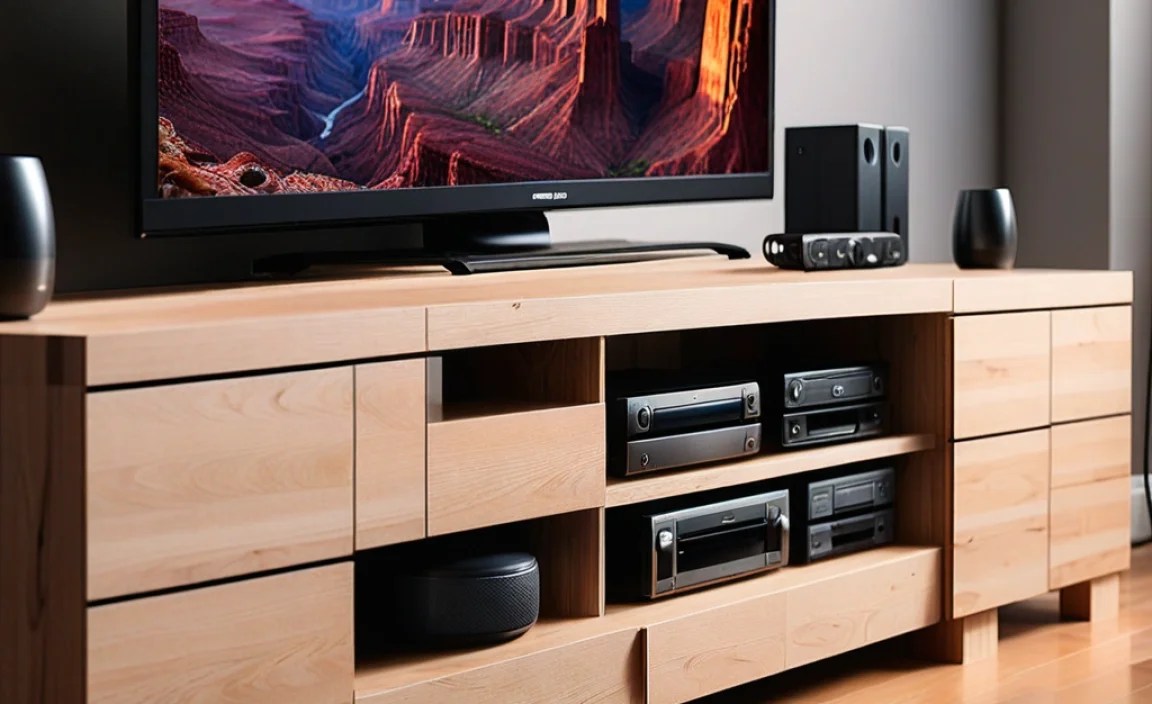
Not all TV stands are created equal when it comes to managing cables. Some are designed with this very problem in mind, offering built-in solutions. When you’re looking for a new TV stand, or even if you have an existing one, consider these cable-friendly features.
Features to Look For in a Cable-Friendly TV Stand:
- Cable Grommets: These are simple holes, often with brush strips or plastic fittings, strategically placed in the back panel or shelves. They allow cables to pass through neatly from the back to the front or between compartments, keeping them out of sight.
- Open Back Design: Stands with a completely open back offer excellent ventilation and easy access to plugins, but without additional features, cables can still dangle freely.
- Rear Compartments or Channels: Some stands have enclosed sections or channels specifically designed to hide power strips, excess cable length, and even small routers.
- Adjustable Shelves with Cable Access: The ability to adjust shelves can help you position devices for better cable routing. Look for notches or holes in the shelf supports or back panels.
- Sufficient Depth and Width: A stand that’s too shallow or narrow will struggle to accommodate devices and their cables without everything being crammed together, making management difficult.
If you’re in the market for a new stand, prioritize these features based on your needs. For example, a stand with integrated cable management systems can be a game-changer.
Existing TV Stands: Upgrading Your Current Setup
Don’t want to buy a new TV stand? No problem! You can retrofit many existing stands with simple accessories to improve cable management significantly. Think of it as adding smart features to an older model.
- Drill your own grommets: If your stand’s back panel is solid wood or MDF, you can carefully drill your own holes and install separate grommets. Measure twice, drill once! You can find universal grommets at most hardware or electronics stores.
- Add cable clips or raceways: These adhesive or screw-in solutions can be attached to the back or underside of a stand to guide cables along a path.
- Utilize rear shelves or boxes: Mount a small shelf or a decorative box to the back of the stand to house power strips and excess cable.
With a little creativity, even an older stand can become cable-management friendly.
Essential Cable Management Tools and Accessories
Once you’ve assessed your needs and understand your TV stand’s capabilities, it’s time to arm yourself with the right tools. These are the unsung heroes of a tidy setup, and most are incredibly affordable.
| Tool/Accessory | What It Does | Best For |
|---|---|---|
| Cable Ties (Velcro or Zip Ties) | Bundle multiple cables together into neat, manageable bundles. Velcro ties are reusable and gentler on cables. | Securing groups of cables running together, managing excess length. |
| Cable Sleeves (Wraps) | A flexible tube that encloses multiple cables, creating a single, tidy run. | Hiding cables running from a device to the wall or along a desk/stand. |
| Cable Clips/Holders | Small, often adhesive-backed clips that stick to surfaces and guide cables along a route. | Keeping individual cables organized and preventing them from dangling. |
| Cable Raceways/Conduit | Channels that adhere to walls or furniture surfaces, completely concealing cables. Some are paintable to match decor. | Achieving a very clean look, hiding cables running along walls or furniture. |
| Cable Box/Organizer | A decorative box designed to house power strips and excess cable, with slots for cords to enter and exit. | Hiding the power strip and the bulk of extra cable length, a great desktop or shelf solution. |
| Wire Loom/Tubing | Similar to sleeves but often more industrial-looking, great for bundling a large number of cables. | Heavier duty bundling of many cables, especially in entertainment centers. |
| Adhesive Mounts/Straps | Sticky-backed hooks or straps that can attach to the back of your TV stand or wall to route cables out of sight. | Securing cables discreetly behind furniture. |
| Short HDMI/Power Cables | Using appropriately sized cables can drastically reduce excess length and clutter. | Reducing the amount of cable that needs management in the first place. Consider sites like Monoprice for various cable lengths. |
Don’t feel like you need every single item. A good starting point is often a pack of Velcro cable ties and a cable box or sleeve.
Step-by-Step Guide: Taming Your TV Cables
Now, let’s get hands-on! This process is straightforward, and taking it step-by-step makes it feel much less daunting. Remember to unplug devices before you start manipulating cables to avoid any accidents.
Step 1: The Great Unplugging
This is crucial for safety. Turn off your TV and all connected devices. Then, unplug the main power cords from the wall outlet and from the devices themselves where accessible.
Step 2: Untangle and Assess
Gently pull all cables away from the back of your TV stand. Lay them out roughly so you can see them clearly. This is a good time to identify any cables you no longer need or any that are damaged and require replacement.
Step 3: Routing Strategy
Before you start bundling, think about how you want your cables to run.
- Vertical Runs: If cables need to go from the TV to power outlets or devices lower down, aim for a single, straight vertical path.
- Horizontal Runs: If cables need to connect devices sitting side-by-side or run across shelves, plan a neat horizontal route.
- Hiding the “Head”: The power strip and plug ends are usually the bulkiest. Decide where these will live – a cable box, a compartment in the stand, or neatly secured to the back.
Step 4: Bundle and Secure
Group cables that run together. For instance, all the HDMI cables connecting to the TV can be bundled. Use Velcro ties or zip ties to secure these bundles. Don’t tie them too tightly, especially if they are flexible cables like HDMI, as this can damage internal wiring. Leave a little slack.
Tip: Color-coding your ties can help you remember which bundle belongs to which device, especially if you have many similar cables.
Step 5: Utilize Sleeves and Raceways
If you have cables running a significant distance or want a really clean look, now is the time to use cable sleeves or raceways.
- Cable Sleeves: Feed your bundled cables into a sleeve. These are great for running cables from the TV down to the stand.
- Cable Raceways: If you’re mounting your TV on the wall and running cables down, raceways are ideal. Peel and stick the adhesive backing to your wall (or the back of your stand) and snap the cables into the channels. For a more permanent solution, some raceways can be screwed in. You can find paintable raceways to blend seamlessly with your wall color. Check out resources for wall-mounting best practices to ensure safety and efficiency.
Step 6: Hiding the Bulk
This is where cable boxes or organizers shine. Place your power strip inside the cable box and plug in your device power cords. Arrange the excess cable length neatly within the box. Thread the main power cords through the designated slots. This instantly cleans up the most visually distracting part.
Step 7: The Final Arrangement
Once your cables are bundled, sleeved, and hidden, arrange your devices back on or in the TV stand. Plug everything back in. Tidy up any remaining loose cords with clips or smaller ties. Ensure good airflow around your electronic devices.
Ventilation is key: Overheating can shorten the lifespan of your electronics, so make sure cables aren’t blocking vents or preventing air circulation.
Step 8: Test and Admire
Turn on your TV and devices. Make sure everything is working correctly. Take a step back and admire your clean, organized setup. You’ve done it!
Advanced Cable Management Techniques
For those who want to take their cable management to the next level, or for specific setups, here are a few advanced approaches:
In-Wall Cable Hiding
This is the holy grail for a super-clean look, especially for wall-mounted TVs. It involves running cables through the wall cavity. While it offers a seamless finish, this requires more advanced DIY skills or hiring a professional. You’ll typically need to:
- Install low-voltage cable pass-through plates behind the TV and near your power outlet(s).
- Use a fish tape or similar tool to pull the cables (power, HDMI, etc.) through the wall.
- Use specialized kits designed for in-wall cable management, which often include surge protectors that can be installed behind the TV.
Always check local building codes and safety guidelines if considering in-wall installations. The Electrical Safety First website offers valuable guidance on safe electrical practices, though it’s UK-centric, the principles of safety are universal.
Integrated Furniture Solutions
Some modern entertainment centers and TV stands are designed with integrated cable management systems that are often more robust than simple grommets. These might include:
- Built-in cable channels running vertically and horizontally.
- Dedicated bays for power strips and Wi-Fi routers.
- Doors or panels that conceal equipment and wiring.
If you love a minimalist aesthetic, investing in furniture designed with this in mind can be a worthwhile long-term solution.
Wireless HDMI Extenders
For a truly wire-free experience between your source (like a Blu-ray player) and your TV, consider wireless HDMI extenders. These devices transmit the HDMI signal wirelessly, eliminating the need for a long HDMI cable. While they can introduce latency and may not be suitable for high-end gaming or critical audio setups, they are a fantastic solution for reducing visible cables in certain situations.
Troubleshooting Common Cable Management Issues
Even with the best intentions, you might run into a snag. Here are a few common problems and how to solve them:
| Problem | Cause | Solution |
|---|---|---|
| Cables still look messy | Not enough bundling or too much slack. | Re-bundle cables tighter (but not too tight!). Shorten excess lengths by coiling them neatly and securing with ties within a cable box or behind the stand. Consider using shorter cables if possible. |
| Not enough outlets | Limited power strip capacity or wall outlets. | Use a power strip with more outlets. Consider a smart power strip that can be controlled remotely or offers surge protection. Always ensure the total wattage does not exceed the power strip’s rating. |
| Devices overheating | Poor ventilation due to packed cables or blocked vents. | Ensure all device vents are clear. Use cable sleeves and raceways that don’t restrict airflow. Position devices with space between them. Consider using an open-back stand or creating more space within your stand. |
| Remote control signal issues | Cables, boxes, or metal components blocking the infrared (IR) signal. | Ensure the IR receiver on your devices is not obstructed. Use cable management solutions that keep cables neatly to the sides or away from the front of the devices. For persistent issues, consider an IR repeater. |
| Tripping hazards | Loose cables on the floor or draped carelessly. | Secure all cables to the back of the TV stand or floor using clips, raceways, or ties. Ensure no cables are running across walkways. |
Most cable management issues are solved by careful planning and using the right accessories. Don’t be afraid to try a solution, and if it doesn’t work, adjust and try again!
Frequently Asked Questions about TV Stand Cable Management
Q1: How do I hide the power brick for my TV?
A1: The easiest way is to use a cable management box. Place the power brick and the power strip inside the box, with only the main power cord and device cords exiting through designated slots. You can also often secure it to the back of the TV stand with strong adhesive strips.
Q2: What’s the difference between cable ties and cable sleeves?
A2: Cable ties (Velcro or zip ties) bundle individual cables together. Cable sleeves are like a tube that encloses multiple bundled cables, creating one neat package. Sleeves offer a more complete ‘hidden’ look for a run of cables.