
To get the best picture on your TV, understanding contrast ratio is key. It’s the difference between the brightest white and darkest black your TV can show. Adjusting contrast settings properly makes images pop, making movies, games, and shows look more realistic and engaging.
Hey there, fellow home entertainment fans! Bob E Riley here from Aimguider. You know that feeling when you’re watching a movie, and the dark scenes just aren’t quite dark enough? Or maybe the bright parts look a little washed out? A big reason for that is something called “contrast ratio.” It’s a fancy term, but it’s super important for a great TV picture. Don’t worry if it sounds complicated; we’re going to break it down together, step-by-step, so you can get those picture settings just right. Ready to make your TV look amazing? Let’s dive in!
What Exactly is TV Contrast Ratio?

Think of contrast ratio as the TV’s ability to show the difference between the lightest light and the darkest dark it can produce. A higher contrast ratio means you can see a wider range of shades in between. This makes the picture look more vibrant, detailed, and realistic. It’s like the difference between a dull, flat drawing and a photo with really deep shadows and bright highlights.
Why Contrast Ratio Matters for Your Viewing Experience
When your TV has a good contrast ratio, you’ll notice a huge difference in picture quality. Here’s why it’s so important:
- Deeper Blacks: This is probably the most noticeable benefit. Deep blacks make the bright parts of the image stand out more. This is crucial for enjoying movies, especially in dark scenes where you want to see details without them looking like a murky gray mess.
- Brighter Whites: Similarly, bright whites appear cleaner and more luminous. This adds a sense of depth and realism to everything you watch.
- More Detail: With a better range between light and dark, you can see more subtle details in both the shadows and the highlights. This means fine textures, facial expressions, and distant objects become clearer.
- Improved Depth and Dimension: A strong contrast makes images feel more three-dimensional, pulling you into the on-screen action.
- Vibrant Colors: While contrast isn’t directly about color saturation, it plays a huge role. When blacks are truly black, colors appear more vivid and true to life because they aren’t being “washed out” by dim blacks.
Understanding the Numbers: Static vs. Dynamic Contrast

You’ll often see two types of contrast ratios advertised: static and dynamic. It’s important to know the difference because they tell slightly different stories about your TV’s performance.
Static Contrast Ratio
This is the more honest and reliable number. It measures the difference between the brightest white and darkest black that a TV can display simultaneously. In simpler terms, it’s the best it can do at any one moment without changing anything.
A higher static contrast ratio is always better. For example, a 1,000:1 static contrast ratio means the brightest white is 1,000 times brighter than the darkest black. This is the number you should pay most attention to when comparing TVs, especially for film and gaming.
Dynamic Contrast Ratio
This number is often much, much higher (like 1,000,000:1 or even more!) and is calculated by measuring the brightest white and darkest black the TV can produce at different times. The TV might dim its backlight for dark scenes and brighten it for lighter scenes. While this sounds good, it can sometimes lead to less consistent picture quality. The picture can look like it’s “breathing” or flashing, and details can be lost.
Think of it this way: static contrast is what you get when the TV is doing its best right now. Dynamic contrast is what you get if the TV is allowed to change its brightness dramatically between scenes. For the most consistent and accurate picture, especially for critical viewing, static contrast is the king.
How Contrast Ratio is Measured
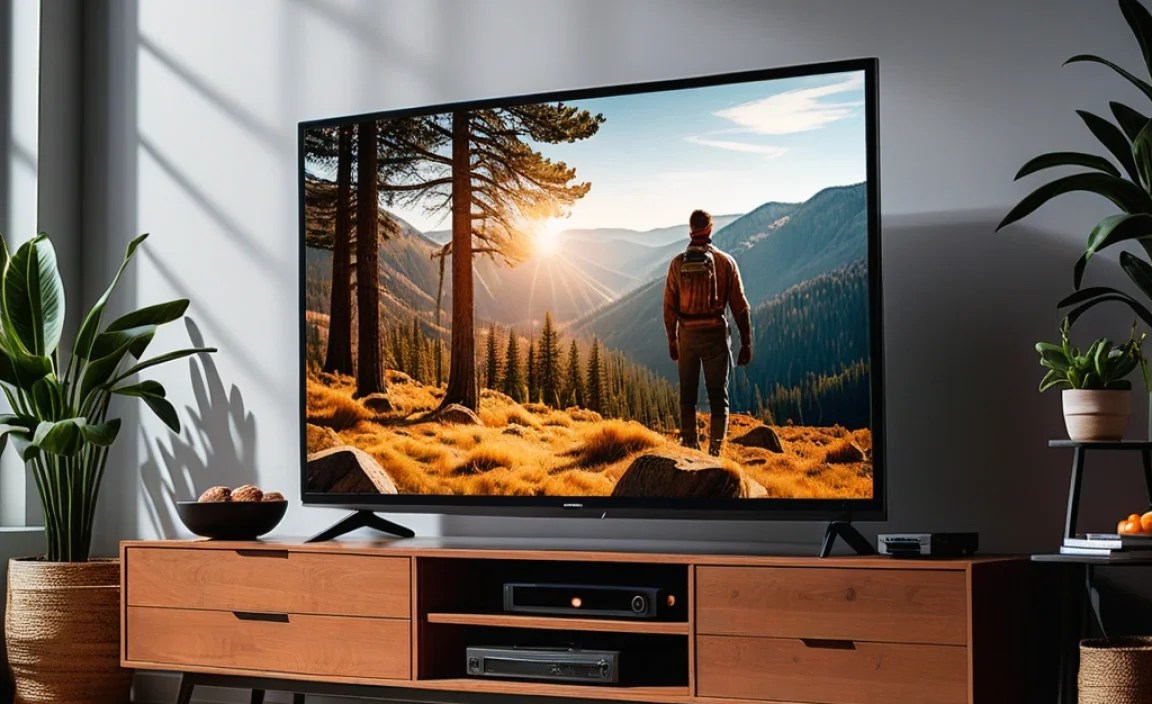
TV manufacturers measure these ratios using specific tests under controlled conditions. The idea is to see the range between the brightest possible pixel and the darkest possible pixel.
- On-Screen Measurements: Professionals use specialized equipment to measure the light output of a fully white screen and a fully black screen.
- The Ratio: The result is typically expressed as a ratio, such as 1000:1 or 5000:1, where the first number represents the brightness of white and the second represents the brightness of black.
However, it’s important to note that these lab-tested numbers don’t always translate perfectly to your living room. Different lighting conditions, viewing angles, and even the specific content you’re watching can affect how you perceive contrast.
Key Technologies Affecting Contrast Ratio
The type of display technology your TV uses has a significant impact on its native contrast ratio. Some technologies are just naturally better at producing deep blacks and bright whites.
OLED (Organic Light Emitting Diode)
OLED TVs are the champions of contrast ratio. Each pixel in an OLED display can be turned on or off individually. This means when a pixel needs to display black, it can literally turn off, producing a perfect, infinite black. This results in an incredible “true black” and a nearly infinite static contrast ratio.
Pros:
- Industry-leading contrast ratio (effectively infinite)
- Perfect blacks
- No blooming (light bleed).
Cons:
- Can be more expensive
- Risk of burn-in with static images over very long periods.
QLED (Quantum Dot LED)
QLED TVs are a type of LED TV that uses quantum dots to enhance color and brightness. While they use a backlight, they often employ advanced local dimming techniques to improve black levels. They offer excellent brightness and good contrast, but their static contrast ratio won’t be as good as OLED.
Pros:
- Excellent brightness
- Vibrant colors
- Good contrast, especially with effective local dimming.
Cons:
- Black levels are not as deep as OLED
- Can suffer from blooming (light halo around bright objects on dark backgrounds).
For more on how these technologies stack up, check out resources like Rtings.com’s comprehensive comparison.
Traditional LED/LCD TVs
These are the most common TVs. They use an LED backlight that shines through an LCD panel. The effectiveness of their contrast ratio depends heavily on how well the backlight is controlled. Edge-lit or direct-lit designs with local dimming features can significantly improve contrast, but they still struggle to achieve the perfect blacks of OLED.
Pros:
- Widely available and often more affordable
- Good brightness.
Cons:
- Native contrast ratio is generally lower
- Black uniformity can be an issue
- Blooming is common.
Essential TV Contrast Settings Explained
Most TVs have a setting explicitly labeled “Contrast” or “Picture Contrast.” This knob controls the intensity of the white levels in the image. However, simply cranking it up isn’t always the best approach. Here’s how to approach these settings:
The “Contrast” Setting (or Picture Contrast)
What it does: This setting primarily adjusts the white level or the peak brightness of the picture. Turning it up makes bright parts of the image brighter. Turning it down makes them dimmer.
How to adjust:
- Start with a Known Good Image: Use a picture or video that has a good mix of bright and dark elements, and clear details. Think of a nature documentary with sunny landscapes and shadowy forests, or a sci-fi movie with bright spaceship lights and dark space.
- Increase Gradually: Slowly increase the Contrast setting.
- Watch for Clipping: The goal is to make whites as bright as possible without “clipping.” Clipping happens when bright details start to lose their definition, essentially turning pure white without any discernible detail. If you see large white areas become a flat, featureless white, you’ve gone too far.
- Find the Balance: Back the Contrast setting down slightly until you can see details in the brightest parts of the image again. You want the image to look bright and impactful, but not blown out.
The “Brightness” Setting (not related to contrast ratio, but important!)
What it does: This setting controls the black level, or the depth of the blacks. Turning it up makes dark areas lighter (more gray), while turning it down makes them darker.
How to adjust:
- Use a Dark Scene: Find a scene with deep shadows or a predominantly dark image.
- Avoid Crushing Blacks: Increase the Brightness setting very slightly if dark details are completely invisible, appearing as solid black blocks. This is called “crushing blacks,” where you lose all detail in the shadows.
- Maintain Deep Blacks: Alternatively, if your blacks look too gray and washed out, you might need to decrease the Brightness setting. However, be careful not to go too low, or you’ll crush the blacks and lose shadow detail.
- The Goal: The aim is to have true, deep blacks while still being able to see details within those dark areas.
Other Related Settings to Be Aware Of
While “Contrast” and “Brightness” are the main players, other settings can influence how you perceive contrast.
- Backlight (or OLED Light): This is the overall light output of the screen. A higher backlight setting will make everything brighter, including whites, but it can also make blacks appear less deep on non-OLED TVs. Adjust this based on your room’s lighting.
- Sharpness: While this doesn’t affect contrast directly, over-sharpening can create artificial edges and halos that make the picture look less natural and can sometimes interfere with the perception of fine details. Keep it at or near 0 for most content.
- Adaptive Contrast / Dynamic Contrast / Black Enhancer: These are features that attempt to manipulate contrast dynamically. As mentioned, these can sometimes be beneficial but can also lead to inconsistent images. Experiment with them on a low setting or turn them off if you notice issues.
- Color Settings (Saturation, Hue, etc.): These affect the colors themselves but can interact with brightness and contrast. Ensure they are balanced after setting your contrast.
Optimizing Contrast for Different Content and Environments
Your ideal contrast settings can change! What looks great for a bright action movie daytime might not be perfect for a dimly lit horror film at night.
Room Lighting is Key
This is a big one that most people overlook. The amount of light in your room significantly affects how your TV image appears.
- Bright Rooms: In a well-lit room, you’ll generally want to increase your Backlight/OLED Light and possibly the Contrast setting to overcome ambient light and make the picture “pop.” Whites will appear brighter, and blacks will look deeper.
- Dark Rooms: In a dark room, you can (and should!) lower your Backlight/OLED Light. This prevents eye strain and allows the TV’s native contrast to shine. You can often fine-tune the Contrast setting here to get the most detail without overdoing it.
Content Type Matters
- Movies & TV Shows: For cinematic content, you typically want a setting that prioritizes deep blacks and subtle shadow detail. This often means a balanced Contrast setting and ensuring your Brightness isn’t crashing blacks.
- Gaming: Gamers often benefit from settings that offer quick response times and impactful visuals. While contrast is still important for immersion, some gamers prefer slightly higher Contrast or Brightness to spot enemies or details in fast-paced games. Some TVs have specific “Game Modes” that optimize these settings.
- Sports: Sports broadcasts are often shot in bright studios or outdoors. You’ll want settings that make the image look bright, clear, and vibrant, with good definition for players and the field.
- HDR (High Dynamic Range): HDR content is designed to take full advantage of a TV’s contrast capabilities. When watching HDR, your TV will often automatically adjust many settings, but ensuring your TV supports a good HDR format like Dolby Vision or HDR10+ is crucial. Look for specific HDR picture modes.
How to Calibrate Your TV’s Contrast (The Easy Way!)
Full-blown professional calibration involves specialized equipment and is quite involved. But you can achieve excellent results with some simple steps and readily available tools.
Using Built-in Tools
Many modern TVs come with built-in calibration patterns or modes. Check your TV’s picture settings menu for options like “Picture Test,” “Calibration Tools,” or “Picture Wizard.” These guides can walk you through adjusting contrast, brightness, and other settings.
Online Calibration Tools
You can find excellent, free calibration patterns online. Websites like Lagom LCD Monitor Tests or YouTube calibration videos offer patterns designed to help you dial in your settings. Play these from whatever device you use to connect to your TV (streaming stick, console, Blu-ray player) for the most accurate results.
Example Calibration Steps using Online Tools:
- Access a Contrast Pattern: Find a test pattern that displays blocks of different gray shades, or a pattern with subtle gradients.
- Adjust Contrast: Focus on a pattern where you need to distinguish between very light shades of gray and white. Increase your TV’s “Contrast” setting until you can clearly see the subtle differences between these shades, but stop before the brightest shades become pure, indistinguishable white.
- Adjust Brightness: Use a pattern that shows near-black shades. Adjust your TV’s “Brightness” setting until you can see the difference between the darkest shades of gray and pure black, but without making those dark grays look like lighter gray. This ensures you’re not crushing blacks.
Using Test Discs
Consider purchasing or renting a calibration Blu-ray disc, such as Spears & Munsil UHD HDR Benchmark. These discs contain a comprehensive suite of test patterns and video content designed for precise calibration.
Troubleshooting Common Contrast Issues
Even after trying to set things up, you might run into problems. Here are solutions to common issues:
- “Washed Out” Picture: This often means your contrast is too low, or your brightness is too high. Try increasing the Contrast setting and decreasing the Brightness setting slightly. Also, check your room lighting – a very bright room can make the picture look washed out.
- Lost Detail in Dark Scenes: This is usually a “crushed blacks” problem. Increase the Brightness setting slightly. Ensure any “Dynamic Contrast” or “Black Enhancer” features are set to low or off, as they can sometimes over-darken scenes.
- Lost Detail in Bright Scenes: This is “clipping highlights.” Decrease the Contrast setting slightly.
- Flickering Whites or Blacks: This can be caused by aggressive dynamic contrast features. Try turning these off or setting them to their lowest level.
- Colors Look Dull: While not directly contrast, improper contrast can affect color perception. Ensure your backlight and contrast are set correctly first, then fine-tune your color settings.
FAQ: Your Top TV Contrast Ratio Questions Answered
What is the ideal contrast ratio for a TV?
For TVs, “ideal” depends on the technology. OLED offers near-infinite static contrast, which is the best. For LED/LCD TVs, a higher static contrast ratio is always better. While manufacturers advertise huge dynamic ratios, focus on static ratios between 3000:1 and above for good performance, with higher being preferable.
How do I adjust contrast on my TV remote?
Look for a “Menu” or “Settings” button on your remote. Navigate to “Picture” or “Display” settings. You should find options like “Contrast” and “Brightness” there to adjust.
Is high contrast ratio always good?
Generally, yes, a higher static contrast ratio leads to a better picture with more depth and detail. However, extremely aggressive dynamic contrast settings can sometimes create unnatural-looking images or lose subtle details.
Does TV size affect contrast ratio?
No, the physical size of the TV screen does not directly affect its contrast ratio. Contrast ratio is a performance specification of the display panel and its technology, not its dimensions.
Should I turn on “Dynamic Contrast” or “Auto Depth Enhancer”?
It depends on the TV and your preference. These features try to improve perceived contrast automatically. They can enhance movies and TV.