
Optimize your TV backlight LED strip settings for the best viewing experience. This guide covers essential adjustments like brightness, color temperature, saturation, and smart features, ensuring vivid visuals and reduced eye strain for every movie night and gaming session.
Ever feel like your TV’s picture just isn’t quite right, even after fiddling with the settings? You’re not alone! Adding an LED backlight strip can be a game-changer for your home theater, but getting those settings just perfect can feel like a puzzle. But don’t worry, improving your TV’s ambiance and your viewing comfort is simpler than you think. This guide will walk you through the essential settings for your new TV backlight LED strip, making sure you get the most out of your setup without any technical headaches. Get ready to transform your TV watching!
Transform Your Viewing: An Essential Guide to TV Backlight LED Strip Settings
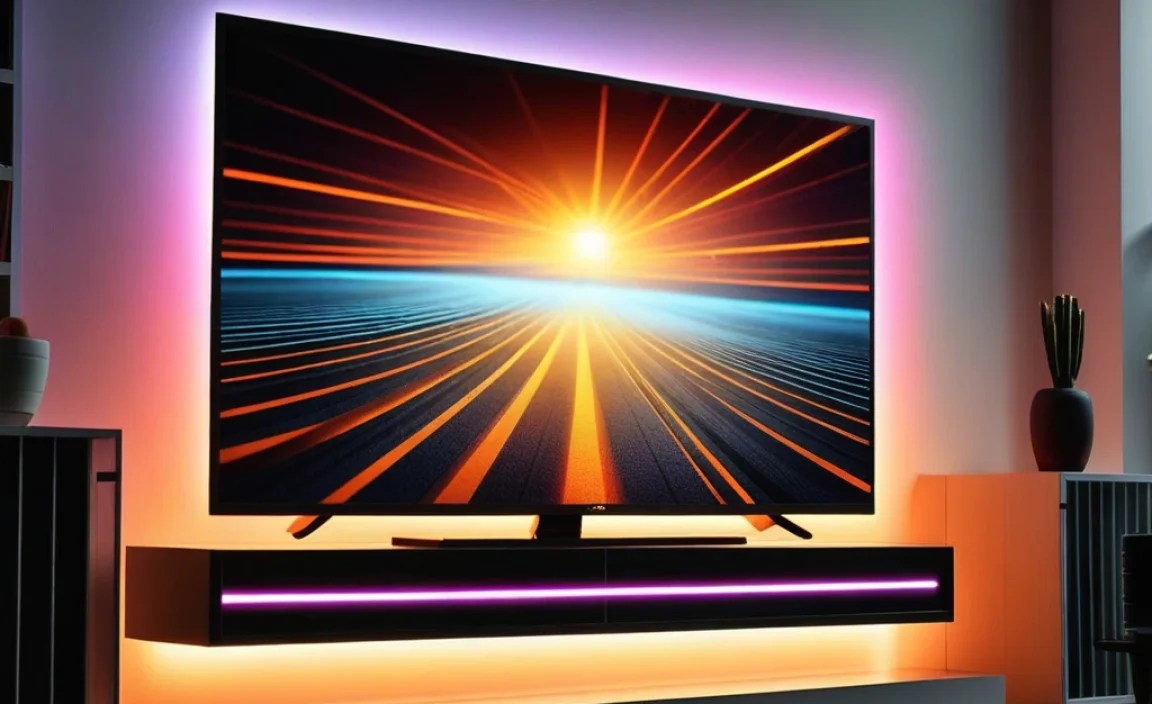
So, you’ve got your hands on one of those cool LED backlight strips for your TV. Awesome! These little strips can do wonders, making movies more immersive and games more exciting. But just sticking them on the back and turning them on might not give you that “wow” factor. The real magic happens when you dial in the settings. This guide is all about helping you understand what those settings do and how to use them to create the perfect atmosphere for your home entertainment.
Why Bother with Settings? The Impact of LED Backlighting
Before we dive into the nitty-gritty, let’s talk about why you’re even using an LED backlight. The main goal is to enhance your viewing experience by:
- Reducing Eye Strain: A common issue with watching TV in a dark room is the sharp contrast between a bright screen and a dark wall. Backlighting adds a soft glow to the wall behind your TV, which helps to balance this contrast, making it easier on your eyes, especially during those long movie marathons.
- Boosting Immersion: By extending the on-screen colors onto the wall, the LED strip can make the picture feel larger and more engaging. It creates a subtle “halo” effect that draws you deeper into the content.
- Enhancing Ambiance: Whether you want a calming blue for a relaxing evening or a vibrant red for an action-packed game, the right settings let you set the mood for any occasion.
Getting the settings right is key to unlocking these benefits. It’s not just about having a light; it’s about having a smart light that works harmoniously with your TV.
Understanding Your TV Backlight LED Strip Controls
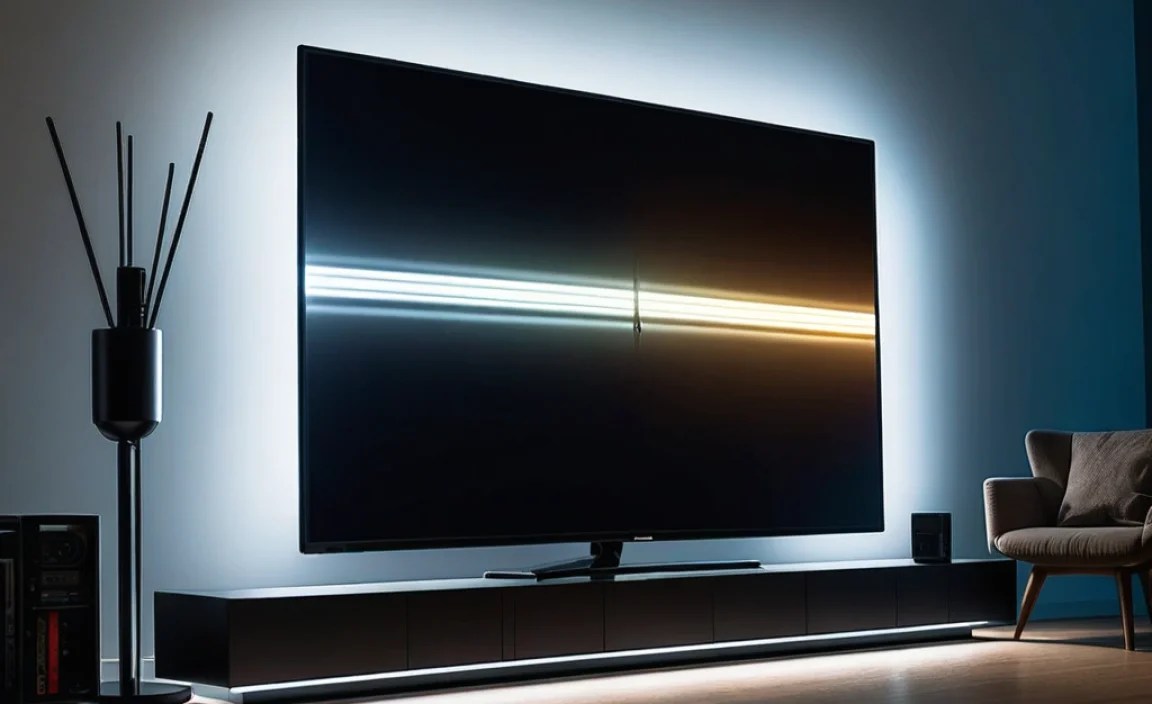
Most LED backlight strips come with a remote control or connect to a smartphone app. These interfaces usually offer a range of adjustments. Let’s break down the most common and important ones.
Brightness: The Foundation of Your Ambiance
Brightness is perhaps the most crucial setting. Too bright, and it can be distracting or even contribute to eye strain. Too dim, and you won’t get the desired effect. The goal is to find a balance that complements your TV without overpowering it.
Finding the Sweet Spot
Here’s how to set the brightness:
- Start Low: Set the brightness to its lowest setting.
- Gradually Increase: While watching your TV (preferably content you’re familiar with, like a favorite movie scene or game), slowly increase the brightness.
- Observe the Wall: Watch how the light spills onto the wall behind the TV. You want a gentle glow, not a blinding spotlight.
- Test for Distraction: If the backlight pulls your attention away from the screen or makes it harder to see details, it’s too bright. If you can barely see it even as you look for it, it might be too dim.
- Consider Room Conditions: A setting that’s perfect for a completely dark room might be too dim in a room with some ambient light. Adjust as needed for the time of day and your room’s lighting.
Recommended Brightness Levels
While subjective, a good starting point is often around 15-30% of the maximum brightness. This provides a noticeable effect without being overwhelming. Some advanced strips might even have ambient light sensors that adjust automatically, which can be very handy!
Color Temperature: Warmth vs. Coolness
Color temperature affects the overall “feel” of the light. It’s measured in Kelvin (K). Lower Kelvin values (e.g., 2000K-3000K) produce warm, yellowish light (like candlelight), while higher Kelvin values (e.g., 5000K-6500K) produce cool, bluish light (like daylight).
Matching Your Content and Mood
- For Movies & Relaxing: A warmer color temperature (around 2700K-3000K) can create a cozy, cinéma-like atmosphere and is generally easier on the eyes in the evening. Many people find this mimics the warm glow of traditional incandescent bulbs.
- For Gaming & Bright Content: A cooler color temperature (around 5000K-6500K) can feel more energetic and crisp. It can also help make colors on the screen appear more vibrant and true to life, especially during fast-paced games or brightly lit scenes.
- Neutral Setting: A middle-ground around 4000K is a good compromise for general use.
Experimenting is key here! What feels comfortable and enhances your content is the best setting for you.
Color Selection & Saturation: Bringing Your Wall to Life
This is where the fun really begins! Most LED strips offer a full spectrum of colors. Some even allow you to adjust the intensity (saturation) of a chosen color.
Smart Color Choices for Smart Viewing
- Subtle Enhancement: For a sophisticated look and to minimize distraction, consider colors that are close to white or a soft, muted tone. Think of soft whites, warm creams, or even a very pale blue. These create a pleasant bias lighting effect without competing with the screen.
- Matching On-Screen Colors: This is where smart LED strips shine. These systems can detect the dominant colors on your TV screen and sync the LED strip to match. This provides the ultimate immersive experience, effectively extending the picture beyond the screen. If your strip has this feature, make sure it’s enabled and calibrated correctly.
- Mood Setting: Want a specific vibe? A deep blue for a sci-fi epic, a fiery orange for a desert scene, or a vibrant green for nature documentaries. Use color to complement or contrast with the on-screen action.
- Saturation Control: If your strip allows saturation adjustment, start with a lower saturation for a more natural look. High saturation can make colors appear overly intense and artificial, which can be distracting.
Learning to use the color-matching features effectively can dramatically upgrade your home theater. For example, if the scene on your TV is predominantly blue, the LED strip will also glow blue, making the whole experience feel more enveloping. Many smart systems leverage technology similar to what’s used in professional lighting design to achieve these effects.
Dynamic Modes & Effects: Beyond Static Colors
Many LED strips come with pre-programmed dynamic modes like fading, strobing, or flashing. While fun for parties, these are generally not ideal for regular TV viewing.
When to Use (and Not Use) Dynamic Modes
- Avoid for Viewing: For watching movies or playing games, static colors or synchronized color-changing modes are usually best. Dynamic modes can be very distracting and break immersion.
- Party Time: These modes can be great for adding energy to gatherings or celebrations.
- Specialized Content: Some music visualizations or specific gaming experiences might benefit from dynamic effects, but for general use, stick to static or synchronized options.
Smart Features: Connectivity and Automation
Modern LED strips often include smart features, connecting to Wi-Fi or Bluetooth for control via apps and even integration with smart home ecosystems like Google Assistant or Amazon Alexa.
Maximizing Smart Capabilities
- App Control: Download the manufacturer’s app. It usually offers more granular control than a basic remote, including custom scene creation, scheduling, and firmware updates.
- Voice Control: Setting up voice commands can be a convenient way to change colors or brightness without reaching for a remote.
- Scheduling: You can set your backlight to turn on or off at specific times, or to transition to a warmer, dimmer color in the evening. This can be a great way to help wind down before bed.
- Syncing with External Devices: Some advanced systems can sync with audio or video signals from your TV or soundbar. This is often the most immersive option, though it can sometimes be complex to set up. Brands like Philips Hue are well-known for their advanced entertainment lighting synchronization.
Installation Tips for Optimal Light Spill
The way you install your LED strip significantly impacts how the light appears.
- Direct vs. Indirect Lighting: Always aim for indirect lighting. The LEDs themselves should not be directly visible from your primary viewing position. The light should bounce off the wall.
- Placement: Mount the strip along the edges of the TV’s rear frame. Ensure it’s positioned so the light spreads evenly onto the wall. Avoid placing it too close to the edge of the TV where the light might create harsh lines.
- Spacing: For the most even glow, especially with smart syncing, a slightly larger TV might benefit from a strip with more LEDs per meter or ensuring the strip is positioned to maximize wall coverage.
- Obstructions: Make sure there are no cables, stands, or mounting brackets that will block the light from reaching the wall evenly.
For a more professional look and to ensure the best diffusion of light, consider using the included diffusers or creative mounting solutions. Some installers even use a slight offset between the LED strip and the TV frame to create a softer, more spread-out effect.
Troubleshooting Common Issues
Even with the best settings, you might run into a few snags. Here are some common problems and how to fix them:
| Problem | Solution |
|---|---|
| Backlight is too bright/distracting. | Lower the brightness setting. Ensure the strip is positioned to create indirect lighting (light bouncing off the wall, not directly into your eyes). |
| Colors look washed out or not vibrant enough. | Increase the brightness and/or saturation for the chosen color. If using smart sync, ensure the TV’s picture settings (like contrast and sharpness) are optimized, as they can affect how the backlight syncs. |
| LED strip is not syncing with the TV picture. | Check connections and ensure the syncing software/app is running correctly. For camera-based sync systems, ensure the camera is properly positioned to capture the screen accurately. Refer to the product manual for specific setup instructions. Some systems require specific TV output settings. |
| Colors are not accurate or have a tint. | Recalibrate the LED strip, especially if you are using custom color profiles. Ensure the controller or app settings are correctly set. Check for firmware updates for your LED strip. |
| Remote control is not working. | Check the battery in the remote. Ensure there is a clear line of sight between the remote and the IR receiver on the LED strip controller. Try using the app as an alternative. |
Optimizing Your TV’s Picture Settings for Backlighting
Your TV’s own picture settings play a role in how well the LED backlight syncs and enhances your viewing. For smart sync systems:
- Picture Mode: Use a mode like “Movie,” “Cinema,” or “Standard,” which generally offers a more natural and less processed image. Avoid overly bright or vivid modes.
- Brightness/OLED Light: Adjust this to your personal preference for the TV image itself, but keep in mind that a very dark TV screen might make it harder for some sync systems to detect colors accurately.
- Contrast: A good contrast ratio on your TV is essential for smart backlights to accurately capture dark and light areas.
- Color and Saturation: These should be set to a natural level. Over-saturated colors on screen can lead to an overly saturated backlight.
- Motion Smoothing/Interpolation: While these can make motion look smoother, they can sometimes cause artifacts that confuse sync systems. Turn them off or to a minimum for the best sync performance.
- Local Dimming: If your TV has local dimming, setting it to a moderate level can help preserve darker scenes, which can improve backlight synchronization.
It’s a bit of a balancing act. For instance, using a dedicated calibration tool like a ColorChecker Display can help you fine-tune your TV’s settings for an optimal viewing experience, which in turn will improve the performance of your synced backlight.
Frequently Asked Questions (FAQ)
What is the best color for TV backlighting?
The “best” color is subjective and depends on your preference and the content. For eye comfort and a cinematic feel, neutral whites or warm tones (around 2700K-3000K) are often recommended. For a more immersive experience, smart backlights sync with on-screen colors.
How bright should TV backlighting be?
It should be subtle enough not to be distracting or compete with the TV screen. Generally, start at 15-30% brightness and adjust until you achieve a pleasant glow that reduces contrast without being overpowering.
Can TV backlighting actually reduce eye strain?
Yes, it can significantly reduce eye strain. By providing ambient light that matches the general brightness of the screen, it lessens the stark contrast between the bright TV and dark surroundings, making your eyes work less to adjust.
Do I need a special TV for LED backlighting?
No, you don’t need a special TV for most LED backlights. Basic LED strips can be installed on any TV. However, to get advanced features like screen syncing, you’ll need a smart LED strip system and potentially a sync box or software, which works with most modern TVs.
How often should I update the firmware on my smart LED strip?
It’s a good idea to check for firmware updates periodically, perhaps every few months. Manufacturers often release updates to improve performance, fix bugs, or add new features. The manufacturer’s app will usually notify you when an update is available.
Where is the best place to put the LED strip on my TV?
The most common and effective placement is along the outer edges of the TV’s rear frame. The goal is to have the light bounce off the wall behind the TV, creating an indirect glow. Avoid placing it where the light source itself is visible from your viewing position.
What’s the difference between RGB, RGBW, and RGBCCT LED strips?
RGB strips can produce millions of colors by mixing red, green, and blue LEDs. RGBW strips add a dedicated white LED, allowing for brighter and purer whites, and better pastel colors. RGBCCT (or RGB+CCT) strips have both RGB LEDs and separate tunable white LEDs (cool to warm), giving you the widest range of both colorful and white light options.
Conclusion: Enjoy Your Perfectly Lit Viewing Experience!
Customizing your TV backlight LED strip settings is the key to unlocking its full potential. By understanding and adjusting brightness, color temperature, saturation, and utilizing smart features, you can create an immersive and comfortable viewing environment tailored precisely to your preferences. Remember, the ultimate goal is to enhance what’s on your screen, reduce eye strain, and set the perfect mood for any occasion.