
Soundbar setup with TV UHD is essential for unlocking immersive audio that matches your stunning 4K visuals. A simple connection enhances dialogue clarity, deepens bass, and expands the soundstage, transforming your viewing experience from good to truly cinematic. Follow these easy steps for a setup that sings.
Ever found yourself staring at a vibrant UHD TV, only to be met with audio that feels… flat? You’re not alone! Those gorgeous, crisp 4K images deserve sound that can keep up. Sometimes, the built-in TV speakers just don’t cut it, leaving movies and shows feeling less impactful than they should. But don’t worry, elevating your home entertainment is easier than you think!
Getting a soundbar connected to your UHD TV is a game-changer for both movie nights and casual viewing. It’s like giving your ears the same amazing upgrade your eyes have enjoyed. This guide is all about making that connection simple and stress-free, even if you’re not a tech wizard. We’ll walk through everything you need to know, step-by-step, so you can enjoy richer, fuller sound without any hassle. Let’s dive in and make your TV sound as good as it looks!
Why a Soundbar is Essential for Your UHD TV

Your UHD TV delivers breathtaking visual fidelity with its 4K resolution, offering incredible detail and vibrant colors. However, most modern TVs, especially slim designs, have limited space for integrated speakers. This often means the built-in audio can be thin, lacking in bass, and lacking in directional clarity. This disconnect between superb visuals and mediocre audio breaks the immersion.
A soundbar is specifically designed to address this. It’s a one-stop audio solution that significantly outperforms your TV’s internal speakers. It can provide a wider soundstage, clearer dialogue, and deeper bass, creating a more engaging and cinematic experience right in your living room. It’s the perfect complement to your UHD TV’s visual prowess, ensuring a balanced and enthralling entertainment setup.
Enhancing Your Viewing Experience
Think about your favorite movie or game. With a soundbar, the roar of an engine, the subtle rustle of leaves, or the dramatic swell of a soundtrack can all be reproduced with impressive realism. Dialogue becomes crisp and easy to understand, even during chaotic action scenes. This audio fidelity pulls you deeper into the content, making every viewing session more dynamic and enjoyable. It’s not just about louder sound; it’s about richer, more detailed, and more immersive audio that truly complements the stunning UHD picture.
Types of Soundbar Connections
Connecting a soundbar to your UHD TV is generally straightforward, with several common connection methods available. The best option for you will depend on the ports available on both your TV and your soundbar.
HDMI ARC/eARC
This is the most recommended and modern connection for soundbars. ARC stands for Audio Return Channel, and eARC is its enhanced version. Essentially, it allows audio to travel from your TV to your soundbar over a single HDMI cable. This single cable simplifies your setup and often handles the highest quality audio formats, including Dolby Atmos and DTS:X, especially with eARC. If both your TV and soundbar have an HDMI ARC/eARC port, this is the way to go.
Optical Audio (Toslink)
An optical audio connection uses a fiber optic cable to transmit digital audio signals. It’s a very common and reliable method, offering significantly better audio quality than analog connections. Optical cables are usually sturdy and have a distinct connector shape that prevents incorrect insertion. While it supports surround sound formats, it typically doesn’t support the most advanced, high-bandwidth audio codecs that HDMI eARC can handle.
3.5mm Auxiliary (AUX) or RCA Analog
These are older, analog connection types. A 3.5mm AUX cable (like the one you’d use for headphones) or RCA cables (usually red and white) connect the audio output of your TV to the input of your soundbar. While these connections will work, they generally provide the lowest audio quality compared to HDMI ARC/eARC or Optical. They are best reserved for older TVs or soundbars that lack digital audio ports.
Getting Started: What You’ll Need
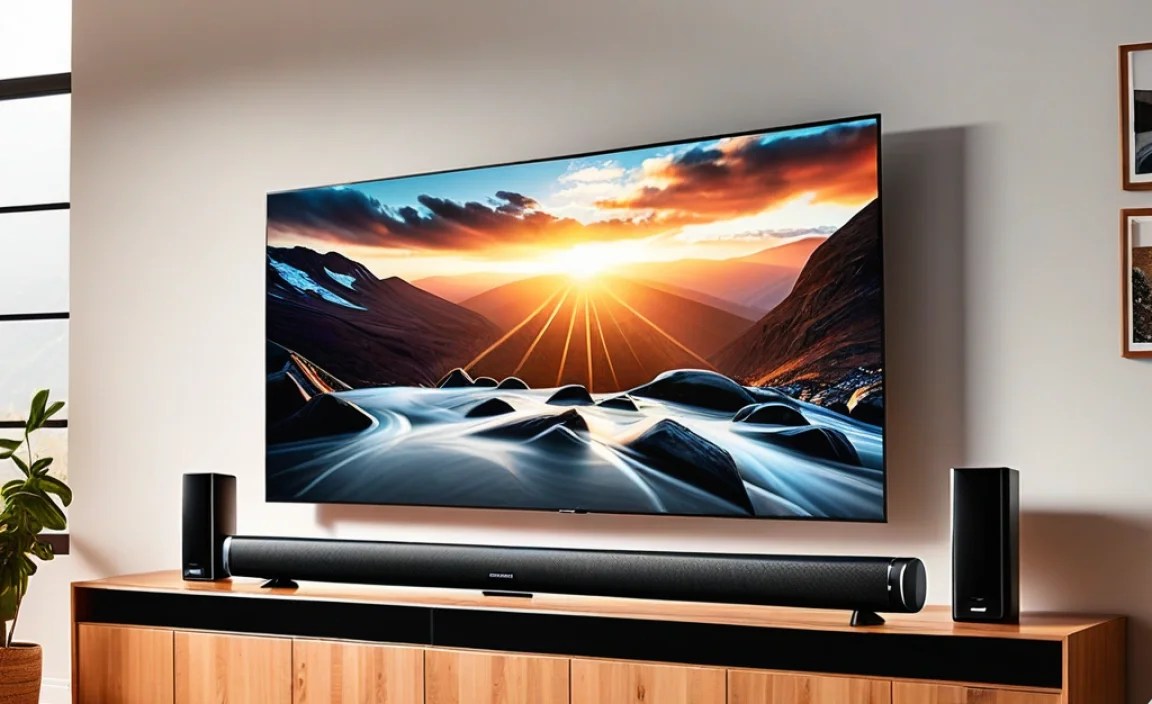
Before you begin the setup process, gather these essential items:
- Your UHD TV: Ensure it’s powered on and you know where the audio output ports are located.
- Your Soundbar: unpackaged and ready to be connected.
- Power Cables: For both your TV and your soundbar.
- Connection Cable: This is crucial. Depending on your chosen connection method, you’ll need:
- One High-Speed HDMI cable (if using HDMI ARC/eARC).
- One Optical Audio cable (if using Optical).
- One 3.5mm AUX cable or RCA stereo cables (if using analog).
- Remote Controls: For both your TV and your soundbar.
- Your TV/Soundbar Manuals (Optional but Recommended): These can be helpful for identifying specific ports or troubleshooting settings.
Having these items ready will ensure a smooth and efficient setup process. No one likes hunting for cables midway through!
Step-by-Step Soundbar Setup With TV UHD

Follow these straightforward steps to connect your soundbar to your UHD TV. We’ll cover the most common and recommended connection methods.
Step 1: Identify Your TV’s Audio Output Ports
First, take a look at the back or side of your UHD TV. You’re looking for specific ports related to audio output. Common labels include:
- HDMI ARC/eARC: Usually a standard HDMI port labeled “ARC” or “eARC.”
- Optical Out (Digital Audio Out): A small, rectangular port, often with a red light visible when plugged in, labeled “Optical” or “Digital Audio Out.”
- Audio Out (Analog): Look for ports labeled “Audio Out,” often with red and white RCA connectors, or a single 3.5mm headphone-style jack.
Refer to your TV’s manual if you’re having trouble locating these. Understanding which ports you have will determine the best connection method.
Step 2: Identify Your Soundbar’s Audio Input Ports
Next, examine your soundbar. Locate the ports on the back or bottom where you’ll plug in the audio cable from your TV. You’ll want to match the port type on your TV with the corresponding input on your soundbar. For example, if your TV has an HDMI ARC port, your soundbar should ideally have an HDMI OUT (ARC) port.
Step 3: Choose Your Connection Method (and Cable)
Based on the ports available on both devices, select the best connection. Here’s a quick guide:
| Best Choice (if available) | Good Alternative | Backup / Older Devices |
|---|---|---|
| HDMI ARC/eARC (Requires High-Speed HDMI Cable) |
Optical Digital Audio (Requires Optical Audio Cable) |
3.5mm AUX or RCA Analog (Requires corresponding analog cable like AUX to AUX or RCA to RCA) |
Why HDMI ARC/eARC is preferred: It offers the highest audio quality, supports advanced surround sound formats like Dolby Atmos, and allows you to control the soundbar volume with your TV remote (often called HDMI-CEC or Anynet+, VIERA Link, etc., depending on your TV brand). Visit the HDMI FAQ on ARC for more details.
Step 4: Connect the Devices
Once you have your chosen cable and identified the ports:
- For HDMI ARC/eARC: Plug one end of the High-Speed HDMI cable into the HDMI ARC port on your TV and the other end into the HDMI OUT (ARC/eARC) port on your soundbar.
- For Optical: Plug one end of the Optical Audio cable into the TV’s Optical Out port and the other end into the soundbar’s Optical In port. Remember to remove the small protective plastic caps from the cable ends before plugging them in!
- For Analog: Connect the appropriate analog cable (e.g., 3.5mm AUX from TV’s headphone out to soundbar’s AUX in, or RCA from TV’s audio out to soundbar’s corresponding analog in).
Step 5: Connect Power
Plug the power cables into both your TV and your soundbar, and then into a power outlet. Turn on both devices.
Step 6: Configure TV Audio Settings
This is a critical step. You need to tell your TV to send audio through the connected soundbar.
- Navigate to your TV’s Settings menu.
- Find the Audio or Sound settings. Look for options like “Audio Output,” “Sound Output,” or “Speaker Settings.”
- Select your connected method:
- If using HDMI ARC/eARC, you might need to enable HDMI-CEC (various brand names exist like Anynet+, VIERA Link, Simplink, Bravia Sync) and set the audio output to “HDMI ARC” or “External Speaker – HDMI.”
- If using Optical, select “Optical” or “Digital Audio Out.”
- If using Analog, select “Audio Out” or “Headphone.”
- Disable TV Speakers: Crucially, ensure your TV speakers are turned OFF. Most TVs will automatically disable their internal speakers when an external audio device is selected, but it’s good to check.
Consult your TV’s manual for the exact menu names and navigation. For instance, LG TVs often use “Simplink (HDMI-CEC)” in their settings, while Samsung TVs use “Anynet+” for similar functionality.
Step 7: Configure Soundbar Input
Turn on your soundbar. Use its remote control to cycle through the input modes until you select the one that matches the connection you used from your TV. For example, if you connected via HDMI ARC, select the “HDMI ARC” or “TV” input on your soundbar. If you used optical, select “Optical” or “Digital.”
Step 8: Test the Sound
Play some content on your TV—a movie, a TV show, or even a music channel. You should now hear the audio coming from your soundbar. Test different types of content to appreciate the difference in clarity and depth. See if dialogue is clearer and if you can hear more subtle background sounds.
Step 9: Adjust Settings (Optional but Recommended)
Spend a few minutes with your soundbar’s remote. Many soundbars offer:
- Volume Control: Obviously, the main function.
- Equalizer (EQ) Presets: Options like “Movie,” “Music,” “Voice,” or “Night Mode” can enhance specific types of audio.
- Bass/Treble Adjustment: Fine-tune the low and high frequencies to your liking.
- Surround Sound Modes: Experiment with virtual surround or other spatial audio effects your soundbar may offer.
Don’t be afraid to play around! The goal is to find settings that sound best to you for various types of content.
Troubleshooting Common Issues
Even with clear instructions, you might hit a snag. Here are solutions to common problems:
| Problem | Possible Solutions |
|---|---|
| No Sound From Soundbar |
|
| No Audio Sync (Lip Sync Issues) |
|
| Soundbar Volume Not Controlled by TV Remote |
|
| Only Stereo Sound, No Surround |
|
| Intermittent Sound Cutting Out |
|
Advanced Features and Optimizations

Once your soundbar is up and running, you might want to explore some advanced features to further enhance your audio experience.
Subwoofer Placement
If your soundbar came with a separate wireless subwoofer, its placement can make a big difference. Generally, placing the subwoofer in a corner of the room can boost bass frequencies effectively. However, this can also sometimes make the bass sound boomy or muddy. Experiment with placement along the front wall or slightly off-center to find the sweet spot for your room’s acoustics. For detailed guidance on subwoofer acoustics, check out resources from organizations like the Audio Engineering Society, which offer deep dives into sound reproduction principles.
Virtual Surround Sound
Many soundbars have virtual surround sound capabilities. This technology uses psychoacoustics—how our brains interpret sound—to create the illusion of sound coming from behind or to the sides, even though you only have speakers in front of you. While it can’t replicate true surround sound, it can add a sense of spaciousness and immersion to your viewing experience. Experiment with these modes to see if they improve your enjoyment.
Soundbar Calibration
Some higher-end soundbars come with an automatic calibration system (often using a small microphone). This analyzes your room acoustics and automatically adjusts the soundbar’s output for optimal performance. If your soundbar has this feature, run the calibration process after initial setup.
Connecting Other Devices
If your soundbar has multiple HDMI inputs, you can connect devices like Blu-ray players or gaming consoles directly to the soundbar. Then, use a single HDMI cable from the soundbar’s HDMI OUT port to your TV’s HDMI ARC port. This creates a cleaner setup and can sometimes offer better audio passthrough for high-bandwidth formats.
FAQ: Your Soundbar Setup Questions Answered
Got more questions? Here are answers to some common beginner queries.
Q1: Do I need a special cable for HDMI ARC?
A: Yes, it’s highly recommended to use a “High-Speed” or “Ultra High-Speed” HDMI cable, especially for eARC. Older or standard HDMI cables may not have the bandwidth to reliably carry the advanced audio signals that ARC and eARC support, which can lead to dropouts or no sound.
Q2: Can I connect my soundbar using Bluetooth?
A: Some soundbars offer Bluetooth connectivity. While convenient for streaming music from your phone, for connecting to your TV, a wired connection (HDMI ARC or Optical) is almost always better. Wired connections offer lower latency (less delay between picture and sound), higher audio fidelity, and more stable connections than Bluetooth.
Q3: My TV speakers are still making noise, even though I think I’ve turned them off. What should I do?
A: Double-check your TV’s audio settings. Look for a specific “TV Speaker” or “Internal Speaker” option and ensure it is set to “Off.” Sometimes, there’s a separate setting to enable or disable the TV’s built