
Setting up your soundbar with your TV is straightforward, and this guide breaks down the process into easy steps. You’ll connect your soundbar using HDMI ARC, optical, or Bluetooth for enhanced TV audio. We’ll cover everything you need to know to get better sound quickly without the fuss.
Hey there, audio adventurers! Bob E Riley here from Aimguider. Ever feel like your TV’s built-in speakers just aren’t cutting it anymore? You know, that tinny sound when the action gets exciting, or when you’re trying to catch every whisper in a dialogue-heavy scene? You’re not alone! Many of us love our big screens, but the audio often gets left behind. That’s where a soundbar swoops in to save the day, promising a richer, more immersive listening experience without the complexity of a full surround sound system. But how do you actually get this magic box connected to your TV? It might seem a bit daunting with all those cables and settings, but don’t worry one bit. This guide is designed to make your soundbar setup with TV setup a breeze. We’ll walk you through it step-by-step, so you can ditch those disappointing TV speakers and dive into incredible sound in no time. Get ready to discover just how simple it can be!
Why Upgrade Your TV’s Sound?
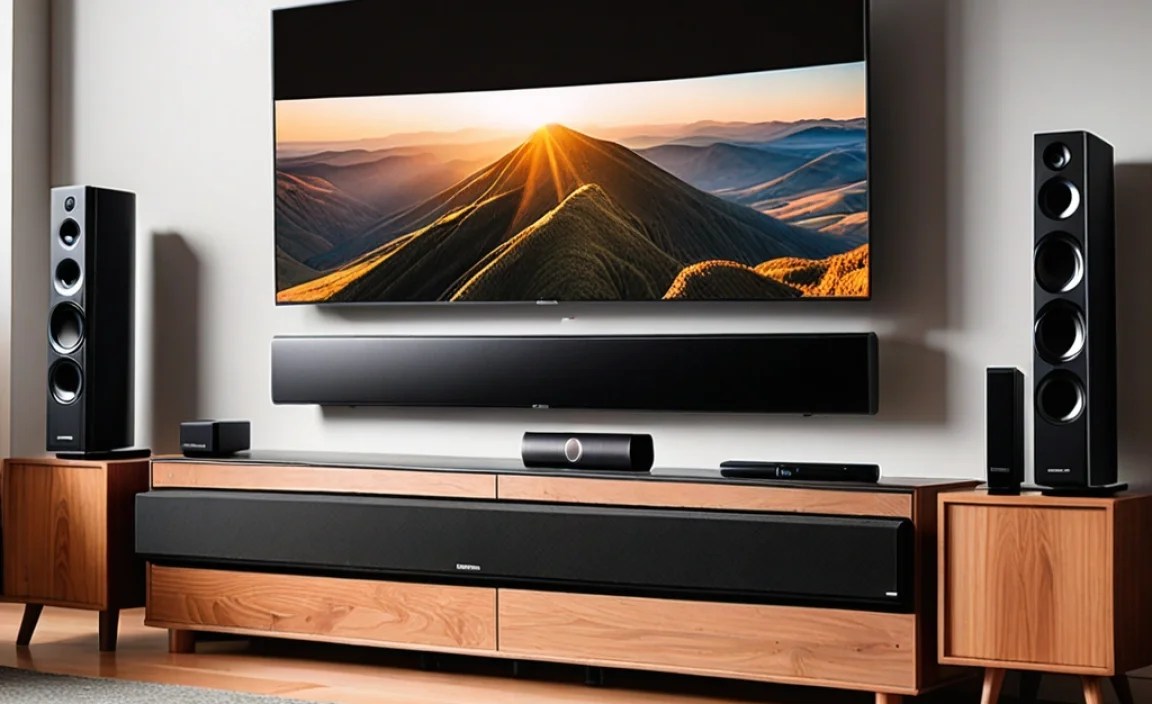
Modern TVs are marvels of visual technology, boasting stunning 4K resolution, vibrant colors, and smart features galore. However, to keep their sleek, slim profiles, TV manufacturers often have to compromise on speaker quality. These tiny, often downward-firing speakers simply can’t produce the deep bass, clear dialogue, or wide soundstage that makes movies, shows, and games truly captivating. A soundbar is the perfect solution for this common problem. It’s a compact, user-friendly device designed to significantly boost your TV’s audio output, offering a much more dynamic and engaging sound experience that rivals dedicated home theater systems, but with far less hassle.
Choosing the Right Connection Method
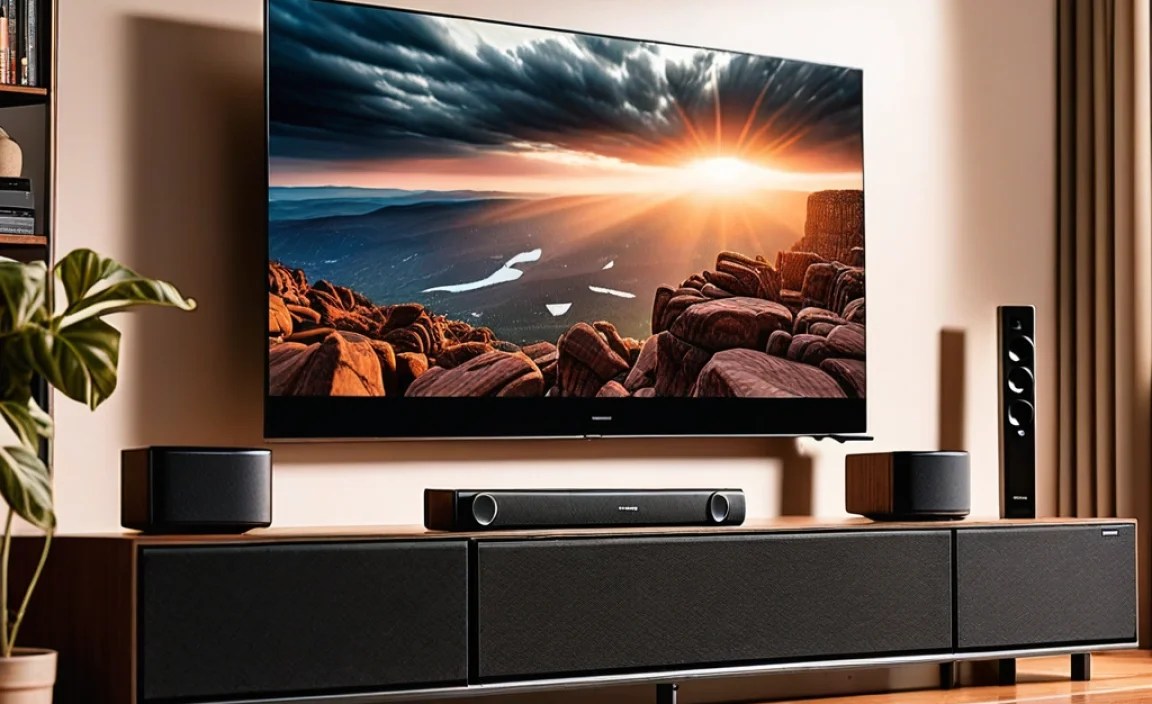
When setting up your soundbar with TV, the method you choose to connect them is crucial. Thankfully, modern soundbars and TVs offer a few easy options, each with its own strengths. Let’s look at the most common and effective ways to connect:
1. HDMI ARC (Audio Return Channel) – The Gold Standard
HDMI ARC is often considered the best way to connect your soundbar. Why? Because it uses a single HDMI cable for both audio transmission to the soundbar and control signals from your TV remote to the soundbar. This means you can control the soundbar’s volume with your regular TV remote, which is super convenient.
- How it works: ARC allows audio to travel “backwards” from the TV to the soundbar through the HDMI cable.
- What you need:
- One HDMI cable.
- An HDMI port on your TV labeled “ARC” (or sometimes “eARC,” which is an enhanced version).
- An HDMI port on your soundbar also labeled “ARC” or “Out.”
- Benefits: Single cable simplicity, remote control integration, high-quality audio including surround sound formats.
- Considerations: Both your TV and soundbar must support HDMI ARC.
2. Optical Audio (Toslink) – A Reliable Alternative
If your TV or soundbar doesn’t have HDMI ARC, an optical connection is a fantastic alternative. It uses a fiber optic cable to transmit digital audio information. It’s very common and delivers excellent sound quality, though it lacks the remote control integration of HDMI ARC.
- How it works: A light signal carries the audio data through a special fiber optic cable.
- What you need:
- One optical audio cable (often called a Toslink cable).
- An optical output port on your TV (usually labeled “Optical Out” or “Digital Audio Out”).
- An optical input port on your soundbar (usually labeled “Optical In” or “Digital Audio In”).
- Benefits: Widely compatible, excellent digital audio quality, immune to electrical interference.
- Considerations: You’ll likely need to use the soundbar’s remote for volume control. Your TV might not support advanced surround sound formats like Dolby Atmos over optical.
3. Bluetooth – Wireless Convenience
For ultimate simplicity and a clutter-free setup, Bluetooth is a great option, especially for TVs that might not have HDMI ARC or optical ports, or if you want a very clean look. It’s also great for streaming audio from your phone or tablet to the soundbar. However, Bluetooth can sometimes have a slight delay (latency) between the video and audio, which can be noticeable during fast-paced action or gaming. It also generally supports lower audio quality than wired connections.
- How it works: Wireless radio waves transmit audio data between the TV and the soundbar.
- What you need:
- A soundbar with Bluetooth capability.
- A TV with Bluetooth capability (or a Bluetooth transmitter that plugs into your TV’s audio output).
- Benefits: Completely wireless, easy to pair, works with most modern devices.
- Considerations: Potential for audio latency, generally lower audio fidelity compared to wired options, requires both devices to support Bluetooth.
Step-by-Step Soundbar Setup With TV Setup Guide

Alright, let’s get down to business! Follow these steps to connect your soundbar to your TV. We’ll cover the most common and recommended method first: HDMI ARC.
Method 1: Using HDMI ARC (Recommended)
This is your go-to method if both your TV and soundbar support it. It’s the most seamless experience.
- Identify the Ports: Locate the HDMI port labeled “ARC” on your TV. It might be on the back or side. You’ll also find a corresponding HDMI port on your soundbar, often labeled “HDMI Out (ARC)” or similar.
- Connect the HDMI Cable: Plug one end of your HDMI cable into the TV’s ARC port and the other end into the soundbar’s ARC port. Make sure you’re using a good quality HDMI cable; High-Speed or Ultra High-Speed cables are recommended for best performance, especially if your TV supports advanced audio formats like Dolby Atmos. You can find recommendations on cables from organizations like the HDMI Licensing Administrator.
- Power On: Turn on your TV and your soundbar.
- Select the Input on Your Soundbar: Using your soundbar’s remote, select the HDMI ARC input. It might be labeled as “ARC,” “TV,” or “HDMI In.”
- Enable ARC on Your TV: This is the most crucial step often overlooked! On your TV, navigate to the audio settings. Look for an option like “HDMI-CEC,” “Anynet+” (Samsung), “Bravia Sync” (Sony), “SimpLink” (LG), or “Viera Link” (Panasonic). Enable this feature. Then, within the same or a related menu, find and enable the “ARC” or “Audio Return Channel” setting. Sometimes, enabling HDMI-CEC automatically enables ARC, but it’s good to check both.
- Set TV Audio Output: In your TV’s audio settings, you’ll need to select the audio output. Choose “HDMI ARC,” “External Speakers,” or “Receiver” instead of “TV Speakers.”
- Test the Sound: Play some content on your TV. You should now hear the sound coming from your soundbar. Try adjusting the volume with your TV remote. If it works, congratulations! You’ve successfully set up your soundbar using HDMI ARC.
Troubleshooting HDMI ARC: If it’s not working, try disconnecting and reconnecting the HDMI cable, ensure ARC is enabled on both devices, and try a different HDMI cable. Sometimes rebooting both your TV and soundbar by unplugging them for a minute can resolve connection issues.
Method 2: Using an Optical Audio Cable
This is a solid backup if HDMI ARC isn’t an option.
- Locate the Ports: Find the “Optical Out” or “Digital Audio Out” port on your TV. It’s usually a small, rectangular port often with a protective flap. On your soundbar, find the “Optical In” or “Digital Audio In” port.
- Prepare the Cable: Your optical cable will have small plastic caps on each end. Remove these carefully.
- Connect the Cable: Plug one end of the optical cable into the TV’s output port and the other end into the soundbar’s input port. They usually click into place. Don’t bend the cable sharply, as it can be fragile.
- Power On: Turn on your TV and soundbar.
- Select Input on Soundbar: Using the soundbar remote, select the “Optical” or “Digital Audio In” input.
- Set TV Audio Output: On your TV, go to the audio settings. Select “Optical Out” or “Digital Audio Out” as your sound output. Ensure the digital audio format is set to “PCM” or “Auto” if available; some TVs may offer Dolby Digital, which your soundbar should also support.
- Test the Sound: Play some content. You should hear audio from your soundbar. You’ll likely need to use the soundbar’s remote to control the volume.
Troubleshooting Optical: If you get no sound, double-check that the cable is securely plugged in at both ends and that you’ve selected the correct input on the soundbar and the correct audio output on the TV. Make sure the TV isn’t set to output “TV Speakers.”
Method 3: Using Bluetooth
For a wireless connection, follow these steps. Note that not all TVs have Bluetooth, so consult your TV’s manual.
- Put Soundbar in Pairing Mode: On your soundbar, press and hold the Bluetooth button or navigate the menu to put it into pairing mode. Check your soundbar’s manual for specific instructions—a light might flash or you might hear an audible cue.
- Enable Bluetooth on Your TV: Go into your TV’s settings menu. Find the Bluetooth settings and turn it on.
- Scan for Devices: On your TV, initiate a scan for available Bluetooth devices.
- Select Your Soundbar: Your soundbar should appear in the list of available devices. Select it to pair.
- Confirm Pairing: You may need to confirm the pairing on either device. Once connected, the soundbar’s Bluetooth light might become solid, or you’ll hear a confirmation sound.
- Set TV Audio Output: In your TV’s audio settings, ensure that the audio output is set to Bluetooth, and that your paired soundbar is selected.
- Test the Sound: Play some content. Listen for audio from the soundbar. Be aware of potential lag; if you notice it, Bluetooth might not be the best option for critical viewing or gaming.
Troubleshooting Bluetooth: Ensure both devices are discoverable and within range. Try turning Bluetooth off and on again on both the TV and soundbar. Re-pairing the devices is often the quickest fix. If latency is a significant issue, consider a wired connection.
Understanding Different Soundbar Features
Nowadays, soundbars come with a variety of features to enhance your audio experience, beyond just basic sound reproduction. Here’s a quick rundown of some common ones:
| Feature | What it Does | Benefit |
|---|---|---|
| Virtual Surround Sound | Uses digital processing to create the illusion of surround sound without rear speakers. | More immersive audio from a simple bar. |
| Dolby Atmos/DTS:X Support | For advanced soundbars, these technologies add height channels, making sound seem to come from above you for a truly 3D audio experience. | Cinema-quality, object-based audio. |
| Built-in Subwoofer | Some soundbars have woofers integrated directly into the bar for better bass. | Enhanced bass without a separate box. |
| Wireless Subwoofer | A separate box, wirelessly connected to the soundbar, for deeper, more powerful bass. | Deeper bass impact, more placement flexibility. |
| Voice Enhancement/Clear Dialogue Mode | Boosts frequencies that make speech clearer. | Easier to understand conversations even during loud scenes. |
Connecting External Devices (Blu-ray Players, Game Consoles)
Most soundbars have multiple HDMI input ports, and some have optical inputs as well. This allows you to connect devices like Blu-ray players, gaming consoles, or streaming boxes directly to the soundbar instead of your TV.
Why do this?
- Best Audio Quality: The most advanced audio formats (like Dolby TrueHD for Blu-rays or Dolby Atmos/DTS:X for gaming) can often be passed through a soundbar’s HDMI inputs more reliably than through the TV’s ARC connection, especially with older TVs.
- Simplified HDMI On TV: It frees up an HDMI port on your TV.
How to:
- Connect your external device (e.g., game console) to an “HDMI In” port on your soundbar using an HDMI cable.
- Connect your soundbar to your TV using the HDMI ARC port on both devices (as described in Method 1), ensuring the soundbar is set to “HDMI Out (ARC)” to your TV.
- On your soundbar’s remote, select the corresponding HDMI input that your device is plugged into (e.g., HDMI 1, HDMI 2).
- On your TV, ensure the HDMI input you’re using for the soundbar (the ARC port) is selected.
When you select that input on the soundbar, the video signal will be passed through to your TV, and you’ll get the best possible audio directly from your source device.
Troubleshooting Common Soundbar Setup Issues
Even with the best guides, sometimes things don’t work perfectly the first time. Here are a few common issues and quick fixes:
- No Sound:
- Check all cable connections.
- Ensure you’ve selected the correct input on the soundbar.
- Verify audio output settings on the TV.
- Make sure the volume isn’t muted on either device.
- Try switching to PCM audio format on your TV if using optical.
- No Bass/Weak Sound:
- If you have a separate subwoofer, check its power and wireless connection.
- In soundbar settings, ensure bass levels are adjusted appropriately.
- For wired connections, ensure the speaker or output is set correctly in TV settings.
- Remote Control Not Working for Volume:
- Confirm you are using HDMI ARC and that HDMI-CEC (or your TV’s equivalent) is enabled on the TV and set up to control the soundbar.
- Ensure the soundbar’s IR sensor isn’t blocked.
- Check if your TV’s remote has a setting to control external audio devices.
- Audio Lag (Lip Sync Issues):
- This is most common with Bluetooth. Try a wired connection (HDMI ARC or Optical) if possible.
- Check your TV’s audio settings for a “lip sync” or “audio delay” adjustment and try to correct it.
- Some soundbars also have a lip sync adjustment feature.
- Soundbar Not Turning On/Off with TV:
- Ensure HDMI-CEC (or your TV’s equivalent) is enabled on the TV and that the soundbar supports this feature and is configured to receive the command.
- Sometimes, simply restarting both devices can fix this handshake issue.
For more advanced troubleshooting, consult your specific TV and soundbar user manuals, or check the manufacturer’s support websites. Resources like the official Dolby sound technology guide can also offer insights.