
Your Smart TV setup is easier than you think! Follow this simple guide to connect your TV, apps, and devices for instant entertainment. We’ll walk you through everything, from unboxing to streaming your favorite shows, ensuring a smooth, frustration-free experience for any beginner.
Welcome to the amazing world of smart TVs! You’ve just brought home a fantastic piece of technology, ready to stream, game, and connect like never before. But after you’ve unboxed it, you might be wondering, “Now what?” Setting up a smart TV can seem a bit daunting, especially if you’re new to the tech. Don’t worry! I’m Bob E Riley from Aimguider, and I’m here to break down the process into simple, easy-to-follow steps. Think of this as your friendly roadmap to getting your new smart TV up and running in no time. We’ll cover everything you need to know, from plugging it in to finding your favorite shows. Get ready for a seamless setup – let’s dive in!
Your Smart TV Setup Guide: An Essential How-To
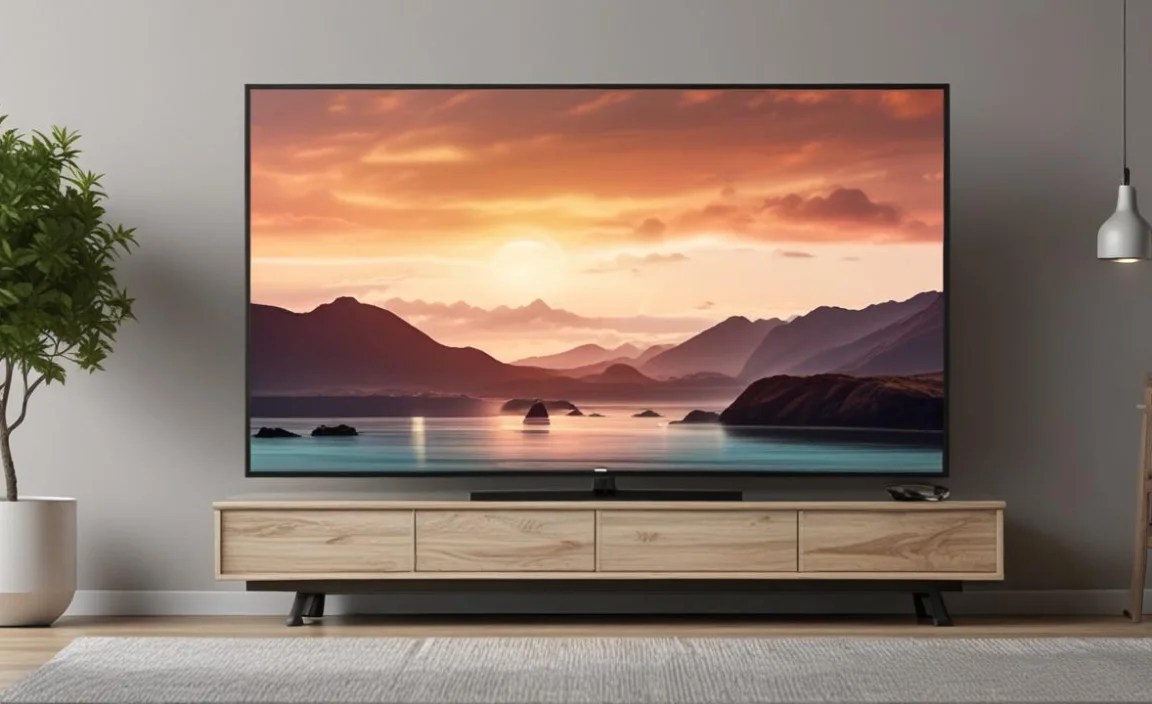
Getting your new smart TV connected and ready for action is a straightforward process. This guide is designed to take the guesswork out of it, making sure you can enjoy your favorite content as quickly as possible. We’ll cover the physical setup, connecting to your network, signing into accounts, and personalizing your viewing experience. Ready to make your TV smart?
Step 1: Unboxing and Physical Setup
The first step is to carefully unbox your TV and get it into its new home. Take your time here – rushing can lead to scratches or damage. Most smart TVs come with all the essential accessories you need right in the box.
What’s in the Box?
- The Smart TV itself
- Remote Control (with batteries, usually)
- Power Cable
- Stand(s) or Mounting Brackets
- User Manual and Warranty Information
- Sometimes, additional cables like an HDMI cable might be included.
Positioning Your TV
Decide where you want to place your TV. For the best viewing experience, consider the following:
- Viewing Distance: The ideal distance depends on your TV’s screen size. A common recommendation is to sit about 1.5 to 2.5 times the screen’s diagonal measurement away from the TV. For example, for a 55-inch TV, aim for 7-10 feet.
- Lighting: Try to place your TV away from direct sunlight or bright overhead lights that can cause glare on the screen.
- Height: The center of the screen should ideally be at eye level when you’re seated.
Attaching the Stand or Mounting
Most TVs come with a stand that needs to be attached. It’s usually a simple process of screwing the base into the back of the TV. Make sure you’re on a soft, flat surface (like a carpeted floor or the TV’s original packaging) to avoid scratching the screen.
If you plan to wall-mount your TV, you’ll need to purchase a compatible wall mount separately. Refer to your TV’s manual and the wall mount instructions for proper installation. This often involves mounting a bracket to the wall and then attaching corresponding brackets to the back of your TV. For this, you might need tools like a drill, screwdriver, and a stud finder. For a secure installation, especially for larger TVs, professional mounting is always a safe bet.
Step 2: Connecting Power and Cables
Once your TV is physically in place, it’s time to get it powered on and connected to your other devices.
Powering Up
Simply plug the power cable into the back of your TV and then into a wall outlet or surge protector. It’s always a good idea to use a surge protector to safeguard your new electronics from power surges. These are readily available at most electronics stores.
Connecting Your Devices
Most of your entertainment devices – like Blu-ray players, gaming consoles, soundbars, or streaming sticks – will connect using HDMI cables. Your TV will have multiple HDMI ports, usually located on the back or side. Simply plug one end of the HDMI cable into your device and the other into an available HDMI port on your TV. Make note of which HDMI port you use (e.g., HDMI 1, HDMI 2).
For older devices that might not have HDMI, your TV might also have other input options like component or composite (AV) ports. Consult your TV’s manual for details on these less common connections.
If you’re setting up a soundbar or a home theater system, you’ll likely want to use an HDMI ARC (Audio Return Channel) or eARC port. These special HDMI ports allow audio to travel from your TV back to your soundbar or receiver, simplifying your cable setup. Check your TV and soundbar manuals for specific instructions on setting this up.
Step 3: Initial Smart TV Setup and Network Connection
With your TV powered on and cables connected, the next crucial step is to connect it to the internet. This is what unlocks all the “smart” features!
Turning On Your TV for the First Time
Press the power button on your remote or your TV. You’ll be greeted by an on-screen setup wizard. This wizard will guide you through the initial configuration. The first step is usually selecting your language.
Connecting to Your Wi-Fi Network
Your TV will search for available Wi-Fi networks. Select your home network from the list. You’ll then be prompted to enter your Wi-Fi password. It’s case-sensitive, so type it carefully.
Pro Tip: If your Wi-Fi password is long or complex, consider using a physical keyboard connected to your TV via USB (if supported) or using the TV’s app on your smartphone (many smart TV brands offer this feature) to help with faster input.
Wired Ethernet Connection (Optional but Recommended for Stability)
If you have an Ethernet port near your TV and prefer a more stable connection, you can use a wired connection. Plug one end of an Ethernet cable into your router and the other into the Ethernet port on your TV. The TV should automatically detect the wired connection.
Troubleshooting Network Connection Issues
- Double-check your password: This is the most common mistake!
- Restart your router and modem: Unplug both for 30 seconds, then plug them back in, starting with the modem. Wait for them to fully boot up before trying to connect your TV again.
- Move your router closer: If your Wi-Fi signal is weak, try moving your router closer to the TV or vice-versa.
- Check your internet service: Ensure your internet service is working correctly on other devices.
- Consult your TV’s manual or manufacturer’s support website: They often have specific troubleshooting steps for network issues.
Step 4: Account Setup and Software Updates
Once connected to the internet, your TV will likely prompt you to set up or sign into an account with the TV manufacturer (e.g., Samsung Account, Google Account for Android TV, LG Account). This account is often necessary to download apps, access specific features, and receive software updates.
Creating or Logging In to Your Manufacturer Account
Follow the on-screen prompts. You might need to create a new account using an email address or log in if you already have one. This process is similar to setting up an account on any other smart device or app.
Software Updates
Your TV will likely check for and install any available software updates. This is crucial for security, performance improvements, and access to new features. Do NOT turn off your TV or disconnect it from the internet during an update. This can take a few minutes.
To manually check for updates later, navigate to your TV’s settings menu, usually under “Support,” “System,” or “About,” and look for an option like “Software Update.”
Step 5: Navigating Your Smart TV Interface and Apps
Now for the fun part – exploring what your smart TV can do!
Understanding Your Remote Control
Smart TV remotes vary, but most have common buttons: Power, Volume, Channel Up/Down, Mute, Navigation Arrows (Up, Down, Left, Right) with an Enter/OK button in the center, a Home button, a Back button, and dedicated buttons for popular apps like Netflix, Amazon Prime Video, or YouTube.
Some newer remotes come with voice control. Simply press and hold the voice button and speak your command clearly.
The Home Screen/Dashboard
This is your central hub. From here, you can access:
- Apps: Pre-installed apps and those you can download.
- Settings: To adjust picture, sound, network, and system preferences.
- Inputs: To switch between different connected devices (HDMI 1, HDMI 2, etc.).
- Search: To find movies, shows, or apps.
- Recommendations: Content suggestions based on your viewing habits.
Downloading and Managing Apps
Your TV has an app store, similar to what you find on your smartphone. Navigate to the app store (often called “App Store,” “Play Store,” or “Content Store”). Browse or search for your favorite streaming services (like Netflix, Disney+, Hulu, HBO Max, Apple TV+) or other apps (like YouTube, Spotify, Twitch). Select an app and choose “Install” or “Download.”
Most smart TV platforms allow you to uninstall apps you don’t use by going into the app management section within the settings.
Logging into Streaming Services
Once an app is installed, open it. You’ll be prompted to sign in with your existing account credentials for that service. If you don’t have an account, you’ll usually be directed to the service’s website or given instructions on how to sign up.
For password management, many TVs now offer features to save your login details, or you can use the TV’s companion mobile app for easier input.
Step 6: Picture and Sound Settings for the Best Experience
Your TV comes with default settings, but you can fine-tune them to match your preferences and the content you’re watching.
Picture Settings Explained
Access your TV’s picture settings menu. You’ll typically find:
- Picture Mode: Options like ‘Standard,’ ‘Dynamic,’ ‘Movie,’ ‘Game,’ or ‘Vivid.’ ‘Movie’ or ‘Cinema’ modes often provide the most accurate colors for watching films. ‘Game’ mode usually reduces input lag for a better gaming experience, as recommended by many gaming hardware manufacturers.
- Backlight/Brightness: Controls the overall light output. Adjust based on room lighting.
- Contrast: Affects the difference between the brightest and darkest parts of the image.
- Color: Adjusts the intensity of colors.
- Sharpness: Enhances edge definition. Too much can make the image look artificial.
- Advanced Settings: May include options like Motion Smoothing (adjusts frame rates to reduce blur), Color Temperature (warm or cool tones), and HDR (High Dynamic Range) settings.
A good starting point for picture settings is “Movie” mode in a dimly lit room. Many professional calibration guides, like those found on sites such as RTINGS.com, offer detailed insights into achieving optimal picture quality, though they can use more technical language.
Pro Tip: If you’re serious about picture quality, consider professional TV calibration. Services like those offered by the Imaging Science Foundation (ISF) can adjust your TV for optimal performance in your specific viewing environment.
Sound Settings
Similar to picture settings, your TV’s sound menu allows for adjustments.
- Sound Mode: Options like ‘Standard,’ ‘Music,’ ‘Movie,’ ‘Clear Voice,’ or ‘Sports.’ ‘Clear Voice’ can be helpful for dialogue.
- Equalizer (EQ): Allows you to adjust specific frequencies (bass, treble) to your liking.
- Audio Output: Select whether sound comes from the TV’s internal speakers or an external audio device (like a soundbar or receiver).
If you’ve connected a soundbar or AV receiver, ensure your TV’s audio output is set correctly (often to HDMI ARC/eARC or Optical) and that the soundbar/receiver is also configured to receive audio from that input.
For enhanced audio experiences, consider a soundbar or dedicated home theater system. While smart TVs have improved audio, external solutions can deliver richer, more immersive sound for movies and music.
Step 7: Connecting Other Smart Devices (Optional)
Your smart TV can do more than just stream. It can often connect to other smart home devices.
Smart Home Integration
Many smart TVs can act as a hub for your smart home ecosystem. For example, if you have a Google Assistant-enabled TV, you can use it to control smart lights, thermostats, or other compatible devices simply by using your voice.
Check your TV’s settings for options related to “SmartThings” (Samsung), “Google Home” (Android TV/Google TV), “Apple HomeKit” (some brands), or other smart home platforms. You’ll usually need to link your TV to your existing smart home accounts.
Casting and Screen Mirroring
This feature allows you to display content from your smartphone, tablet, or laptop directly onto your TV screen. Most smart TVs support built-in casting technologies like Google Cast (for Android devices and Chrome browsers) or AirPlay (for Apple devices).
Look for a casting icon (often a rectangle with Wi-Fi waves) in apps on your mobile device. Tapping it will show available TVs to cast to. For screen mirroring, you might need to find a specific app or setting on your TV and your mobile device.
Troubleshooting Common Smart TV Setup Issues
Even with the best guides, occasional hiccups can occur. Here are solutions to common problems:
| Problem | Solution |
|---|---|
| Wi-Fi keeps disconnecting | Ensure your Wi-Fi password is correct. Restart your router and TV. Check signal strength; consider a Wi-Fi extender if the signal is weak. Ensure your router firmware is up to date. |
| Apps not loading or crashing | Check your internet connection. Restart the TV. Clear the cache for the specific app (in app settings). Uninstall and reinstall the app. Ensure the TV’s software is updated. |
| Remote not working | Check the batteries. Ensure there are no obstructions between the remote and the TV. Try re-pairing the remote (refer to your TV’s manual). If it’s a smart remote with a pointer, it might need recalibration. |
| No picture or sound from connected devices | Ensure the correct HDMI input is selected. Check that HDMI cables are securely plugged into both the TV and the device. Try a different HDMI cable or port. Restart both the TV and the connected device. |
| Picture quality is poor | Adjust picture settings (e.g., use “Movie” mode, adjust brightness, contrast, sharpness). Ensure you’re streaming in the highest available resolution. Check your internet speed if streaming. |
Frequently Asked Questions (FAQ)
Q1: Do I need an internet connection for my smart TV?
You need an internet connection to use most of the “smart” features, like streaming apps, browsing the web, and using voice commands. However, you can still watch regular TV channels and use devices connected via HDMI (like a Blu-ray player or game console) without an internet connection.
Q2: How do I update my smart TV’s software?
Go to your TV’s Settings, then look for a section like “Support,” “System,” or “About.” You should find an option for “Software Update” or “Update Now.” It’s best to connect via Wi-Fi or Ethernet for this process.
Q3: Can I use my smartphone as a remote?
Yes, most smart TV manufacturers offer a companion app for iOS and Android devices. These apps often function as a full remote control, including a keyboard for easier text input and sometimes even voice control.
Q4: What is HDR, and do I need it?
HDR (High Dynamic Range) provides a wider range of colors and contrast, making images look more realistic and vibrant with brighter whites and deeper blacks. While not strictly necessary, content that supports HDR (like many 4K Blu-rays and streaming shows) will look significantly better on an HDR-compatible TV and is a key feature for enhanced viewing.