Don’t let your new smart TV intimidate you! This guide makes smart TV setup and settings a breeze, helping you connect, personalize, and optimize your viewing experience in no time. Get ready for stunning picture, clear sound, and easy access to all your favorite content.
So, you’ve just unboxed your shiny new smart TV, and it’s looking sleek and modern. Exciting! But then comes the setup, and suddenly you’re faced with a bunch of buttons, menus, and Wi-Fi passwords. It doesn’t have to be a headache, though! Many people feel a bit lost when setting up their smart TV for the first time. It’s completely normal to feel that way, especially with all the different options available. But worry not! This guide is here to walk you through each step, making your smart TV setup effortless. We’ll cover everything from the initial unboxing to tweaking those picture and sound settings for the best possible entertainment experience. Let’s get your incredible new TV ready for action!
Setting Up Your Smart TV: A Step-by-Step Journey

Getting your smart TV up and running is simpler than you might think. Follow these steps, and you’ll be streaming your favorite shows in no time.
1. Unboxing and Physical Setup
First things first, let’s get the TV out of the box and in its rightful place.
- Unbox Carefully: With a helping hand, carefully remove the TV from its packaging. Keep the box and packing materials handy in case you need to return it or move it later.
- Attach the Stand or Mount: Most TVs come with a stand. Place the TV screen-down on a soft, clean surface (like the foam from the packaging) and attach the stand pieces according to the included manual. If you’re wall-mounting, ensure you have the correct VESA mount and follow the mounting instructions precisely, as this is a critical safety step. Consider consulting a professional if you’re unsure. You can find general VESA standards information on sites like the VESA website.
- Connect Power: Plug the power cord into the TV and then into a surge protector or directly into a wall outlet. This is important to protect your new investment from power fluctuations.
- Connect External Devices: Now, plug in your devices like a cable box, gaming console, soundbar, or Blu-ray player using HDMI cables. Most TVs have ports on the back or side. Make sure to note which HDMI port you use for each device.
2. Initial Power-On and Basic Setup
Once everything is physically connected, it’s time to turn it on and get through the initial software setup.
- Power On: Press the power button on your TV remote.
- Language Selection: Your TV will likely prompt you to select your preferred language. Choose wisely!
- Country/Region Selection: Select your country or region to get the most relevant content and settings.
- Network Connection: This is where your TV becomes “smart”! You’ll need to connect it to your home internet.
- Wi-Fi: Select your Wi-Fi network from the list and enter your password. Ensure you have your Wi-Fi password handy.
- Ethernet Cable: For a more stable connection, especially for streaming high-resolution content, consider using an Ethernet cable directly from your router to the TV.
- Terms and Conditions: You’ll need to agree to the manufacturer’s terms of service and privacy policy. Read them if you have the time, but most people accept them to proceed.
- Software Updates: Your TV will likely check for and install any available software updates. This is crucial for security and new features. It might take a few minutes, so be patient.
3. Account Sign-In and App Setup
Your smart TV is now connected to the internet. The next step is setting up your accounts and favorite apps.
- Manufacturer Account: Most smart TV brands will encourage you to create or sign in to their proprietary account (e.g., Samsung Account, Google Account for Android TV, LG account). This is often necessary to download apps and access certain features.
- App Installation: Navigate to the TV’s app store. You can usually find popular streaming services like Netflix, Hulu, Disney+, YouTube, and Amazon Prime Video pre-installed or available for download. Search for your favorites and install them.
- Sign In to Apps: Once installed, open each app and sign in with your existing subscription credentials.
Mastering Your Smart TV Settings: Picture and Sound Perfection

Now that the basic setup is done, let’s dive into the settings to optimize your viewing experience. This is where you can really make your TV shine!
Picture Settings: Bringing Your Screen to Life
The default picture settings are rarely ideal. Adjusting these can make a huge difference. We’ll focus on common settings you’ll find on most smart TVs.
Understanding Common Picture Modes
Most smart TVs offer preset picture modes. Here’s a quick rundown:
| Picture Mode | Best For | Notes |
|---|---|---|
| Vivid/Dynamic | Bright rooms, showcasing vibrant colors. | Can be oversaturated and unnatural. |
| Standard/Normal | General viewing, balanced. | A good starting point, but often lacks detail. |
| Cinema/Movie | Dark room viewing, accurate colors. | Often provides the most lifelike image. |
| Game Mode | Video gaming. | Reduces input lag for a responsive gaming experience. |
| Sports | Live sports. | Enhances motion and color for fast-action content. |
Key Picture Settings to Adjust
Access your TV’s picture settings menu. The exact names may vary, but look for these:
- Picture Mode: For most content watched in a dimly lit room, ‘Cinema’ or ‘Movie’ mode is usually the best starting point for natural colors and contrast. If you watch in a very bright room, you might prefer ‘Standard’ or ‘Vivid’, but be mindful of color accuracy.
- Backlight/OLED Light: This controls the overall brightness of the screen. Adjust this to your room’s lighting. Lower it for dark rooms, higher for bright rooms. Avoid setting it to maximum unless absolutely necessary, as it can reduce the lifespan of some panels and cause eye strain.
- Brightness: This setting controls the black levels. You want blacks to be deep but still retain detail. If blacks look gray, increase brightness. If you lose detail in dark scenes, decrease it.
- Contrast: This controls the brightest parts of the image. Increasing contrast makes whites brighter and can make the image pop, but too much can wash out details at the bright end.
- Sharpness: This adds edge detail. Most people find that setting sharpness too high creates artificial halos around objects. A setting of 0 or slightly above is often best for a natural image.
- Color: Controls the intensity of colors. Adjust to your preference, but avoid over-saturation which makes colors look unnatural.
- Tint/Hue: Adjusts the balance between red and green. Most people leave this at the default.
- Advanced Settings (if available):
- Gamma: Affects the mid-tone brightness. A Gamma of 2.2 is common for most rooms, while 2.4 is better for very dark rooms.
- Color Temperature/White Balance: This is crucial for accurate colors. ‘Warm’ presets usually offer the most natural look, while ‘Cool’ presets can make the image appear too blue.
- Motion Smoothing/Picture Interpolation: This feature can make motion look smoother, but it often creates a “soap opera effect” by adding artificial frames. Many people prefer to turn this off for movies and TV shows, but it can be nice for sports. Look for settings like “Motionflow,” “TruMotion,” or “Auto Motion Plus” and experiment with turning them off or to their lowest setting.
- Local Dimming: If your TV has this feature, it can improve contrast by dimming specific zones of the backlight. Settings like ‘High,’ ‘Medium,’ or ‘Off’ are typical. Higher settings can improve contrast but may occasionally cause blooming (light halos around bright objects).
Tip: Before you start tweaking, set your TV to a ‘Standard’ or ‘Cinema’ preset. Then, adjust other settings from there. It’s helpful to watch scenes with both very dark and very bright elements to fine-tune.
Sound Settings: Hearing Every Detail
A great picture is only half the experience. Good sound makes it immersive.
Understanding Common Sound Modes
Similar to picture modes, sound modes optimize audio for different content.
| Sound Mode | Best For | Notes |
|---|---|---|
| Standard/Normal | General TV watching, dialogues. | A balanced sound profile. |
| Movie | Action films, soundtracks. | Enhances bass and surround effects. |
| Music | Listening to music. | Focuses on clarity and dynamic range. |
| Clear Voice/Voice Enhancement | Dialogue-heavy content. | Boosts vocal frequencies to make speech clearer. |
| Game | Video games. | Can add depth to in-game audio. |
Key Sound Settings to Adjust
Navigate to your TV’s sound settings menu:
- Sound Mode: Select a mode that best suits what you’re watching. ‘Movie’ or ‘Standard’ are good starting points. If dialogue is hard to hear, try ‘Clear Voice’.
- Equalizer (EQ): If your TV has an equalizer, you can manually adjust specific frequency bands (bass, mid-range, treble). Start with the presets or a flat setting and make small adjustments.
- Balance: Adjusts the sound output between the left and right speakers. Usually set to center.
- Surround Sound/Virtual Surround: Many TVs offer simulated surround sound. Experiment with these; they can add immersion for some, but can sound artificial to others. For the best surround effect, consider a dedicated soundbar or home theater system.
- Audio Output: This is crucial if you’re using external speakers like a soundbar or AV receiver. Make sure to select the correct output (e.g., HDMI ARC, Optical, Bluetooth).
- Dialogue Clarity/Voice settings: If dialogue is hard to hear, look for specific settings like “Dialogue Enhancement” or “Voice Boost.”
Tip: For a truly immersive audio experience, especially if you love movies or gaming, consider investing in a soundbar or a more comprehensive home theater system. The built-in speakers on most TVs are adequate, but they can’t rival dedicated audio equipment. Check out resources like RTINGS.com’s soundbar reviews for expert opinions.
Connecting Your Smart TV to the Internet: A Deeper Dive

Getting online is the heart of a “smart” TV. Let’s ensure you have a solid connection.
Wi-Fi vs. Ethernet: Which is Better?
This is a common question, and the answer often depends on your setup and internet speed.
- Wi-Fi:
- Pros: Convenient, no extra cables needed, allows for flexible TV placement.
- Cons: Can be susceptible to interference, potentially slower speeds than Ethernet, signal strength can vary.
- Ethernet (Wired Connection):
- Pros: More stable connection, generally faster speeds, less prone to interference, ideal for high-bandwidth activities like 4K streaming.
- Cons: Requires a physical cable run from your router to the TV, limits TV placement to be near the router or requires long cables.
Our Recommendation: If your router is close to your TV and you stream a lot of high-resolution content (4K, HDR), an Ethernet connection is usually the best choice for performance and reliability. Otherwise, a strong Wi-Fi signal will serve most users very well.
Troubleshooting Network Issues
If you’re having trouble connecting or staying connected:
- Restart Your Router and Modem: Unplug them for 30 seconds, then plug them back in, starting with the modem, then the router.
- Check Your Password: Ensure you’re entering your Wi-Fi password correctly, paying attention to capitalization.
- Router Placement: If using Wi-Fi, try moving your router closer to the TV or minimizing obstructions (walls, large appliances). A Wi-Fi extender might be helpful for large homes.
- TV’s Network Settings: Go into your TV’s network settings and try reconnecting. You might need to “forget” the network and re-add it.
- Update TV Software: Sometimes, network bugs are fixed in software updates.
- Check Your Internet Speed: Use a speed test on another device connected to the same network to ensure your internet service is performing as expected. You can find speed tests from a reliable source like FCC’s broadband speed test.
Essential Smart TV Features Explained
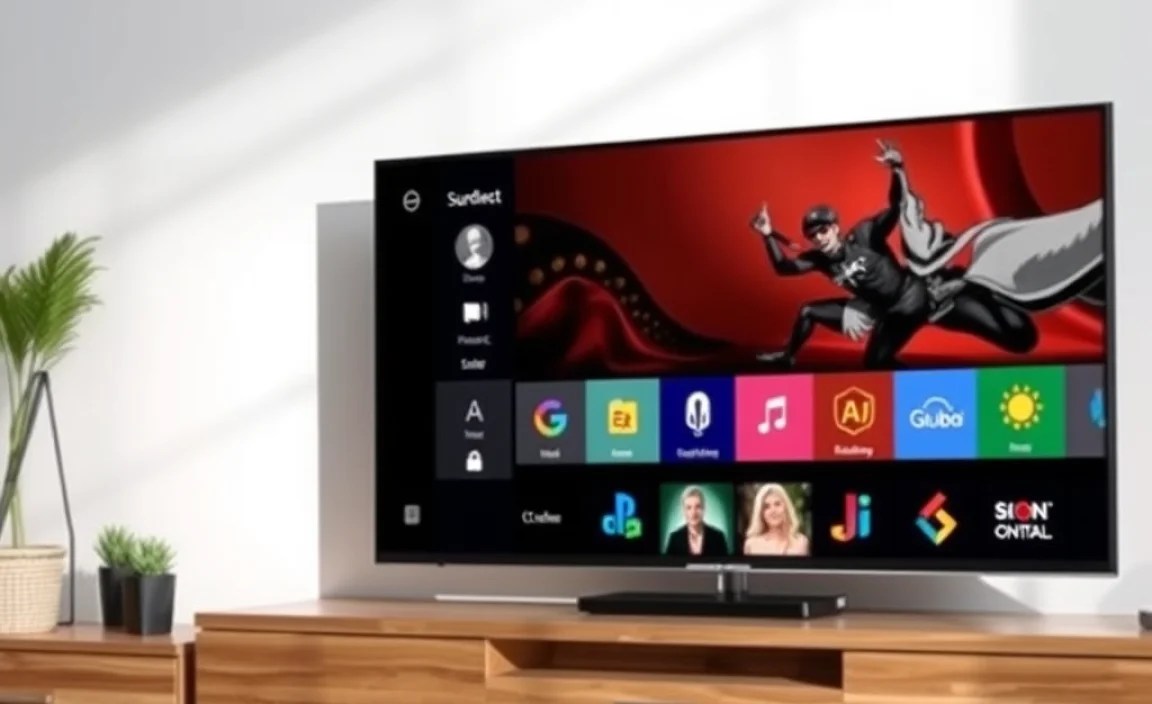
Beyond basic setup, smart TVs offer a world of convenience. Let’s look at some standout features.
Voice Control
Many smart TVs come with built-in microphones or support voice remotes. This allows you to:
- Search for shows and movies
- Control playback (pause, play, rewind)
- Change channels
- Adjust volume
- Ask for weather or other information
To use this, you often need to enable voice services in the settings and sometimes link your account (like Google Assistant or Amazon Alexa).
Casting and Screen Mirroring
This feature lets you send content from your smartphone, tablet, or computer directly to your TV.
- Casting: Usually built into apps like YouTube or Netflix. You tap a cast icon on your mobile device, and the content plays on the TV.
- Screen Mirroring: This essentially duplicates what’s on your mobile device’s screen onto the TV. It’s great for photos or if an app doesn’t have a cast button.
Check your TV’s settings for specific instructions on enabling and using these features.
Smart Home Integration
Some smart TVs can connect with other smart home devices, like smart lights or speakers. This allows for more advanced control, like dimming lights when a movie starts.
Frequently Asked Questions About Smart TV Setup
- What is the first thing I should do when setting up a new smart TV?
- Carefully unbox your TV, attach the stand or mount it securely, and connect essential cables like power and HDMI. Then power it on for the initial software setup process.
- Do I need to connect my smart TV to the internet?
- Yes, connecting your smart TV to the internet unlocks its “smart” features, allowing you to stream content, browse apps, and receive software updates. Without it, it functions much like a regular TV.
- How do I get the best picture quality on my smart TV?
- Start by selecting an appropriate picture mode (like ‘Cinema’ for dark rooms). Then, adjust settings like Backlight, Brightness, Contrast, and Sharpness to your preference and room lighting. Avoid overly aggressive “enhancement” features like excessive sharpness.
- Why is the image on my new TV not looking as good as I expected?
- This is often due to default picture settings. They’re usually designed for bright environments or to look flashy in a store. Adjusting the Picture Mode, Backlight, Contrast, Brightness, and Sharpness as per this guide will significantly improve image quality.
- What is “input lag,” and why is it important for gaming?
- Input lag is the delay between when you press a button on your controller and when the action appears on the screen. High input lag makes games feel sluggish. Most smart TVs have a “Game Mode” that minimizes this lag.
- Should I use Wi-Fi or an Ethernet cable for my smart TV?
- For the most stable and fastest connection, especially for 4K streaming, an Ethernet cable is generally preferred. However, if that’s not convenient, a strong Wi-Fi signal will work well for most users.
.lwrp.link-whisper-related-posts{
margin-top: 40px;
margin-bottom: 30px;
}
.lwrp .lwrp-title{
}.lwrp .lwrp-description{
}
.lwrp .lwrp-list-container{
}
.lwrp .lwrp-list-multi-container{
display: flex;
}
.lwrp .lwrp-list-double{
width: 48%;
}
.lwrp .lwrp-list-triple{
width: 32%;
}
.lwrp .lwrp-list-row-container{
display: flex;
justify-content: space-between;
}
.lwrp .lwrp-list-row-container .lwrp-list-item{
width: calc(25% – 20px);
}
.lwrp .lwrp-list-item:not(.lwrp-no-posts-message-item){
max-width: 150px;
}
.lwrp .lwrp-list-item img{
max-width: 100%;
height: auto;
object-fit: cover;
aspect-ratio: 1 / 1;
}
.lwrp .lwrp-list-item.lwrp-empty-list-item{
background: initial !important;
}
.lwrp .lwrp-list-item .lwrp-list-link .lwrp-list-link-title-text,
.lwrp .lwrp-list-item .lwrp-list-no-posts-message{
}@media screen and (max-width: 480px) {
.lwrp.link-whisper-related-posts{
}
.lwrp .lwrp-title{
}.lwrp .lwrp-description{
}
.lwrp .lwrp-list-multi-container{
flex-direction: column;
}
.lwrp .lwrp-list-multi-container ul.lwrp-list{
margin-top: 0px;
margin-bottom: 0px;
padding-top: 0px;
padding-bottom: 0px;
}
.lwrp .lwrp-list-double,
.lwrp .lwrp-list-triple{
width: 100%;
}
.lwrp .lwrp-list-row-container{
justify-content: initial;
flex-direction: column;
}
.lwrp .lwrp-list-row-container .lwrp-list-item{
width: 100%;
}
.lwrp .lwrp-list-item:not(.lwrp-no-posts-message-item){
max-width: initial;
}
.lwrp .lwrp-list-item .lwrp-list-link .lwrp-list-link-title-text,
.lwrp .lwrp-list-item .lwrp-list-no-posts-message{
};
}
Related Posts
- Best Tv For Outdoor Use Wall Mount: Top Picks 2023

Beginners Choice To Know How To Make Open Back Headphones Closed- About Us
- TV Size Calculator Room: Essential Buying Guide

- Tv Energy Consumption Mounting: Tips To Reduce Costs
- Top Podcast Microphones For Best Quality Audio In 2023
- Top Bluetooth Speaker Apps: Elevate Your Sound Experience!

Lavalier Microphone Settings For Perfect Sound