
Setting up your new smart TV under $500 is easier than you think! This guide will walk you through unboxing, connecting, and configuring your budget-friendly TV for a fantastic viewing experience, all without the tech stress. Get ready to enjoy your favorite shows and movies in no time.
So, you’ve snagged a fantastic smart TV without breaking the bank, great job! Now comes the part that can sometimes feel a little daunting: setting it all up. Don’t worry, though! Getting your new TV connected and humming with all your favorite apps and channels is usually a breeze. We’re here to make sure your budget-friendly smart TV setup is as smooth and stress-free as possible. Forget confusing manuals and tangled wires; we’ll guide you step-by-step, turning any initial confusion into confident command. Let’s get you tuned in and ready to stream in no time!
Unboxing Your Brilliance: First Steps to Smart TV Bliss

Alright, you’ve got the box, and the excitement is building! Unboxing your new smart TV under 0 is the very first step towards a world of entertainment. Let’s get it out safely and see what’s inside.
What to Expect in the Box
When you open that cardboard treasure chest, you’ll typically find:
- The Smart TV itself (usually protected by foam or plastic wrap).
- The Remote Control (look for batteries, often included!).
- A Power Cord.
- A Quick Start Guide or User Manual (don’t toss this immediately!).
- Depending on the model, you might have a stand with screws, or just the TV if it’s designed for wall mounting.
Getting it Out Safely
This is crucial. TVs, even budget-friendly ones, can be delicate.
- Two is better than one: If possible, have another person help you lift the TV. This prevents accidents and ensures it’s handled with care.
- Lay the box flat: Most TV boxes are designed to be opened from the top. Lay the box flat on a cleared space, then carefully lift the top flaps.
- Handle by the frame: Always grip the TV by its frame or bezel, never by the screen itself. Pressing on the screen can damage the pixels.
- Keep the packaging: It’s a good idea to keep the original box and packing materials for at least 30 days. If you need to return or exchange the TV, original packaging makes it much easier.
Attaching the Stand or Preparing for Wall Mount
Most smart TVs under $500 come with a stand. This is usually the simplest way to get your TV up and running on a surface.
- Locate the stand parts: They might be two separate pieces or a single central stand.
- Align and screw: Line up the stand with the designated holes on the back of the TV. Use the screws provided. The manual will specify which screws to use if there are different sizes. Sometimes, a screwdriver might be included, other times you’ll need your own.
- Wall Mounting? If you’re wall-mounting, ensure you have the correct VESA mount kit and have consulted a professional or a reliable guide on how to properly secure it to your wall. Wall mounting requires careful consideration of wall type and weight-bearing capacity. For guidance, you can check resources from the Consumer Electronics Association (though often cited generally, principles apply).
Wired for Success: Connecting Your Smart TV

Now that your TV is out of the box and standing tall (or ready to be mounted), it’s time to bring it to life by connecting your devices and power. This is where the magic really starts to happen.
Powering Up
This one’s simple but essential:
- Find the power cord that came with your TV.
- Plug one end into the back of your TV (there’s usually a dedicated port marked “DC in” or with a power symbol).
- Plug the other end into a surge protector or a wall outlet. Using a surge protector is highly recommended to safeguard your new electronics from power fluctuations. You can find good, affordable ones online or at electronics stores.
Connecting Your Devices: HDMI is Key
HDMI (High-Definition Multimedia Interface) is the standard for connecting most modern entertainment devices to your TV. High-definition video and audio are sent through a single cable.
- Identify Ports: Look at the back or side of your TV for the HDMI IN ports. They are usually labeled “HDMI 1,” “HDMI 2,” etc. Many TVs also have an “HDMI ARC” port (Audio Return Channel), which is useful if you plan to connect a soundbar later.
- Connect Source Devices:
- Cable Box/Satellite Receiver: Connect an HDMI cable from the HDMI OUT port on your cable box to an HDMI IN port on your TV.
- Streaming Stick/Box (Roku, Fire TV, Apple TV): These usually plug directly into an HDMI port on the TV. You might need to power them separately via USB or a power adapter.
- Blu-ray/DVD Player: Connect an HDMI cable from the player’s HDMI OUT to an HDMI IN on the TV.
- Game Console: Connect your PlayStation, Xbox, or Nintendo Switch via an HDMI cable. For the best gaming experience, check if your TV or console supports specific HDMI standards like 2.0 or higher for higher frame rates and resolutions.
- Audio Systems (Soundbars/AV Receivers): If you have a soundbar or AV receiver, connect its HDMI OUT (often labeled “ARC” or “CEC”) to the TV’s HDMI ARC port. This allows audio from the TV to be sent back to your sound system.
Internet Connection: Wi-Fi vs. Ethernet
To unlock the “smart” features – streaming apps, web browsing, software updates – your TV needs to be connected to the internet.
- Wi-Fi (Wireless): This is the most common and convenient. During the initial TV setup (which we’ll cover next), you’ll be prompted to select your Wi-Fi network and enter your password. Make sure you have your Wi-Fi password handy! Strong Wi-Fi is key for smooth streaming. If you encounter issues, try moving your router closer to the TV or consider a Wi-Fi extender.
- Ethernet (Wired): For the most stable connection, especially if you’re streaming 4K content or gaming online, an Ethernet cable directly from your router to your TV is best. Look for an Ethernet port (it looks like a larger phone jack) on the back of your TV and your router.
A resource from Rtings.com, a reputable TV review site, can offer more details on why wired connections are often preferred for streaming stability.
The First Boot: Navigating the Initial Setup
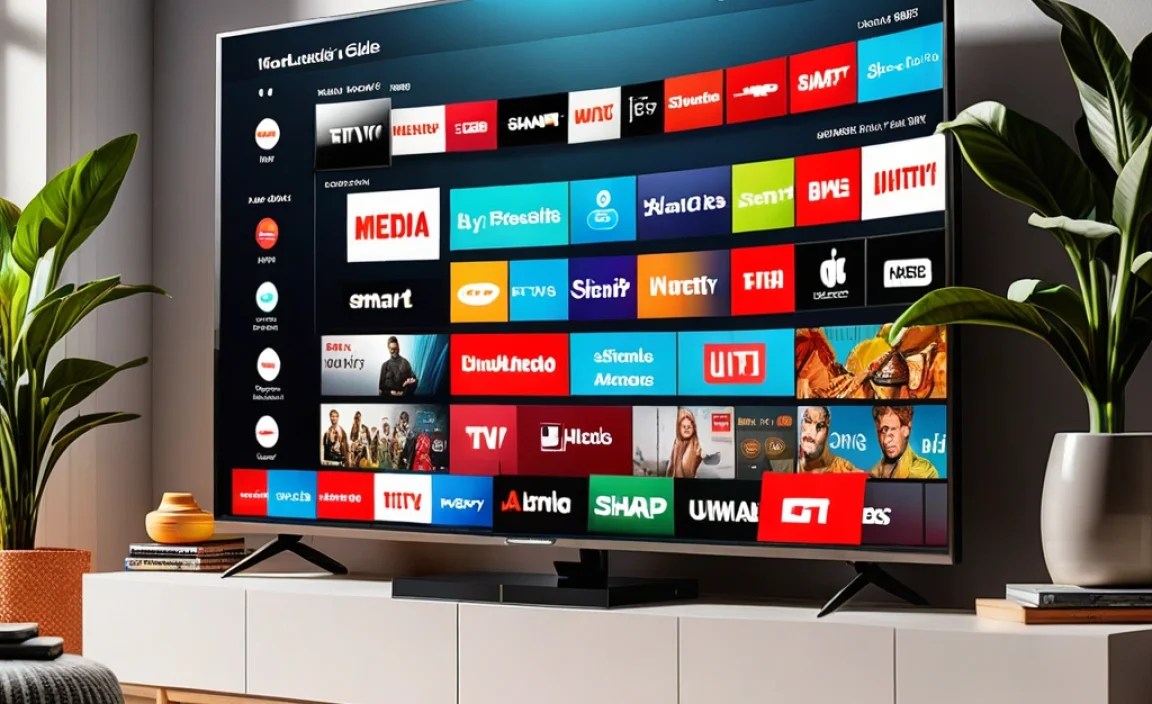
You’re powering on your brand new smart TV for the very first time! As you hit that power button with the remote, a series of screens will guide you through the essential setup steps. Think of it like setting up a new smartphone; it’s designed to be user-friendly.
1. Language and Region Selection
The very first thing you’ll be asked is to choose your preferred language and sometimes your country or region. Select these carefully, as they affect the TV’s menus and content availability.
2. Network Connection
This is where you’ll connect your TV to the internet.
- Wi-Fi: Your TV will scan for available Wi-Fi networks. Select your home network from the list and enter your password using the on-screen keyboard and remote. Be patient, as typing with a remote can take a moment!
- Ethernet: If you plugged in an Ethernet cable, the TV might detect it automatically or ask you to confirm the wired connection.
3. Terms and Conditions and Account Sign-In
You’ll need to agree to the manufacturer’s terms of service and privacy policy. Next, most smart TVs will prompt you to sign in or create an account for their specific operating system (e.g., Google Account for Android TV/Google TV, Roku Account for Roku TV, Amazon Account for Fire TV, or accounts for Samsung’s Tizen or LG’s webOS). This account is crucial for downloading apps, personalized recommendations, and sometimes for using voice control features. If you don’t have an account, the TV will guide you through creating one, often by directing you to a website or using your phone.
4. Channel Scan or Input Selection
- Antenna Users: If you’re using an outdoor or indoor antenna to watch over-the-air broadcasts, you’ll need to perform an auto-channel scan. The TV will search for all available local channels. This process can take several minutes.
- Cable/Satellite/Other Devices: If you’re primarily using cable boxes, streaming devices, or game consoles, you might be able to skip or postpone the channel scan. You can select your active input (HDMI 1, HDMI 2, etc.) directly.
5. Software Update Check
Many TVs will automatically check for available software updates during the initial setup. It’s highly recommended to install any updates. These updates can improve performance, fix bugs, and even add new features. This might require your internet connection to be active. Some TVs might allow you to defer this, but it’s best to do it as soon as possible.
6. Initial Settings and Preferences
Some TVs might ask about picture mode preferences (e.g., Standard, Movie, Sports) or sound settings. You can usually adjust these in more detail later in the TV’s settings menu. You may also be asked about enabling certain smart features or parental controls.
Mastering Your Smart TV Interface
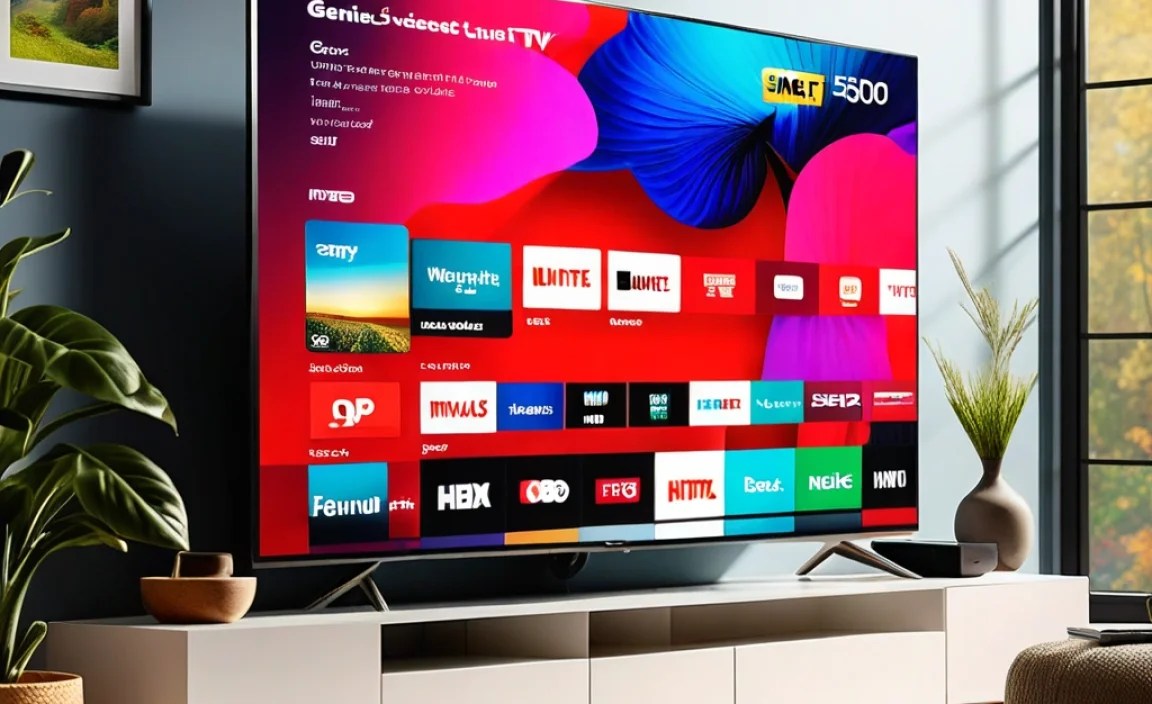
Once the initial setup is complete, you’ll land on your TV’s home screen. This is your command center for everything your smart TV can do. Each brand has its own unique interface, but the general principles are the same.
Understanding the Home Screen
The home screen typically features:
- App Row/Library: Shortcuts to your installed applications (Netflix, YouTube, Hulu, Disney+, etc.).
- Input Sources: Easy access to switch between your connected devices (HDMI 1, Antenna, etc.).
- Settings Menu: A gear icon or similar navigation point to access all TV settings, from picture and sound to network and system updates.
- Search/Content Suggestions: Some interfaces offer universal search to find shows or movies across apps, or they might suggest content based on your viewing habits.
Installing and Managing Apps
This is where the “smart” in your smart TV truly shines.
- Go to the App Store: Navigate to your TV’s app store. This is usually found on the home screen or within the main menu.
- Search for Apps: Use the search function to find your favorite streaming services, social media apps, or even games. Typing with the remote can be tedious, but most app stores are well-organized.
- Install: Select the app you want and click “Install” or “Add.”
- Log In: Once installed, open the app and log in with your existing account credentials for that service. If you don’t have an account, you’ll usually need to create one via a web browser or your smartphone.
- Uninstall: If you run out of space or no longer use an app, you can usually uninstall it through the app store or by selecting the app on your home screen and choosing an “Uninstall” or “Remove” option.
Connecting Other Smart Devices
Many smart TVs offer features to connect with other smart home devices:
- Voice Assistants: If your TV has built-in voice control (like Google Assistant or Alexa), you can often use it to search for content, control playback, or even manage other smart home gadgets. Ensure you’ve enabled and configured these in the TV’s settings.
- Smart Home Hubs: Some TVs can act as a basic smart home hub or integrate with existing ones. Check your TV’s settings under “Connectivity” or “Smart Home” for options.
- Casting/Screen Mirroring: Most smart TVs support casting from your smartphone, tablet, or computer. Look for built-in support for technologies like Chromecast (on Android TVs/Google TVs) or AirPlay 2 (on some LG, Samsung, and Vizio TVs). This allows you to send videos, photos, or even mirror your entire screen to the TV.
Frequently Asked Questions
What are the absolute essentials I need before I start setting up my new smart TV?
You’ll need the TV itself, the remote control, batteries for the remote, the power cord, and a stable internet connection (Wi-Fi password ready is a must!). If you plan to mount it, ensure you have the correct wall mount hardware. For cable connections, have your HDMI cables handy.
How do I physically connect my new smart TV to my home entertainment system?
Most connections are made using HDMI cables. Connect the HDMI OUT port on your cable box, Blu-ray player, or gaming console to an HDMI IN port on your TV. For soundbars or AV receivers, connect to their respective HDMI ARC (Audio Return Channel) ports if available. Always ensure devices are powered off before connecting cables.
Is it better to connect my smart TV via Wi-Fi or an Ethernet cable?
For most people, Wi-Fi is perfectly fine and more convenient. However, if you experience buffering or slow streaming, an Ethernet cable (plugged directly from your router to the TV) offers a more stable and faster connection. This is especially true for high-resolution streaming like 4K.
What are the basic steps after I turn on my smart TV for the first time?
Upon powering on, you’ll typically be guided through an initial setup process. This includes selecting your language, connecting to your Wi-Fi network, scanning for channels (if using an antenna), accepting terms and conditions, and often signing into or creating your TV’s operating system account (like Google TV, Roku TV, etc.).
How do I download and install streaming apps on my smart TV?
Smart TVs have an app store, much like a smartphone. Navigate to the app store on your TV’s home screen, search for the streaming service you want (e.g., Netflix, Hulu, Disney+), select it, and click “Install” or “Download.” You’ll then need to log in with your account details.
I’m having trouble with my remote. What should I check first?
First, ensure the batteries are correctly inserted and have enough power. Try re-pairing the remote; many smart TV remotes have a pairing button or require holding down certain buttons for a few seconds (check your TV’s manual for specifics). Finally, make sure there are no obstructions between the remote and the TV’s infrared sensor.
Do I need to update my TV’s software right after setup?
Yes, it’s highly recommended! Software updates often include performance improvements, security patches, and new features. Your TV will usually prompt you to check for updates during the initial setup or can be found in the settings menu under “System” or “Software Update.”