
Unlock the full potential of your new smart TV for under $500! This guide reveals the must-have apps for streaming, entertainment, and more, transforming your budget-friendly TV into a powerful entertainment hub. Get ready to enjoy your favorite content without breaking the bank.
So, you’ve snagged a fantastic smart TV without emptying your wallet – that’s awesome! But now you might be wondering, “What can I actually do with it?” It’s a common question, especially when you’re new to the smart TV scene. The good news is, your affordable TV is a gateway to a world of entertainment, and a few key apps are all you need to get started. We’re here to make unlocking those essential apps super simple, so you can spend less time figuring things out and more time enjoying your shows and movies. Let’s dive in and turn that great TV into your ultimate entertainment center!
Choosing Your Smart TV Ecosystem
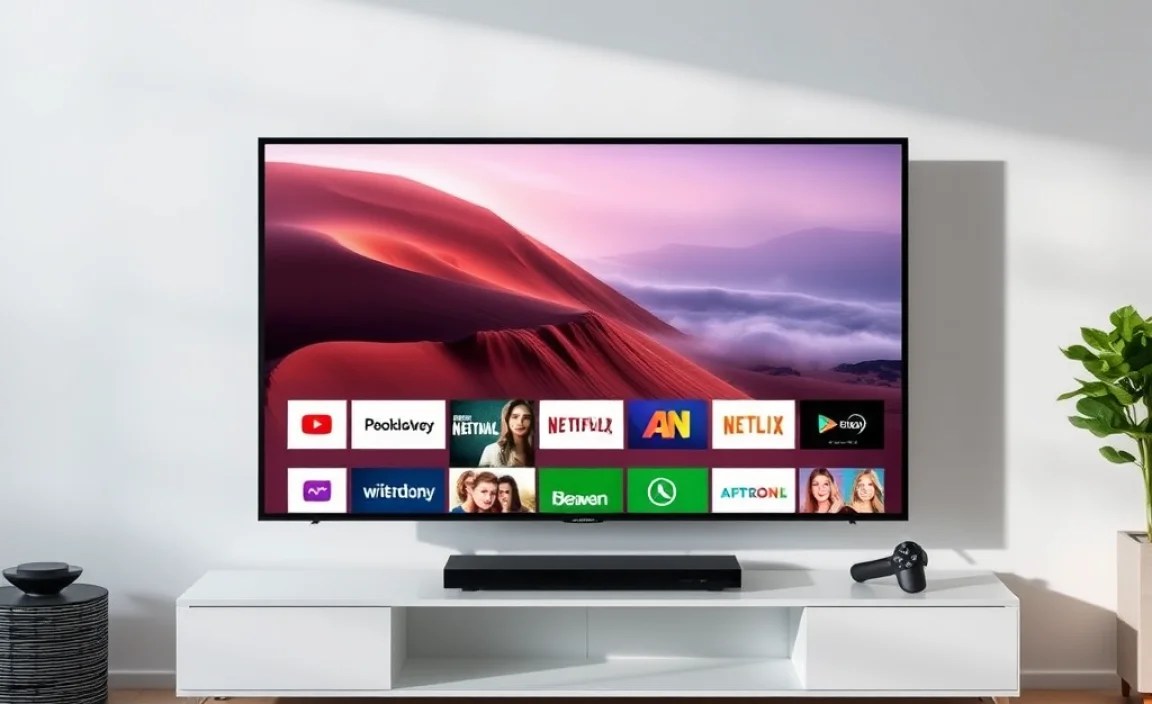
Before we jump into apps, it’s wise to get a handle on the “smart” part of your smart TV. Most smart TVs run on an operating system, kind of like how your phone or computer does. This system is where you’ll find and manage your apps. The big players you’ll encounter are:
- Google TV / Android TV: Found on brands like Sony, TCL, and Hisense. It offers a vast app store, Google Assistant integration, and seamless compatibility with other Android devices.
- Roku TV: Known for its incredibly simple interface and a massive selection of channels (apps). Brands like TCL and Hisense also offer Roku TVs.
- LG’s webOS: LG’s proprietary system is user-friendly with a distinct “launcher bar” at the bottom for quick app access.
- Samsung’s Tizen OS: Samsung’s own operating system is sleek and offers a good range of popular apps.
- Amazon’s Fire TV: Built into TVs from brands like Insignia and Amazon’s own Omni series, it features Alexa voice control and deep integration with Amazon services.
Your TV’s manual or the product description will tell you which system it uses. Don’t worry if it sounds complicated; most are designed to be very easy to navigate, and we’ll focus on apps that are generally available across many of these platforms.
The Essential Movie & TV Streaming Apps

These are the heavy hitters, the apps you’ll likely use the most for your binge-watching needs. Most of these require a subscription, but many offer free trials or ad-supported tiers.
1. Netflix
The king of streaming. Netflix offers an enormous library of movies, TV shows, documentaries, and original content. It’s a must-have for almost any smart TV owner.
2. YouTube
More than just cat videos! YouTube is a treasure trove of content, from music videos and tutorials to full-length movies and documentaries. It’s also a fantastic place to find reviews of tech, including affordable smart TVs.
3. Hulu
Hulu is great for catching current TV shows shortly after they air, alongside a solid collection of movies and acclaimed original series. They also offer a cheaper, ad-supported plan.
4. Disney+
If you’re a fan of Disney, Pixar, Marvel, Star Wars, or National Geographic, this is your go-to. It’s packed with family-friendly content and exclusive new releases.
5. Amazon Prime Video
Included with an Amazon Prime subscription, this service boasts a wide range of movies, TV shows, and its own Emmy-winning original series. You can also rent or buy additional content.
6. Max (formerly HBO Max)
Home to premium content from HBO, Warner Bros., DC, and more. While it might lean towards premium, it’s worth considering for its critically acclaimed shows and movies.
7. Paramount+
Offers content from CBS, Paramount Pictures, MTV, Nickelodeon, and more, including live sports like the NFL and UEFA Champions League. Their originals are also gaining traction.
Free Streaming & Live TV Options

Who doesn’t love free stuff? These apps offer a fantastic way to get your entertainment fix without adding to your monthly bills.
1. Pluto TV
Owned by Paramount, Pluto TV offers a live TV-like experience with hundreds of channels, curated by topic. It’s completely free and streams movies, shows, and news, all supported by ads.
2. Tubi
Tubi boasts a huge library of movies and TV shows from major studios, available for free with ads. It’s a great place to discover older gems or catch up on shows you might have missed.
3. The Roku Channel
Even if you don’t have a Roku TV, this app (available on many platforms) offers a robust selection of free movies, TV shows, and live news channels, all ad-supported.
4. Crackle
Owned by Sony, Crackle offers a curated selection of popular movies and award-winning original series. Content rotates regularly, so there’s always something new to find.
5. Peacock
NBCUniversal’s streaming service has a free tier with a good selection of movies, TV shows, and even live news and sports. Paid tiers unlock more content and remove ads.
Apps for Music & Audio Lovers

Your smart TV can also be a fantastic audio companion. Here are some apps to get your tunes flowing.
1. Spotify
The world’s most popular music streaming service. Access billions of songs, curated playlists, podcasts, and even create your own radio stations. A premium subscription removes ads and allows offline listening.
2. Pandora
Another great music streaming service, Pandora is known for its personalized radio stations based on your musical taste. Similar to Spotify, a premium subscription offers more features.
3. YouTube Music
If you’re already invested in the YouTube ecosystem, YouTube Music offers a massive catalog of official songs, albums, and live performances, plus a vast library of music videos. It’s included with YouTube Premium.
Apps for Gamers & Sports Enthusiasts

While dedicated gaming consoles offer the best experience, your smart TV can still be a part of your gaming and sports world.
1. Twitch
The go-to platform for live-streaming video games, esports, and creative content. Watch your favorite streamers or discover new ones. It’s free to watch, with options to subscribe to channels.
2. ESPN+ (or your local sports app)
For sports fans, dedicated apps provide live games, highlights, and sports news. ESPN+ is a popular choice for live events and original sports documentaries. Check if your favorite leagues or teams have their own apps available.
3. Google Stadia / GeForce NOW (Cloud Gaming)
While Stadia has shut down, services like NVIDIA’s GeForce NOW (if available on your TV’s OS) allow you to stream PC games directly to your TV, provided you have a strong internet connection and existing game library or buy new titles. Some TVs might also support other cloud gaming services.
Utility & Productivity Apps
These apps add a little extra functionality and convenience to your smart TV experience.
1. Web Browsers (e.g., Silk Browser on Fire TV, or built-in browsers)
While not always the most robust, having a web browser on your TV can be handy for quick searches, checking information, or even accessing websites that don’t have dedicated apps. The availability and quality vary greatly by TV operating system.
2. MyFitnessPal / Other Health Apps
Some smart TVs offer integrated health and fitness apps, allowing you to follow workout routines or track your progress on the big screen. This is more common on certain Android TV-based sets.
3. Weather Apps
Quickly check the forecast for your area without reaching for your phone. Many operating systems come with a pre-installed weather app or have one readily available in their app store.
Setting Up Your Essential Apps: A Simple Guide
Getting these apps onto your TV is usually straightforward. Here’s a general walkthrough that applies to most smart TV platforms:
Step 1: Connect to Your Wi-Fi
First, make sure your smart TV is connected to your home’s wireless network. You’ll usually find this option in the “Network Settings” menu. You’ll need your Wi-Fi password.
Step 2: Access the App Store
Look for an icon or menu item labeled “App Store,” “Google Play Store” (for Android TV), “Roku Channel Store,” “Amazon Appstore,” or similar. This is where you’ll find all available applications.
Step 3: Search or Browse for Apps
Use the search function to type in the names of the apps we’ve discussed (Netflix, YouTube, Hulu, etc.). You can also browse by categories like “Entertainment,” “Movies & TV,” or “Free Apps.”
Step 4: Download and Install
Once you find an app, select it and choose the “Download,” “Install,” or “Get” button. The app will download and install automatically. This process is usually quite fast, depending on your internet speed.
Step 5: Launch and Sign In
After installation, you can launch the app. For most streaming services, you’ll need to sign in with your existing account or create a new one. For free apps, you might just need to agree to terms and conditions.
Step 6: Pin to Home Screen (Optional but Recommended)
To make accessing your favorite apps even easier, most smart TV systems allow you to “pin” them to your home screen or main menu. This way, they’re just a click away!
App Availability on Popular Smart TV Platforms
While most major apps are widely available, there can be slight differences. Here’s a quick look at how some core apps stack up across different systems:
| App | Google TV / Android TV | Roku TV | LG webOS | Samsung Tizen OS | Amazon Fire TV |
|---|---|---|---|---|---|
| Netflix | ✔ | ✔ | ✔ | ✔ | ✔ |
| YouTube | ✔ | ✔ | ✔ | ✔ | ✔ |
| Hulu | ✔ | ✔ | ✔ | ✔ | ✔ |
| Disney+ | ✔ | ✔ | ✔ | ✔ | ✔ |
| Amazon Prime Video | ✔ | ✔ | ✔ | ✔ | ✔ |
| Max | ✔ | ✔ | ✔ | ✔ | ✔ |
| Pluto TV | ✔ | ✔ | ✔ | ✔ | ✔ |
| Tubi | ✔ | ✔ | ✔ | ✔ | ✔ |
| Spotify | ✔ | ✔ | ✔ | ✔ | ✔ |
| Twitch | ✔ | ✔ | ✔ | ✔ | ✔ |
Note: Availability can change, and some niche apps might be platform-specific. Always check your TV’s app store.
Tips for Maximizing Your Smart TV Experience on a Budget
Getting the apps is just the start. Here are some extra tips to make sure you’re getting the most bang for your buck:
- Take Advantage of Free Trials: Many paid services offer free trial periods. Use these to test out content and see if a service is worth the subscription cost for you. Just remember to cancel before you’re charged if you decide not to continue.
- Look for Bundles: Sometimes, streaming services offer bundles (like the Disney+/Hulu/ESPN+ bundle) that can save you money if you subscribe to multiple services.
- Check Your Internet Speed: Streaming high-definition video requires a decent internet connection. You can test your internet speed at websites like Speedtest.net to ensure it’s adequate. A minimum of 25 Mbps is recommended for 4K streaming. Organizations like the Federal Communications Commission (FCC) offer guidance on understanding broadband speeds.
- Utilize Your TV’s Built-in Features: Explore your TV’s remote for voice commands. Many smart TVs have built-in microphones that can launch apps, search for content, or even control smart home devices.
- Manage Storage: If your TV has limited internal storage, keep an eye on how many apps you install. You can usually uninstall apps you no longer use to free up space.
- Consider a Streaming Stick (Optional): If your TV’s interface feels a bit slow or lacks certain apps, a budget-friendly streaming stick like a Roku Express, Amazon Fire TV Stick Lite, or Google Chromecast with Google TV (often found for under $30-$50) can provide a faster, more up-to-date experience and access to an even wider app selection.
Frequently Asked Questions (FAQs)
Q1: Do I need to pay for all smart TV apps?
A1: No! While many popular streaming services like Netflix and Disney+ require a subscription, there are many excellent free apps like Pluto TV, Tubi, and Crackle that offer hours of entertainment without a fee. Many services also have free tiers or trials.
Q2: How do I find apps on my smart TV?
A2: You’ll typically find an “App Store,” “App Market,” or a similar section within your TV’s main menu or settings. This is where you can browse, search for, and download applications.
Q3: Can I install apps not listed in my TV’s app store?
A3: On most major smart TV platforms (like Roku, Google TV, Fire TV, webOS, Tizen), you are limited to the apps available in their official app stores. However, some Android TV devices might allow sideloading, which is a more advanced process and generally not recommended for beginners.
Q4: What’s the difference between a smart TV app and a streaming stick app?
A4: The apps themselves are usually identical. The difference is the device they run on. A smart TV has the “smart” operating system built-in, while a streaming stick (like a Roku or Fire TV Stick) is a separate device that plugs into your TV’s HDMI port and provides its own smart interface and app store. This can be a great way to update an older “dumb” TV or give a newer TV a different, potentially faster, operating system.
Q5: How much internet speed do I need for streaming apps?
A5: For standard HD streaming, a minimum of 5-10 Mbps is usually sufficient. For 4K resolution, which offers much sharper picture quality, you’ll want a more robust connection,
.lwrp.link-whisper-related-posts{
margin-top: 40px;
margin-bottom: 30px;
}
.lwrp .lwrp-title{
}.lwrp .lwrp-description{
}
.lwrp .lwrp-list-container{
}
.lwrp .lwrp-list-multi-container{
display: flex;
}
.lwrp .lwrp-list-double{
width: 48%;
}
.lwrp .lwrp-list-triple{
width: 32%;
}
.lwrp .lwrp-list-row-container{
display: flex;
justify-content: space-between;
}
.lwrp .lwrp-list-row-container .lwrp-list-item{
width: calc(25% – 20px);
}
.lwrp .lwrp-list-item:not(.lwrp-no-posts-message-item){
max-width: 150px;
}
.lwrp .lwrp-list-item img{
max-width: 100%;
height: auto;
object-fit: cover;
aspect-ratio: 1 / 1;
}
.lwrp .lwrp-list-item.lwrp-empty-list-item{
background: initial !important;
}
.lwrp .lwrp-list-item .lwrp-list-link .lwrp-list-link-title-text,
.lwrp .lwrp-list-item .lwrp-list-no-posts-message{
}@media screen and (max-width: 480px) {
.lwrp.link-whisper-related-posts{
}
.lwrp .lwrp-title{
}.lwrp .lwrp-description{
}
.lwrp .lwrp-list-multi-container{
flex-direction: column;
}
.lwrp .lwrp-list-multi-container ul.lwrp-list{
margin-top: 0px;
margin-bottom: 0px;
padding-top: 0px;
padding-bottom: 0px;
}
.lwrp .lwrp-list-double,
.lwrp .lwrp-list-triple{
width: 100%;
}
.lwrp .lwrp-list-row-container{
justify-content: initial;
flex-direction: column;
}
.lwrp .lwrp-list-row-container .lwrp-list-item{
width: 100%;
}
.lwrp .lwrp-list-item:not(.lwrp-no-posts-message-item){
max-width: initial;
}
.lwrp .lwrp-list-item .lwrp-list-link .lwrp-list-link-title-text,
.lwrp .lwrp-list-item .lwrp-list-no-posts-message{
};
}
Related Posts
- Wireless Microphone: How To Use For Perfect Sound!
- Best Tv For Ps5: Top Gaming Accessories Reviewed!

Best Tv For Sports Viewing: Top Picks For Ultimate Action- Difference Between LED and OLED Bluetooth: Proven Guide


Best Pioneer Turntable of 2022 [Reviews & Ultimate Guide]
The Best Contact Microphone Of 2023 [ Review & Buying Guide]- How To Calibrate Tv Settings: Essential Buying Guide
- Top Streaming Tv Apps: How To Choose The Best Ones

