
Setting up your smart speaker with Alexa is surprisingly simple. This guide breaks down the essential genius steps to get your device connected and ready to play music, answer questions, and control your smart home, making your life easier and more enjoyable.
Welcome to the wonderful world of smart speakers! If you’ve just unboxed a new Amazon Echo or another Alexa-enabled device, you might be wondering how to get it all up and running. It can feel a bit daunting at first, but I promise, setting up a smart speaker with Alexa is designed to be super straightforward. Think of it as the key to unlocking a helpful assistant in your home, ready to play your favorite tunes, answer burning questions, or even dim the lights. This guide is your friendly roadmap, taking you from “unboxing” to “all set!” in just a few easy steps. Let’s dive in and discover the genius of getting your smart speaker connected!
Unlocking Your Smart Speaker’s Potential: Getting Started
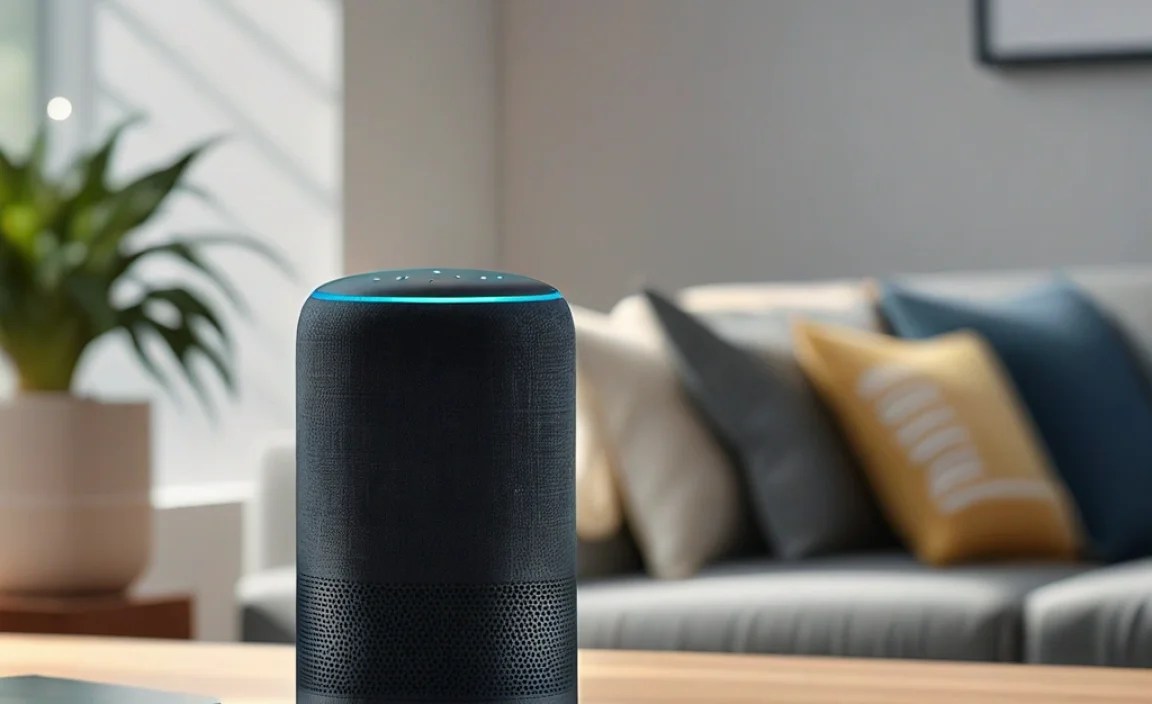
So, you’ve got your shiny new smart speaker. Awesome! Before we get it talking to Alexa, there are a couple of things to make sure are in place. It’s like preparing a stage for a fantastic performer – a little preparation goes a long way to ensure a smooth show.
What You’ll Need Before You Begin
To make the setup process as smooth as possible, gather these essentials:
- Your Smart Speaker: Of course! Make sure it’s out of its box and ready for action.
- The Power Adapter: Every smart speaker comes with its own power cord. Connect it to the speaker and an available wall outlet.
- Your Smartphone or Tablet: You’ll need this to download the Alexa app and manage your speaker. Make sure it’s connected to your home Wi-Fi network.
- Your Home Wi-Fi Network Name and Password: Alexa needs this information to connect to the internet. Keep it handy!
- A Quiet Space: Initially, it’s best to set up your speaker in a quiet spot so it can clearly hear your commands and the app can communicate properly with it.
Why the Alexa App is Your New Best Friend
The Amazon Alexa app is the central hub for managing your smart speaker. It’s where you’ll connect your speaker to Wi-Fi, link music streaming services, discover new Alexa skills, and customize settings. Think of it as the conductor’s baton for your smart home orchestra. You can download it for free from the Apple App Store for iOS devices or the Google Play Store for Android devices.
Step-by-Step: Smart Speaker With Alexa Setup
Let’s get this smart speaker connected! Follow these simple steps, and you’ll be chatting with Alexa in no time.
Step 1: Power Up Your Smart Speaker
First things first, plug in your smart speaker using the provided power adapter. Connect one end to the speaker and the other to a wall outlet. Most speakers will light up and make a sound to indicate they’re powering on. Some might have a brief swirling light while they boot up.
Step 2: Download and Open the Alexa App
If you haven’t already, download the Amazon Alexa app from your device’s app store. Once installed, open the app. If this is your first time using Alexa, you’ll need to create an Amazon account or sign in with your existing one. This is important as your smart speaker will be linked to this account.
Step 3: Connect Your Speaker to the Alexa App
With the app open, it’s time to find your new speaker. The app usually guides you through this process. You might see prompts like “Set up a new device” or “Add device.” Tap on that.
- Select “Amazon Echo” and then choose your specific Echo device model from the list.
- The app will then guide you to put your Echo device into setup mode. This often involves pressing and holding a specific button on the device until the light ring turns orange or a specific color. Follow the on-screen instructions carefully.
- Once in setup mode, your phone or tablet will look for the device. When it finds it, you’ll be asked to connect to your home Wi-Fi network. Select your network from the list and enter your Wi-Fi password.
Step 4: Let Your Speaker Connect to Wi-Fi
After you enter your Wi-Fi credentials, the Alexa app will send them to your smart speaker. The speaker will then attempt to connect to your network. You’ll usually hear a confirmation sound or see a change in the light ring color (often turning blue) when it’s successfully connected. This might take a minute or two.
Step 5: Customize Your Experience
Once connected, the Alexa app will prompt you to set up a few things:
- Choose Your Language: Select the language you want Alexa to use.
- Location Settings: This helps Alexa provide more relevant local information, like weather and traffic.
- Voice Training (Optional but Recommended): Some devices offer voice training. This helps Alexa better recognize your voice, improving accuracy and personalization. Follow the prompts to say a few phrases.
- Link Music Services: Connect your Spotify, Apple Music, Amazon Music, or other preferred streaming services so you can ask Alexa to play your favorite songs.
- Discover Skills: Explore “Skills,” which are like apps for Alexa, adding new capabilities like games, news briefings, or smart home control.
Step 6: Test Your Smart Speaker
You’re nearly there! Now it’s time for the fun part – talking to your smart speaker. Try a few simple commands:
- “Alexa, what’s the weather like today?”
- “Alexa, play some [your favorite artist] music.”
- “Alexa, tell me a joke.”
- “Alexa, set a timer for 5 minutes.”
If Alexa responds correctly, congratulations! Your smart speaker with Alexa setup is complete. You’ve successfully integrated a smart assistant into your home.
Common Smart Speaker Setup Scenarios and Solutions

While the setup is usually straightforward, sometimes a little troubleshooting is needed. Here are a few common hiccups and how to fix them.
Wi-Fi Connection Issues
If your speaker isn’t connecting to Wi-Fi:
- Double-check your password: Wi-Fi passwords are case-sensitive.
- Move closer to your router: A weak signal can prevent connection.
- Restart your router and modem: Unplug them, wait 30 seconds, and plug them back in.
- Ensure you’re on a 2.4 GHz network: Some older or simpler smart devices might not support 5 GHz Wi-Fi bands. Check your router settings. The U.S. Federal Communications Commission (FCC) provides comprehensive information on Wi-Fi standards and regulations.
Speaker Not Responding to the App
If the Alexa app can’t find your speaker:
- Make sure Bluetooth is enabled on your phone/tablet: Some setup processes use Bluetooth to discover the speaker.
- Put the speaker back into setup mode: Press and hold the action button (usually a dot button) for a few seconds until the light ring turns orange.
- Restart the Alexa app: Close it completely and reopen it.
- Ensure your phone/tablet is on the same Wi-Fi network you want to connect the speaker to.
Alexa Isn’t Understanding You
If Alexa mishears your commands:
- Speak clearly and at a normal volume.
- Reduce background noise.
- Try the voice training feature in the Alexa app.
Choosing the Right Smart Speaker for Your Needs

Amazon offers a range of Echo devices, each with different features and price points. Understanding these can help you pick the perfect one for your home. Here’s a quick look:
| Echo Device | Key Features | Best For |
|---|---|---|
| Echo Dot | Compact size, affordable, good sound for its size, voice control. | Entry-level users, small spaces, budget-conscious individuals. |
| Echo (Standard) | Improved sound quality, larger speaker, smart home hub capabilities. | Everyday music listening, general home use, controlling smart home devices. |
| Echo Show (e.g., Echo Show 5, 8, 10, 15) | Includes a touchscreen display for visual feedback, video calls, recipes, and even streaming. | Kitchen assistants, entertainment hubs, visually-oriented users, video conferencing. |
| Echo Studio | Premium sound quality, Dolby Atmos support, room-filling audio, smart home hub. | Audiophiles, music lovers seeking immersive sound, home theater enthusiasts. |
When selecting a smart speaker, consider where you’ll place it and what you’ll primarily use it for. An Echo Dot is perfect for a bedside table or small office, while an Echo Studio would be ideal for your living room for a superior audio experience. The Echo Show devices are fantastic for kitchens or shared family spaces where a visual display is beneficial.
Beyond Setup: Enhancing Your Smart Speaker Experience
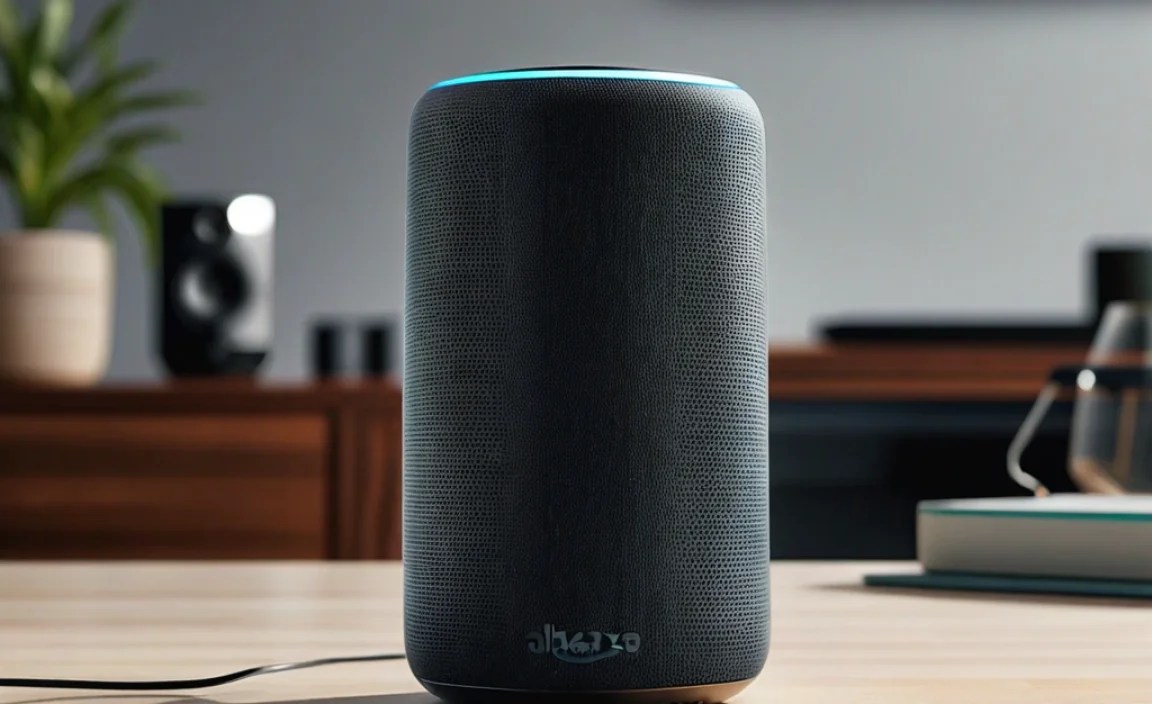
Once your smart speaker with Alexa is set up, the real fun begins! There’s a whole ecosystem of features and integrations waiting for you.
Discovering Alexa Skills
Skills are Amazon’s version of apps for Alexa. They extend your smart speaker’s capabilities significantly. Think of them as adding new superpowers to your voice assistant. You can find and enable skills directly within the Alexa app. Some popular categories include:
- Music & Audio: Connect more streaming services, listen to podcasts, or access radio stations.
- Games & Trivia: Play interactive games with Alexa.
- Smart Home: Control lights, thermostats, locks, and other compatible smart devices.
- News & Weather: Get customized news briefings and detailed weather forecasts.
- Productivity: Set reminders, create to-do lists, or manage your calendar.
To enable a skill, just say, “Alexa, enable [Skill Name]” or find it in the Skills section of the Alexa app. You might need to link accounts for certain skills, like connecting your Spotify premium account.
Integrating with Smart Home Devices
One of the most powerful uses of a smart speaker with Alexa is controlling your smart home. If you have smart light bulbs, thermostats, plugs, or cameras compatible with Alexa, setting them up is usually just as easy as setting up the speaker itself.
Generally, you’ll use the Alexa app to:
- Go to the devices section.
- Tap the ‘+’ icon to add a new device.
- Select the type of device you’re adding (e.g., light, thermostat).
- Choose the brand of your device and follow the instructions to link it to your Alexa account.
Once linked, you can control these devices with simple voice commands, such as:
- “Alexa, turn on the living room lights.”
- “Alexa, set the thermostat to 72 degrees.”
- “Alexa, lock the front door.”
For a comprehensive list of compatible devices, you can often find them listed on the Amazon Alexa Devices page.
Setting Up Routines
Routines are a game-changer for maximizing your smart speaker’s efficiency. They allow you to automate a series of actions with a single voice command or at a scheduled time. For instance, you could create a “Good Morning” routine:
Example “Good Morning” Routine:
- Trigger: “Alexa, good morning.”
- Actions:
- Alexa tells you the weather.
- Alexa reads your first calendar event.
- The smart lights in your bedroom turn on to 50% brightness.
- Your favorite news podcast starts playing.
You can set up routines in the Alexa app under the “Routines” section. You can create custom triggers (like specific phrases or times) and choose from a wide variety of available actions.
Frequently Asked Questions (FAQ)
Q1: Do I need an Amazon Prime membership to set up Alexa?
A: No, you do not need an Amazon Prime membership to set up an Alexa-enabled device. You do need an Amazon account, which is free to create if you don’t have one.
Q2: Can I use my smart speaker with Alexa without Wi-Fi?
A: No, a stable Wi-Fi internet connection is essential for your smart speaker to function. Alexa needs internet access to process voice commands, stream music, and access information.
Q3: How do I change the wake word from “Alexa”?
A: You can change the wake word in the Alexa app. Go to Devices, select your speaker, and then look for “Wake Word” settings. You can choose from Alexa, Echo, Computer, Amazon, or other available options depending on your device model.
Q4: What are the privacy considerations for smart speakers?
A: Smart speakers are always listening for their wake word. Amazon provides controls within the Alexa app to review and delete voice recordings. You can also physically mute the microphone using a button on the device. It’s good practice to familiarize yourself with Amazon’s privacy policies.
Q5: Can I connect multiple smart speakers in my home?
A: Yes, you can connect multiple Alexa-enabled devices to the same Amazon account. The Alexa app allows you to manage all your devices and even set up multi-room music playback, where the same song plays on all your speakers simultaneously.
Q6: Is it safe to connect my smart speaker to my bank accounts or other sensitive services?
A: While Alexa can connect to various services, it’s crucial to be cautious with sensitive information. For financial services, many offer specific Alexa skills that require re-authentication (like a PIN) for transactions. Always review the security settings of any skill you connect and use your best judgment.
Q7: What happens if my smart speaker is already set up with someone else’s account?
A: If your smart speaker was previously linked to another Amazon account, you’ll need to perform a factory reset on the device. This usually involves pressing and holding specific buttons on the speaker until a confirmation message appears. After the reset, you can set it up with your own Amazon account as a new device.
Conclusion: Your Smart Home Journey Begins Now
Setting up your smart speaker with Alexa is the first exciting step into a more connected and convenient home. You’ve learned how to power it up, connect it to your Wi-Fi through the intuitive Alexa app, and even troubleshoot common issues. With your speaker up and running, you can explore a universe of music, information, and smart home control, tailored just for you. Don’t forget to dive into Alexa Skills and Routines to unlock even more potential. Enjoy the ease, convenience, and fun that your new smart assistant brings to your daily life!