
Samsung TV Hidden Features: Essential Wall Mount Secrets Revealed! Get easy tips to unlock advanced settings and optimize your wall-mounted Samsung TV for a stunning viewing experience, blending style and smart tech effortlessly.
Mounting your Samsung TV on the wall can transform your living space, creating a sleek, modern look. But did you know your TV has hidden features that can make this process even smoother and your viewing experience better? Many of us overlook the simple but powerful settings and adjustments that Samsung TV engineers built in, especially when dealing with wall mounting. You might think mounting is just about screws and brackets, but there’s a bit more to it. Let’s uncover these secrets so you can enjoy the best of your wall-mounted Samsung TV.
This guide will walk you through those often-missed features. We’ll cover everything from cable management tricks to picture optimization for your new vantage point. Get ready to unlock the full potential of your Samsung TV and its wall mount!
Samsung TV Hidden Features: Essential Wall Mount Secrets Unlocked

So, you’ve got your shiny new Samsung TV and you’re ready to give your room a serious upgrade by mounting it on the wall. Awesome choice! It looks super sleek and can really open up your space. But mounting a TV isn’t just about finding the right stud or anchoring it securely. Your Samsung TV has a few tricks up its sleeve that can make the whole process easier, and your viewing experience even more amazing. We’re talking about smart features that most people scroll right past, but that can be incredibly useful when your TV is no longer on its stand. Let’s dive into these hidden gems and make your wall-mounted Samsung TV truly shine.
Why Those Hidden Features Matter for Wall Mounting

When your Samsung TV is on its stand, you probably have easy access to ports and can adjust it on a whim. But once it’s flat against the wall, things change. Suddenly, reaching the back becomes a challenge, and those little details you took for granted are harder to manage. This is where Samsung’s thoughtful design comes in. They know people want that clean, “floating TV” look, and they’ve included features to support that desire. These aren’t just for the tech wizards; they’re for anyone wanting a seamless home entertainment setup.
Think about it: you might need to adjust Wi-Fi settings, change picture modes for different lighting, or even just manage those pesky cables that seem to multiply. Samsung builds these solutions into the TV’s software and hardware, often discreetly. Understanding these functions can save you frustration and unlock the full potential of your investment. Let’s explore what makes them so essential.
Understanding VESA and Your Mount
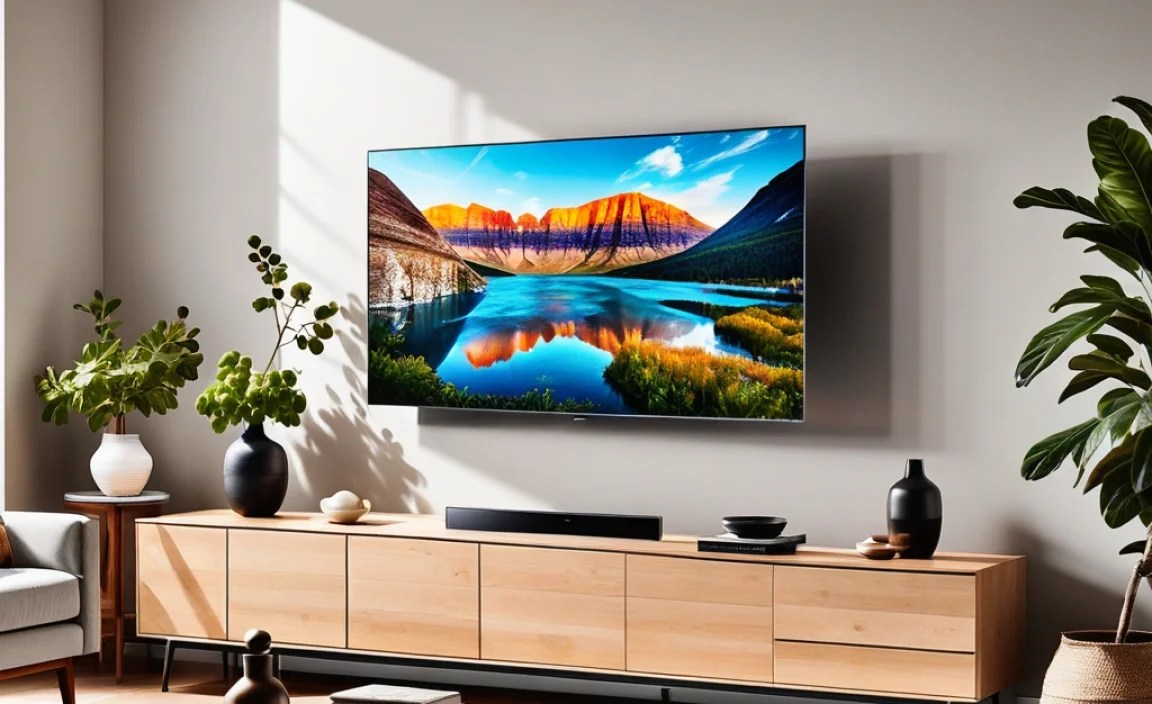
Before we get into the TV’s software secrets, let’s touch on the physical mount. The most crucial standard for TV mounting is VESA (Video Electronics Standards Association). This refers to the specific pattern of screw holes on the back of your TV that your wall mount will connect to. Samsung TVs, like most modern flat-screens, adhere to VESA standards.
Why is this important for hidden features? While VESA itself isn’t a “hidden feature” of the TV, understanding it unlocks compatibility. You need to ensure your wall mount is compatible to even get to the point of using your TV’s features. A mount that’s too small or the wrong VESA pattern means your TV won’t be secure, or it might not align properly for certain installation types, like Samsung’s own “No Gap Wall Mount.”
Finding Your VESA Pattern:
- Check the TV Manual: Your Samsung TV’s user manual will explicitly state the VESA pattern.
- Look on the TV: Gently inspect the back of your TV. Often, the VESA dimensions (e.g., 200x200mm, 400x400mm) are printed on a sticker or directly on the panel near the mounting holes.
- Samsung Support Website: If all else fails, go to Samsung’s support site, enter your TV model number, and find the specifications.
Most wall mounts are adjustable and come with various screws to fit different VESA patterns. Always double-check before purchasing a mount!
Cable Management Magic: Beyond the Rear Panel

This is probably the biggest “hidden feature” wish for anyone wall-mounting a TV: making those cables disappear. Samsung has several built-in and accessory-based solutions.
The Invisible Connection: One Connect Box
If you own a QLED or The Frame TV from recent years, you likely have the One Connect Box. This is a separate hub that all your external devices (Blu-ray players, game consoles, soundbars) plug into. A single, thin “Invisible Connection” cable then runs from the One Connect Box to the TV. This is a game-changer for tidiness. You can tuck the One Connect Box away in a cabinet, behind the TV, or on a shelf, keeping the main TV area remarkably clear.
Hidden Secret: Don’t just shove the One Connect Box anywhere. Ensure it has adequate ventilation. Overheating can damage electronics. Also, the length of the Invisible Connection cable is usually fixed; if you need to place the box further away, you might need to purchase a longer compatible cable from Samsung.
Built-in Cable Channels and Ties
Many standard Samsung TVs, even without the One Connect Box, have thoughtful design elements on the back panel. Look for plastic clips, channels, or guides integrated into the frame or stand attachment points. These are designed to help you route and secure HDMI, power, and antenna cables.
DIY Tip: Even if your TV doesn’t have many built-in clips, you can buy inexpensive, adhesive-backed cable management clips or small Velcro ties. These can be attached discreetly on the rear panel or along the side edges to keep cables bundled neatly and prevent them from dangling.
In-Wall Cable Management Kits
For the ultimate clean look, many people opt to run cables directly through the wall. While this requires cutting into drywall, it provides the most seamless finish. Samsung doesn’t directly provide these kits, but their TVs are designed to work with them. You can find these kits at any major electronics or home improvement store. They typically include grommets, tubes, and sometimes even power outlets designed to be safely installed flush with the wall.
Important Note: Always exercise extreme caution when working inside walls. Ensure you know where electrical wires and plumbing are located. Consulting a professional electrician is highly recommended for this step. Resources like This Old House’s guide to running wires in walls offer great safety advice.
Optimizing Picture and Sound Settings for Wall Mounting

Once your TV is securely on the wall, its position might change how you perceive the picture and sound. Samsung TVs have accessible settings that can fine-tune this experience.
Viewing Angle Adjustments
Auto Motion Plus/Motion Interpolation: When a TV is mounted, especially if you’re viewing it from a significant distance or at an angle, motion blur can become more noticeable. Samsung’s “Auto Motion Plus” settings (found under Picture Settings > Expert Settings) can help smooth out motion. However, some people dislike the “soap opera effect” it can create. Experiment with it! You can turn it down or off if you prefer.
Picture Clarity Settings: Features like LED Clear Motion or Motion Rate can enhance perceived sharpness and reduce blur. Again, these are highly subjective. For a wall-mounted TV, especially in a bright room, you might find these settings beneficial.
HDR and Brightness Optimization
Wall-mounted TVs are often positioned where they might catch more ambient light, or you might be sitting closer. This can impact how you perceive HDR content.
HDR Tone Mapping: Look for settings like “HDR Tone Mapping” (often under Expert Settings). This feature helps optimize the brightness and contrast of HDR content. Depending on the content and your room’s lighting, you might prefer “Standard,” “Advanced,” or even “Off.”
Eco Solutions / Energy Saving: While great for the planet and your electricity bill, these features can sometimes dim the screen more than you’d like, especially in well-lit rooms. You can usually find these under the “General” or “System” menus. For wall-mounted TVs where brightness is key, you might want to disable or reduce these settings.
Sound Orientation Settings
While most TVs have downward-firing or rear-firing speakers, wall mounting can subtly change how the sound reflects. Some Samsung TVs have specific sound modes or adjustments that can help compensate.
Object Tracking Sound (OTS): Higher-end Samsung TVs feature OTS, which uses AI to track on-screen movement and direct the sound accordingly. Wall mounting usually doesn’t affect OTS negatively, but ensure the TV isn’t pressed too flush against a solid wall, which could dampen the speaker output. A small gap from the wall mount can help.
Adaptive Sound/Volume: This feature automatically adjusts the sound based on the content and ambient noise. It can be very helpful when your viewing environment changes throughout the day, which often happens with wall-mounted TVs.
Smart Hub and Connectivity Tips
Your Samsung TV is a smart hub, and its connectivity is paramount, especially when it’s tucked away on the wall.
Wi-Fi and Ethernet Placement
If you didn’t run an Ethernet cable through the wall, your Wi-Fi signal is crucial. Ensure your router is placed to provide a strong signal to the TV’s location. Sometimes, the TV’s internal Wi-Fi antenna can be sensitive to what’s behind it (like a solid wall). If you experience intermittent connectivity issues:
- Router Optimization: Consider moving your router slightly or using a Wi-Fi extender.
- Ethernet is Best: If possible, running an Ethernet cable through the wall (using a cable management kit) is the most stable and fastest way to connect your TV.
- TV Placement: In rare cases, the very location on the wall might interfere with Wi-Fi. If you have options, try mounting it slightly differently.
CEC Control, HDMI ARC, and SimLink
Samsung’s Consumer Electronics Control (CEC) is called Anynet+ SimLink. This feature allows you to control multiple connected HDMI devices (like soundbars or Blu-ray players) with a single Samsung TV remote. When mounting, it’s essential this works seamlessly.
Hidden Secret: Ensure Anynet+ is enabled in your TV’s settings (usually under System > Expert Settings or Connections). If your soundbar isn’t responding to the TV remote, or if your devices aren’t turning on/off together, check this setting. Sometimes, unplugging and re-plugging the HDMI cable connected to the ARC port (Audio Return Channel) can also resolve CEC communication issues.
HDMI ARC: If you’re connecting a soundbar or AV receiver, HDMI ARC is vital for transmitting audio from the TV back to your sound system. With the TV on the wall, ensuring this cable is securely plugged in is important.
Samsung-Specific Wall Mount Enhancements
Samsung offers some unique mounting solutions and features that you might not find elsewhere.
The “No Gap Wall Mount”
This is Samsung’s premium solution. It’s engineered to allow the TV to sit incredibly close to the wall, virtually eliminating the gap. It often includes clever cable management routes that run inside the mount itself.
Secret Tip: Even with the “No Gap” mount, ensure you don’t overtighten the TV against the wall. Some models require a specific slight gap for ventilation or to allow access to ports that might still be on the TV itself. Check your specific mount’s instructions.
Gravity Sensor and Auto-Rotation (The Frame TV)
For The Frame TV, Samsung has incorporated a gravity sensor. This is a “hidden feature” that works with specific Samsung wall mounts (like the Auto Rotating Wall Mount). If you mount The Frame vertically, the TV automatically detects its orientation and switches the screen display to match. This is incredible for art display!
How it works: The TV itself senses its orientation. The mount helps facilitate the rotation physically. You simply need to ensure the feature is enabled in The Frame’s settings and the mount is installed correctly. This is a perfect example of hardware and software working together for an enhanced experience.
Integrated Stand Modes (for Wall Mounting)
While this might seem counter-intuitive, some Samsung TVs, even when designed for wall mounting, might have settings related to their “stand mode” which can subtly affect how they operate or display information. If you’re having odd behavior, check if there’s an option that assumes the TV is in a stand configuration versus wall-mounted, though this is less common on newer models designed explicitly for wall display.
Essential Tools and Pre-Installation Checks
Before you even think about plugging anything in, make sure you have the right gear and have done your homework. This is crucial for safe and effective wall mounting.
Your Toolkit:
- Stud Finder: Essential for locating wall studs if mounting on drywall.
- Level: To ensure your TV is perfectly straight.
- Drill with appropriate bits: For pilot holes and driving screws.
- Screwdriver Set: To attach the mount to the TV and the wall.
Frequently Asked Questions
1. What are the main benefits of wall-mounting a Samsung TV?
Wall-mounting saves space, offers a cleaner aesthetic by hiding cables, and can improve viewing angles. It also enhances safety by keeping the TV out of reach of children or pets.
2. Do I need a specific type of wall mount for my Samsung TV?
Yes, look for a VESA-compatible mount. Samsung TVs have standard VESA mounting hole patterns. Check your TV’s manual or the back of your TV for the VESA pattern (e.g., 200x200mm, 400x400mm) and ensure the mount matches.
3. How can I hide cables when my Samsung TV is wall-mounted?
Use in-wall cable management kits, cable raceways that attach to the wall, or specialized TV mounts with built-in cable management systems. Samsung TVs often have rear panels or channels designed for some cable organization.
4. Are there any Samsung TV settings I should adjust after wall-mounting?
Yes, consider enabling “Game Mode” if you game, adjusting HDR settings for brighter content, and checking “Eco Mode” to optimize power consumption. Some TVs allow screen orientation adjustments, which can be useful for specific wall mounts.
5. What is the “No Gap Wall Mount” for Samsung TVs?
Samsung’s “No Gap Wall Mount” is a proprietary accessory designed to allow the TV to sit as flush as possible against the wall, mimicking a picture frame. It often includes features for hiding cables and simplifying installation.
6. Can I wall-mount a Samsung TV myself, or should I hire a professional?
For those comfortable with basic DIY tasks and tools, self-installation is possible. However, if you’re unsure about wall structures (especially drywall or plaster) or electrical wiring, hiring a professional is safer and recommended.
7. What if my Samsung TV isn’t tilting or swiveling as expected after mounting?
Ensure the mount is compatible and installed correctly. Check the mount’s manual for any tension adjustments. Some TVs also have software settings related to screen orientation or viewing modes that might need checking.