
Quick Summary: Roku TV and Fire TV offer Bluetooth for audio devices, but Fire TV generally has broader compatibility with headphones and speakers. Roku’s Bluetooth is primarily for remote pairing. Both allow for wireless audio streaming, though specific features and ease of use differ. This guide helps you choose the best fit for your needs.
Hey there, tech adventurers! Bob E Riley here from Aimguider. Ever found yourself tangled in wires, wishing for a cleaner, more immersive audio experience from your TV? You’re not alone! Deciding between a Roku TV and a Fire TV can be tough, and when it comes to Bluetooth capabilities for your headphones or soundbars, the confusion can really build up. Sometimes it feels like every TV has its own quirks, making it hard to know which one will truly work best with your favorite audio gear. Don’t sweat it! We’re going to break down exactly what you need to know about Roku TV and Fire TV Bluetooth. We’ll explore how they work, what you can connect, and some handy tips to get the best sound without the fuss. Get ready to untangle those wires and dive into a world of wireless audio bliss!
Roku TV vs Fire TV Bluetooth: What’s the Difference?
When we talk about “Roku TV vs Fire TV Bluetooth,” we’re really looking at how these two popular smart TV platforms handle wireless audio connections. While both have “Bluetooth” in their name, their primary uses and capabilities can be quite different, especially for beginners.
Roku TV and Bluetooth: For the Remote First
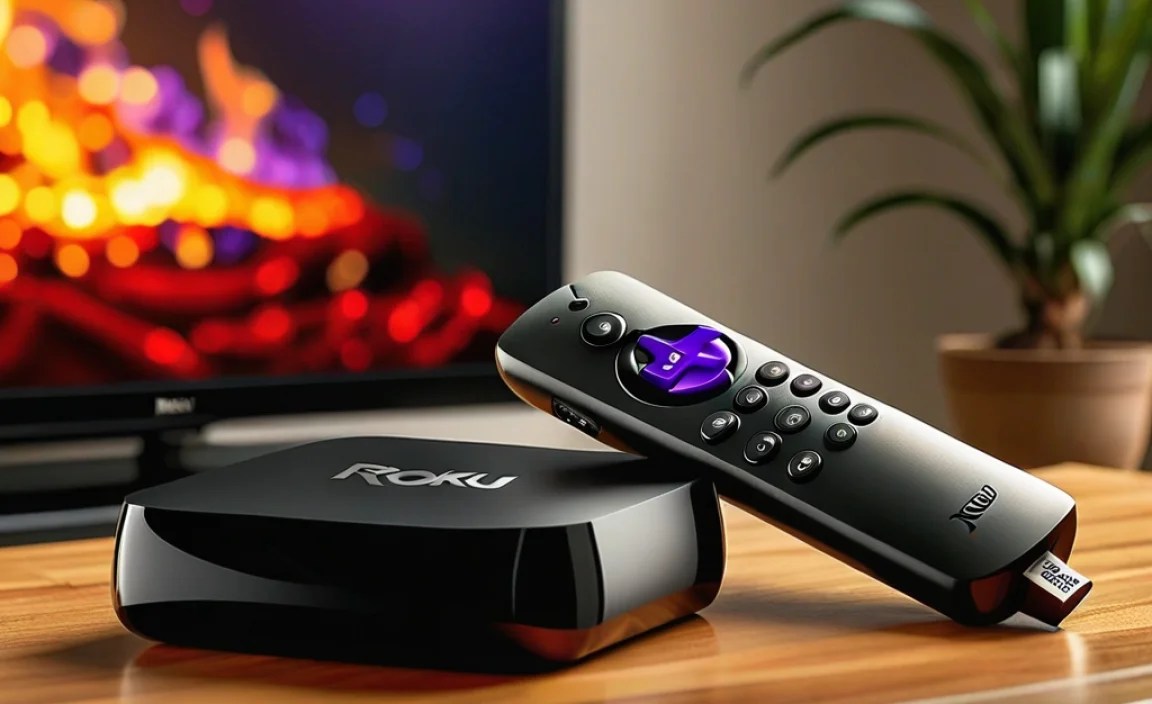
Roku TVs are fantastic for their user-friendly interface and a vast selection of streaming apps. When it comes to Bluetooth on a Roku TV, its main star is the remote control. Most Roku Voice Remotes use Bluetooth to connect to the TV. This is great because it means you don’t need a direct line of sight for the remote to work, unlike older infrared remotes. Many Roku remotes also feature a headphone jack, allowing you to plug in wired headphones for private listening.
However, Roku TVs have traditionally had more limited support for connecting Bluetooth audio devices like headphones or speakers directly to the TV itself. While some newer Roku models or external Roku streaming devices (like the Roku Ultra) might offer more direct Bluetooth audio streaming capabilities, it’s not always the primary focus or the most seamless experience compared to Fire TV. If your goal is to connect Bluetooth headphones directly to your TV, it’s essential to check the specific model’s specifications carefully. For more details on device compatibility, you can always check the official Roku remote and accessory page to see what features are supported.
Fire TV and Bluetooth: A Wireless Audio Hub
Amazon’s Fire TV platform, found on Insignia, Toshiba, and Amazon’s own Fire TV Edition smart TVs, as well as through devices like the Fire TV Stick, generally offers a more robust and user-friendly experience when it comes to connecting Bluetooth audio devices. Amazon designed Fire TV with a strong emphasis on integrating with its broader Alexa ecosystem and supporting a wide range of accessories.
On Fire TV, you can typically connect Bluetooth headphones, speakers, and even soundbars much more easily. The interface for pairing these devices is usually straightforward and prominently featured within the TV’s settings menu. This makes it incredibly convenient to use your favorite wireless headphones for late-night viewing or to connect a Bluetooth soundbar for an enhanced audio experience without needing extra cables. This broader support for audio devices is a significant advantage for users looking to expand their home entertainment sound.
Connecting Bluetooth Devices: Step-by-Step Guides
Let’s get down to the practical side of things. Connecting your Bluetooth headphones or speakers to your TV can seem daunting, but it’s often simpler than you think. We’ll walk you through the typical steps for both Roku and Fire TV.
Connecting Bluetooth Audio to Fire TV
Fire TV makes pairing Bluetooth audio devices a breeze. Here’s how you’ll generally do it:
- Put your Bluetooth device in pairing mode. This is crucial. Refer to your headphones’ or speaker’s manual for specific instructions. Usually, it involves holding down a power or Bluetooth button until a light flashes, indicating it’s discoverable.
- Navigate to Bluetooth settings on your Fire TV.
- From the Fire TV Home screen, go to Settings (the gear icon).
- Select Controllers & Bluetooth Devices.
- Choose Other Bluetooth Devices.
- Scan for new devices. Your Fire TV will start searching for nearby devices that are in pairing mode.
- Select your device. Once your headphones or speaker appear in the list, use your remote to select it.
- Pair and connect. Your Fire TV will attempt to connect to the device. You might see a confirmation message. Once paired, the audio should automatically route to your Bluetooth device.
Remember to check the specific model of your Fire TV device or TV, as menu names might vary slightly. But the general process remains the same.
Connecting Bluetooth Audio to Roku TV (Limited Functionality)
As mentioned, direct Bluetooth audio streaming to external devices is not a standard feature on all Roku TVs. For many Roku TVs, Bluetooth connectivity is mainly for the remote. However, if you have a newer model or an external Roku device that supports Bluetooth audio, here’s the general approach:
- Ensure your Bluetooth audio device is in pairing mode. Just like with Fire TV, consult your device’s manual for how to enable pairing.
- Access Roku’s Bluetooth settings.
The exact path can differ greatly. For models or streaming devices that do support pairing audio devices:
- Go to Settings on your Roku device or TV.
- Look for a section like Remotes & Devices or Bluetooth.
- If audio device pairing is supported, you should find an option to Pair Bluetooth Device or Add Bluetooth Device.
Important Note: If you don’t see an option specifically for pairing audio devices, it likely means your Roku TV doesn’t support this feature directly for external headphones or speakers. In such cases, you might need a separate Bluetooth transmitter that plugs into your TV’s audio output (like an optical or headphone jack).
- Scan and select. Your Roku device will search for discoverable Bluetooth audio devices. Select yours from the list.
- Confirm pairing. Once connected, try playing some audio to ensure it’s coming through your Bluetooth device.
If connecting directly isn’t an option, don’t despair! There are workarounds. For instance, many Roku remotes have a headphone jack. You can also use portable Bluetooth transmitters that plug into your TV’s audio-out port (e.g., headphone jack or digital optical out) and then connect wirelessly to your headphones. Brands like Avantree offer good solutions for this, extending Bluetooth capability to almost any TV.
Key Differences in Bluetooth Features: A Comparison Table
To make the comparison crystal clear, let’s look at a table highlighting the typical Bluetooth strengths and weaknesses of Roku TV versus Fire TV for audio:
| Feature | Roku TV (Typical) | Fire TV (Typical) |
|---|---|---|
| Primary Bluetooth Use | Remote Control connection | Remote Control, Audio devices (headphones, speakers, soundbars) |
| Bluetooth Audio Device Support | Limited; check specific model. May require external transmitter. | Generally robust, broad compatibility. |
| Ease of Pairing Audio Devices | Can be complex or unsupported for audio. | Straightforward and user-friendly. |
| Headphone Jack on Remote | Common on many Roku remotes for private listening. | Less common; relies more on direct Bluetooth pairing. |
| Use with External Streaming Devices (e.g., Roku Stick, Fire TV Stick) | Roku Ultra supports Bluetooth audio. Other sticks may vary. | Fire TV Sticks generally support Bluetooth audio devices well. |
| App Compatibility for Audio | Primarily system-level audio. | System-level audio and some apps might offer specific audio routing. |
| System Integration | Focus on core streaming and remote. | Strong integration with Alexa and Amazon ecosystem. |
Why This Matters for Your Audio Experience
The differences in Bluetooth implementation directly impact how you can enhance your TV’s sound. If your main goal is wireless audio for headphones or speakers, Fire TV often provides a more integrated and simpler solution right out of the box. Roku’s strength lies in its simplicity and remote functionality, with direct Bluetooth audio being a secondary consideration for many of its devices. Understanding these distinctions helps you choose the platform that best fits your audio desires.
Tips for the Best Bluetooth TV Experience
No matter which platform you choose, a few tips can help you maximize your Bluetooth audio experience:
- Read Your Device Manuals: This is the golden rule! Both your TV (or streaming device) and your Bluetooth audio device (headphones, speaker) have manuals for a reason. They contain specific instructions for pairing, troubleshooting, and maximizing performance.
- Keep Devices Close During Pairing: For the initial setup, ensure your Bluetooth audio device is close to your TV or streaming stick. This helps establish a strong, stable connection.
- Update Your Software: Manufacturers regularly release software updates that can improve Bluetooth connectivity and fix bugs. Check your TV’s settings for available updates. For example, Amazon regularly rolls out updates for their Fire OS, which can be found under Settings > My Fire TV > About > Check for Updates.
- Minimize Interference: Other wireless devices (like microwaves, some Wi-Fi routers, or even other Bluetooth devices) can sometimes interfere with your TV’s Bluetooth signal. If you experience dropouts or stuttering audio, try moving potential sources of interference further away.
- Understand Audio Lag: Bluetooth can sometimes introduce a slight delay, known as latency or lag, between the video on screen and the audio you hear. This is more noticeable in fast-paced games or action movies. Some devices and TV platforms offer settings to reduce latency (often called “lip-sync” or “AV-sync” adjustments). Fire TV often has better options for this.
- Consider a Bluetooth Transmitter/Receiver: If your TV doesn’t support direct Bluetooth audio output (especially common with older or some Roku models), a simple Bluetooth transmitter is a game-changer. These devices plug into your TV’s audio port (like the headphone jack or optical audio out) and broadcast the audio signal wirelessly via Bluetooth to your headphones or speaker. This opens up wireless possibilities for almost any TV. A reputable brand for these is Avantree, which offers a range of transmitters designed for TVs.
- Private Listening Options: If direct Bluetooth isn’t an option on your Roku TV, remember the headphone jack on the remote is a fantastic, lag-free solution for personal listening. Some Fire TV remotes also have this feature on specific models.
Troubleshooting Common Bluetooth Issues
Even with the best intentions, Bluetooth can sometimes be a bit finicky. Here are some common issues and how to fix them:
Issue: Device Won’t Connect
- Solution: Ensure your Bluetooth device is fully charged and in pairing mode. Confirm it’s discoverable. Try restarting both your TV/streaming device and your Bluetooth audio device. Forget the device in your TV’s Bluetooth settings and try pairing again from scratch.
Issue: Audio Stuttering or Dropping Out
- Solution: Move your Bluetooth device closer to the TV. Check for and minimize wireless interference from other devices. Ensure your TV and Bluetooth device software are up to date. Sometimes, re-pairing the device can resolve intermittent connection issues.
Issue: No Sound Coming Through Bluetooth Device
- Solution: Double-check that your Bluetooth device is successfully paired and connected in your TV’s Bluetooth settings. Make sure the TV’s volume is turned up and that the audio output is correctly routed to the Bluetooth device. If your TV has a dedicated audio output setting, ensure it’s set to “Bluetooth” or the appropriate wireless option.
Issue: Lip-Sync Problems (Audio Lag)
- Solution: This is a known Bluetooth challenge. Look for an “AV-sync” or “lip-sync” adjustment in your TV’s audio settings. Some Bluetooth headphones or transmitters also have built-in low-latency technology (like aptX Low Latency). If possible, use a direct wired connection or a Bluetooth transmitter specifically designed for low latency if this is a major issue for gaming or critical viewing.
FAQ: Your Roku TV vs Fire TV Bluetooth Questions Answered
Q1: Can I connect any Bluetooth headphones to my Fire TV?
A1: Generally, yes. Fire TV has broad compatibility with most Bluetooth headphones, speakers, and soundbars. Always check your specific Fire TV model or streaming device’s manual for confirmation, but it’s designed to work with a wide range of audio accessories.
Q2: My Roku TV doesn’t have a Bluetooth audio option. What can I do?
A2: This is common. For wireless audio on most Roku TVs, you’ll need an external Bluetooth transmitter. This device plugs into your TV’s audio output (like the headphone jack or optical audio port) and broadcasts the sound via Bluetooth to your headphones or speaker. Alternatively, use the headphone jack on your Roku remote if it has one for private listening.
Q3: Can I connect a Bluetooth speaker to my Roku TV?
A3: It depends on the specific Roku TV model or Roku streaming device. Some newer devices, like the Roku Ultra, support Bluetooth audio streaming. For most standard Roku TVs, you’ll need a Bluetooth transmitter to connect a speaker wirelessly if the TV itself doesn’t have direct Bluetooth audio output support.
Q4: Will connecting Bluetooth headphones drain my Roku remote’s battery faster?
A4: No, Roku remotes typically use Bluetooth to communicate with the TV for control functions, not audio streaming. If your remote has a headphone jack, you plug wired headphones into the remote itself, which doesn’t impact the remote’s battery life for its Bluetooth connection to the TV.
Q5: Is there latency (audio lag) when using Bluetooth headphones with Fire TV?
A5: There can be, as with any Bluetooth audio. However, Fire TV often supports codecs like aptX Low Latency (if both the TV and headphones support it), which significantly reduces lag. You can also check your Fire TV’s audio settings for lip-sync adjustments. For the best lag-free experience, especially for gaming, a wired connection or a dedicated low-latency Bluetooth transmitter is often recommended.
Q6: Can I connect multiple Bluetooth devices to my Fire TV at once?
A6: Typically, a Fire TV can only be actively connected to one Bluetooth audio device at a time for sound output. You can pair multiple devices, but you’ll need to switch between them in the Bluetooth settings if you want to use a different set of headphones or speakers.
Q7: Do I need a Fire TV Stick to use Bluetooth headphones with my TV?
A7: Not necessarily. If you have a Fire TV Edition smart TV (like those from Insignia or Toshiba), it has built-in Bluetooth. A Fire TV Stick is only needed if you have a non-smart TV or a smart TV running a different operating system and want to add Fire TV’s capabilities, including its Bluetooth features.
Conclusion: Choose Your Wireless Path Wisely
Navigating the world of TV Bluetooth can seem complex, but hopefully, this guide has cleared the air for you. When it comes to Roku TV vs Fire TV Bluetooth, the key takeaway is understanding their primary focus. Fire TV generally offers a more seamless and integrated experience for connecting a wide array of Bluetooth audio devices directly to your TV. It’s built with wireless sound enhancement in mind.
Roku TVs excel in simplicity and user-friendliness, with Bluetooth primarily serving their remotes. While direct Bluetooth audio streaming isn’t a universal feature on all Roku models, it’s not a dead end. With the right accessories like Bluetooth transmitters or by utilizing the headphone jack on many Roku remotes, you can still achieve fantastic wireless audio. Ultimately, the best choice depends on your specific needs and priorities. If effortless wireless audio connection is paramount, Fire TV often has the edge. If you value Roku’s straightforward interface and can use a workaround for audio, it remains a strong contender. Whichever path you choose, you’re well on your way to enjoying a more immersive and wire-free TV experience!