Quick Summary: Choosing the right microphone for your gaming PC dramatically improves Zoom calls, game comms, and streaming. This guide simplifies selecting, setting up, and optimizing a microphone to ensure crystal-clear audio, boosting your gaming and communication experience on PC.
Hey there, fellow gamers and tech enthusiasts! Bob E Riley here, your guide to all things audio. Ever feel like your voice sounds a bit fuzzy on Zoom calls during those crucial gaming moments? Or maybe your squad can’t quite catch your excited yells when you land that epic win? You’re not alone! A good microphone is more than just for chatting; it’s a vital tool for your gaming PC, especially when you’re using Zoom for team coordination, streaming, or even just catching up with friends. We’ll break down what makes a great microphone for your gaming PC and how to get the best sound without any tech headaches. Get ready to sound as good as you play!
Why a Dedicated Microphone Matters for Your Gaming PC

Your gaming PC is your command center, and clear communication is key to conquering virtual worlds and staying connected. While many PCs come with built-in mics or have basic headset options, these often fall short when you need crisp, reliable audio. For gaming, where split-second callouts are essential, or for Zoom meetings where you want to be heard professionally, a dedicated microphone makes a world of difference.
Think about it: a tinny, echoey voice can be distracting, frustrating for your teammates, and even make you sound less engaged. A good microphone captures your voice clearly, cuts out background noise, and ensures everyone can understand you, no matter how intense the game gets or how lively your conversation is. It’s an upgrade that pays dividends in both your gaming performance and your general PC communication.
Understanding Microphone Types for Gaming PCs
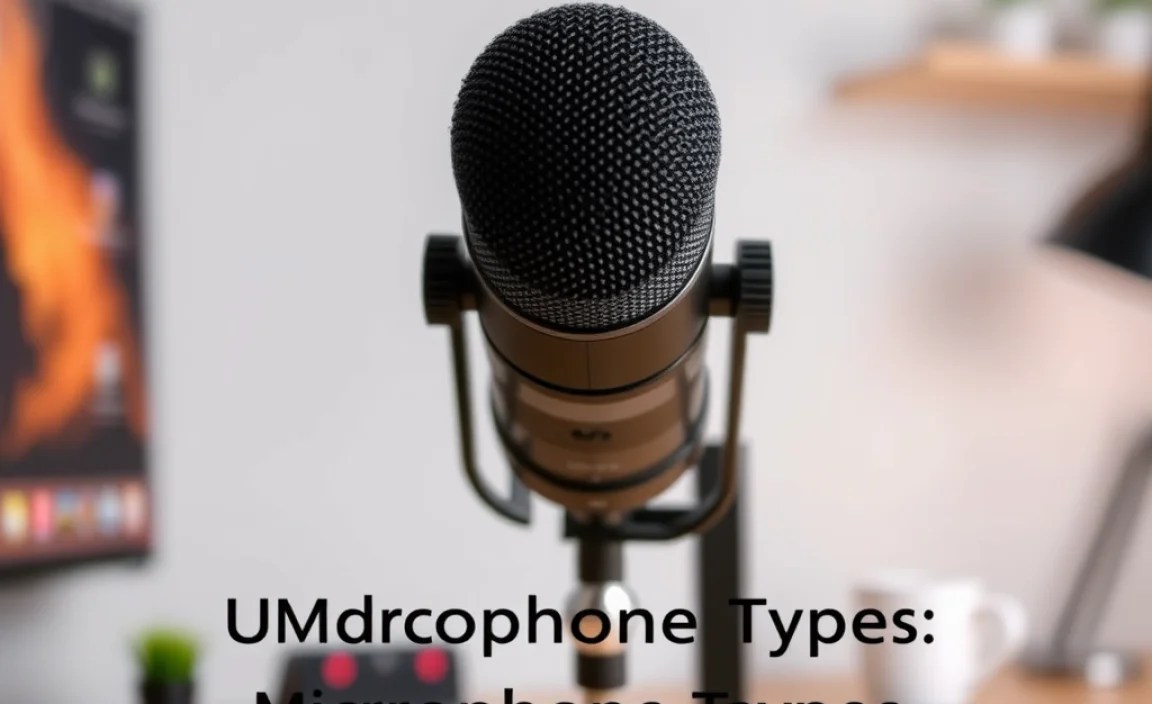
When you start looking for a microphone, you’ll quickly notice there are a few main types. Don’t worry; it’s not as complicated as it sounds! Each type has its own strengths, and knowing them helps you pick the best fit for your gaming setup and budget.
Condenser Microphones
Condenser mics are known for their sensitivity and ability to capture a wide range of frequencies. This means they can pick up subtle nuances in your voice, making them great for detailed audio. They often require phantom power, which is usually supplied via your audio interface or USB connection.
- Pros: Excellent sound quality, detailed audio capture, great for voiceovers and streaming.
- Cons: Can be sensitive to background noise, sometimes more expensive, may require additional equipment (like an audio interface) if not USB.
Dynamic Microphones
Dynamic mics are more rugged and less sensitive than condensers. They are excellent at rejecting background noise, which is a huge plus if you game in a busy environment. They don’t require phantom power, making them simpler to set up.
- Pros: Durable, great at rejecting background noise, often more affordable, simple plug-and-play.
- Cons: May not capture as much vocal detail as condensers, can require more gain (amplification).
USB vs. XLR Microphones
This is a crucial distinction for connectivity:
- USB Microphones: These plug directly into your computer’s USB port. They’re the easiest to set up, making them ideal for beginners. Many USB mics have built-in headphone jacks for zero-latency monitoring.
- XLR Microphones: These use a traditional XLR connector, which is common in professional audio. They offer superior audio quality and flexibility but require an audio interface or mixer to connect to your PC. This adds a step but can result in a more professional setup.
For most gamers who want a straightforward upgrade for Zoom and in-game chat, a USB microphone is usually the way to go. They offer a fantastic balance of quality and ease of use. If you’re thinking about serious streaming or podcasting down the line, you might consider an XLR setup, but let’s focus on getting you sounding great now!
Key Features to Look For in a Gaming PC Microphone for Zoom

So, you’ve decided you need a mic. What should you actually be looking for? Here are the must-have features that will make your voice shine on Zoom and in every game.
Polar Patterns
A polar pattern describes where the microphone picks up sound from. For solo gaming and Zoom calls, you’ll mostly want to focus on these:
- Cardioid: This is the most common and usually the best choice for gamers. It picks up sound from the front, rejecting most noise from the sides and rear. This means it focuses on your voice and minimizes keyboard clicks, fan noise, or other ambient sounds.
- Omnidirectional: Picks up sound equally from all directions. This is generally NOT ideal for gaming as it will pick up ALL background noise.
- Bidirectional (Figure-8): Picks up sound from the front and back, rejecting sides. Useful for interviews with two people facing each other, but not for typical gaming.
Recommendation: Stick with microphones that offer a Cardioid pattern as their primary or only pattern for the cleanest audio for yourself.
Frequency Response
This refers to the range of sound frequencies (from low bass to high treble) that the microphone can capture. For voice, you generally want a mic that has a good response in the mid-range frequencies where speech is most prominent, but also captures a bit of the warmth of your voice (lower mids) and the clarity of consonants (higher mids). Most quality microphones designed for voice will have a good frequency response for speech.
Sample Rate and Bit Depth (for Digital/USB Mics)
These terms relate to how the microphone digitizes your voice. Higher numbers generally mean better digital audio quality.
- Sample Rate: Measured in kHz (kilohertz). Common rates are 44.1kHz (CD quality) and 48kHz (common for audio/video). For voice, either is usually fine, but 48kHz is often preferred for compatibility with video editing.
- Bit Depth: Measured in bits. Common depths are 16-bit and 24-bit. 24-bit offers more dynamic range and is generally preferred for recording, though 16-bit is often sufficient for clear voice chat.
Don’t get too bogged down here; most modern USB mics will offer at least 16-bit/44.1kHz, which is perfectly adequate for Zoom and gaming. If you see 24-bit/48kHz or higher, that’s a bonus!
Included Accessories
Look at what comes with the microphone. Some mics include:
- Pop Filter: A screen that attaches in front of the mic to reduce “plosives” – those harsh P and B sounds that can pop when you speak into the mic.
- Shock Mount: A cradle that isolates the microphone from vibrations, preventing thumps or bumps from being picked up.
- Desk Stand: A basic stand to place the mic on your desk.
These accessories can add significant value and improve your audio quality right out of the box. Many gaming-focused USB mics come with these essentials.
Durability and Build Quality
If you’re an enthusiastic gamer, your desk might see some action. A microphone with a solid metal construction will likely last longer and feel more premium than a plastic one. Check reviews for comments on how well the mic holds up over time.
Top Microphone Recommendations for Gaming PCs (Beginner-Friendly)

To make things super simple, here are a few highly-regarded microphones that are excellent choices for gamers looking to boost their Zoom and communication quality. These are generally USB mics, so they’re easy to set up.
| Microphone Model | Type | Key Features | Ideal For |
|---|---|---|---|
| Blue Yeti | USB Condenser | Multiple polar patterns (Cardioid, Bi, Omni, Stereo), headphone jack, studio-quality sound. | Versatile streaming, podcasting, and high-quality voice chat. |
| Rode NT-USB+ | USB Condenser | Excellent audio fidelity, built-in headphone amp, simple plug-and-play. | Gamers and streamers wanting clear, professional-sounding voice. |
| HyperX QuadCast S | USB Condenser | Four polar patterns, built-in pop filter, touch-sensitive mute, RGB lighting, headphone jack. | RGB-loving gamers who need versatile pickup options and clear audio. |
| Samson Q2U | USB/XLR Dynamic | Dual USB/XLR output, headphone jack, built-in headphone amp, cardioid pattern. | Budget-conscious gamers wanting a reliable dynamic mic with upgrade potential. |
| fifine K669B / K670 | USB Condenser | Affordable, decent sound quality, plug-and-play, often comes with a stand. | Absolute beginners and budget gamers needing a significant step up from built-in mics. |
These are just a few popular examples. Always check recent reviews as models can be updated, and new contenders emerge!
Setting Up Your Microphone for Gaming
Once you’ve got your microphone, the next step is to get it hooked up and sounding its best. For USB microphones, this process is usually very straightforward.
- Connect the Microphone: Plug the USB cable from your microphone into an available USB port on your gaming PC.
- Windows/macOS Detection: Your operating system should automatically detect the new hardware. It might install drivers automatically.
- Select as Input Device:
- On Windows: Go to Settings > System > Sound. Under “Input,” select your new microphone from the dropdown list. You can test it by speaking into it – you should see the input level meter respond.
- On macOS: Go to System Preferences > Sound > Input. Select your microphone from the list.
- Configure in Zoom: Open Zoom, go to Settings > Audio. In the “Microphone” section, make sure your new microphone is selected. You can use the “Test Mic” button to check your levels.
- Adjust Gain/Volume: Most USB microphones have a physical knob for gain or volume. Start with it around the middle and adjust so that your voice is clear but not clipping (distorting). You want the level meter in Zoom or your system to peak around -12dB to -6dB when you’re speaking normally.
Pro Tip: If your mic has a headphone jack, plug your headphones in directly. This lets you hear exactly what your mic is picking up, including any background noise or clipping, without any delay.
Optimizing Audio Settings for Zoom and Gaming
Just plugging in your mic is a great start, but a few tweaks can make a big difference in how clear and professional you sound. These settings live both in Windows/macOS and within Zoom itself.
Microphone Boost (Windows)
Sometimes, even with the gain on your mic turned up, your voice might still be a bit quiet. Windows has a “Microphone Boost” setting that can provide additional amplification.
- Right-click the speaker icon in your system tray (bottom right corner).
- Select “Sounds.”
- Go to the “Recording” tab.
- Right-click your microphone and select “Properties.”
- Go to the “Levels” tab.
- You’ll see a slider for your microphone’s volume and a “Microphone Boost” slider (it might be labeled as +10dB, +20dB, etc.).
Caution: Use the boost sparingly. Too much boost can introduce hiss and make your audio sound muddy or distorted. It’s usually better to have a good gain on the mic hardware itself.
Zoom Audio Settings
Zoom has some excellent built-in audio processing features that can really help.
- “Echo Cancellation”: Ensure this is enabled. It helps prevent your microphone from picking up the sound coming from your speakers.
- “Noise Suppression”: Zoom offers different levels (Auto, Low, Medium, High). For most gaming scenarios, “Low” or “Medium” is a good balance. “High” might cut out some subtle nuances in your voice or sound a bit robotic. Experiment to see what sounds best.
- “Original Sound for Musicians”: This setting is designed to disable Zoom’s audio processing for those who need the purest possible audio signal. For general gaming and Zoom calls, you’ll want this disabled so that Zoom’s echo and noise cancellation can work their magic.
Access these settings by going to Zoom > Preferences (or Settings) > Audio.
Physical Placement of Your Microphone
This is often overlooked but hugely important! Where you position your mic can drastically affect your sound quality.
- Distance: Aim to have the mic about 6-12 inches (15-30 cm) away from your mouth. Too close, and you risk clipping and “popping” sounds; too far, and it will sound distant and pick up more room noise.
- Angle: Instead of pointing the mic directly at your mouth, try angling it slightly off to the side or even facing upwards towards your mouth. This can help reduce plosives and make the sound more natural.
- Away from Noise Sources: Keep the mic away from your keyboard, mouse, and PC fans as much as possible. If you’re using a directional mic (like cardioid), point its “front” towards you and away from these noise sources.
- Avoid Desk Vibrations: If your mic is on a desk stand, ensure the desk is stable. Any vibrations from typing, a loud sneeze, or someone walking by can travel through the desk and into the mic. A shock mount (if your mic supports one) is invaluable here.
Troubleshooting Common Microphone Issues
Even with the best gear, sometimes things don’t work perfectly. Here are a few common problems and how to fix them.
Microphone Not Detected
- Check Connections: Ensure the USB cable is securely plugged into both the microphone and your PC. Try a different USB port.
- Restart PC: A simple reboot can often resolve detection issues.
- Drivers: Check your PC’s Device Manager (on Windows) to see if the microphone is listed. If there’s an error icon, try updating or reinstalling the drivers. For most USB mics, Windows installs generic drivers, but some manufacturers offer specific software.
- Try on Another PC: If possible, test the microphone on a different computer to rule out a hardware fault with the mic itself.
Low Volume or Quiet Voice
- Increase Mic Gain: Turn up the physical gain knob on the microphone.
- Increase System Volume: Ensure the microphone’s volume slider in your OS settings is high.
- Use Microphone Boost: (As described above) Use this on Windows with caution.
- Check Zoom Settings: Make sure the correct mic is selected in Zoom audio settings and that the mic volume within Zoom isn’t set too low.
- Mic Placement: Ensure you are within the optimal distance (6-12 inches) from the microphone.
Sound is Distorted or “Clipping”
This usually happens when the microphone is receiving too strong a signal. It means the audio is overloaded and sounds bad.
- Lower Mic Gain: Turn down the physical gain knob on the microphone.
- Lower System Volume: Reduce the mic’s volume slider in your OS settings.
- Disable Microphone Boost: If you’re using boost, try turning it down or off.
- Softer Speaking: Try speaking a little softer into the microphone.
- Adjust Zoom Levels: In Zoom’s audio settings, you can sometimes manually adjust input levels, but it’s best to manage gain on the mic itself.
Background Noise (Kittens meowing, keyboard clicks, fan hum)
- Use Cardioid Pattern: If your mic has multiple patterns, ensure you’re using Cardioid and pointing it correctly.
- Adjust Mic Placement: Move the mic away from noise sources.
- Use Zoom’s Noise Suppression: Experiment with Zoom’s “Low,” “Medium,” or “High” noise suppression settings.
- Physical Solutions: Try to reduce noise in your environment – close doors, use headphones with good isolation to block out keyboard noise from your headset’s mic (if you’re switching entirely), or even consider acoustic treatment for your room if it’s a serious issue.
- Software Noise Gates: For more advanced users, software like OBS Studio (used for streaming
Related Posts
- Top Wireless Speaker: Customizable Bass Settings!
- Top Streaming Tv Apps: Your Ultimate Guide To Binge-Watching!

How To Connect PS3 To TV With AV Cable? – Connect Your Play Station 3 With Tv- Ultimate Tv Buying Guide For Beginners: Get Started Now!
- Unbeatable Best Tv Deals: Amazon Accessories Included!
- Best Tv For Outdoor Use: Top Replacement Parts Guide
- TV Panel Types: Essential Guide Review
Gaming Headsets Vs. Headphones, Which Should I Buy?