Quick Summary:
For the best singing experience on your Android phone, choose a dedicated external microphone. Look for condenser microphones with a 3.5mm jack or USB-C connection, clear pickup patterns, and minimal background noise for studio-quality sound on the go.
Finding Your Voice: The Essential Microphone for Singing on Your Android Phone
Want to record your amazing singing voice on your Android phone but feel let down by the built-in mic? You’re not alone! Most phone microphones are designed for calls, not for capturing the richness and detail of your voice. This can lead to frustratingly muffled or noisy recordings. Don’t let a subpar microphone hold back your musical aspirations! We’ll guide you through choosing the perfect external microphone to transform your Android phone into a portable recording studio. Get ready to hear your voice shine like never before.
Why Your Phone’s Built-in Mic Isn’t Enough for Singing

Think back to the last time you tried to record yourself singing on your phone. Was it clear? Did it sound full, or a bit tinny? Most likely, it was somewhere in between, and not quite up to par. Your Android phone’s microphone is a general-purpose tool. It needs to pick up your voice during a phone call, but it also has to deal with background noise from your environment. This means it’s not optimized for the nuances of singing, like catching subtle vocal dynamics, the full tonal range, or the emotional depth of your performance. For true vocal recording, an external microphone makes a world of difference.
Understanding Microphone Basics for Singers
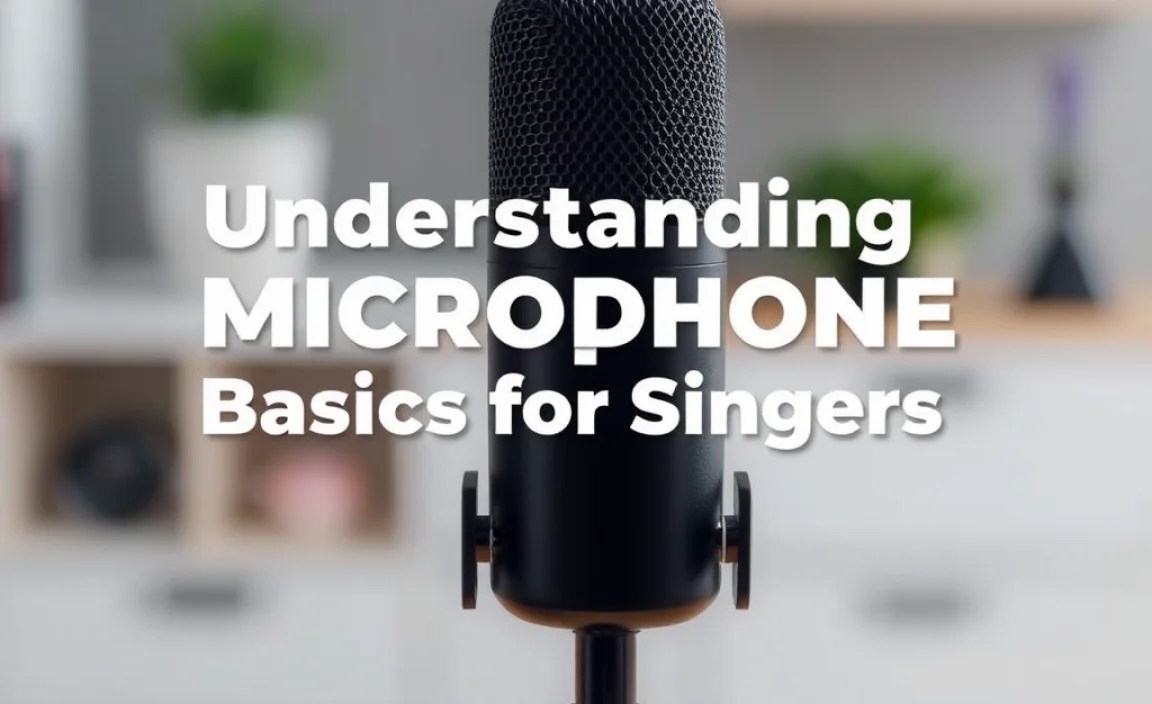
Before diving into specific microphone choices, let’s quickly cover a few key terms. This will help you understand why certain mics are better suited for singing.
- Condenser vs. Dynamic Microphones: Condenser mics are generally more sensitive and capture finer details, making them excellent for vocals in quiet environments. Dynamic mics are more rugged and better at handling loud sounds, often used for live performances. For home singing recording, condensers usually have the edge.
- Polar Patterns: This describes how well the microphone picks up sound from different directions. For solo singing, a cardioid pattern is ideal. It focuses on sound coming from the front, minimizing background noise from the sides and rear.
- Frequency Response: This is the range of sound frequencies a microphone can pick up. A wider, flatter frequency response means the mic captures a more natural and accurate sound.
- Connectivity: How does the microphone connect to your Android phone? The most common options are a 3.5mm headphone jack (though less common on newer phones) or USB-C. Some might even use Bluetooth, but wired connections generally offer lower latency and better audio quality.
Types of Microphones for Your Android Phone

When looking for a microphone for your Android phone, you’ll encounter a few main types. Each has its pros and cons for singers.
1. Dedicated External Microphones (The Best Choice)
These are microphones specifically designed for recording. They connect directly to your phone and offer a significant upgrade in sound quality.
a. Lavalier (Lapel) Microphones
These tiny microphones clip onto your clothing, close to your mouth. They are great for capturing clear vocals while minimizing ambient noise because they are so close to the sound source.
- Pros: Very portable, discreet, excellent at isolating voice, good for interviews and vlogging too.
- Cons: Can sometimes pick up fabric rustle, placement is crucial for best results.
b. Shotgun Microphones
These are directional mics that focus heavily on sound directly in front of them. They can be mounted on your phone or on a small stand.
- Pros: Highly directional, good for isolating vocals in noisy environments.
- Cons: Can be sensitive to slight head movements, might struggle with very subtle vocal nuances compared to a large-diaphragm condenser.
c. Small Diaphragm Condenser Microphones (Pencil Mics)
These are often used for instruments but can be effective for vocals, especially if you want a very crisp and detailed sound. They usually require an adapter to connect to your phone.
- Pros: Clear, detailed sound, good for capturing high frequencies.
- Cons: Can be sensitive to plosives (popping ‘p’ and ‘b’ sounds), might require more gain (amplification) from your recording app.
d. USB-C Condenser Microphones
These plug directly into your phone’s USB-C port and are often designed for portability. They offer a significant step up from your phone’s internal mic.
- Pros: Easy plug-and-play, excellent sound quality, often include headphone monitoring.
- Cons: Requires a USB-C port; sound quality can vary, so check reviews.
2. Adapters and Interfaces
Sometimes, you might have a professional microphone (like an XLR mic) that you want to use. In these cases, you’ll need an adapter or an audio interface.
- 3.5mm Adapters: These allow you to connect microphones with a standard headphone jack to devices that may only have a USB-C port, or vice-versa.
- Audio Interfaces: For higher-end microphones, an audio interface acts as an intermediary. It converts the microphone’s signal into a format your phone can understand, often via USB-C. They also usually provide phantom power for condenser microphones and headphone outputs for monitoring. While more complex, they offer the highest quality.
Key Features to Look For in a Microphone for Singing

When you’re comparing microphones, keep these essential features in mind to ensure you get the best vocal recording possible from your Android phone.
1. Connection Type (3.5mm or USB-C)
This is crucial for compatibility. Newer Android phones often lack a headphone jack, meaning you’ll need a microphone with a USB-C connector or a Lightning adapter (if you ever use an iPhone). Older phones might still have a 3.5mm jack, offering more flexibility with older microphone models.
2. Polar Pattern (Cardioid is King for Vocals)
As mentioned, a cardioid polar pattern is your best friend for singing. It picks up sound from the front, which is exactly where your voice will be. This helps reject distracting noises from your surroundings, like traffic, air conditioning, or roommates. Some microphones offer switchable polar patterns, giving you more versatility, but for dedicated vocal recording, cardioid is usually all you need.
3. Microphone Type (Condenser for Detail)
For studio-quality vocal recordings, a condenser microphone is generally preferred. They are more sensitive and can capture the subtle nuances, breath, and clarity of your voice. While dynamic mics are great for loud stages, they can sometimes compress the natural dynamics of a sung performance, making it sound less rich.
4. Built-in Headphone Jack for Monitoring
This is a game-changer! A microphone with a direct headphone output allows you to hear yourself (and the backing track) in real-time as you sing. This is called monitoring, and it helps you adjust your performance, pitch, and volume on the fly. It also helps prevent issues like “latency” – a slight delay between singing and hearing it back, which can be very disruptive.
5. Portability and Size
If you plan to record on the go, a compact and lightweight microphone is essential. Lavalier mics are extremely portable, as are many small USB-C condenser microphones that can easily fit in your pocket or a small bag.
6. Compatibility with Recording Apps
Most microphones that work with your phone will function with standard recording apps. However, if you plan to use specialized music production apps (DAWs – Digital Audio Workstations), always check for compatibility. Some professional interfaces might require specific driver installations, though this is less common with direct USB-C or 3.5mm mics.
How to Connect and Set Up Your Microphone

Getting your new microphone connected and ready to record is usually straightforward. Here’s a step-by-step guide:
Step 1: Check Your Phone’s Ports
Identify the audio input ports on your Android phone. Is it a 3.5mm headphone jack or a USB-C port? This will determine the type of microphone or adapter you need.
Step 2: Connect the Microphone
- For 3.5mm Microphones: Simply plug the microphone’s connector into your phone’s headphone jack.
- For USB-C Microphones: Plug the microphone directly into your phone’s USB-C port. If your phone needs to charge simultaneously, you might need a USB-C hub that offers both a USB-C charging port and a microphone input.
- For XLR Microphones (with Interface): Connect your XLR microphone to the audio interface, then connect the audio interface to your phone via USB-C.
Step 3: Select the Microphone in Your Recording App
Open your preferred recording app. Most apps have a setting to choose the audio input source. Look for options like “External Mic,” the name of your microphone, or “USB Audio Device.” If you don’t see this option, the app might automatically detect the external mic, or you might need to try a different app. Some apps like Voice Recorder Pro or DAWs like BandLab offer more control over input selection.
Step 4: Test and Adjust Levels
Do a short test recording. Sing a few phrases at your normal volume. Listen back to the recording. Is it too quiet? Too loud and distorted? Most recording apps have a level meter. Adjust the input gain (volume) on your microphone (if it has a control) or within the app settings so that your voice peaks in the green or yellow range on the meter, avoiding the red, which indicates clipping (distortion).
Step 5: Position Your Microphone
For a cardioid mic, position it directly in front of your mouth, usually about 4-6 inches (10-15 cm) away. Experiment with the distance and angle. Too close can cause popping sounds (plosives), while too far might pick up more room noise.
Step 6: Monitor Your Audio
If your microphone has a headphone jack, plug in your headphones. This lets you hear exactly what the microphone is picking up, helping you avoid mistakes and adjust your performance in real-time.
Recommended Microphones for Singing on Android
Here are a few types of microphones that generally perform well for singing on Android, categorized by connection type and features. Prices can vary, so it’s always good to shop around.
| Microphone Type | Connection | Key Features | Ideal For | Example Price Range (USD) |
|---|---|---|---|---|
| Rode SmartLav+ (with adapter) | 3.5mm TRRS (requires adapter for some phones) | Omnidirectional (picks up sound from all directions, but designed for close-miking), compact, durable, excellent clarity. | Beginner singers wanting discreet, clear audio. | $60 – $80 |
| Boya BY-M1 Lavalier | 3.5mm TRRS (with adapter) | Omnidirectional, affordable, good value, decent sound quality for the price. | Budget-conscious singers, content creators. | $20 – $30 |
| Samsung ET-M1 SoundAlive (discontinued, but similar OEM mics exist) | 3.5mm | Compact, designed for Samsung devices, decent for basic recording. | Casual users with older phones. | Varies |
| Blue Snowflake iCE (USB) | USB (requires USB-C adapter for most Android phones) | USB Condenser, plug-and-play, good sound quality, very popular for voice-overs. | Singers wanting a step up in detail, often used on desks. | $40 – $60 |
| Deity V-Mic D3 PRO | 3.5mm (with adapter) or USB-C (with specific cable) | Super-cardioid condenser, excellent build quality, versatile, good for voice and instruments. | Singers wanting higher quality, can be used for vlogging too. | $150 – $200 |
| Rode NT-USB+ (USB-C) | USB-C | High-quality condenser, includes pop filter and headphone monitoring, professional sound. | Serious singers needing professional-grade portable audio. | $170 – $200 |
Note: Availability and pricing can change. Always check the latest product specifications and reviews. Ensure any USB microphone comes with the correct USB-C cable or adapter for your Android phone. Some older Android phones might require an OTG (On-The-Go) adapter to enable USB audio input.
Recording Apps for Your Android Phone
While many microphones will work with your phone’s default voice recorder, using a dedicated audio app can give you more control and better results. Here are a few popular options:
- BandLab: A free, powerful digital audio workstation (DAW) that offers multi-track recording, effects, and collaboration. It’s excellent for layering vocals with instrumentals. Available on Google Play.
- Voice Recorder Pro: A highly-rated simple voice recorder that offers good quality settings, stereo recording, and easy file management.
- Dolby On: This app uses Dolby’s audio processing to clean up recordings, remove noise, and improve clarity. It’s surprisingly effective for free.
- Skoove (for practice): While primarily a piano learning app, Skoove has features that allow you to sing along and record yourself, providing feedback on pitch.
Remember that the quality of your recording app can significantly impact the final sound. Experimenting with different apps is highly recommended.
Tips for Recording Great Vocals
Having the right microphone is half the battle. Here are some tips to ensure your vocal recordings on your Android phone sound their best:
- Find a Quiet Space: Even with a directional microphone, a quiet environment minimizes distractions and makes post-production editing much easier. Close your windows, turn off fans, and let others know you’re recording.
- Get Close, But Not Too Close: Position the microphone about 4-6 inches (10-15 cm) from your mouth. Too close can cause “plosives” (harsh P and B sounds) and proximity effect (bass boost). Too far and you’ll pick up more room noise.
- Use a Pop Filter: If your microphone didn’t come with one, consider getting a small pop filter. This mesh screen sits between you and the microphone and diffuses the air bursts from plosive sounds, preventing those annoying thumps in your recording. Many USB mics come with these.
- Sing into the Correct Part of the Mic: If you have a directional (like cardioid) microphone, make sure you’re singing directly into the front of it. Don’t sing into the sides or the back.
- Use Headphones for Monitoring: If your mic and app support it, always monitor your vocals through headphones. This allows you to hear exactly what the mic is picking up and adjust your performance, pitch, and volume accordingly.
- Practice Your Performance: The best equipment won’t fix a poor performance. Warm up your voice, practice your song, and focus on delivering your best take.
- Record Multiple Takes: Don’t settle for the first recording! Record several takes of your song. This gives you options and allows you to pick the best performance or even combine the best parts of different takes.
- Learn Basic Editing: Even simple edits can improve your recording. Most apps allow you to trim silence, adjust volume, and sometimes add basic effects like reverb.
Troubleshooting Common Audio Issues
Sometimes, even with the right gear, you might run into problems. Here are some common issues and how to fix them:
- Low Volume: Ensure the microphone is properly selected in your app’s settings. Increase the input gain on the microphone itself or within the app.
- Distorted Sound (Clipping): The input level is too high. Lower the gain on the microphone or within your recording app. Ensure you’re not singing too loudly directly into the mic.
- Humming or Buzzing: This can be caused by electrical interference. Try moving away from power sources or using a microphone with better shielding. Sometimes, faulty cables can also be the culprit.
- No Sound Detected: Double-check that the microphone is correctly plugged in
Related Posts
- Top Streaming Tv Apps Remote Control: Simplify Your Viewing

How To Hook Up Surround Sound Speakers Without A Receiver- Fix Home Theater Speaker System Issues Fast!
- Top Wireless Speaker: Bass, Battery & More
- Top Budget Microphones For Youtube: Sound On A Dime!
- Optimize Your Tv Energy Consumption Setup Efficiently
- Best Budget 4K TV 2025 Top: Essential Gems
- How To Wall Mount TV Safely: Essential Buying Guide