
Experiencing TV remote lag can be incredibly frustrating, but often, it’s a simple fix. This guide offers proven, beginner-friendly solutions like checking batteries, clearing obstructions, and re-pairing the remote. We’ll walk you through easy steps to get your TV remote responding instantly again, restoring your viewing enjoyment without needing expert help.
Hey there, tech enthusiasts and home entertainment lovers! Bob E Riley here, your guide to making your gadgets work as smoothly as possible. It’s a common annoyance, isn’t it? You press a button on your TV remote, and nothing happens. Or worse, it takes a solid few seconds for the action to register on your screen. This TV remote lag can turn a relaxing movie night into a test of patience. But don’t worry! Most of the time, this isn’t a sign of a broken TV or a faulty remote that needs replacing. It’s usually something much simpler that you can fix yourself. We’re going to dive into the most common causes and give you straightforward, step-by-step solutions to get your remote working like new again in no time. Let’s banish that lag and get back to enjoying your favorite shows and movies!
Why Does My TV Remote Lag? Understanding the Common Causes

It’s easy to get frustrated when your remote control decides to take a siesta. Several factors can contribute to that frustrating delay between pressing a button and seeing the result on your screen. Understanding these common culprits is the first step to a quick fix.
- Low Batteries: This is the most frequent offender. When the battery level drops too low, the remote struggles to send a strong enough signal to your TV.
- Obstructions: A clear line of sight is crucial for most remotes. Anything blocking the path between the remote and the TV’s sensor can weaken or interrupt the signal.
- Interference: Other electronic devices can sometimes interfere with the remote’s signal, especially if they operate on similar frequencies.
- Remote Distance: You might simply be too far away for the remote’s signal to reach the TV effectively.
- Dirty or Damaged Remote Sensor: The IR (infrared) emitter on the remote or the IR receiver on the TV can get dirty or damaged, hindering signal transmission.
- Pairing Issues (for smart/Bluetooth remotes): Smart TVs and Bluetooth remotes rely on a connection that can sometimes de-sync.
- Software Glitches: Rarely, a temporary software hiccup on either the remote or the TV can cause lag.
- Overuse or Wear and Tear: Like any electronic device, remotes can wear out over time, especially if they’re used frequently or have been dropped.
Step-by-Step Solutions to Fix TV Remote Lag

Let’s get down to business! Here’s a comprehensive guide to troubleshooting and fixing your lagging TV remote. We’ll start with the easiest and most common solutions and move towards more involved ones.
1. Check and Replace the Batteries First!
This is almost always the first thing you should check. A remote needs adequate power to send a strong, clear signal.
- Locate the battery compartment on the back or side of your remote.
- Open the compartment (usually by sliding a cover or pressing a small latch).
- Remove the old batteries.
- Insert fresh, high-quality batteries of the correct type (e.g., AA, AAA). Ensure you insert them with the correct polarity (+ and – symbols aligned properly).
- Close the battery compartment.
- Test the remote. See if the lag is gone.
Pro Tip: If you have a universal remote or a remote that uses expensive batteries, consider investing in rechargeable batteries. This saves money and ensures you always have fresh power on hand.
2. Ensure a Clear Line of Sight and Remove Obstructions
Most standard TV remotes use infrared (IR) signals. These signals need a direct path to the TV’s sensor. Even a thin piece of glass or plastic can be a barrier. Bluetooth remotes are less susceptible to line-of-sight issues, but it’s still good practice to ensure nothing is directly blocking them.
- Identify the IR receiver on your TV. It’s usually a small, dark, often translucent window on the front of the TV, typically near the power button or logo.
- Remove any objects placed between the remote and the TV’s IR receiver. This includes decorative items, soundbars, gaming consoles, or even thick curtains.
- Position yourself closer to the TV. Try using the remote from different distances to see if distance is a factor.
- Clean the remote’s IR emitter. Gently wipe the small bulb at the very front of the remote (where the signal comes out) with a soft, dry cloth.
- Clean the TV’s IR receiver. Carefully dust the sensor area on the TV with a soft, dry microfibre cloth.
3. Troubleshoot Signal Interference
Sometimes, other devices can cause issues. Fluorescent lights, certain types of LED lighting, wireless speakers, or even other remote controls operating on similar frequencies can sometimes interfere.
- Turn off nearby electronic devices one by one to see if the lag improves. If it does, you’ve found your culprit.
- Consider the placement of your devices. If possible, rearrange components to minimize potential interference.
- For smart remotes (RF or Bluetooth): Interference is less common but can happen. Ensure there are no major wireless hubs or signal boosters very close to the TV.
4. Re-Pair Your Smart or Bluetooth Remote
If you have one of the newer smart TVs with a Bluetooth or RF (Radio Frequency) remote, it might need to be re-paired with the TV. This is similar to reconnecting your phone to a Bluetooth speaker.
The exact process varies greatly by TV brand and model, but here are the general steps:
- Check your TV’s User Manual or the manufacturer’s website. Search for “[Your TV Brand] [Your TV Model] remote pairing” for specific instructions.
- Common Pairing Procedures:
- Press and Hold a Button Combination: Many remotes require you to press and hold a specific set of buttons simultaneously for several seconds. Common combinations include “Back” + “Home,” “Volume Down” + “Mute,” or specific pairing buttons indicated on the remote or in the manual.
- Bring Remote Close to TV: After initiating the pairing mode, you might need to hold the remote within a few feet of the TV.
- Follow On-Screen Prompts: Your TV display will often guide you through the pairing process, indicating when it’s searching, connected, or if it failed.
- Restart the TV: Sometimes, a simple power cycle of the TV can help before or after re-pairing. Unplug the TV from the wall, wait 60 seconds, and plug it back in.
Smart TV remote technology has advanced significantly, offering more features but also sometimes requiring these pairing steps.
5. Restart Your TV
Just like computers and smartphones, TVs can sometimes benefit from a good old-fashioned restart to clear out temporary glitches. This can resolve minor software hiccups that might be causing the remote lag.
- Turn off your TV using the power button on the remote (if it works) or the physical button on the TV itself.
- Unplug the TV cable from the wall power outlet.
- Wait for at least 60 seconds. This allows any residual power to drain and the system to fully reset.
- Plug the TV cable back into the wall outlet.
- Turn the TV back on using the power button on the TV itself, and then try the remote.
6. Reset the Remote Control
Some remote controls have a reset function that can clear out any internal errors. This is less common for basic IR remotes but more prevalent in advanced universal or smart remotes.
- Check your remote’s manual for a reset procedure.
- Look for a small reset button (often recessed, requiring a paperclip to press).
- Remove batteries, press and hold the reset button for a few seconds, then reinsert the batteries. This can sometimes clear problematic settings.
7. Consider Other Potential Issues
If none of the above steps work, we need to look at slightly less common issues.
a. Remote Distance and Angle
While discussed under obstructions, it’s worth reiterating. Ensure you’re not pushing the limits of the remote’s range. Most IR remotes have an effective range of about 15-30 feet under optimal conditions. Exceeding this can lead to lag or failure. Also, ensure you’re pointing it reasonably close to the TV’s sensor, not at a sharp angle.
b. Damaged Remote
Has the remote taken a tumble recently? Drops can dislodge internal components or damage the IR emitter. Inspect the remote for visible cracks or damage. If it looks physically damaged, especially after a fall, it might be time for a replacement.
c. TV’s IR Receiver Issue
While less common than remote issues, the IR receiver on the TV itself could be faulty or damaged. If you’ve tried multiple known-good remotes (or the manufacturer’s app on a smartphone if available) and still experience lag, the TV’s receiver might be the problem. This usually requires professional diagnosis or service.
d. Firmware Updates
For smart TVs, keeping the TV’s firmware up-to-date is crucial for optimal performance. Sometimes, lag issues can be resolved with a software update.
- Go to your TV’s Settings menu.
- Look for Support, System, or About.
- Select Software Update or Firmware Update.
- Check for and install any available updates.
The Federal Communications Commission (FCC) provides basic information on TV remote fundamentals, though specific troubleshooting is often brand-dependent.
8. Test with a Universal Remote or Smartphone App
To definitively rule out your original remote as the sole cause, try an alternative. Many smartphone apps can now control smart TVs if they’re on the same Wi-Fi network. Also, a budget-friendly universal remote can be purchased to test if a different device works correctly.
- Search for your TV brand’s official remote app in your smartphone’s app store.
- Download and install the app.
- Follow the app’s instructions to connect to your TV (usually requires both devices to be on the same Wi-Fi network).
- Test control using the app.
If the app or another remote works perfectly, your original remote is likely the issue.
When to Consider Replacing Your Remote
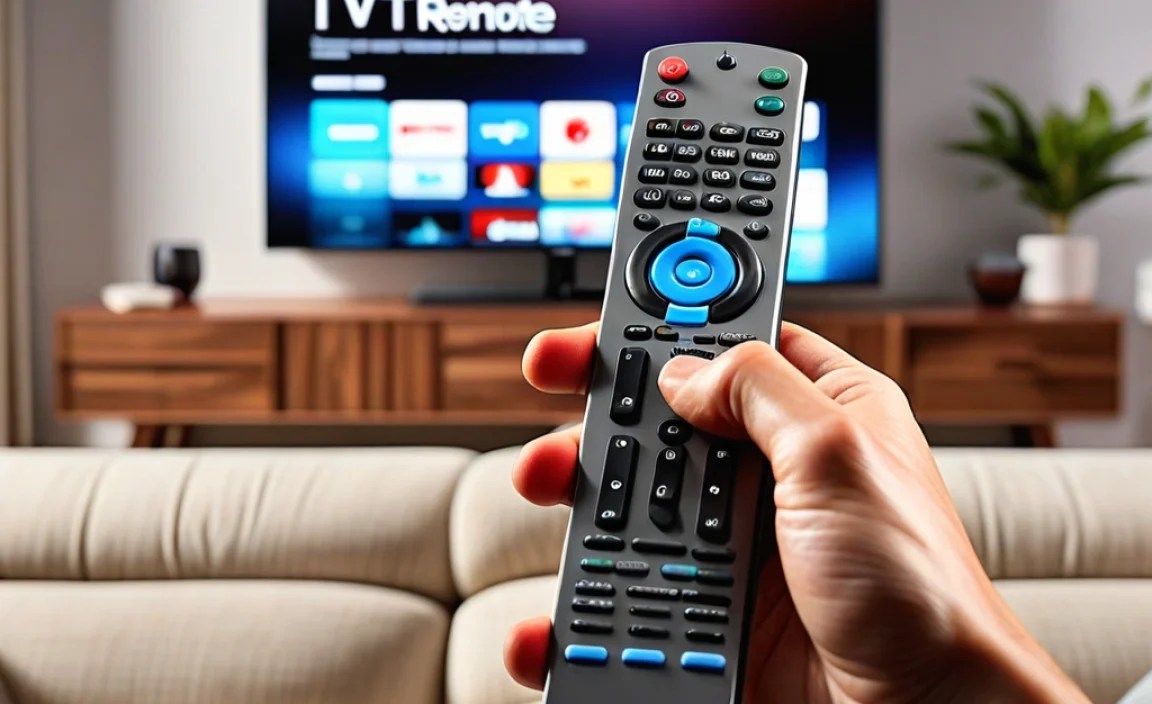
If you’ve gone through all the steps above – fresh batteries, clear line of sight, re-pairing, restarting the TV, and testing with another device – and the lag persists with your original remote, it’s probably time for a new one. Remotes are generally not repairable by consumers, and replacing them is usually the most cost-effective solution.
Factors indicating replacement:
- Dropping the remote repeatedly.
- Visible physical damage (cracks, button damage).
- Trying multiple new batteries and experiencing no change.
- Other remotes or apps work perfectly with the TV.
- The remote is several years old and has seen heavy use.
You can often find replacements on Amazon, eBay, or directly from the TV manufacturer’s website. Sometimes, a good quality universal remote can be a more robust and cost-effective alternative.
Summary Table of Troubleshooting Steps
Here’s a quick overview to help you remember the steps.
| Step | Description | Likelihood of Fixing Lag |
|---|---|---|
| 1. Replace Batteries | Install fresh, high-quality batteries. | Very High |
| 2. Clear Obstructions & Line of Sight | Remove objects blocking the signal and clean sensors. | High |
| 3. Check for Interference | Turn off other nearby electronics. | Medium |
| 4. Re-Pair Remote (Smart/Bluetooth) | Follow manufacturer’s pairing instructions. | High (for connected remotes) |
| 5. Restart TV | Unplug TV for 60 seconds, then plug back in. | Medium |
| 6. Reset Remote | Use the reset button if available. | Low to Medium |
| 7. Test Alternative Control | Use a smartphone app or universal remote. | Very High (to diagnose remote vs. TV) |
Frequently Asked Questions (FAQ)
Q1: My TV remote is lagging, but the TV is new. What could be wrong?
Even new TVs can experience remote lag. The most common causes are low-quality or dead batteries in the remote, or something blocking the signal between the remote and the TV. For smart remotes, a pairing issue is also a possibility.
Q2: I replaced the batteries, but my remote is still laggy. What next?
If new batteries didn’t solve it, focus on obstructions and line of sight. Make sure nothing is between the remote’s emitter and the TV’s sensor. Also, try re-pairing your remote if it’s a smart or Bluetooth type, or try restarting your TV itself.
Q3: How do I know if my remote is IR or Bluetooth?
Most basic remotes that require a direct line of sight are IR (infared). If your remote works even when the TV cabinet doors are closed, or if it has features like voice control or a pointer that doesn’t require aiming, it’s likely Bluetooth or Radio Frequency (RF). Many smart TV remotes are ‘paired’ and use Bluetooth/RF.
Q4: Can I use my phone as a TV remote?
Yes, for most smart TVs, you can download the manufacturer’s official app or a third-party universal remote app on your smartphone. These apps connect to your TV over your home Wi-Fi network and can often control all the basic functions, and sometimes even more.
Q5: My TV remote sometimes works and sometimes doesn’t. Is this lag?
Intermittent issues like this often point to weak batteries or inconsistent signal interference. Try replacing with premium batteries and ensuring a clear path. Sometimes, a slightly loose connection inside the remote due to a drop can also cause these “on-again, off-again” problems.
Q6: Is there a way to test if the TV’s sensor is working?
Yes, you can use your smartphone camera. Open the camera app, and point the remote’s IR emitter at the camera lens. Press a button on the remote. If you see a faint blinking light or purple/white light on your phone screen, the IR emitter is likely working. If you don’t see a light, the emitter might be the problem. Remember, this trick only works for IR remotes, not Bluetooth ones.
Conclusion
Dealing with a lagging TV remote can definitely put a damper on your entertainment. Thankfully, as we’ve explored, most of these issues are easily fixed with a little troubleshooting. From the simple swap of batteries to ensuring a clear signal path and re-establishing connections for smart remotes, you now have a toolkit of proven solutions. By systematically working through these steps, you can usually restore your remote’s responsiveness and get back to enjoying your favorite content without interruption. If, after all this, your remote still misbehaves, it might be time to consider a replacement, but more often than not, these straightforward fixes will have your TV remote operating like a dream again. Happy viewing!