
Optimize your budget Bluetooth speaker’s sound! Simple tweaks to EQ and settings can dramatically improve audio quality, bass, and clarity, making your affordable speaker sound significantly better without needing to buy a new one.
Got a budget Bluetooth speaker? You love the convenience, but maybe the sound isn’t quite hitting the mark. Don’t worry! Many people find their affordable speakers sound a bit flat, lack bass, or have harsh highs. It’s a common frustration when you want to enjoy your music, podcasts, or movies to the fullest. But before you think about an upgrade, there are some fantastic, easy tweaks you can make right now. We’ll walk you through the simple settings adjustments that can make a surprising difference.
In this guide, we’ll cover how to get the most out of your existing gear, including using your phone’s equalizer, understanding speaker placement, and even some clever tricks to boost that bass. Get ready to transform your listening experience!
Why Even Bother Tweak Budget Bluetooth Speaker Settings?

Budget Bluetooth speakers are awesome for their portability and affordability. They’re perfect for picnics, beach days, or just adding background music to your kitchen. However, manufacturers often prioritize cost-saving over audio tuning. This can result in speakers that don’t sound their best right out of the box. They might be:
- Too bass-heavy: Making the sound muddy and unclear.
- Lacking in bass: Sounding tinny and weak.
- Too bright: With harsh treble that hurts your ears.
- Muddy in the mids: Making vocals or dialogue hard to understand.
- Generally unbalanced: Not a pleasure to listen to for extended periods.
The good news is that with a few simple adjustments, you can often unlock hidden potential in your speaker. Think of it like tuning a guitar; you don’t need a new instrument to make it sound better, just a few skilled adjustments.
The Power of Your Smartphone: Your Built-In Equalizer

The single most effective tool for adjusting your budget Bluetooth speaker’s sound is likely already in your pocket: your smartphone’s equalizer (EQ). Most smartphones have a built-in EQ that can alter the sound frequencies before they even reach your speaker. This is your secret weapon!
Where to Find Your Phone’s EQ (It Varies!)
The exact location for your EQ settings depends on your phone’s operating system and manufacturer. Here are the general places to look:
- Android Devices:
- Go to Settings.
- Tap on Sound & vibration (or similar wording like Sound or Audio).
- Look for an option like Sound quality and effects, Audio effects, or simply Equalizer.
- You might also find EQ settings within specific music apps.
- iPhones (iOS):
- Go to Settings.
- Scroll down and tap on Music.
- Under the “Playback” section, tap on EQ.
- Important Note: The iOS EQ affects all audio playback, not just music.
Understanding EQ Controls: The Basics
An equalizer works by boosting or cutting specific frequency ranges. These ranges generally fall into three main categories:
- Bass (Low Frequencies): This is the deep, rumbling sound you feel. Think kick drums, bass guitars, and explosions. Boosting this adds warmth and power; cutting it can make the sound cleaner and less boomy.
- Mids (Mid Frequencies): This range contains most vocals, guitars, and snare drums. If vocals sound distant or unclear, the mids might need adjusting. Too much mid-range can make sounds honky or nasal.
- Treble (High Frequencies): This is the crisp, bright part of the sound. Think cymbals, sibilant sounds (“s” and “sh”), and the sparkle in acoustic instruments. Boosting treble adds clarity and detail; cutting it can reduce hiss and harshness.
Most phone EQs will have presets (like Rock, Pop, Jazz, Bass Boost, Treble Boost) and sometimes a manual mode with sliders for different frequency bands.
Applying EQ Settings to Your Speaker
Here’s how to use your EQ effectively:
- Connect Your Speaker: Make sure your Bluetooth speaker is paired and playing audio from your phone.
- Open Your EQ Settings: Navigate to your phone’s EQ as described above.
- Start with a Preset: Try different presets while listening to familiar music. See which one sounds best. “Bass Boost” might seem tempting, but it can sometimes make things worse. “Flat” is a good starting point if you want to make manual adjustments.
- Manual Tweaking: If you’re using manual mode, adjust sliders subtly.
- To add bass: Gently boost the lowest frequency sliders (e.g., 60Hz, 100Hz).
- To reduce muddiness: Slightly cut frequencies in the low-mid range (e.g., 200Hz, 400Hz).
- To improve vocal clarity: Slightly boost the mid-range (e.g., 1kHz, 2kHz).
- To reduce harshness: Gently cut the higher frequencies (e.g., 6kHz, 12kHz).
Pro Tip: Avoid extreme boosts or cuts. Small, subtle adjustments (± 3dB to 6dB) usually yield the best results without distorting the sound.
Speaker Placement: It’s More Important Than You Think!

Where you put your Bluetooth speaker can have a massive impact on its sound, especially the bass. Cheap speakers often rely on surfaces to reinforce low frequencies. Here are some placement tips:
- Corners are Your Friend (for Bass): Placing your speaker in a corner of a room, or close to a wall, will naturally boost the bass response. This is because the sound waves reflect off the two surfaces, making the bass sound fuller and louder. This is particularly useful if your speaker struggles with low end.
- Avoid Empty Spaces: A speaker floating in the middle of a large, empty room might sound thin.
- On a Solid Surface: Placing your speaker on a solid, non-wobbly surface (like a sturdy desk or bookshelf) helps prevent unwanted vibrations that can muddy the sound. A wobbly table can add resonance, making the bass sound boomy and unclear.
- Test Different Spots: Don’t be afraid to experiment! Move your speaker around your room and listen to how the sound changes. What sounds great in one spot might sound less impressive in another.
Understanding Speaker Modes (If Applicable)
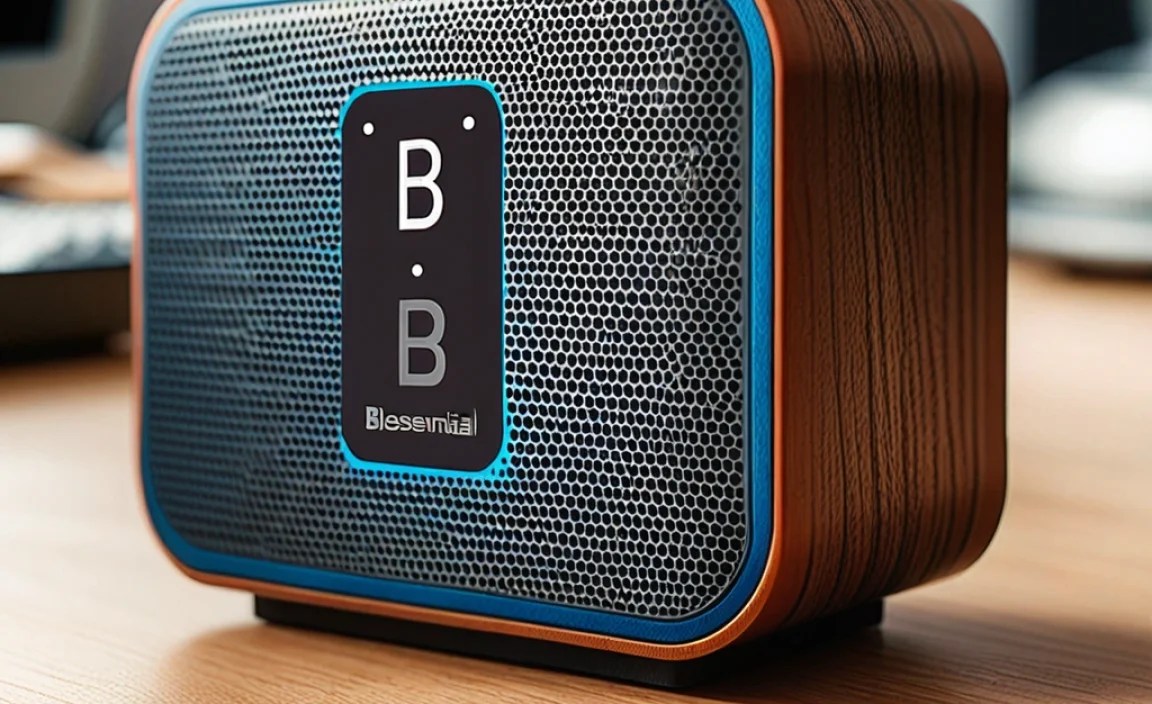
Some Bluetooth speakers come with different sound modes designed for various situations. Common modes include:
- Standard/Normal Mode: The default sound profile.
- Outdoor Mode: Often boosts bass and treble to overcome ambient noise. This can sound good indoors too, but might be a bit too “loud” or harsh for some.
- Indoor Mode: Usually a more balanced sound profile.
- Bass+ Mode: Empowers the low-end frequencies significantly. Use with caution – it can easily lead to muddy sound.
If your speaker has these, cycle through them while playing your music and see which one you prefer. You might find one mode is a better starting point than another before you even touch your phone’s EQ.
Controlling Volume Levels: The Sweet Spot

Ever notice that your speaker sounds better at certain volumes? This is common, especially with budget models.
- Low Volumes: At very low volumes, the deeper bass frequencies might not be audible because our ears are less sensitive to them. This is why some speakers have a “loudness” setting.
- Mid Volumes: Most speakers, especially budget ones, tend to sound their best in the mid-volume range. Somewhere between 50% and 75% of the maximum volume is often the sweet spot where the drivers (the speaker components) are working efficiently without distortion.
- High Volumes: Pushing a speaker to its absolute maximum volume can introduce distortion and cause the sound to become harsh or compressed. The built-in amplifier may struggle to keep up, leading to a drop in quality.
Recommendation: Aim for a volume level on the speaker itself that is comfortable for your listening environment. Use your phone’s volume to make fine adjustments. If your speaker sounds distorted at high volumes, back it off a bit and consider using your phone’s EQ to “fill in” the sound.
Using Third-Party EQ Apps for More Control
While your phone’s built-in EQ is powerful, some users want even more granular control. There are many third-party EQ apps available for both Android and iOS that offer advanced features, like:
- More frequency bands for fine-tuning.
- Visualizers to see the sound waves.
- Customizable profiles for different speakers or music genres.
- Integration with streaming services.
Some popular options include:
- Poweramp Equalizer (Android): A highly recommended, professional-grade EQ that works system-wide.
- Viper4Android (Android – requires root, more advanced): For serious audiophiles who want ultimate control.
- Neutralizer (iOS/Android): Uses your phone’s microphone to create a personalized EQ profile for your room and speaker.
- EQuator (iOS): A robust equalizer app for iPhone.
Caution: These apps offer more power, but also more complexity. Start with your phone’s built-in EQ first. If you hit a wall and still desire more, then explore these advanced options. Remember to check reviews and compatibility.
A Look at Common Budget Speaker Issues and Solutions
Let’s summarize the common problems and how our tweaks can solve them:
| Common Issue | Solution | Why it Works |
|---|---|---|
| Lack of Bass / Tinny Sound | 1. Place speaker near a wall or in a corner. 2. Boost low frequencies in EQ (e.g., 60Hz, 100Hz). 3. Try “Bass Boost” preset, but adjust carefully. |
Walls/corners reinforce bass waves; EQ directly adds low frequencies to the signal. |
| Muddy or Boomy Bass | 1. Pull speaker slightly away from walls/corners. 2. Cut low-mid frequencies in EQ (e.g., 200Hz, 400Hz). 3. Ensure speaker is on a solid surface. |
Too much reflection can cause boominess; EQ removes the problematic frequencies. |
| Harsh or Piercing Highs (Treble) | 1. Cut high frequencies in EQ (e.g., 6kHz, 12kHz). 2. Avoid direct, high-volume listening positions. |
EQ reduces the intensity of high-frequency sounds that can be fatiguing. |
| Muffled Vocals or Unclear Mids | 1. Boost mid frequencies in EQ (e.g., 1kHz, 2kHz). 2. Ensure speaker isn’t too close to a wall directly behind it. |
EQ brings out the frequencies responsible for clarity and presence of voices. |
| Overall Weak or Unbalanced Sound | 1. Experiment with different EQ presets. 2. Use manual EQ to make subtle adjustments across all bands. 3. Test different speaker positions and volumes. |
A combination of placement, EQ, and volume discovery finds the optimal listening scenario. |
Exploring Advanced Techniques (For the Curious!)
Once you’ve mastered the EQ and placement, you might wonder what else you can do. While budget speakers have inherent limitations, these can sometimes help:
- Reducing Bluetooth Latency: For watching videos, high latency (delay) between video and audio can be annoying. Some phones have an option to reduce latency, often found in developer options. This is more about the connection than sound quality itself, but it improves the experience. To access Developer Options on Android, usually, you go to Settings > About Phone and tap “Build number” seven times. Then go back to Settings and look for “Developer Options.”
- Using a Portable DAC/Amp (Slightly More Advanced): While this is moving beyond basic settings, if you’re serious about improving sound for multiple devices, a small external Digital-to-Analog Converter (DAC) and amplifier can sometimes provide a cleaner signal than your phone’s internal audio chip. However, this adds cost and complexity and might be overkill for budget Bluetooth speakers. Check resources like RTINGS.com for comparisons of speaker quality, which can inform if a DAC is even worthwhile.
- Source Quality Matters: The best EQ in the world can’t fix a poor-quality audio file. Streaming services often have settings for audio quality. Ensure you’re streaming at the highest quality your plan allows. For example, Spotify Premium users can set streaming quality to “Very High” in their settings.
Frequently Asked Questions
What is the best EQ setting for a Bluetooth speaker?
There isn’t one single “best” setting. It depends on your speaker, the music you’re listening to, and your personal preference. Start with “Flat” if available and make small adjustments. Try presets like “Rock” or “Pop” as starting points.
Can I make my cheap Bluetooth speaker sound like an expensive one?
You can significantly improve its sound and make it much more enjoyable. However, budget speakers have physical limitations. High-end speakers use better components and design to reproduce a wider range of frequencies more accurately. Tweaks will help you get the most out of what you have.
Does speaker placement really make a difference for bass?
Yes, absolutely! Placing a speaker in a corner or near a wall can dramatically increase perceived bass output due to sound wave reflections. Experimenting with placement is one of the easiest ways to boost bass without touching any settings.
Should I use the “Bass Boost” feature on my phone or speaker?
Use it cautiously. A little bit of “Bass Boost” can add warmth, but too much can make the sound muddy, distorted, and overpowering the rest of the music. It’s often better to manually boost specific low frequencies in an EQ for more control.
What is speaker distortion, and how do I avoid it?
Distortion happens when a speaker is pushed too hard and cannot accurately reproduce the audio signal. It sounds unpleasant, harsh, or “broken.” To avoid it, try lowering the volume on the speaker itself and using your phone’s volume for fine adjustments, or adjust the EQ to reduce loud frequencies.
Are there any apps that can improve my Bluetooth speaker’s sound quality?
Yes, many third-party Equalizer (EQ) apps can offer more advanced control than your phone’s built-in settings. Look for apps like Poweramp Equalizer (Android) or Neutralizer (iOS/Android) for more features and customization options.
How do I know if my adjustments are actually helping?
Listen to familiar music you know well. Pay attention to clarity, bass, mids, and treble. Does the music sound more balanced? Are vocals clearer? Is the bass satisfying without being overwhelming? If it sounds better and more enjoyable to you, your adjustments are helping!
Conclusion: Unlock the Full Potential of Your Audio
You don’t need a massive budget to enjoy great sound. By understanding and applying these essential tweaks, you can significantly improve the audio quality of your budget Bluetooth speaker. From mastering your phone’s equalizer and finding the perfect spot for your speaker to understanding volume sweet spots and exploring advanced app options, you’re now equipped to make your audio experience so much better.
Remember, the goal is to make your music, podcasts, and calls sound clearer, more engaging, and more enjoyable for you. So, go ahead, experiment with these settings. You might be surprised at just how good your affordable speaker can sound. Happy listening!