
The best TV for elderly remote control features large, clearly labeled buttons, simple navigation, and ideally voice control. Look for models with simplified remotes that minimize clutter and are easy to hold.
Watching TV should be a relaxing and enjoyable experience, not a frustrating one. For many older adults, fumbling with complicated remote controls can turn what should be a simple pleasure into a source of annoyance. The sheer number of tiny buttons, confusing icons, and multi-step processes can be overwhelming. But it doesn’t have to be this way! You can find TVs designed with ease of use in mind, specifically catering to seniors. This guide will walk you through what to look for and suggest some excellent options for a truly effortless viewing experience.
Why Choosing the Right TV Remote Matters for Seniors

As we age, our eyesight, dexterity, and even cognitive processing can change. This makes complex technology, like a modern TV remote, a significant hurdle. Small buttons can be hard to see and press accurately. Tiny labels are difficult to read. Understanding the difference between a “Source” button and a “Menu” button might require extra effort. Furthermore, the need to navigate multiple screens or remember sequences of button presses can simply be too much. The goal is to find a TV that simplifies interaction, making it easy to turn on the TV, change the channel, adjust the volume, and access favorite programs without stress. A well-chosen TV and remote combination can significantly enhance independence and enjoyment of home entertainment.
Key Features to Look for in a TV for Elderly Remote Control

When searching for the “best TV for elderly remote control,” several key features stand out. These are designed to combat the common challenges seniors face with technology.
1. Simplified Remote Control Design
This is the most crucial aspect. A good remote for seniors will have:
Large, Clearly Labeled Buttons: Buttons should be generously sized and have oversized, high-contrast text or icons. This makes them easier to see and press.
Minimal Buttons: The remote should only include the most essential functions: power, volume up/down, channel up/down, mute, input/source, and perhaps a dedicated home or smart TV button. Extraneous buttons like dedicated streaming service shortcuts (Netflix, Hulu, etc. if not commonly used) can be confusing.
Ergonomic Shape: The remote should feel comfortable and secure in the hand, with a non-slip grip if possible. Heavy or awkwardly shaped remotes can be difficult to hold.
Backlighting: A backlit remote can be a lifesaver in dimly lit rooms, making it easier to see buttons without straining.
Voice control is an increasingly important feature. Many modern smart TVs allow you to simply speak commands to change channels, search for shows, adjust volume, or even control other smart home devices.
2. User-Friendly Smart TV Interface
If the TV is a smart TV, the on-screen interface needs to be intuitive.
Simple Menu Navigation: The layout should be uncluttered, with large icons and clear text. Navigating between apps and settings should be straightforward.
Easy Access to Core Functions: Turning the TV on/off and accessing live TV or favorite channels should be a primary, easily accessible function.
Customizable Options: The ability to simplify the home screen by removing unused apps or pinning favorites can be very helpful.
3. Excellent Audio and Visual Quality
While ease of use is paramount, good picture and sound are still essential for enjoyment.
Clear Picture: Look for TVs with good contrast ratios and brightness, which can help make on-screen text and images more visible. Many modern TVs offer excellent picture clarity, but look for settings that can be adjusted for optimal viewing under different lighting conditions.
Clear Audio: Ensure the TV has clear speakers that produce understandable dialogue. Some TVs offer enhanced dialogue modes, which can be a significant benefit.
4. Accessibility Features
Many TVs come with built-in accessibility options that can be invaluable.
Screen Readers (Voice Narration): This feature reads out menu options and on-screen text, which is a huge aid for those with significant vision impairment.
High Contrast Modes: These settings can increase the contrast between text and background colors on the TV’s menus.
Closed Captioning Options: Easy access to and customization of closed captions is vital for hearing-impaired viewers.
Top TV Models with Senior-Friendly Remotes

While there isn’t a single TV brand exclusively for seniors, certain brands and models are known for prioritizing ease of use and offering simplified remote options. It’s important to note that specific remote designs can vary by model year and size, so it’s always best to check the remote in person or look at detailed images online.
1. Samsung QLED/LED TVs with Easy Remote Options
Samsung offers a broad range of smart TVs. While their high-end models might come with sleek, minimalist remotes that can be initially daunting, many models also have an option for a simplified remote or can utilize their Universal Remote feature to combine controls.
What to Look For: Search for models that prominently advertise voice control (Bixby) and have a well-regarded smart TV interface like Tizen. Some Samsung remotes, particularly the “One Remote,” are designed to be sleek and reduce button clutter while still being navigable, especially with voice commands.
Remote Features: Often features a microphone button for voice control, a directional pad, volume, and channel rockers. Essential buttons are usually larger.
User Interface: Tizen OS is generally considered intuitive, with large icons and easy-to-understand menus.
Where to Find More Information: You can explore Samsung’s latest TV offerings on their official website. They often provide detailed specifications and images of their remotes.
2. LG OLED/LED TVs with Magic Remote
LG’s “Magic Remote” is a standout feature for many of their Smart TVs. It works like a computer mouse, allowing you to point, click, and scroll on the screen, which can be much more intuitive than traditional button navigation for some users.
What to Look For: LG’s OLED and NanoCell TVs often come bundled with the Magic Remote. Look for models that emphasize their ThinQ AI platform and voice recognition capabilities.
Remote Features: The Magic Remote has a pointer, scroll wheel, and core buttons. It also includes voice command functionality. The pointing and clicking can feel more natural than navigating with a directional pad.
User Interface: LG’s webOS is known for its ease of use and clean design, often featuring a simple navigation bar at the bottom of the screen.
External Resource: Learn more about LG’s innovative Magic Remote and ThinQ AI on the LG U.S.A. website.
3. Roku TVs (Various Brands)
Roku TVs are built around the Roku streaming platform, which is renowned for its simplicity. Many TV manufacturers (TCL, Hisense, Sharp, and others) partner with Roku to integrate the platform directly into their TVs.
What to Look For: Any TV branded as a Roku TV will offer the straightforward Roku experience. The remotes are consistently simple.
Remote Features: Roku standard remotes are incredibly basic. They usually have a directional pad, back button, home button, volume controls (often on the side or top), and dedicated shortcut buttons for popular streaming services. Some models also offer voice search.
User Interface: The Roku interface is famously simple: a grid of apps (channels) that is easy to understand and navigate. There are no complex menus or hidden settings.
Example Brands: TCL Roku TV, Hisense Roku TV.
Further Reading: For a deep dive into the Roku system’s user-friendliness, check out Roku’s official support pages.
4. Amazon Fire TV Edition TVs (Various Brands)
Similar to Roku TVs, Amazon Fire TV Edition TVs integrate Amazon’s Fire TV platform. These are also available from various manufacturers.
What to Look For: TVs labeled “Fire TV Edition.”
Remote Features: The Fire TV remote is known for its voice control button (Alexa) and straightforward layout. It typically includes a directional pad, back, home, menu, play/pause, and volume controls. Alexa voice commands can handle most functions.
User Interface: The Fire TV interface is also designed for ease of use, with a focus on content discovery and integration with Amazon services.
Example Brands: Insignia Fire TV Edition, Toshiba Fire TV Edition.
Table 1: Comparison of Senior-Friendly TV Platforms
| Feature | Roku TVs | Fire TV Edition TVs | LG ThinQ (with Magic Remote) | Samsung (with Smart Remote/Voice) |
| Remote Simplicity | Very High (minimal buttons) | High (voice focus) | Moderate (pointer/scroll can be learned) | Moderate (minimalist sleek design) |
| User Interface| Extremely Simple Grid | Content-focused, easy to navigate | User-friendly, navigation bar | Clean, organized interface |
| Voice Control | Yes (on select models) | Yes (Alexa built-in) | Yes (ThinQ AI) | Yes (Bixby) |
| Customization | Simple app management | App management, profiles | App management | App management, custom keys |
| Best For | Absolute simplicity, budget-conscious | Amazon users, voice command lovers | Interactive navigation, ease of setup | Sleek design, integrated ecosystem |
Other Important Considerations
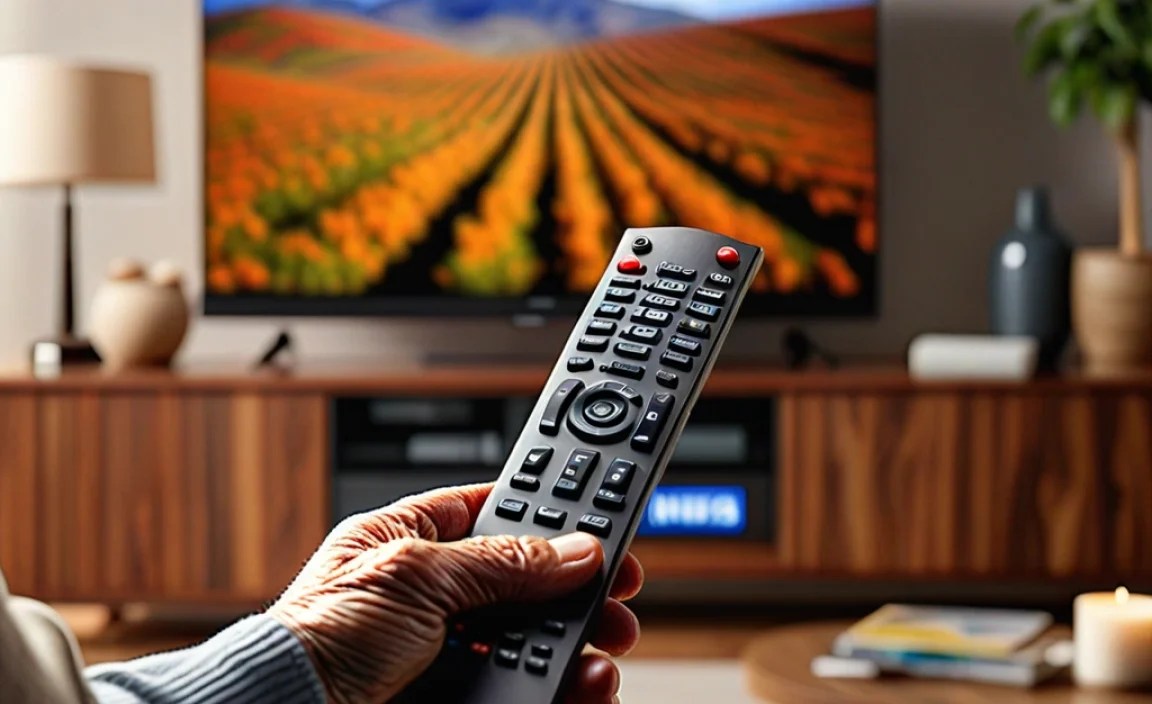
Beyond the remote control, think about these factors to ensure the best TV viewing experience.
1. Screen Size and Resolution
Screen Size: While larger screens can be more immersive, consider the viewing distance. Too large a screen viewed up close can be overwhelming. A 40-60 inch screen is often a good sweet spot for many living rooms.
Resolution (HD vs. 4K): Full HD (1080p) is perfectly adequate for most viewing and often found on simpler, more affordable models. 4K (Ultra HD) offers sharper images, which can make text and details clearer, but ensure the TV has good upscaling for lower-resolution content.
2. Built-in Speakers vs. Soundbar
Many modern flat-screen TVs have thin profiles, which can mean less-than-ideal built-in speakers, especially for dialogue clarity.
Enhance Audio: If dialogue is hard to understand, consider a simple soundbar. These are often easier to operate than a full home theater system and can significantly improve sound quality. Many soundbars come with their own simple remotes or can be controlled via the TV remote.
Simplicity: Look for soundbars with only a few buttons – power, volume, and input selection.
3. Accessibility Settings for Vision and Hearing Impairment
Don’t overlook the TV’s built-in accessibility features.
Screen Magnifiers: Some TVs offer a feature to magnify portions of the screen.
Audio Descriptions: For visually impaired users, audio descriptions can narrate the on-screen action.
Hearing Aid Compatibility: While less common directly on TVs, external audio solutions can help.
4. Wall Mounting vs. Stand Placement
Consider where the TV will be placed and how it will be viewed.
Viewing Angle: Ensure the TV is positioned at a comfortable height and angle to avoid neck strain.
Glare: Place the TV away from direct sunlight or bright lamps to minimize screen glare, which can make images hard to see. Anti-glare screens are a bonus.
Setting Up for Effortless Viewing: A Simple Guide
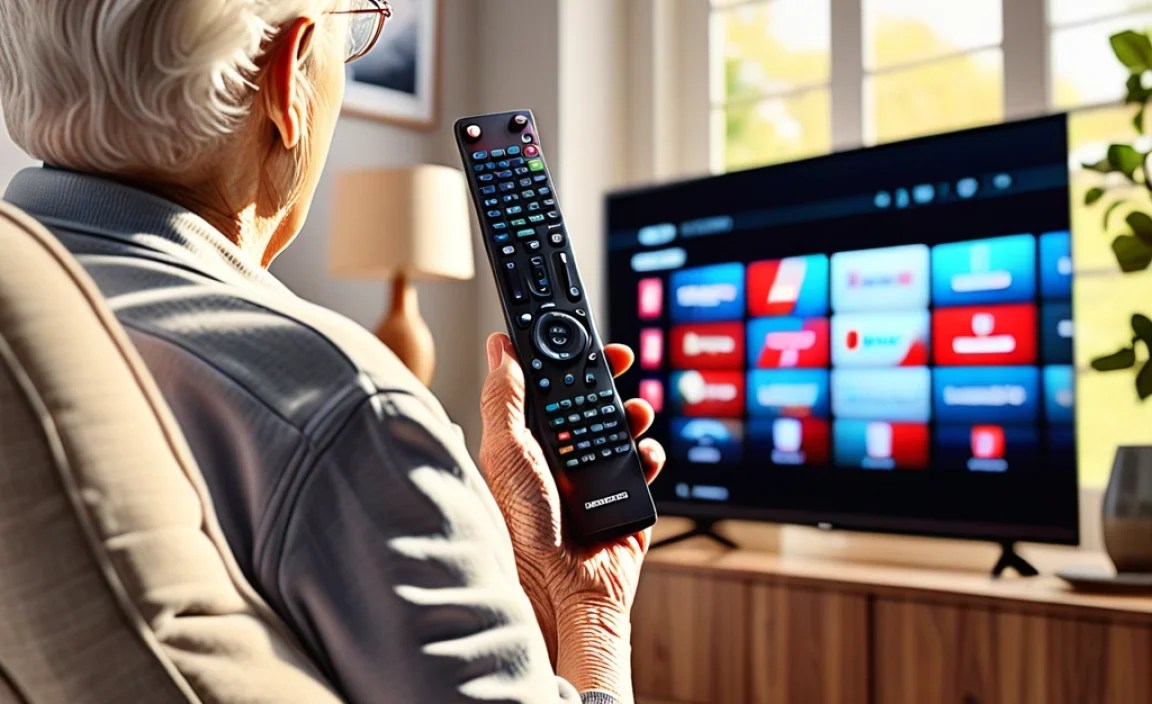
Once you’ve chosen the right TV, setting it up correctly ensures it stays effortlessly usable.
Step 1: Choose the Right Location
Place the TV at eye level when seated.
Minimize glare from windows and lights. Position the TV so reflections are not directly on the screen.
Step 2: Connect the Essentials
Antenna/Cable Box: Connect your over-the-air antenna or cable box to the TV’s HDMI port. Use the TV’s input button (or voice command) to select the correct source.
Soundbar (if applicable): Connect your soundbar via HDMI ARC or optical cable for the best audio.
Step 3: Initial TV Setup – Keep it Simple!
Follow On-Screen Prompts: Most TVs guide you through basic setup.
Network Connection: Connect to your Wi-Fi network. This is crucial for smart TV features and updates.
Skip Unnecessary Apps: During setup, you’ll often see options to install apps. Only select those that will be used. This keeps the interface cleaner and less confusing.
Voice Assistant Setup: If it’s a smart TV with a voice assistant (Alexa, Bixby, Google Assistant), set it up. This is often the easiest way to control the TV.
Step 4: Configure Remote and Accessibility Settings
Pair the Remote: Ensure the remote is paired correctly with the TV (usually automatic, but check instructions).
Explore Remote Options: If using a simplified remote option, select it in the TV’s settings.
Enable Key Accessibility Features:
Turn on Screen Reader/Voice Narration if needed.
Adjust contrast settings for menus.
Configure Closed Captions (CC) to be easily accessible.
Step 5: Familiarize with Basic Functions
Power On/Off: The most basic function.
Volume Control: Up, down, and mute.
Channel Surfing: Up, down, or direct channel entry if using a cable box.
Input Selection: How to switch between cable, streaming apps, etc.
* Voice Commands:</s