
Quick Summary:
Find the best 65-inch TV under $1000 with this essential setup guide. We’ll help you choose the right model for your needs and budget, ensuring a fantastic home theater experience without breaking the bank. Get ready for stunning visuals and easy setup!
Finding a great 65-inch TV that doesn’t cost a fortune can feel like searching for a needle in a haystack. You want that big-screen magic, that immersive viewing experience, but your wallet is telling you to be sensible. It’s a common puzzle for many of us looking to upgrade our home entertainment. Don’t worry, it’s totally achievable! This guide is here to make the process super simple. We’ll walk you through everything you need to know to pick the perfect TV and get it set up like a pro, all while staying under your $1000 budget. Get ready to enjoy stunning picture quality without the premium price tag!
Navigating Your Buying Journey
So, you’ve set your sights on a 65-inch TV for under $1000. That’s a fantastic goal! In today’s market, this price point offers some truly impressive options that can deliver a brilliant viewing experience. It’s not about settling for less; it’s about smart shopping and understanding what really matters. Let’s break down how to find a TV that packs a punch in terms of picture quality, smart features, and overall value.
Understanding TV Technology Basics
Before we dive into specific models, let’s quickly touch on some key TV tech terms. Knowing these will help you make sense of feature lists and compare options more effectively.
Resolution: This refers to the number of pixels on your screen. Higher resolution means a sharper, more detailed picture. For 65-inch TVs today, 4K (or Ultra HD) is the standard, offering four times the pixels of Full HD.
HDR (High Dynamic Range): HDR makes your picture pop with better contrast, brighter highlights, and deeper blacks. It brings out more detail in both light and dark areas of the image, making colors more vibrant and lifelike. Common HDR formats include HDR10, HDR10+, and Dolby Vision.
Refresh Rate: This is how many times the picture updates per second, measured in Hertz (Hz). A higher refresh rate (e.g., 120Hz) results in smoother motion, which is especially noticeable in fast-paced sports or action movies and is a big plus for gaming. You’ll often see 60Hz and 120Hz options.
Panel Type (LED, QLED, OLED):
LED TVs are the most common. They use LEDs to backlight the LCD panel.
QLED TVs are a type of LED TV that uses quantum dots to enhance color and brightness. They generally offer better color volume and brightness than standard LEDs.
OLED TVs are at the top tier, where each pixel lights itself. This allows for perfect blacks and incredible contrast, but they are typically more expensive and might be harder to find under $1000 for a 65-inch size, though sales can make it possible.
Smart TV Platform: This is the operating system that allows you to access streaming apps like Netflix, Hulu, Disney+, etc. Popular platforms include Google TV, Roku TV, Amazon Fire TV, and Samsung’s Tizen. Each has its own interface and app selection.
Factors to Consider When Buying
When you’re hunting for the best 65-inch TV under $1000, keep these crucial aspects in mind:
Picture Quality: This is paramount. Look for TVs with good color accuracy, contrast, and brightness. HDR support is a must for a more dynamic image.
Smart Features: Do you need a specific app, or do you prefer a certain operating system? Ease of use and a wide range of available apps are important for streaming.
Connectivity (HDMI Ports): How many devices do you need to connect? Most people will need at least 3-4 HDMI ports for a soundbar, game console, and streaming devices. Look for HDMI 2.1 ports if you’re a serious gamer, as they support higher frame rates and features like ALLM (Auto Low Latency Mode).
Sound Quality: Built-in TV speakers are often mediocre. While you can always add a soundbar or surround system later, consider if the TV’s audio is acceptable for casual viewing.
Brand Reputation & Reviews: Stick with reputable brands known for quality and customer support. Always check professional reviews and user feedback.
Top Picks for the Best 65-Inch TV Under $1000 (2024)

While specific models and prices fluctuate, here are some brands and series that frequently offer excellent 65-inch TVs under the $1000 mark. These are typically well-regarded for their balance of features and performance.
TCL QLED Series (e.g., 5-Series or 6-Series): TCL has earned a reputation for offering incredible value. Their QLED TVs provide vibrant colors and good HDR performance at competitive prices. The 6-Series, in particular, is often praised for punchy contrast and gaming features. These are frequently found on sale within your budget.
Hisense ULED Series (Various Models): Hisense is another strong contender in the budget-friendly, high-performance TV space. Their ULED technology offers similar benefits to QLED, with bright displays and good smart features. Models like the U6 or U7 series can often be found under $1000 and provide excellent picture quality for the price.
LG NanoCell or UHD Series: LG offers a range of LED TVs and their NanoCell technology, which enhances color purity. While their OLEDs are usually out of this price range, their higher-end LED models can deliver great visuals and solid smart capabilities (webOS). Keep an eye out for sales on their 65-inch UHD or NanoCell models.
Samsung Crystal UHD Series: Samsung’s more budget-friendly Crystal UHD models provide bright screens and decent color. Their Tizen smart TV platform is robust and easy to navigate. You can often find 65-inch models from their CU7000 or CU8000 lines within your budget, especially during sales events.
Sony BRAVIA (Entry-Level LED Models): While Sony’s premium models can be pricey, their more entry-level BRAVIA LED TVs sometimes drop below $1000. They are known for excellent image processing and natural color reproduction. You might need to catch a good sale to snag a 65-inch model here.
Example Table: Feature Comparison (Hypothetical Models)
This table illustrates the kinds of differences you might see. Remember to check the latest specs for current models!
| Feature | TCL 6-Series QLED (Example) | Hisense U7 ULED (Example) | Samsung Crystal UHD (Example) |
|---|---|---|---|
| Display Technology | QLED | ULED (Full Array Local Dimming) | LED |
| Resolution | 4K UHD | 4K UHD | 4K UHD |
| HDR Support | HDR10, Dolby Vision, HLG | HDR10+, Dolby Vision, HLG | HDR10+, HLG |
| Refresh Rate | 120Hz | 120Hz (with motion enhancement) | 60Hz |
| Smart TV Platform | Google TV | Google TV | Tizen |
| HDMI Ports | 4 (incl. 2x HDMI 2.1) | 4 (incl. 2x HDMI 2.1) | 3 (HDMI 2.1 features may vary) |
| Typical Sale Price | $700 – $950 | $650 – $850 | $600 – $750 |
Setting Up Your New 65-Inch TV: Step-by-Step
Once you’ve chosen your perfect TV, it’s time for the fun part: setting it up! This is easier than you might think.
1. Unboxing and Placement
Prepare the Area: Clear enough space where you plan to place the TV. If it’s going on a stand, ensure the stand is sturdy and level. If wall-mounting, make sure you have the right mount and know where your wall studs are. For safety, it’s always best to have a second person helping with larger TVs.
Unbox Carefully: Open the box on a soft surface (like the cardboard it came in, or a blanket) to avoid scratching the screen. Gently slide the TV out.
Attach the Stand or Mount:
For Stands: Lay the TV screen-down on a padded surface. Screw the stand legs into the designated spots on the back of the TV. Make sure they are screwed in securely.
For Wall Mounts: Follow the instructions provided with your wall mount. This usually involves attaching brackets to the back of the TV and then securing the mount to the wall, ideally into sturdy wall studs. Here’s a helpful guide on finding wall studs from This Old House.
Position the TV: Place the TV on its stand or hang it on the wall. Ensure it’s stable and at a comfortable viewing height and angle. For a 65-inch TV, the best viewing distance is typically between 5.5 and 11 feet away, depending on your preference for immersion.
2. Connecting Your Devices
This is where you bring your TV to life and connect all your favorite gadgets.
Power Cord: Plug the power cord into the TV and then into a surge protector or wall outlet. Using a surge protector is highly recommended to protect your new electronics from power fluctuations.
HDMI Cables:
Connect your primary devices first, like a cable box, gaming console (e.g., PlayStation 5, Xbox Series X), or Blu-ray player, to the HDMI ports on the back or side of the TV.
If you have a soundbar or AV receiver, connect that to your TV via HDMI ARC (Audio Return Channel) or eARC (enhanced Audio Return Channel) for the best audio experience. This allows audio to travel from the TV back to the soundbar.
For gaming consoles that support high frame rates (120Hz), make sure to use an HDMI 2.1 cable and plug it into a designated HDMI 2.1 port on your TV.
Antenna/Cable: If you’re using an antenna for over-the-air channels or a coaxial cable, connect it to the corresponding port on the TV.
Ethernet Cable (Optional but Recommended): While most smart TVs have Wi-Fi, a wired Ethernet connection offers a more stable and faster internet connection for streaming and updates. Plug one end into your TV and the other into your router.
3. Initial TV Setup and Configuration
When you turn on your TV for the first time, it will guide you through an on-screen setup process.
Language and Region: Select your preferred language and country.
Network Connection: Connect to your Wi-Fi network by selecting your network name (SSID) and entering your password. If you’re using an Ethernet cable, it might connect automatically or prompt you to confirm.
Account Login: You’ll likely be asked to sign in or create an account for the TV’s smart platform (e.g., Google Account for Google TV, Amazon Account for Fire TV, Roku Account for Roku TV). This is essential for downloading apps and using smart features.
Channel Scan: If you connected an antenna or cable, run a channel scan to find available broadcast channels.
Software Updates: The TV will likely check for and install any available software updates. This is crucial for security, performance, and new features. Let it complete fully.
Picture Settings: Most TVs come with preset picture modes like “Standard,” “Vivid,” or “Cinema.” For the most accurate picture, especially for movies, “Cinema,” “Movie,” or “Filmmaker Mode” are usually the best starting points. You can fine-tune these later.
Sound Settings: Select your desired audio mode. Many TVs have options like “Standard,” “Movie,” “Music,” or “Clear Voice.”
4. Optimizing Your Picture Settings
Getting the picture just right can make a huge difference.
Start with a Preset: As mentioned, choose “Movie,” “Cinema,” or “Filmmaker Mode” as your base. These modes are designed to be more color-accurate out of the box than the overly bright “Vivid” modes.
Turn Off Motion Smoothing (or adjust lower): Many TVs have a feature that artificially increases frame rates to make motion appear smoother. While good for sports, it can create an unnatural “soap opera effect” (SOE) in movies and TV shows. Look for settings like “Motionflow,” “TruMotion,” “Auto Motion Plus,” or “Clear Action” and set it to off or a low custom setting if you notice this effect.
Adjust Brightness, Contrast, and Backlight:
Backlight/OLED Light: Controls the overall brightness of the screen. Adjust this based on your room’s lighting. Lower for darker rooms, higher for brighter rooms.
Contrast: Controls the brightest whites and darkest blacks.
Brightness: Adjusts the black levels. You don’t want your blacks to look gray, but you also don’t want to lose detail in dark scenes.
Color Temperature: “Warm” settings often produce more natural colors than “Cool” or “Standard.”
Sharpness: Most people prefer to have this set low, as aggressive sharpening can create unnatural-looking edges.
HDR Settings: If your TV supports HDR and you’re watching HDR content, ensure HDR is enabled in the TV’s settings. Some TVs automatically detect it, while others have a toggle.
For more in-depth picture calibration, you can use calibration discs or online resources. A fantastic resource for understanding picture settings is RTINGS.com’s comprehensive guide to TV picture settings.
5. Connecting Your Audio System (Optional but Recommended)
While not strictly part of TV setup, a good sound system elevates your home theater experience significantly.
Soundbar: For most users, a soundbar is a great way to improve TV audio without much hassle. Connect it via HDMI ARC/eARC (preferred) or optical audio cable.
AV Receiver and Speakers: If you’re going for a full surround sound experience, connect your devices to the AV receiver first, and then connect the receiver to the TV (usually via HDMI).
Bluetooth Speakers: Some TVs allow Bluetooth Audio output. This is convenient for wireless headphones or speakers, but usually has a slight audio delay that might not be ideal for all content.
Choosing and Setting Up Smart TV Apps
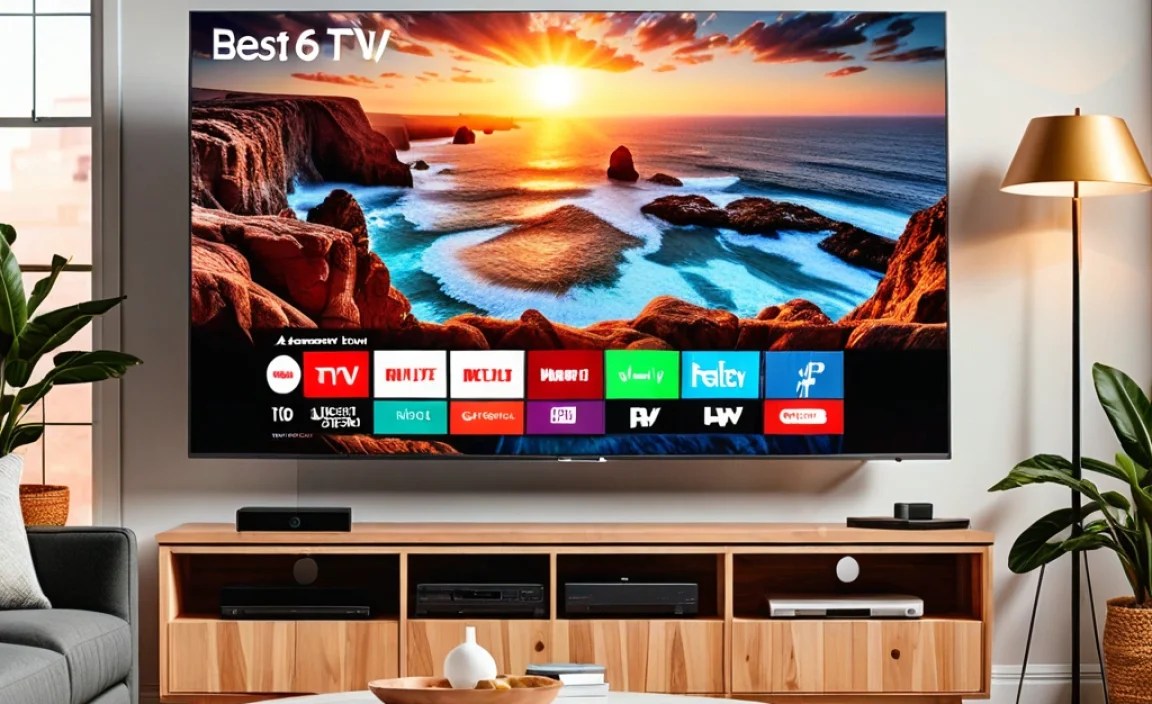
Your smart TV is a gateway to endless entertainment.
Popular Streaming Apps to Consider:
Netflix: For a vast library of movies, TV shows, and originals.
Hulu: Great for current TV shows, originals, and live TV options.
Disney+: Essential for Disney fans, Star Wars, Marvel, and Pixar content.
Amazon Prime Video: Bundled with Amazon Prime, offering originals and a large rental/purchase library.
YouTube: For endless user-generated content, music videos, and documentaries.
HBO Max (now Max): Home to Warner Bros. films, HBO series, and more.
Apple TV+ : For Apple’s growing slate of critically acclaimed original series and movies.
Peacock: NBCUniversal’s streaming service, featuring NBC shows, movies, and live sports.
Installing and Organizing Apps:
App Store: Navigate to your TV’s app store (this will vary depending on your smart TV platform – Google Play Store on Google TV, Roku Channel Store on Roku TV, etc.).