
Your 55-inch 4K TV remote control is the key to unlocking its amazing features. This guide breaks down its most common buttons and functions, making it easy to navigate your new television like a pro, even if you’re new to smart TVs. Get ready to explore your 4K experience with confidence!
When you bring home a shiny new 55-inch 4K TV, it’s an exciting moment! You’re picturing crystal-clear images and immersive sound. But then, you look at the remote. It might have more buttons than you expected, or perhaps fewer, with some functions hidden away. It can feel a little daunting at first, right? Don’t worry! Understanding your TV remote is simpler than you think. Think of it as your TV’s command center. Once you know what each button does, you’ll be zipping through menus, finding your favorite shows, and adjusting settings with ease. We’re going to walk through the most common remote control features for 55-inch 4K TVs, so you can feel confident and get the most out of your brilliant new screen.
Understanding Your 55 Inch 4K TV Remote: A Button-by-Button Breakdown

Most 55-inch 4K TV remotes, regardless of brand like Samsung, LG, Sony, or TCL, share a core set of buttons. While the design and labels might vary slightly, their functions are usually consistent. Let’s demystify them so you can take control.
The Essential Navigation Buttons
These are the buttons you’ll use constantly. They are your primary tools for moving around your TV’s interface.
- Power Button: This is usually a red or distinctively shaped button. It turns your TV on and off. Simple, but essential!
- Directional Pad (D-Pad) / Arrow Buttons: These are the four buttons arranged in a circular or cross shape (Up, Down, Left, Right). They allow you to move the cursor or selection highlight through menus and options.
- OK / Enter / Select Button: Located in the center of the D-Pad or nearby. Press this to confirm a selection, open an app, or choose an option you’ve highlighted.
- Back / Return Button: This button takes you to the previous screen or menu. It’s incredibly useful for correcting mistakes or exiting a menu without starting over.
- Home / Smart Hub / Home Screen Button: This button instantly takes you to your TV’s main menu or smart platform. From here, you can access apps, settings, and input sources.
Volume and Channel Controls
These are classic TV functions that are still vital for your 4K experience.
- Volume Up (+) and Volume Down (-): These buttons adjust the sound level of your TV.
- Mute Button: This silences the TV’s audio instantly. Press it again to restore the sound.
- Channel Up (+) and Channel Down (-): If your TV has a built-in tuner, these buttons cycle through available channels. Even on smart TVs, they can sometimes control channels within streaming apps.
- Number Pad (0-9): Used to directly input channel numbers or, in some smart TV interfaces, to enter PINs or search terms.
Smart TV Specific Buttons
Modern 55-inch 4K TVs are smart TVs, meaning they connect to the internet and run apps. Your remote will reflect this.
- App Buttons: Many remotes have dedicated buttons for popular streaming services like Netflix, Amazon Prime Video, Disney+, Hulu, or YouTube. Pressing one of these launches the corresponding app directly.
- Voice Control Button: Look for a microphone icon. Press and hold this button, then speak your command or search query into the remote. This is a game-changer for navigating content and settings quickly. Some remotes have built-in microphones, while others might require pairing with a separate device.
- Settings / Menu Button: This button usually opens the main settings menu for your TV, where you can adjust picture quality, sound, network settings, and more.
- Input / Source Button: Use this to switch between different devices connected to your TV, such as a gaming console, Blu-ray player, or soundbar.
Playback and Special Function Buttons
These are common on remotes for accessing media content.
- Play/Pause: Starts or stops video playback.
- Stop: Stops playback completely and often returns you to the beginning or a menu.
- Fast Forward / Rewind: Skips ahead or back within a video.
- Record / Live TV: If your TV supports it, this can start recording a program or access live TV.
- Info / Display Button: Shows information about the current program or scene, like the channel number, title, or resolution.
Advanced Remote Features & Settings
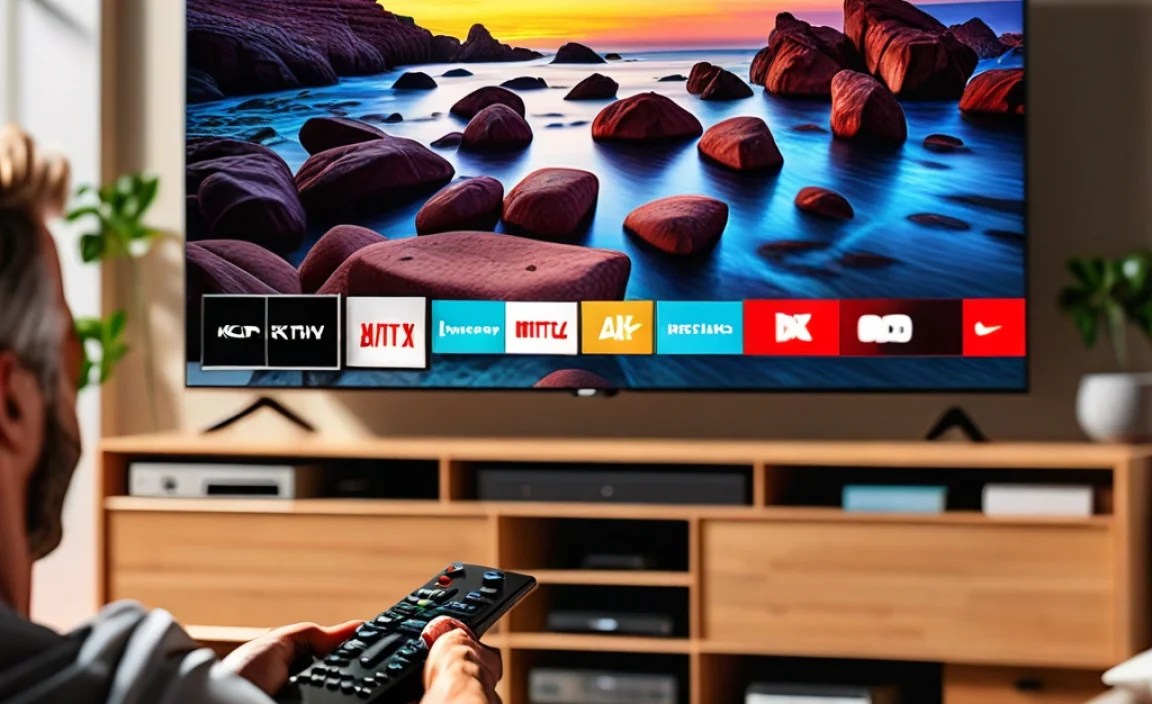
Beyond the basic buttons, many 55-inch 4K TV remotes offer features that can make your experience even smoother.
Voice Control: Your Hands-Free Assistant
Voice control has become a staple for a reason. It’s incredibly powerful.
- How it Works: Most modern 55-inch 4K TVs integrate with voice assistants like Google Assistant, Amazon Alexa, or their own proprietary systems (like LG’s ThinQ or Samsung’s Bixby). You’ll typically press a dedicated button or activate the voice command by saying a wake word (e.g., “Hey Google”).
- What You Can Do: Ask for specific movies or shows (“Play The Mandalorian on Disney+”), search for content by genre or actor (“Show me comedies starring Tom Hanks”), change channels (“Go to NFL Network”), adjust settings (“Turn up the brightness”), or even get weather forecasts.
- Tips for Best Results: Speak clearly and directly into the remote’s microphone. Be specific with your requests. For example, instead of “Play Star Wars,” try “Play Star Wars: A New Hope on Disney+.”
Universal Remote Capabilities
Many premium 55-inch 4K TV remotes can also control other devices.
- What it is: Brands like Sony and Samsung often include the ability to program their remotes to control your soundbar, Blu-ray player, or even your cable box. This means you might be able to ditch multiple remotes and use just one.
- How to Set It Up: This process usually involves going into your TV’s settings menu and looking for a “Universal Remote” or “Device Control” option. You’ll typically select the type of device (e.g., Soundbar), its brand, and then follow on-screen instructions, which might involve testing different IR codes. Reputable sources like TechRadar offer detailed guides for this process.
- Benefits: Reduces clutter, simplifies operation, and ensures all your home theater components work together seamlessly.
Remote Apps for Smartphones and Tablets
Don’t have your physical remote? No problem!
- What they are: Most major TV brands offer free smartphone apps that mimic the functionality of your physical remote control. They connect to your TV over your home Wi-Fi network.
- Where to Find Them: Search your device’s app store (Apple App Store or Google Play Store) for your TV brand’s official remote app (e.g., “Samsung SmartThings,” “LG ThinQ,” “Google Home” for Android TVs).
- Features: These apps often include all the standard buttons, plus features like trackpad navigation, keyboard input (making searches much faster!), and sometimes even screen mirroring or casting controls. This is also a great backup if your physical remote is lost or malfunctioning.
Smart Gestures and Touchpads
Some high-end remotes, especially those from LG or Samsung, feature advanced interfaces.
- Magic Remote / Air Mouse: LG’s Magic Remote acts like a computer mouse. You point it at the screen, and a cursor moves. You can then “click” to select items. This is intuitive for navigating web browsers or complex menus.
- Touchpads: Some remotes have a small touchpad that you swipe or tap to navigate.
- Gesture Control: While less common on the remote itself, some TVs understand simple hand gestures for basic commands.
Troubleshooting Common Remote Control Issues
Even the best remotes can sometimes act up. Here are some common problems and how to fix them.
Remote Not Working at All
This is the most frustrating issue!
- Check Batteries: This sounds basic, but it’s the most frequent culprit. Ensure the batteries are inserted correctly and are fresh.
- Remove Obstructions: Make sure there’s a clear line of sight between the remote and the TV’s sensor. Remove any objects blocking the path.
- Check the Sensor: The IR sensor on the TV is usually a small, dark window on the front bezel. Ensure it’s clean and not damaged.
- Reset the Remote: Remove the batteries, press and hold any button for 10-20 seconds to discharge any residual power, then reinsert the batteries.
- Re-pair the Remote (if applicable): For Bluetooth or RF remotes, they might lose their pairing. Check your TV’s manual for instructions on how to re-pair it. This often involves holding down specific buttons on the remote until an indicator light flashes.
Buttons Not Responding Correctly
A specific button might be sticky or unreliable.
- Clean the Remote: Dust or grime can get under buttons. Gently clean around the edges with a soft, dry cloth or a cotton swab lightly dampened with rubbing alcohol (ensure it’s completely dry before use).
- Check for Damage: If the remote has been dropped, internal components might be loose.
- Software Glitch: Sometimes, the TV’s software can interfere. Try restarting the TV by unplugging it from the power outlet for a minute, then plugging it back in.
Voice Control Not Working
This can be due to several factors.
- Internet Connection: Voice control often relies on an internet connection. Ensure your TV is connected to Wi-Fi.
- Microphone Permissions: Check your TV’s settings to ensure microphone permissions are enabled for the voice assistant.
- Accents or Background Noise: Loud environments or strong accents can sometimes hinder recognition. Try in a quieter setting.
- Software Updates: Ensure both your TV’s firmware and the remote control (if it has one) are up to date.
- Voice Assistant Setup: If using a specific assistant like Alexa or Google Assistant, ensure it’s properly configured within your TV’s settings. For more detailed troubleshooting on Google Assistant, the Google Assistant Help center is a great resource.
Remote Lag or Delayed Response
Commands take too long to register.
- Proximity: For Bluetooth or RF remotes, ensure you’re within the optimal range.
- Interference: Other wireless devices can sometimes cause interference.
- TV Performance: If your TV’s processor is struggling, it might delay remote response. Restarting the TV can help clear temporary glitches.
Comparing Popular 55 Inch 4K TV Remote Controls (General Trends)

While specific models change, we can look at general trends and features you’ll find across major brands when you’re reading 55 inch 4K TV reviews.
| Feature | Samsung (e.g., Neo QLED/QLED) | LG (e.g., OLED/NanoCell) | Sony (e.g., Bravia OLED/LED) | TCL/Roku TV |
| Design | Often minimalist, fewer buttons, sleek finish | Sleek, sometimes with scroll wheel/pointer | Classic layout with some smart shortcuts | Simple, with dedicated Roku/app buttons |
| Voice Control | Bixby, Voice Assistant (Google/Alexa) | ThinQ AI (Google Assistant/Alexa built-in) | Google Assistant built-in, Alexa support | Google Assistant or Alexa (model dependent) |
| Smart Features | Smart Hub, app shortcuts | WebOS, app shortcuts, Magic Remote pointer | Google TV personalized home screen | Roku OS, channel shortcuts |
| Connectivity | Bluetooth, IR | Bluetooth, IR | Bluetooth, IR | IR, often Wi-Fi for app control |
| Universal Remote | Common, easy setup | Common, easy setup | Common, requires setup | Less common, primarily controls TV |
| App Control | SmartThings app | ThinQ app | Google Home app, Android TV Remote app | Roku app |
| Unique Features | SolarCell charging (some models) | Magic Remote (air mouse function) | Customizable buttons (on some models) | Simple, intuitive Roku interface |
Note: Features can vary significantly by specific model year and series within each brand.
Tips for Maximizing Your 55 Inch 4K TV Viewing Experience
Your remote is just one part of enjoying your fantastic new TV. Here are some additional tips:
- Picture Settings: Don’t settle for the default settings. Use your remote’s Settings menu to explore picture modes (like Movie, Standard, Vivid) and adjust brightness, contrast, color, and sharpness to your liking. For a great starting point, consider consulting guides on calibration from reputable sources like Rtings.com, which provides detailed calibration advice for various TV models.
- Sound Settings: While your 4K TV has built-in speakers, consider enhancing your audio with a soundbar or home theater system. Use your remote to adjust equalizer settings or select different sound modes.
- HDMI-CEC: This is a handy feature often controlled via your TV’s settings menu. When enabled, it allows devices connected via HDMI to communicate with each other. For example, you might be able to turn on your Blu-ray player, and your TV will automatically switch to the correct input, or your TV remote might gain control of basic playback functions for that player. Check your TV’s manual for how to enable HDMI-CEC, often found under names like Anynet+ (Samsung), Simplink (LG), BRAVIA Sync (Sony), or CEC (standard).
- Firmware Updates: Keep your TV’s software updated. Manufacturers frequently release updates that improve performance, add new features, and fix bugs, sometimes even enhancing remote functionality. You can usually find this option in the Settings > Support or System menu.
- Ergonomics: Hold the remote comfortably. If it feels awkward, consider using the smartphone app for simpler tasks or investing in a universal remote that better suits your hand.
Frequently Asked Questions About 55 Inch 4K TV Remotes
Q1: My remote stopped working suddenly. What should I do first?
Start by checking the batteries. Replace them with fresh ones, ensuring they are inserted correctly. Then, make sure there’s a clear line of sight between the remote and the TV’s sensor, and try restarting your TV by unplugging it for a minute.
Q2: How do I pair my Bluetooth remote control to my 4K TV?
Pairing methods vary by brand. Generally, you’ll need to go into your TV’s settings menu, find the device connection or Bluetooth settings, and then initiate a search for new devices. Simultaneously, press and hold a specific button combination on your remote (often indicated in your TV’s manual or on the remote itself) until an indicator light flashes, signaling it’s in pairing mode.
Q3: Can I use my smartphone as a remote for my 55-inch 4K TV?
Yes! Most major smart TV brands offer free companion apps for iOS and Android devices. Search your device’s app store for your TV brand’s official app (e.g., Samsung SmartThings, LG ThinQ, Google Home) to download and connect.
Q4: What is the ‘Input’ or ‘Source’ button for on my remote?
This button allows you to switch between different devices connected to your TV. For example, if you have a game console, a streaming stick, and a Blu-ray player, you’ll use the Input/Source button to select which of those devices you want to view on your 55-inch 4K screen.
Q5: My voice remote isn’t understanding me. How can I improve its accuracy?
Ensure you’re in a quiet environment, speak clearly and at a moderate pace, and position the remote’s microphone directly towards you. Check your TV’s settings to make sure voice commands are enabled and the microphone isn’t muted. Sometimes, software updates can also improve voice recognition.